Apple Watch Problems and Fixes: Pairing, Sync, Battery

By Suraj Giri, Founder & Publisher. Reviewed by Suraj Giri on .
Published · 9 min read
How this page was made
- Sources. Checked against 18 official pages from Apple, most recently on . See the sources.
- No device testing. We don't test fixes on physical devices, so nothing on this page is a hands-on result. A fact counts as verified only when it matches an official source page.
- AI use. As with every page on Gadget247News, AI tools helped research, outline, draft and edit this page, and re-read the official pages to flag facts that didn't match. The illustration at the top was generated with Runway and is labelled under the image.
- Human sign-off. Suraj Giri, Founder & Publisher, read this page and signed it off on . The site won't publish a page without that sign-off.
- Changes. The published and updated dates move only when the content changes, and every change gets a dated note. Spot an error or a fix that didn't work? Email info@gadget247news.com.
Read our AI use policy, editorial policy and corrections policy.
Most Apple Watch problems come down to the connection with your iPhone, the charger, or a watch that needs a restart. Find your symptom below and start with the first fix: every row links to full steps checked against Apple Support. A red iPhone icon on the watch points to Apple Watch Not Connecting to Your Phone. If the trouble started right after a watchOS update, check the known-issues list first.
An Apple Watch pairs with an iPhone. Apple's setup guide says "To use your Apple Watch, you need to pair it with your iPhone." For watchOS 27, Apple's update page lists iPhone 11 or later, or iPhone SE (2nd generation) or later, with iOS 27. For Garmin, Fitbit, Pixel Watch, Galaxy Watch and other brands, start from smartwatch fixes instead.
Find Your Apple Watch Problem
The table lists 16 Apple Watch symptoms, from connection and charging to passcodes and setup, each with its most likely cause, the first fix from Apple's support pages and the page with the full steps.
| Symptom | Most likely cause | First fix | Full steps |
|---|---|---|---|
| Won't connect to iPhone | Out of range, Airplane Mode on, or Wi-Fi and Bluetooth off | Keep your Apple Watch and iPhone close, turn Airplane Mode off and Wi-Fi and Bluetooth on, then restart both. | Apple Watch Not Connecting to Your Phone |
| Moving to a new iPhone | Watch still paired with the old iPhone | Back up your old iPhone, set up the new one, then open the Apple Watch app with the watch unlocked on your wrist. | How to Pair an Apple Watch With a New iPhone |
| Pairing for the first time | Watch not paired with any iPhone yet | Turn on the watch, bring it near your unlocked iPhone and tap Continue when the pairing message appears. | How to Pair an Apple Watch With Your iPhone |
| Want to unpair or hand it on | Selling, giving away or pairing again | In the Apple Watch app, go to My Watch → All Watches, tap the info button, then Unpair Apple Watch. | How to Unpair an Apple Watch From Your iPhone |
| Not charging | Charger not aligned, the wrong cable, or a dirty watch back | Use the Apple magnetic charging cable, remove any plastic wrap, clean the watch back and charger, then charge for up to 30 minutes. | Apple Watch Not Charging |
| Red lightning bolt | Battery too low to turn on | Leave it on its Apple magnetic charger for up to 30 minutes; the red bolt means the battery is too low to turn on. | Apple Watch Stuck on the Red Lightning Bolt |
| Won't turn on | Drained battery | Charge your Apple Watch for up to 30 minutes, then hold the side button and Digital Crown for at least 10 seconds. | Apple Watch Won't Turn On |
| Won't turn off or frozen | Still on the charger, or a frozen screen | Take it off the charger, then hold the side button, tap the power icon and drag Power Off; if frozen, force restart. | Apple Watch Won't Turn Off |
| Battery draining fast | Always On and other settings, or a recent update | Turn off Always On, turn on Low Power Mode from Control Center, and keep your Apple Watch near your iPhone. | Apple Watch Battery Draining Fast |
| Not syncing | Watch disconnected from the iPhone | Check for a green iPhone icon in Control Center, keep your watch near your iPhone, and turn on Fitness Tracking in the Health app. | Apple Watch Not Syncing |
| No notifications | iPhone unlocked, or the watch locked or disconnected | Lock your iPhone and make sure your Apple Watch is connected and unlocked; then check Focus and the app's notification settings. | Apple Watch Not Getting Notifications |
| Won't update | Low charge, no Wi-Fi, or the iPhone too far away | Put your Apple Watch on its charger with at least 50% battery, keep your iPhone nearby on Wi-Fi, then try again. | Apple Watch Won't Update |
| Forgot passcode | Watch disabled after a forgotten passcode or too many wrong tries | Put the watch on its charger, hold the side button, then press and hold the Digital Crown and tap Reset. | How to Reset an Apple Watch Without the Passcode |
| Asks for someone else's Apple Account | Activation Lock from the previous owner | Ask the Apple Account owner to unpair the watch or remove it at icloud.com/find; if they can't, start an Activation Lock support request with proof of purchase. | How to Remove Activation Lock From an Apple Watch |
| Need a restart or factory reset | A fault the fixes above didn't clear | Restart first; erase only as the last step. | How to Restart or Factory Reset an Apple Watch |
| Setting it up | New watch, or one bought from someone else | Pair it with your iPhone first, then follow the setup screens to sign in to your Apple Account and create a passcode. | How to Set Up an Apple Watch Step by Step |
Each first fix is the opening step of its linked page.

Apple Watch Won't Connect or Pair
To reconnect an Apple Watch, work through Apple's four steps before you pair it again. Press the side button to open Control Center on the watch: a red iPhone icon or a red X icon means the devices are disconnected, and a green iPhone icon means they're linked again. Bring the watch and iPhone close together. On the iPhone, open Control Center and check that Airplane Mode is off and Wi-Fi and Bluetooth are on; on the watch, check that Airplane Mode is off too. Then restart both devices. Apple puts unpairing and pairing again last, for a watch that still can't connect. Moving to a new iPhone and unpairing before a sale are separate tasks with their own rows above.
Apple Watch Not Charging or Draining Fast
A red lightning bolt means the battery is too low to turn the watch on, and a flat Apple Watch can need up to 30 minutes on its charging cable before it starts. Once the cable is connected, the bolt changes to a red lightning bolt inside a ring. If no lightning bolt appears once the watch is on its cable, reposition the watch, clean its back and the charger, remove any plastic wrap, then try another Apple cable and power adapter. If it still won't charge, force restart it. For a battery that drains fast, Low Power Mode in Control Center turns off the Always On display, and after a watchOS update Apple says to wait a few days, because update tasks keep running in the background. Daily charging habits are in How to Charge an Apple Watch.
How to Restart or Reset an Apple Watch
A restart turns your Apple Watch off and then on again; a reset erases the watch and restores its factory settings. Restart first. A frozen watch may need a force restart instead: hold the side button and the Digital Crown together for at least 10 seconds, until the Apple logo appears. To reset, go to Settings → General → Reset → Erase All Content and Settings on the watch, or unpair it in the Apple Watch app on your iPhone. Only unpairing also removes Activation Lock; an erase on the watch leaves it on. A forgotten passcode and a watch tied to someone else's Apple Account have their own rows in the table. Every button step is in How to Turn Off and Restart an Apple Watch.
Apple Watch Won't Turn On or Off
Apple gives two reasons an Apple Watch won't turn on: it may need to be charged, or it may need a force restart. Charge it first, and if that doesn't work, force restart it. When a watch won't turn off, check the charger first. Apple's user guide notes: "You can't restart your Apple Watch while it's charging." Its turn-off steps start with disconnecting the charger. If you still can't turn the watch off, Apple's next step is a force restart. Apple Watch Won't Turn On and Apple Watch Won't Turn Off, both in the table, hold the full order.
Apple Watch Not Syncing or Getting Notifications
Syncing and notifications both travel between the watch and your iPhone, so start with the connection. Apple says that if you don't get notifications, messages or calls on your Apple Watch, the watch and iPhone might not be connected; the green iPhone icon in Control Center shows they are. Notifications also follow the iPhone's lock state: an iPhone that isn't locked keeps them, and a locked or asleep iPhone passes them to the watch, unless the watch itself is locked. Updates matter too: some iOS updates require a watchOS update so that your data, including Activity data, keeps syncing to the iPhone.
Which Apple Watch Do I Have?
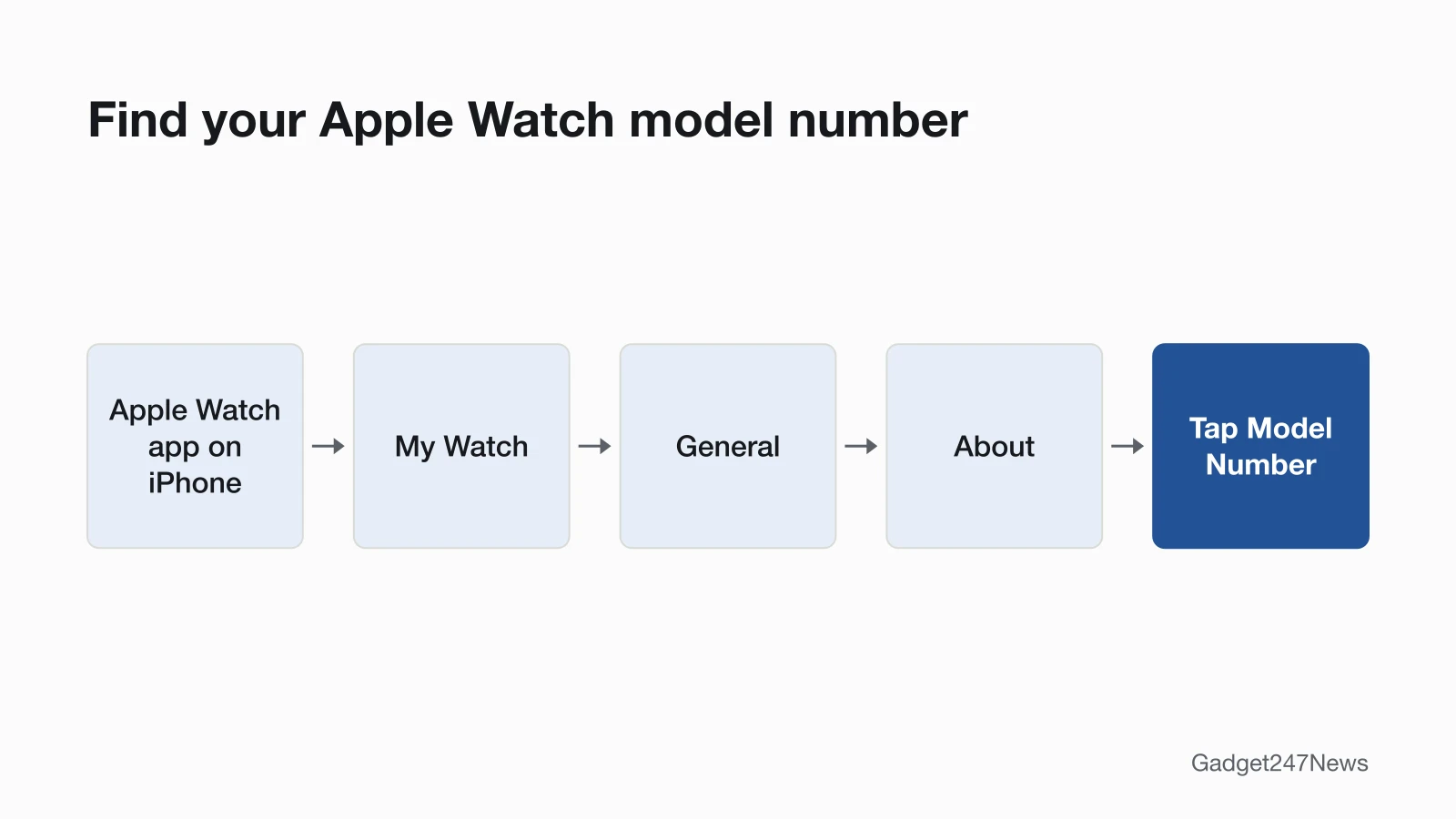
Your Apple Watch model number is in the Apple Watch app on your iPhone:
- Open the Apple Watch app, tap My Watch, then tap General → About.
- Tap the Model Number field: the part number that begins with "M" changes to the model number that begins with "A".
- Find that "A" number in the table below.
Apple also engraves the case size on the back of the watch. To find which Apple Watch series you have from an older model number, or one sold outside North America, use the full list.
Apple Watch Model Identifier Table
The table matches the North American model numbers of 14 Apple Watch models, newest first, to their case sizes and to Apple's watchOS 27 compatibility list.
| Model | Case sizes | Model numbers, North America (GPS / GPS + Cellular) | Gets watchOS 27? |
|---|---|---|---|
| Apple Watch Series 12 | 42 mm, 46 mm | A3581, A3584 / A3582, A3587 | Yes |
| Apple Watch Ultra 4 | 49 mm | A3579 (GPS + Cellular only) | Yes |
| Apple Watch Series 11 | 42 mm, 46 mm | A3331, A3333 / A3335, A3337 | Yes |
| Apple Watch SE 3 | 40 mm, 44 mm | A3324, A3325 / A3326, A3328 | Yes |
| Apple Watch Ultra 3 | 49 mm | A3281 (GPS + Cellular only) | Yes |
| Apple Watch Series 10 | 42 mm, 46 mm | A2997, A2999 / A3001, A3003 | Yes |
| Apple Watch Ultra 2 | 49 mm | A2986 (GPS + Cellular only) | Yes |
| Apple Watch Series 9 | 41 mm, 45 mm | A2978, A2980 / A2982, A2984 | Yes |
| Apple Watch Ultra | 49 mm | A2622 (GPS + Cellular only) | No |
| Apple Watch Series 8 | 41 mm, 45 mm | A2770, A2771 / A2772, A2774 | No |
| Apple Watch SE 2 | 40 mm, 44 mm | A2722, A2723 / A2726, A2727 | No |
| Apple Watch Series 7 | 41 mm, 45 mm | A2473, A2474 / A2475, A2477 | No |
| Apple Watch Series 6 | 40 mm, 44 mm | A2291, A2292 / A2293, A2294 | No |
| Apple Watch SE | 40 mm, 44 mm | A2351, A2352 / A2353, A2354 | No |
| Series 5 and earlier | 38 mm to 44 mm | See the full list | No |
"Yes" means Apple lists the model as compatible with watchOS 27: Apple Watch SE 3, Series 9 and later, and Ultra 2 and later. Apple adds that not all watchOS 27 features are available on all devices. Watches sold in other regions, such as China mainland, carry different model numbers.
watchOS Updates and Known Issues
A fault that starts the day an update installs can be a known issue rather than a setting, so check the update before you reset anything.
Did a watchOS Update Cause It?
If your Apple Watch suddenly misbehaves after an update, compare your version with the current one on watchOS versions on Apple Watch, where we list known issues by version. Apple's update page asks you to update the iPhone to the latest iOS, charge the watch to at least 50 percent, connect the iPhone to Wi-Fi and keep it near the watch, and leave the watch on its charger until the update completes. The watch then restarts on its own. How to Update Apple Watch covers both update methods, Apple Watch won't update covers an install that stalls, and the Wearable and Earbud Update Tracker lists issues across brands. Get an email when a watchOS update breaks something, and when it's fixed.
Set Up, Care and Find
Three Apple Watch jobs are tasks rather than faults, and each has its own guide:
- Apple Watch face won't change: picking, editing and switching watch faces.
- How to Change an Apple Watch Band: taking a band off and fitting a new one.
- How to Find a Lost Apple Watch: locating a watch you've misplaced.
When to Contact Apple Support
Contact Apple Support when the first fix and its linked page haven't solved the problem, in this order:
- Try the next fix on the linked page for your symptom.
- Reset the watch with How to Restart or Factory Reset an Apple Watch; you'll pair it again afterwards.
- Contact Apple Support: get service with your model number ready.
- Check repair options: Apple Watch battery replacement options for the battery, or repair an Apple Watch screen for the display.
If Battery Health on the watch shows the message Battery Needs Service, Apple says to contact Apple Support. AppleCare+ plans are explained in What Is AppleCare+ for AirPods and Apple Watch.
Sources
We checked this page against the pages below, most recently on . How we verify fixes
- If your Apple Watch isn't connected or paired with your iPhone (Apple, support.apple.com)Official
- If your Apple Watch won't turn on or won't charge (Apple, support.apple.com)Official
- Identify your Apple Watch (Apple, support.apple.com)Official
- Update your Apple Watch (Apple, support.apple.com)Official
- If the battery in your Apple Watch drains too quickly (Apple, support.apple.com)Official
- Unpair and erase your Apple Watch (Apple, support.apple.com)Official
- Restart Apple Watch (Apple Watch User Guide) (Apple, support.apple.com)Official
- Turn Apple Watch on or off (Apple Watch User Guide) (Apple, support.apple.com)Official
- Pair and set up Apple Watch with iPhone (Apple Watch User Guide) (Apple, support.apple.com)Official
- Set up your Apple Watch (Apple, support.apple.com)Official
- Pair your Apple Watch with a new iPhone (Apple, support.apple.com)Official
- If you forget your Apple Watch passcode (Apple Watch User Guide) (Apple, support.apple.com)Official
- What to do before you sell, give away, or trade in your Apple Watch, or buy one from someone else (Apple, support.apple.com)Official
- How to remove Activation Lock (Apple, support.apple.com)Official
- Manage Health data on your iPhone, iPad, or Apple Watch (Apple, support.apple.com)Official
- Notifications on your Apple Watch (Apple, support.apple.com)Official
- How to get notifications on your iPhone and Apple Watch (Apple, support.apple.com)Official
- If your Apple Watch is stuck on the Apple logo (Apple, support.apple.com)Official