How to Change the Apple Watch Face

By Suraj Giri, Founder & Publisher. Reviewed by Suraj Giri on .
Published · 5 min read
How this page was made
- Sources. Checked against 7 official pages from Apple, most recently on . See the sources.
- No device testing. We don't test fixes on physical devices, so nothing on this page is a hands-on result. A fact counts as verified only when it matches an official source page.
- AI use. As with every page on Gadget247News, AI tools helped research, outline, draft and edit this page, and re-read the official pages to flag facts that didn't match. The illustration at the top was generated with Runway and is labelled under the image.
- Human sign-off. Suraj Giri, Founder & Publisher, read this page and signed it off on . The site won't publish a page without that sign-off.
- Changes. The published and updated dates move only when the content changes, and every change gets a dated note. Spot an error or a fix that didn't work? Email info@gadget247news.com.
Read our AI use policy, editorial policy and corrections policy.
Touch and hold the watch face, swipe to the face you want, then tap it. To add a new face, swipe left to the end and tap the Add button, or use Face Gallery in the Apple Watch app. If the watch itself has a fault, see how to fix a smartwatch instead.
A watch face is the clock screen, and some faces can also show complications: small features for things like the weather report or information from your apps. The Photos face cycles through pictures you choose, so a photo becomes your wallpaper. If your watch is brand new, follow How to Set Up an Apple Watch Step by Step first.
How to Change the Watch Face on Apple Watch
To change the watch face on Apple Watch, start from the face you see now:
- With the current watch face showing, touch and hold the display.
- Swipe to the watch face you want, then tap it.
Tap the face itself, not the Edit button that appears with it. To switch with a swipe instead, open the Settings app on your watch, tap Clock, then turn on Swipe to Switch Watch Face.
How to Add a New Watch Face on Apple Watch
To add a new watch face on Apple Watch, use the Add button at the end of your collection:
- With the current watch face showing, touch and hold the display.
- Swipe left all the way to the end, then tap the Add button (+).
- Tap a collection, such as New Watch Faces or Data Rich. To see every face, scroll down and tap All Watch Faces.
- Tap Get next to the watch face you want, then tap Add.
You can customize the face once it's added.
How to Customize Apple Watch Faces From Your iPhone (Face Gallery)
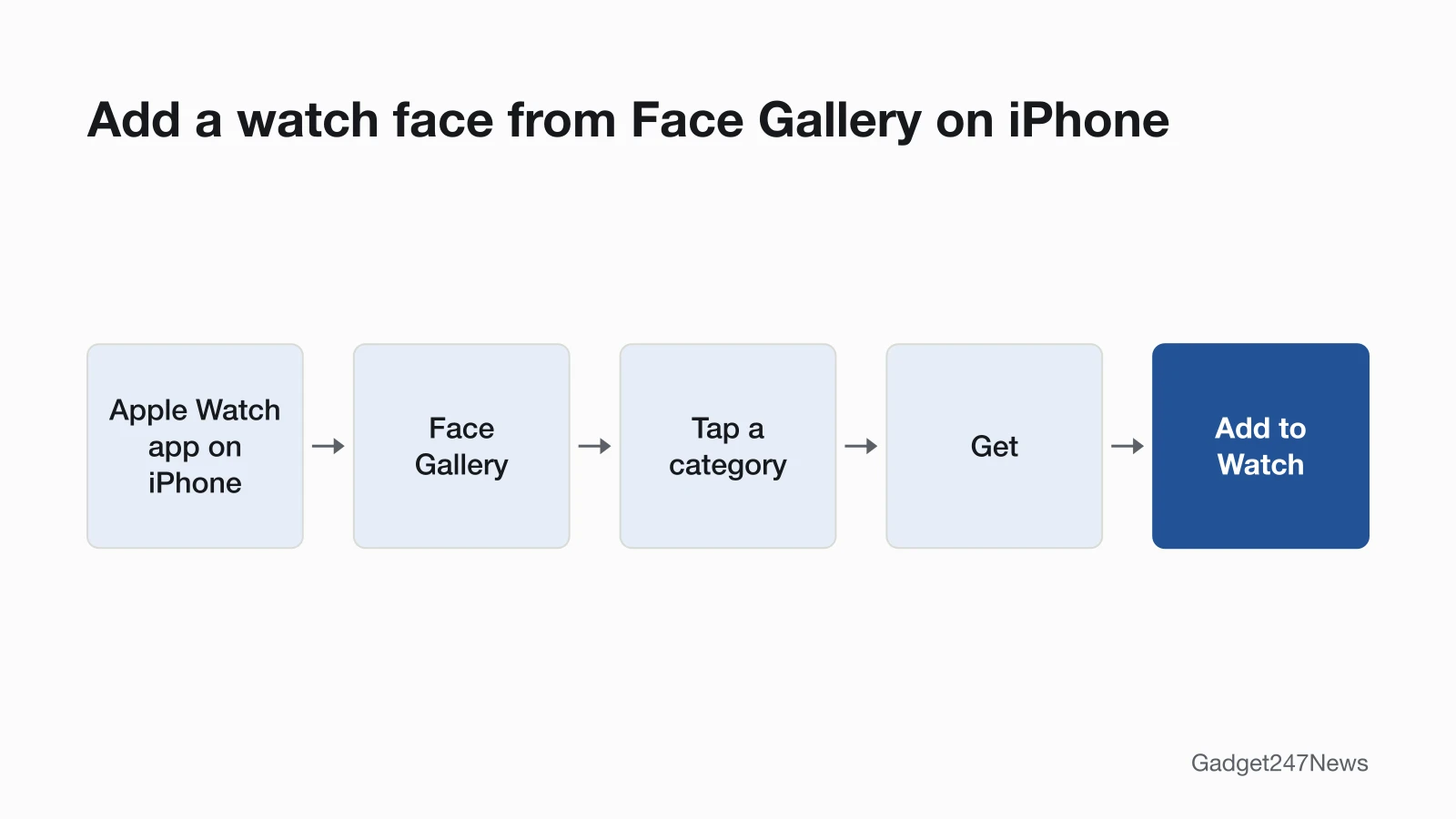
Face Gallery in the Apple Watch app lets you customize a face on your iPhone, with a live preview:
- Go to the Apple Watch app on your iPhone.
- Tap Face Gallery, then tap a category like Health and Fitness, Photos or Data Rich (or scroll down and tap See All Watch Faces).
- Scroll to a face, tap Get, then tap an option.
- Tap a feature such as color or style. For complications, tap a position such as Top Left, Top Right or Bottom, then pick one; Off leaves the position empty.
- Tap Add to Watch.
The face becomes the current face on your Apple Watch. Some App Store apps include their own complications, so see how to add and remove apps on Apple Watch to change what a face can show.
Can You Use a Photo as Your Apple Watch Background?
Yes. The Photos watch face uses your pictures, showing a new one each time you raise your wrist or tap the display. In Face Gallery, tap the Photos category, choose a style, then tap Choose Photos to pick up to 24. Apple's Customize the Photos watch face guide has the full steps.
How to Delete or Rearrange Watch Faces
To delete a watch face, swipe up on it and tap Remove; to rearrange faces, drag them in My Faces.
- With the current watch face showing, touch and hold the display.
- Swipe to the face you don't want, swipe up, then tap Remove.
On iPhone, open the Apple Watch app, tap My Watch, then tap Edit in the My Faces area. Tap the Delete button next to a face, then Remove; or drag the Reorder icon to move a face up or down. On the watch, touch and hold the display, touch and hold again, then drag the face left or right.
How to Check It Worked
The change worked when the new face is on your screen. Faces you add also appear in the Apple Watch app under My Watch, below My Faces. If the old face comes back, the next section explains why.
If Your Apple Watch Face Won't Change
When an Apple Watch face won't change, or changes without you, check three things: the edit, the swipe setting and Focus.
Why Won't My Apple Watch Face Change?
- The edit isn't finished. After Edit, press the Digital Crown to save your changes, then tap the face to switch to it.
- Swipe to Switch Watch Face is off. Swiping between faces needs this setting (Settings app on your watch, then Clock).
- A Focus has its own face. See the next section.
If none of these fit, restart the watch: press and hold the side button until the sliders appear, tap the Power button, then drag the Power Off slider to the right. To turn it back on, hold down the side button until the Apple logo appears. You can't restart it while it's charging.
Why Does My Apple Watch Face Keep Changing?
A Focus can have its own watch face, so the face changes when that Focus turns on; in Apple's example, Work Focus can show the Simple watch face. To check or change it:
- Go to the Settings app on your iPhone.
- Tap Focus, then choose a Focus.
- Scroll down to Customize Screens, then tap Choose (below the Apple Watch image).
- Select a watch face, then tap Done.
A scheduled Focus begins and ends at set times, so the face can switch then too.
More Apple Watch Setup Guides
These guides cover the rest of Apple Watch setup, one task per page:
- How to Add and Remove Apps on Apple Watch
- How to Silence an Apple Watch
- How to Set an Alarm on Apple Watch
- How to Change the Time on an Apple Watch
- How to Unlock an Apple Watch
- How to Set Up Apple Pay on Apple Watch
- How to Set Up Cellular on Apple Watch
- How to Use Walkie-Talkie on Apple Watch (discontinued in watchOS 27)
Garmin watch owners:
Apple Watch Face Questions
Two questions come up once the face is set: no iPhone nearby, and a black screen.
Can I change the face without my iPhone?
Yes. Apple says that if your iPhone isn't handy, you can customize the face right on your watch. Switching, adding, deleting and reordering faces all have steps on the watch. Face Gallery needs your iPhone, because it lives in the Apple Watch app.
Why is my Apple Watch face black?
If the screen stays blank even when you press the side button, Apple says you might need to charge the watch for up to 30 minutes before it turns on. For charging and other faults, see Apple Watch pairing and battery fixes.
Sources
We checked this page against the pages below, most recently on . How we verify fixes
- Change Apple Watch faces (Apple Watch User Guide) (Apple, support.apple.com)Official
- Add complications to the watch face on your Apple Watch (Apple Watch User Guide) (Apple, support.apple.com)Official
- Customize the Photos watch face on Apple Watch (Apple Watch User Guide) (Apple, support.apple.com)Official
- Use Focus on Apple Watch (Apple Watch User Guide) (Apple, support.apple.com)Official
- Restart Apple Watch (Apple Watch User Guide) (Apple, support.apple.com)Official
- If your Apple Watch won't turn on or won't charge (Apple, support.apple.com)Official
- Use Walkie-Talkie on your Apple Watch (Apple, support.apple.com)Official