Pixel Watch Problems and Fixes: Pairing, Sync, Battery

By Suraj Giri, Founder & Publisher. Reviewed by Suraj Giri on .
Published · 8 min read
How this page was made
- Sources. Checked against 15 official pages from Google, most recently on . See the sources.
- No device testing. We don't test fixes on physical devices, so nothing on this page is a hands-on result. A fact counts as verified only when it matches an official source page.
- AI use. As with every page on Gadget247News, AI tools helped research, outline, draft and edit this page, and re-read the official pages to flag facts that didn't match. The illustration at the top was generated with Runway and is labelled under the image.
- Human sign-off. Suraj Giri, Founder & Publisher, read this page and signed it off on . The site won't publish a page without that sign-off.
- Changes. The published and updated dates move only when the content changes, and every change gets a dated note. Spot an error or a fix that didn't work? Email info@gadget247news.com.
Read our AI use policy, editorial policy and corrections policy.
Google Pixel Watch problems usually come down to the phone connection, sync or the battery; start with the row that matches your symptom below. Pixel Watch works only with Android phones, through the Google Pixel Watch app (Google says "iPhones aren't supported"), and your fitness data goes to the Google Health app (formerly the Fitbit app). Steps on each page are checked against Google's Pixel Watch Help. A watch that has lost its phone link has its own page: Pixel Watch not connecting to your phone.
A fault that appeared suddenly, after an update, belongs in the update section further down, which quotes Google's install conditions and points to the known issues. For a watch from any other brand, start from smartwatch fixes instead.
Find Your Pixel Watch Problem
The table lists nine Pixel Watch problems in the order people search for them. Each row names the most likely cause, the first fix from Google's Pixel Watch Help and the page that holds the full steps.
| Symptom | Most likely cause | First fix | Full steps |
|---|---|---|---|
| Pairing for the first time | New watch, or a watch that was reset | Place your Pixel Watch near your Android phone with Bluetooth on, open the Google Pixel Watch app, select your watch and tap Pair when the codes match. | How to Pair a Pixel Watch With Your Android Phone |
| Won't connect to your phone | Bluetooth, Airplane Mode or app permission | Turn on Bluetooth, turn off Airplane Mode on your phone and watch, and set the Pixel Watch app's nearby permission to Allow. | Pixel Watch Not Connecting to Your Phone |
| Data not syncing | Watch disconnected, or Bedtime mode or Battery Saver on | Check the Google Pixel Watch app shows Connected, then turn off Bedtime mode and Battery Saver. | Pixel Watch Not Syncing |
| Not charging | Wrong charger, or the watch isn't seated | Take the watch off the charger, then set it back so the charging points meet the pins and the crown faces the same way as the cable. | Pixel Watch Not Charging |
| Battery draining fast | Always-on Display and background activity | Turn on Battery Saver in Settings › Battery to turn off Always-on Display and limit background activity. | Pixel Watch Battery Draining Fast |
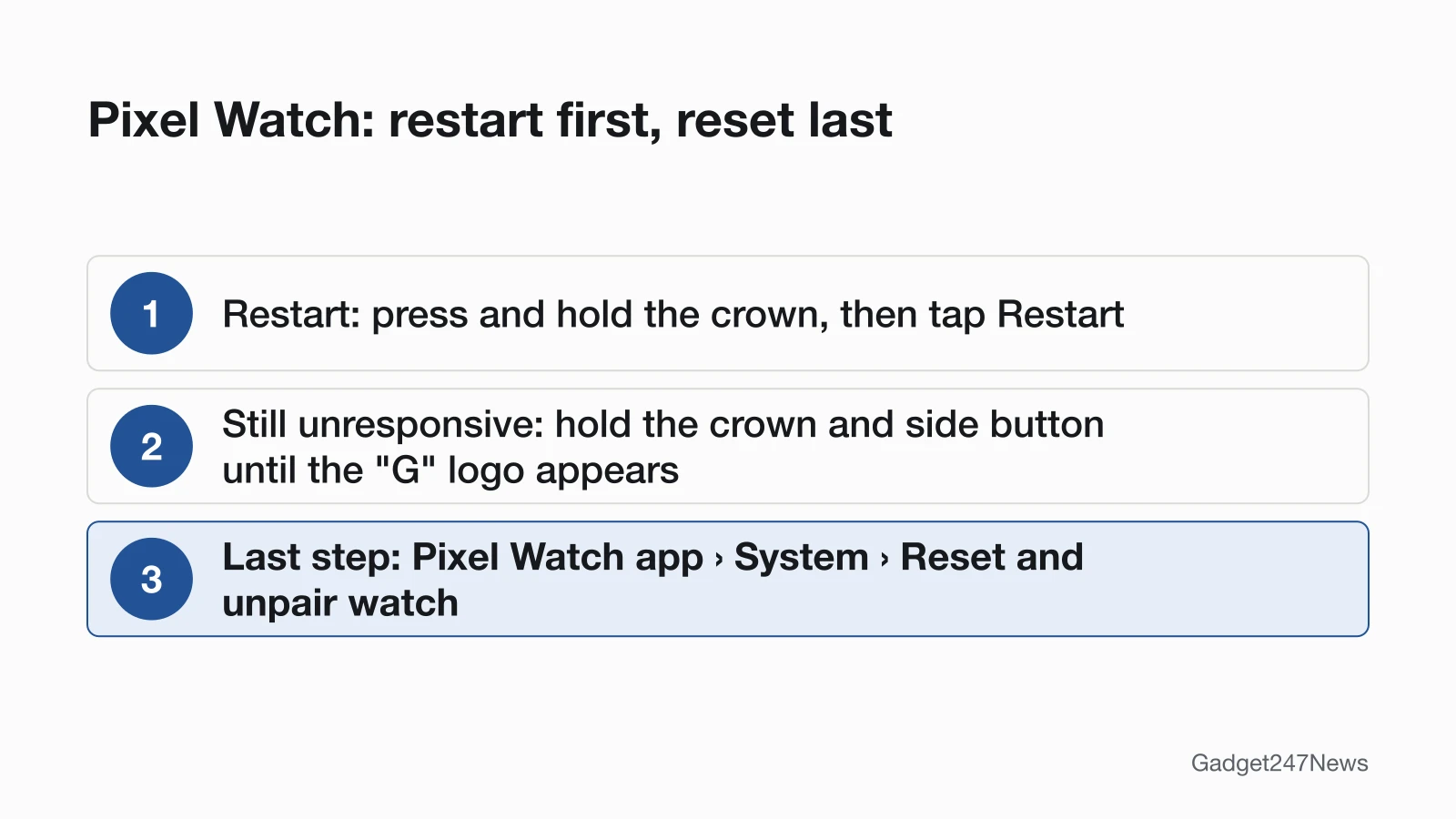
| Frozen, glitchy or needs a reset | Software stuck | Restart first: press and hold the crown for 3 seconds, then tap Restart. | How to Restart or Factory Reset a Pixel Watch |
| Won't turn on | Battery fully drained, or frozen software | Leave the watch on its own Google charger for 10 more minutes, then look for the lightning bolt. | Pixel Watch Won't Turn On |
| Not getting notifications | Phone setting muted, or a watch mode on | Turn on All Google Pixel Watch notifications in your phone's settings, then swipe down on the watch and turn off Do Not Disturb, Bedtime and Theater mode. | Pixel Watch Not Getting Notifications |
| Needs a software update | Update not installed yet | Put your Pixel Watch on its charger with at least 50% battery and Wi-Fi on, then tap Settings › System › System updates. | How to Update Pixel Watch |
The linked page picks up where the first fix stops, with Google's remaining checks in order and a factory reset as the last resort.
Does Pixel Watch Work With iPhone and Android?
Pixel Watch works with Android phones only. Google's compatibility page puts it in one line: "iPhones aren't supported." Every model also sets a minimum Android version for the phone, from Android 8.0 for the first Pixel Watch to Android 12.0 for Pixel Watch 5. Setup also needs a Google Account, a phone online through Wi-Fi or LTE and the latest version of the Google Pixel Watch app. The setup steps are in How to pair a Pixel Watch with your Android phone.
| Model | Android needed | iPhone | Source |
|---|---|---|---|
| Pixel Watch | Version 8.0 or newer | Not supported | Google compatibility page |
| Pixel Watch 2 | Version 9.0 or newer | Not supported | Google compatibility page |
| Pixel Watch 3 | Version 10.0 or newer | Not supported | Google compatibility page |
| Pixel Watch 4 | Version 11.0 or newer | Not supported | Google compatibility page |
| Pixel Watch 5 | Version 12.0 or newer | Not supported | Google compatibility page |
The iPhone column reads the same for every generation, so no older Pixel Watch works with an iPhone either.
Pixel Watch Won't Connect or Sync
"Connect" and "sync" name two different Pixel Watch faults. Connect is the Bluetooth link between watch and phone, and the Google Pixel Watch app shows Connected on its home screen when that link works. Sync is your data reaching the Google Health app, which Google says happens automatically. Google's connection checks start with Bluetooth, Airplane Mode and the app's nearby permission. Data won't sync while Bedtime mode or Battery Saver is on: Google Health Help says it syncs only once they're turned off. A new phone is a separate case: Google's Transfer watch moves the watch across without a factory reset, and Google notes it requires Wear OS 4.
Pixel Watch Not Charging or Draining Fast
Google says to charge each Pixel Watch only with the charger made for it: the Quick Charge Dock for Pixel Watch 4 and 5, the USB-C fast charging cable for Pixel Watch 2 and 3, and the USB-C magnetic wireless charger for the first Pixel Watch. The crown has to face the same direction as the charger's cable. Fast drain has a built-in first fix. Battery Saver turns off Always-on Display and limits background activity, and it turns on by itself at 15%. Google rates Pixel Watch 2 to 5 at up to 24 to 40 hours with Always-on Display on, by model and size. Battery Saver also holds back syncing, so turn it off when you need your data to sync.
How to Restart or Reset a Pixel Watch
A restart reboots the watch; a factory reset erases "all your apps, settings, and data," and you set the watch up with your phone again afterwards. Restart with the crown. A watch frozen past a restart gets Google's hard reset, which uses the crown and side button together. The factory reset sits in the Google Pixel Watch app under System › Reset and unpair watch, or on the watch itself under Settings › Disconnect & reset. Google's order is explicit: "First, try the steps above to restart your Pixel Watch." The same order applies when you restart or reset a frozen smartwatch from another brand.
Won't Turn On or No Notifications
A Pixel Watch with a dark screen usually needs more time on its own charger: Google's fix is a longer charge, then a check for the lightning bolt icon. Missing alerts point to a phone setting or a watch mode. Google checks the phone's All Google Pixel Watch notifications switch first, then three watch modes that hold alerts back: Do Not Disturb, Bedtime and Theater mode.
Which Pixel Watch Do I Have?
Your Pixel Watch generation shows in the charger that came with it, and the watch's About screen holds the serial number:
- Look at the charger from the box: a Quick Charge Dock means Pixel Watch 4 or 5, a USB-C fast charging cable means Pixel Watch 2 or 3, and a USB-C magnetic wireless charger means the first Pixel Watch.
- On the watch, swipe down, tap Settings › System › About, then swipe down to the serial number and IMEI. The same numbers are marked where the watch bands meet the case, and a Wi-Fi model carries a serial number only.
Google's update help adds that Settings also shows the model number, but the Pixel Watch Help pages we read don't say which number belongs to which generation. The charger is the quicker test.
Pixel Watch Model Identifier Table
The table matches each Pixel Watch generation to its Android requirement, its charger and Google's rated battery life.
| Model | Android needed | Charger | Rated battery with Always-on Display on |
|---|---|---|---|
| Pixel Watch 5 | 12.0 or newer | Quick Charge Dock | Up to 30 hours (41 mm), up to 40 hours (45 mm) |
| Pixel Watch 4 | 11.0 or newer | Quick Charge Dock | Up to 30 hours (41 mm), up to 40 hours (45 mm) |
| Pixel Watch 3 | 10.0 or newer | USB-C fast charging cable | Up to 24 hours (41 mm and 45 mm) |
| Pixel Watch 2 | 9.0 or newer | USB-C fast charging cable | Up to 24 hours |
| Pixel Watch | 8.0 or newer | USB-C magnetic wireless charger | Up to 24 hours, rated with Always-on Display off |
Google calls these figures approximate maximums, based on its testing on pre-production hardware and software with default settings.
Pixel Watch Updates and Known Issues
A Pixel Watch problem that started suddenly, after an update, needs a check of what changed before any reset. For the best update experience, Google says the watch should be "On its charger", "Charged to at least 50%" and "Connected to Wi-Fi". Below 50%, Google says the watch keeps checking and starts installing once the battery passes 50%. To check which Fitbit or Pixel Watch update you have, open Settings › System › About › Versions on the watch; How to Update Pixel Watch has the install steps. The watch can't be used while it checks for an update, and it reboots when the installation is complete. Reported problems and their fixes are listed under Pixel Watch updates on the Update Tracker.
Get an email when a Pixel Watch update breaks something, and when it's fixed.
Google Health, Fast Pair and the Fitbit Change
Two Google changes affect where Pixel Watch data lives and how the watch meets a phone:
- Google Health app: from May 19, 2026, the Fitbit app became the Google Health app, and with a Pixel Watch connected, the app shows four tabs at the bottom of the screen: Today, Fitness, Sleep and Health. Fitbit's move to Google covers the rest of the change.
- Fast Pair: Google's Fast Pair page lists "Wear OS watches" among the devices an Android phone can find and connect. Google Fast Pair for earbuds explains how the feature works on the audio side.
When to Contact Google Support
Contact Google once the first fix and the linked page have both failed, in this order:
- Try the next fix on the linked page for your symptom.
- Restart the watch, then factory reset it as the last step, using How to Restart or Factory Reset a Pixel Watch.
- Contact Google through Google Pixel Watch Help.
- Check repair or replacement options on Replace or file a warranty claim for Google Pixel Watch.
Google says you need the IMEI or serial number for repairs and replacements, and the model section above shows where both are printed. Warranty terms, in Google's words, "can vary based on the country or region where you bought your device."
Sources
We checked this page against the pages below, most recently on . How we verify fixes
- Compatibility requirements & region availability for Pixel Watch (Google, support.google.com)Official
- Set up Google Pixel Watch (Google, support.google.com)Official
- Fix Bluetooth, connection, and LTE issues on Google Pixel Watch (Google, support.google.com)Official
- Why won't my Fitbit device sync? (Google Health Help) (Google, support.google.com)Official
- Get started with Google Health on Google Pixel Watch (Google, support.google.com)Official
- How to upgrade your Pixel Watch or connected phone without losing data (Google, support.google.com)Official
- Fix a Google Pixel Watch that won't charge (Google, support.google.com)Official
- Charge Google Pixel Watch and tips to improve battery life (Google, support.google.com)Official
- Fix a blank, frozen, or error message on the Google Pixel Watch screen (Google, support.google.com)Official
- Fix notification issues on your Google Pixel Watch (Google, support.google.com)Official
- Install & update apps on Google Pixel Watch (Google, support.google.com)Official
- Find your Pixel Watch IMEI & serial numbers (Google, support.google.com)Official
- What is new with the redesigned Google Health app (Google, support.google.com)Official
- Use Fast Pair (Android Help) (Google, support.google.com)Official
- Replace or file a warranty claim for Google Pixel Watch (Google, support.google.com)Official