JBL Earbuds Problems and Fixes: Pairing, Battery, Sound

By Suraj Giri, Founder & Publisher. Reviewed by Suraj Giri on .
Published · 8 min read
How this page was made
- Sources. Checked against 23 official pages from JBL, Apple, Google and Microsoft, most recently on . See the sources.
- No device testing. We don't test fixes on physical devices, so nothing on this page is a hands-on result. A fact counts as verified only when it matches an official source page.
- AI use. As with every page on Gadget247News, AI tools helped research, outline, draft and edit this page, and re-read the official pages to flag facts that didn't match. The illustration at the top was generated with Runway and is labelled under the image.
- Human sign-off. Suraj Giri, Founder & Publisher, read this page and signed it off on . The site won't publish a page without that sign-off.
- Changes. The published and updated dates move only when the content changes, and every change gets a dated note. Spot an error or a fix that didn't work? Email info@gadget247news.com.
Read our AI use policy, editorial policy and corrections policy.
JBL earbuds and headphones problems usually come down to pairing, dirty charging contacts or a connection another device is holding; start with the row that matches your symptom below. When the earbuds refuse to pair at all, JBL earbuds not connecting has the full order to follow. Fixes differ by series (touch earbuds, headphones with volume buttons, Smart Case models), so check your model first. Steps on each page are checked against JBL Support.
Earbuds from Apple, Samsung, Sony or Bose follow their own steps, so to fix your earbuds or headphones from those makers, use the family hub. If the trouble started right after an update, read the firmware section near the end of this page.
Find Your JBL Problem: Symptom, Cause and First Fix
The table routes nine JBL symptoms, two of them host-specific pairing rows, to the page with JBL's full steps. Each first fix is copied from its page.
| Symptom | Most likely cause | First fix | Full steps |
|---|---|---|---|
| Connect, pair or sync JBL earbuds | Not in pairing mode | Put your JBL earbuds in pairing mode (they start it on their own the first time you turn them on), then choose the JBL model name in your device's Bluetooth list. | How to Connect and Pair JBL Earbuds With Any Device |
| Connect to Android | No pop-up on unsupported models | Put your JBL earbuds in pairing mode, then tap Connect on the Fast Pair pop-up, or touch and hold Bluetooth, tap Pair new device and tap the JBL name. | How to Connect JBL Earbuds to Android |
| Connect to a Windows PC or laptop | Not in pairing mode, or Windows hides them | Put your JBL earbuds in pairing mode, then click Connect on the Windows Swift Pair pop-up, or open Manage Bluetooth devices from the taskbar and choose the JBL name under New devices. | How to Connect JBL Earbuds to a Windows PC |
| Won't connect | Connected to another device | Turn off Bluetooth on any other phone or tablet your JBL earbuds used, then select them in your phone's Bluetooth list. | JBL Earbuds Not Connecting |
| Keep disconnecting or cutting out | Your body or other Bluetooth devices blocking the signal | Keep your phone on the same side of your body as your JBL earbuds, with a clear line of sight, and turn off Bluetooth devices you aren't using. | Why JBL Earbuds Keep Disconnecting |
| Not charging | Dirt on the charging contacts | Clean the metal charging contacts on both earbuds and inside the case with a cotton swab lightly dampened with rubbing alcohol, let them dry, then charge again. | JBL Earbuds Not Charging |
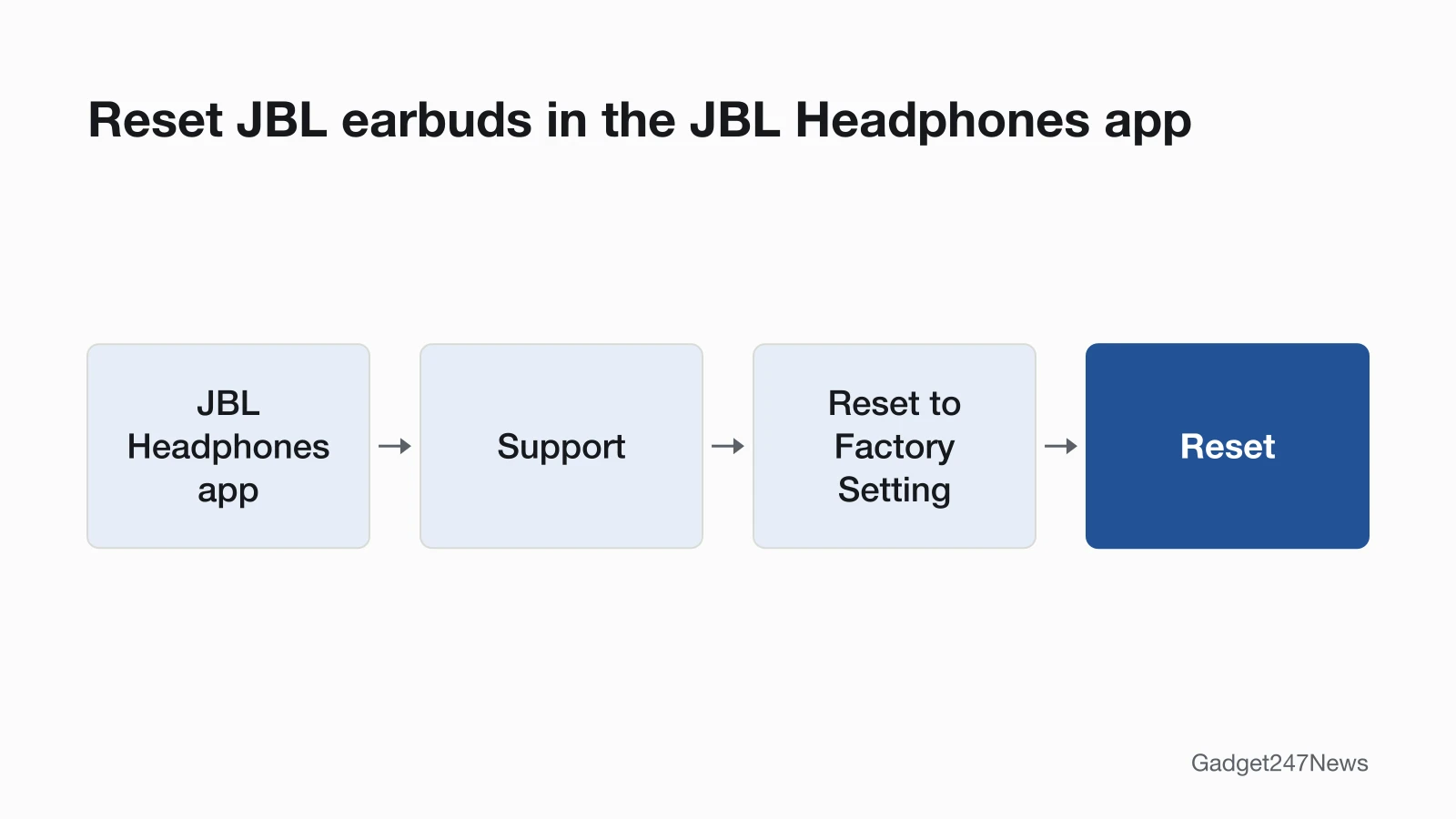
| Need a reset | A fault the softer fixes didn't clear | Forget your JBL earbuds on your phone, then triple-tap either earbud and hold on the third tap for more than 5 seconds (most true wireless models), or hold Vol + and Vol − for more than 5 seconds (Tune and Live headphones). | How to Reset JBL Earbuds |
| Won't turn on or off | Still in the case, or standby auto-off | Take JBL earbuds out of the charging case to turn them on (put them back and close the lid to turn them off), or hold the power button for 2 seconds on the JBL Tune 520BT (other headphones: see your model's guide). | How to Turn JBL Earbuds On and Off |
| One side silent | Left and right earbuds no longer paired to each other | Forget the JBL earbuds on your phone, pair the left and right earbuds to each other using your model's manual pairing steps, then pair them with your phone again. | one JBL Earbud Not Working |
Three symptoms have no JBL page yet. Battery trouble routes to the cross-brand guide for wireless earbuds won't charge, muffled or quiet sound routes to earbuds muffled by earwax, and firmware questions sit below the border on this page.

JBL Earbuds Won't Connect or Keep Disconnecting
JBL earbuds enter pairing mode by themselves the first time you power them on: JBL describes "a flashing LED to indicate that it is searching for a device to connect to." After that, they reconnect to the last device they used, so a second phone often holds the link; JBL's fix is to disconnect them in that phone's Bluetooth settings or turn its Bluetooth off. To connect and pair JBL earbuds with a new device, the control depends on the model. On the Tune Beam 2, tap an earbud once, then hold it for 5 seconds. On the Tune 520BT, power off, then hold the power button for 5 seconds. JBL LIVE headphones need the power button held until the blue light flashes. "Syncing" JBL headphones means this same pairing. Drop-outs are a separate fault: JBL says Bluetooth signals "cannot travel through water, which includes the human body", and the guide for when JBL earbuds keep disconnecting lists JBL's other interference sources.
JBL Earbuds Not Charging or Draining Fast
JBL says charging trouble on true wireless earbuds is "almost always caused by dirt on the metal charging contacts", so clean the contacts on each earbud and in the case before anything else. Brand-new earbuds stay off until you peel away the plastic film that stops the case pins from touching the earbuds. For headphones and other USB-charged JBL products, JBL suggests another cable, a charger "rated at least 2.0a (2 amps) output" and an overnight charge of at least 8 hours. JBL has no battery-drain page. Disconnected earbuds power off after 30 minutes in standby, and Auto-off in the JBL Headphones app changes that time; the steps are in how to turn JBL earbuds on and off. The cross-brand guide for wireless earbuds won't charge compares charging fixes from other makers.
How to Reset JBL Earbuds
Reset JBL earbuds only after the softer fixes fail. Earbuds that switched off in standby need no reset: put them back in the charging case and take them out again to reconnect. A factory reset "will erase all settings and Bluetooth data from the device", so you pair again afterwards. Earbuds: a triple-tap-and-hold on either earbud for most Tune, Live, Tour Pro and Reflect Aero models, and a reset button next to the charging port on Smart Case models. Headphones: the Vol + and Vol - buttons (Tune, Live and Tour One). App-compatible models also reset under Support in JBL's Headphone app. JBL's Live and Tour pages call the 10-second Smart Case button hold a "hardware reset", and JBL's separate hardware-reset page, which gives a case-button hold of more than 5 seconds, says that reset works "without restoring the settings to the factory defaults". To find the reset button on earbuds from other brands, use the cross-brand guide.
One Earbud Silent or Won't Turn On
One silent JBL earbud follows JBL's three-step order: forget the earbuds on your phone, pair the two earbuds to each other with the "Manual Pairing Left & Right" steps in your Quick Start Guide, then pair them with the phone again. A reset alone won't fix it, because JBL says the reset procedure "does not automatically pair the two ear pieces together". Earbuds that won't turn on need three checks: take them out of the case, remove any plastic film from new earbuds, and clean the charging contacts so the case can charge them.
Which JBL Model Do I Have?
Your JBL model name appears in your phone's Bluetooth list, so two checks identify it:
- Open Bluetooth on your phone and read the name. JBL's Quick Start Guides say "Choose "JBL Tune Beam 2" to connect" and "Choose "JBL TUNE520BT" to connect".
- Match the series and the controls to the table below.
JBL's support pages we read don't say where the model name is printed on the earbuds, case or headband.
JBL Model Identifier Table
The table groups JBL models as JBL's six factory-reset pages list them, with the reset control and hold time each group uses.
| Series | Examples JBL lists | Type | Pairing/reset control group | Charging |
|---|---|---|---|---|
| Tune (true wireless) | Tune Buds, Tune Buds 2, Tune Beam, Tune Beam 2, Tune Flex, Tune Flex 2, Tune 230NC TWS | Earbuds | Triple tap either earbud, hold on the third tap for more than 5 seconds | Charging case |
| Tune (headphones) | Tune 520BT, Tune 670NC, Tune 720BT, Tune 770NC | Headphones | Vol + and Vol - held for more than 5 seconds | Charging cable |
| Tune (older true wireless) | Tune 115 TWS, Tune 120 TWS, Tune 125 TWS, Tune 215 TWS, Tune 220 TWS, Tune 225 TWS | Earbuds | Right earbud held for more than 5 seconds, earbuds in the case | Charging case |
| Live (true wireless) | Live Pro 2, Live Beam 3, Live Buds 3, Live Flex 3, Live Free 2 | Earbuds | Triple tap and hold for more than 5 seconds; Smart Case reset button held for 10 seconds | Charging case |
| Live (headphones) | Live 460NC, Live 660NC, Live 670NC, Live 770NC | Headphones | Vol + and Vol - held for more than 5 seconds | Charging cable |
| Tour | Tour Pro 2, Tour Pro 3; Tour One M2, Tour One M3 | Earbuds; headphones | Triple tap either earbud (Tour Pro 3: both earbuds); Vol + and Vol - held for more than 8 seconds (Tour One) | Charging case; charging cable |
| Vibe / Wave | Vibe Beam, Vibe Buds, Wave Beam, Wave Buds, plus their "2" models | Earbuds | Triple tap either earbud, both earbuds out of the case | Charging case |
| Endurance / Reflect (sport) | Endurance Peak 3, Endurance Peak 4, Endurance Race 2; Reflect Aero TWS, Reflect Flow Pro | Earbuds | Triple tap and hold (Peak 3, Peak 4, Race 2, Reflect Aero TWS); reset button on the back of the case for 5 seconds (Reflect Flow Pro) | Charging case |
Controls vary within a series: Tour Pro 3 needs both earbuds tapped where Tour Pro 2 takes either one, and the Tour One holds its volume buttons for more than 8 seconds, so read the reset page for your exact model first.
JBL Firmware Updates and Known Issues
JBL's Tune Buds release notes give the update method as "OTA (over the air) via JBL Headphone App", listing software version V6.1.0 with a release date of November 22, 2024. The same JBL Headphones app, published by Harman International Industries, holds the Auto-off and factory-reset settings. JBL's pages we read don't give the update route for other models. If your JBL earbuds stopped working suddenly after an update, compare your model against the latest JBL earbuds firmware list and the JBL earbud updates on the Update Tracker. Get an email when a JBL update breaks something, and when it's fixed.
When to Contact JBL Support
Contact JBL once the table's first fix and the linked page's steps have failed, in this order:
- Try the next fix in the table above.
- Reset your JBL earbuds (you'll pair them again afterwards).
- Contact JBL Support at support.jbl.com, by phone at (800) 336-4525 or by text at 628-333-7807.
- Check returns and warranty on JBL's returns and warranty page.
Don't open JBL earbuds or headphones to change the battery. JBL says its rechargeable batteries are "not user-serviceable", and opening the product voids the warranty.
Sources
We checked this page against the pages below, most recently on . How we verify fixes
- Factory Reset Procedure: Tune Series (JBL, support.jbl.com)Official
- Factory Reset Procedure: Live Series (JBL, support.jbl.com)Official
- Factory Reset Procedure: Tour Series (JBL, support.jbl.com)Official
- Factory Reset Procedure: Endurance Series (JBL, support.jbl.com)Official
- Factory Reset Procedure: Reflect Series (JBL, support.jbl.com)Official
- Factory Reset Procedure: Wave/Vibe Series (JBL, support.jbl.com)Official
- How to Perform a Hardware Reset (JBL, support.jbl.com)Official
- Multi-Point Connection Support (JBL, support.jbl.com)Official
- Bluetooth Pairing & Connecting (JBL, support.jbl.com)Official
- How do I connect my JBL LIVE headphones to my device via Bluetooth? (JBL, support.jbl.com)Official
- JBL Tune Beam 2 Quick Start Guide (JBL, support.jbl.com)Official
- JBL Tune 520BT Quick Start Guide (JBL, jbl.com)Official
- How to avoid Bluetooth Interference or Interruptions (JBL, support.jbl.com)Official
- Cleaning Instructions for Re-establishing Charging (JBL, support.jbl.com)Official
- My new TWS earbud won't power on or charge? (JBL, support.jbl.com)Official
- Battery and Charging Issues (JBL, support.jbl.com)Official
- Standby Mode Information (JBL, support.jbl.com)Official
- TWS Left & Right Not Pairing Together (JBL, support.jbl.com)Official
- TUNE BUDS: Software Update Release Notes (JBL, support.jbl.com)Official
- JBL Headphones (App Store) (Apple, apps.apple.com)Official
- Connect and manage Bluetooth devices (Android Help) (Google, support.google.com)Official
- Pair a Bluetooth device in Windows (Microsoft, support.microsoft.com)Official
- JBL Customer Experience Center (JBL, support.jbl.com)Official