How to Connect and Pair JBL Earbuds With Any Device

By Suraj Giri, Founder & Publisher. Reviewed by Suraj Giri on .
Published · 4 min read
How this page was made
- Sources. Checked against 11 official pages from JBL, Apple, Google and Microsoft, most recently on . See the sources.
- No device testing. We don't test fixes on physical devices, so nothing on this page is a hands-on result. A fact counts as verified only when it matches an official source page.
- AI use. As with every page on Gadget247News, AI tools helped research, outline, draft and edit this page, and re-read the official pages to flag facts that didn't match. The illustration at the top was generated with Runway and is labelled under the image.
- Human sign-off. Suraj Giri, Founder & Publisher, read this page and signed it off on . The site won't publish a page without that sign-off.
- Changes. The published and updated dates move only when the content changes, and every change gets a dated note. Spot an error or a fix that didn't work? Email info@gadget247news.com.
Read our AI use policy, editorial policy and corrections policy.
JBL earbuds and headphones pair like any other Bluetooth audio device: you put them in pairing mode, then pick the JBL name in your phone's or computer's Bluetooth list. Only the way pairing mode starts is JBL-specific, and it depends on the model. For other JBL symptoms, start at JBL Earbuds Problems and Fixes; for other brands, use the Bluetooth pairing steps for any earbuds.
How to Connect JBL Earbuds
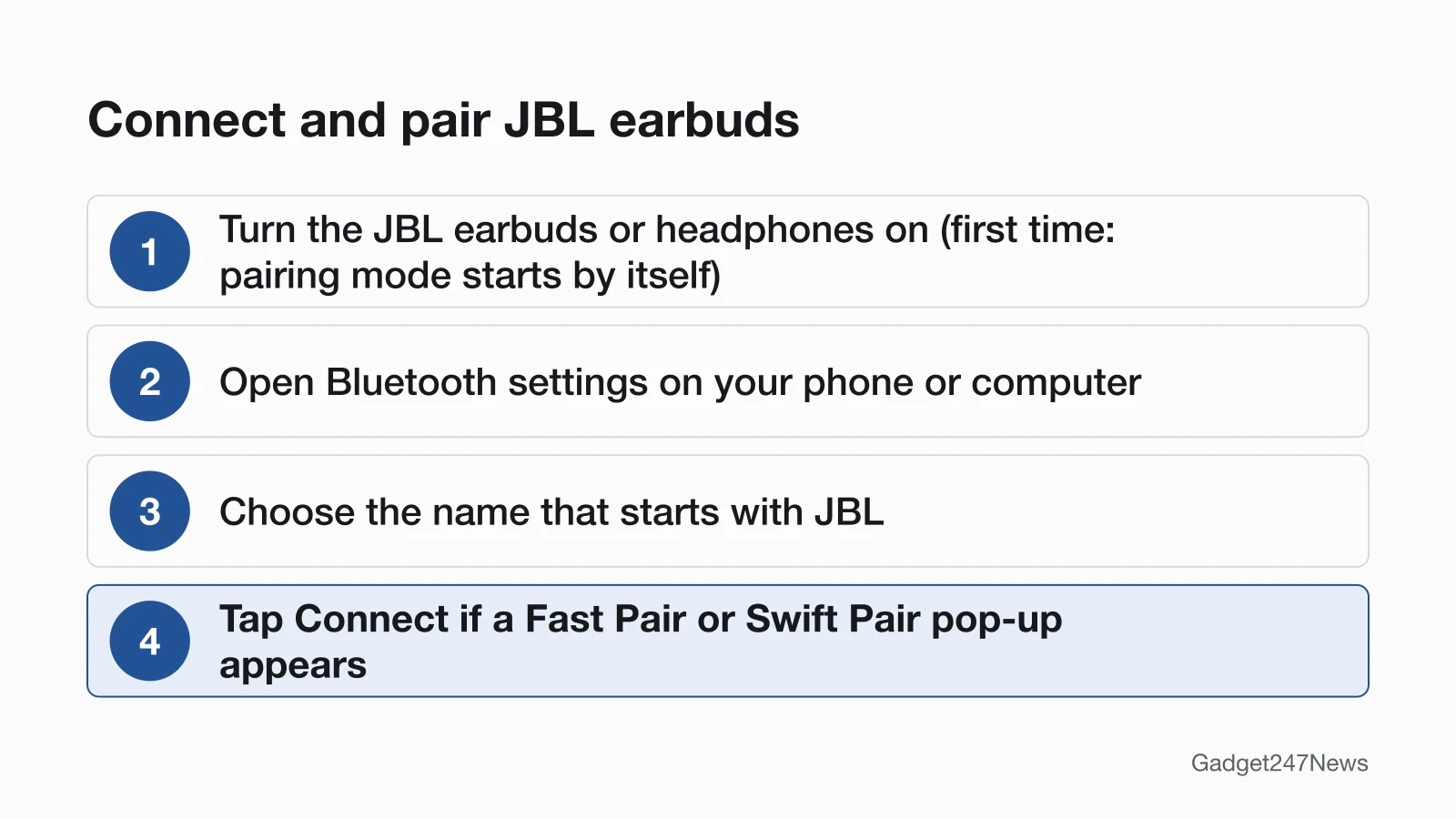
To connect JBL earbuds or headphones, turn them on so they enter pairing mode, then tap the JBL name in your device's Bluetooth settings:
- Turn the earbuds or headphones on. The first time, pairing mode starts by itself: JBL says you'll notice "a flashing LED to indicate that it is searching for a device to connect to."
- Open Bluetooth settings on your phone, tablet or computer and turn Bluetooth on. JBL says the product name "should pop up within a few seconds."
- Choose the name that starts with "JBL". The Quick Start Guides spell it out: "Choose "JBL Tune Beam 2" to connect." On the on-ear Tune 520BT, the name is "JBL TUNE520BT".
- Accept the pop-up if one appears. On Android, supported models show a Google Fast Pair card with a Connect button. On Windows 10 version 1803 or later, Microsoft Swift Pair offers Connect or Dismiss.
"Syncing" JBL headphones means this same pairing. After the first time, JBL says the product "will automatically reconnect to the last device it was connected to".
Pairing Mode by JBL Model
Pairing mode starts on its own the first time; after that, each JBL model uses its own tap or button. JBL's guides give these steps:
| JBL model | How to start pairing mode | How you know | JBL page |
|---|---|---|---|
| Any JBL model, first use | Turn it on; pairing mode starts by itself | A flashing LED | Multi-Point Connection Support |
| Tune Beam 2, Tune Buds (touch earbuds), to add a second device | With the earbud in your ear, tap it once, then hold for 5 seconds (maximum 2 devices) | Not stated in the guide | Tune Beam 2 and Tune Buds Quick Start Guides |
| Tune 520BT (on-ear headphones) | Turn the headphones off, then hold the power button for 5 seconds | Not stated in the guide | Tune 520BT Quick Start Guide |
| JBL LIVE headphones (over-ear) | Press and hold the power button | The blue light flashes | JBL LIVE Bluetooth pairing article |
Each hold time applies only to the models in its row. For the Live Pro 2, Tour Pro 3, Endurance Peak 3 or any other model, use that model's Quick Start Guide.
Connect JBL Earbuds to Your Device
The steps are the same everywhere; only the Bluetooth menu changes:
| Device | Where you pair | Full steps |
|---|---|---|
| iPhone or iPad | Settings > Bluetooth, turn Bluetooth on, then tap the JBL name under My Devices | Steps above |
| Android phone | Fast Pair pop-up on supported models, or the Bluetooth list | How to Connect JBL Earbuds to Android |
| Windows PC | Swift Pair pop-up (Windows 10 version 1803 or later), or Settings > Bluetooth & devices | How to Connect JBL Earbuds to a Windows PC |
| Mac | Apple menu > System Settings > Bluetooth, hold the pointer over the JBL name, then click Connect | Steps above |
| PS5, Xbox or TV | The console's or TV's own Bluetooth menu | connect Bluetooth headphones to a PS5 |
Do You Need the JBL Headphones App?
No, the app isn't needed to pair. Each JBL Quick Start Guide we read pairs from the Bluetooth list. JBL says the free JBL Headphones app gives "even more control and personalization", such as smart ambient and noise cancelling settings, and some Tune Beam 2 controls only switch on through it.
How to Check Your JBL Earbuds Are Connected
JBL earbuds are connected when your device lists them as connected and sound plays through them:
- Open Bluetooth settings and look at the JBL name. The Tune Beam 2 guide shows the phone reading "JBL Tune Beam 2 Connected"; on Android, Google says a connected device "shows as "Connected.""
- Play music or a video.
- If sound still comes from the phone or laptop, pick the JBL earbuds as the output. On a Mac: Apple menu > System Settings > Sound > Output.
If Your JBL Earbuds Won't Connect
JBL earbuds missing from the list usually aren't in pairing mode, so start it again. If they're still missing, JBL's tip is to "quickly turn off your BT settings and turn it back on." If another phone holds the connection, turn off Bluetooth on that phone. Every fix is on JBL Earbuds Not Connecting, and you can check if your earbuds are paired or connected first. If they pair and then cut out, see JBL earbuds keep disconnecting.
Connecting JBL Earbuds: Quick Answers
How do I put JBL earbuds in pairing mode?
Turn them on: the first time, pairing mode starts automatically. After that, it depends on the model. JBL's Tune Beam 2 and Tune Buds guides show one tap on an earbud, then a 5-second hold, to add a second device.
How do I sync JBL headphones?
Syncing JBL headphones means pairing them. Start pairing mode, open Bluetooth on your phone and tap the JBL name. On JBL LIVE headphones, press and hold the power button until the blue light flashes.
How do I connect JBL headphones to an iPhone?
Put the headphones in pairing mode, then open Settings > Bluetooth on the iPhone and turn Bluetooth on. Under My Devices, tap the JBL name when it appears. Apple says you might need to enter a PIN or passcode.
Why won't my JBL earbuds show up in Bluetooth?
They aren't in pairing mode, or they reconnected to the last device they used, which JBL says they do automatically. Start pairing mode again, then turn your phone's Bluetooth off and back on.
Sources
We checked this page against the pages below, most recently on . How we verify fixes
- JBL Tune Beam 2 Quick Start Guide (JBL, support.jbl.com)Official
- JBL Tune Buds Quick Start Guide (JBL, jbl.com)Official
- JBL Tune 520BT Quick Start Guide (JBL, jbl.com)Official
- How do I connect my JBL LIVE headphones to my device via Bluetooth? (JBL, support.jbl.com)Official
- JBL: Multi-Point Connection Support (JBL, support.jbl.com)Official
- JBL: Bluetooth Pairing & Connecting (JBL, support.jbl.com)Official
- Connect a third-party Bluetooth accessory to your iPhone or iPad (Apple, support.apple.com)Official
- Connect a Bluetooth device with your Mac (Mac User Guide) (Apple, support.apple.com)Official
- Find & set up Bluetooth devices near your Android device (Google, support.google.com)Official
- Pair a Bluetooth device in Windows (Microsoft, support.microsoft.com)Official
- JBL Headphones (App Store) (Apple, apps.apple.com)Official