Bose Headphones Problems and Fixes: Pairing, Battery, Sound

By Suraj Giri, Founder & Publisher. Reviewed by Suraj Giri on .
Published · 9 min read
How this page was made
- Sources. Checked against 11 official pages from Bose, Google and Microsoft, most recently on . See the sources.
- No device testing. We don't test fixes on physical devices, so nothing on this page is a hands-on result. A fact counts as verified only when it matches an official source page.
- AI use. As with every page on Gadget247News, AI tools helped research, outline, draft and edit this page, and re-read the official pages to flag facts that didn't match. The illustration at the top was generated with Runway and is labelled under the image.
- Human sign-off. Suraj Giri, Founder & Publisher, read this page and signed it off on . The site won't publish a page without that sign-off.
- Changes. The published and updated dates move only when the content changes, and every change gets a dated note. Spot an error or a fix that didn't work? Email info@gadget247news.com.
Read our AI use policy, editorial policy and corrections policy.
Most Bose headphones and earbuds problems come down to pairing, charging or a setting; start with the row that matches your symptom below. Fixes differ by model (case-button earbuds like QuietComfort Ultra Earbuds (2nd Gen), touch-only QuietComfort Earbuds, and headphones with a button or a switch), so check your model first. Steps on each page are checked against Bose's own owner's guides and support articles. For AirPods, Sony, JBL and other makers, start from the guide to fix Bluetooth headphones instead.
If your Bose stopped working suddenly after an update, the firmware section near the end of this page comes before any reset. Headphones or earbuds that never connect at all have their own guide, Bose headphones not connecting, and it opens with the fix in the table's "Won't connect" row.
Find Your Bose Problem: Symptom, Cause and First Fix
The table lists 11 Bose problems, from pairing and charging to resets and firmware, each with its most likely cause, the first fix from its full guide and the page with every step.
| Symptom | Most likely cause | First fix | Full steps |
|---|---|---|---|
| Connect or pair ("sync") | Not in pairing mode | On QuietComfort Ultra (2nd Gen) and Ultra Open models, hold the button on the back of the case (earbuds) or the Bluetooth/Power button (headphones) until the light pulses blue, then select them in your device's Bluetooth list. | How to Connect and Pair Bose Headphones With Any Device |
| Connect to Android | No Fast Pair pop-up, or not in pairing mode | Put your Bose earbuds or headphones in pairing mode next to your Android phone, then tap the Fast Pair notification if one appears or select them under Pair new device. | How to Connect Bose Headphones to Android |
| Connect to a Windows PC or laptop | Not in pairing mode, or Bluetooth devices discovery not set to Advanced | Put your Bose earbuds or headphones in pairing mode, then select them under New devices in Windows 11's Manage Bluetooth devices panel (Windows 10: Add Bluetooth or other device). | How to Connect Bose Headphones to a Windows PC |
| Won't connect | A stuck Bluetooth link or an old pairing | Turn Bluetooth off and on, then delete your Bose earbuds or headphones from your device's Bluetooth list, including any duplicate "LE" entry, and pair them again. | Bose Headphones Not Connecting |
| Keep disconnecting or cutting out | Distance, obstacles or a second connected device | Move your phone closer to your Bose earbuds or headphones, away from walls and other electronics, and disconnect any second device that's connected through multipoint. | Why Bose Headphones Keep Disconnecting |
| Not charging | An earbud not seated, dirty contacts, or the cable | Wipe the charging contacts and seat both earbuds until they snap into the case (Bose headphones: reconnect both ends of the USB-C cable), then try another cable and wall charger. | Bose Headphones Not Charging |
| Battery drains fast | Immersive Audio left on, or earbuds left out of the case | Turn off Immersive Audio in the Bose app when you don't need it, and store your Bose earbuds in the closed case between listens. | Bose Headphones Battery Draining Fast |
| Need a reset | A fault the fixes above didn't clear | Reset your Bose earbuds or headphones first (it reboots them and, on most models, keeps your settings), and restore factory settings only if Bose's reset doesn't fix the problem. | How to Reset Bose Headphones |
| Won't turn on or off | A flat battery, Standby, or the wrong control | Open the case to turn Bose earbuds on and close them in the case to turn them off; on QuietComfort Ultra Headphones (2nd Gen), press the Bluetooth/Power button to turn on and hold it to turn off. | How to Turn Bose Headphones On and Off |
| One earbud silent | The earbuds need a restart in the case, or wax in one nozzle | Put both Bose earbuds in the case until they snap into place, close and reopen the lid, then take them out again. | one Side of Bose Earbuds Not Working |
| Update firmware or won't update | Not connected to the Bose app | Connect your Bose earbuds or headphones to the Bose app and tap Install Update when it appears (QuietComfort Earbuds (2024): tap the update message in the Bose QCE app). | How to Update Bose Headphones Firmware |
Each first fix is the opening step of its linked page. Bose guides for sound that's muffled on both sides, or for the microphone, aren't on this site yet, so those faults start from the cross-brand earbud pages.
Bose Won't Connect or Keeps Disconnecting
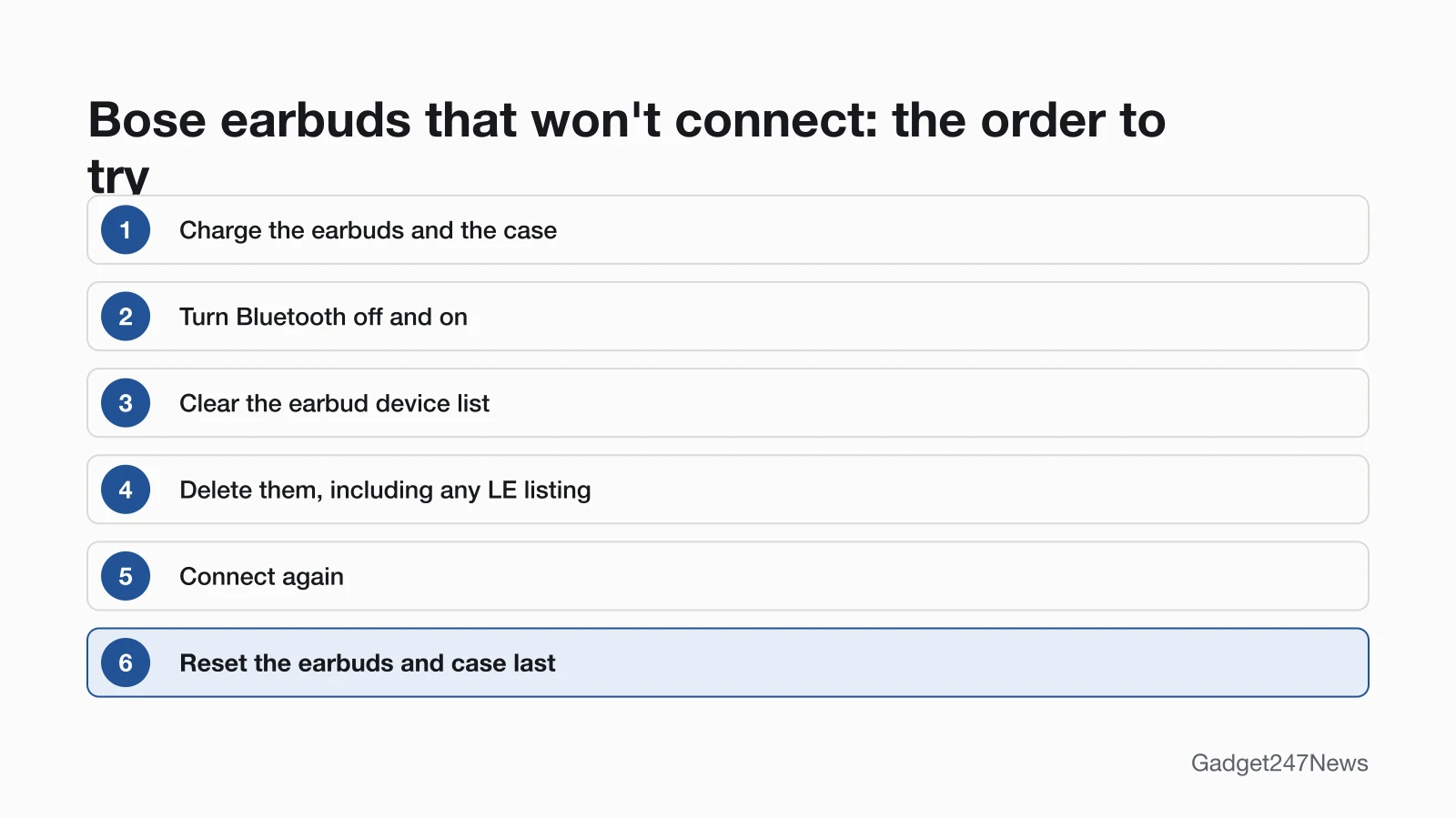
Bose earbuds that won't connect need a clean pairing, and the QuietComfort Ultra Earbuds (2nd Gen) owner's guide gives the order. Charge the earbuds and case first. Then turn Bluetooth off and back on at your phone, clear the earbud device list, and delete the earbuds from your phone's Bluetooth list, including any duplicate listing labeled LE (Low Energy). Connect again, and reset the earbuds and case only if they still won't pair.
Pairing mode uses a different control on each model, and the guide to connect and pair Bose headphones has the full steps for each one. On QuietComfort Ultra Earbuds (2nd Gen) and Ultra Open Earbuds, keep both earbuds in the open case and hold the button on the back of the case until the status light slowly pulses blue. On QuietComfort Earbuds (2024), touch and hold either earbud until you hear "Ready to pair." On QuietComfort Ultra Headphones (2nd Gen), hold the Bluetooth/Power button until the status light pulses blue. On QuietComfort Headphones, slide the Power/Bluetooth switch to the right and hold it until you hear "Ready to connect."
"Syncing" Bose headphones means pairing them. Drops after a good connection are a different fault, covered in why Bose headphones keep disconnecting: Bose earbuds such as the QuietComfort Ultra Earbuds (2nd Gen) can be actively connected to up to two devices at a time (multi-point) but play audio from only one. You don't need the Bose app to pair, because Bose lists the app, your device's Bluetooth menu and Fast Pair (Android only) as ways to connect. QuietComfort Earbuds (2024) use the Bose QCE app, which you open after connecting them in the Bluetooth menu.
Bose Not Charging or Draining Fast
Bose earbuds charge inside their case, and the case charges through its USB-C port. The QuietComfort Ultra Earbuds (2nd Gen) and QuietComfort Earbuds (2024) cases also charge on a compatible third-party wireless charger. Bose headphones charge from a USB-C cable connected to a computer or wall charger. When earbuds won't charge, Bose's first checks are that they're properly placed in the case and that no dirt or debris covers the charging contacts on the earbuds or the charging pins in the case.
Bose's own play-time figures show what Immersive Audio costs: a full charge runs the QuietComfort Ultra Earbuds (2nd Gen) for up to 6 hours with Immersive Audio off and up to 4 hours with it on. Bose adds that battery life varies based on settings and usage. The figures for other models, and every drain fix, are in Bose headphones battery drain.
How to Reset Bose Headphones and Earbuds
Bose uses two terms. A reset reboots your Bose and resets the product controls without clearing its device settings; a restore to factory settings clears all settings and returns it to its out-of-box state. Ultra Open Earbuds differ: their reset also clears the earbud device list. The reset control sits in a different place on each model group:
- Case button: the button on the back of the charging case, on QuietComfort Ultra Earbuds (2nd Gen), Ultra Open Earbuds and QuietComfort Earbuds II.
- Earbud touch: a touch and hold on each earbud, on QuietComfort Earbuds (2024), where Bose calls it a reboot.
- Headphone button: the Bluetooth/Power button, held while you connect the USB-C cable to power, on QuietComfort Ultra Headphones (2nd Gen); a restore adds the Multi-function button.
- Headphone switch: the Power/Bluetooth switch, slid right as you connect the USB cable to power, on QuietComfort Headphones; a restore adds the Action button.
Bose recommends a factory restore only if you're having issues or Bose customer service tells you to. To compare Bose with other brands, see how to reset your earbuds.
One Side Silent, Power or Sound Problems
One silent earbud starts with the fix in the table's "One earbud silent" row: both earbuds in the case until they snap into place, then close and reopen the lid. Earbuds that won't power on may be in Standby; Bose says to wake them by putting them in your ears, and to check charging if they still won't power on (see how to turn Bose headphones on and off). Noise cancelling modes change with a press and hold of the Multi-function button on QuietComfort Ultra Headphones (2nd Gen), a press of the Action button on QuietComfort Headphones, or Modes in the Bose app. Audio that stops when you take out one QuietComfort Ultra Earbud (2nd Gen) is in-ear detection: audio pauses on both earbuds until you reinsert it. Sound that's muffled on both sides is a sound-quality fault, and Bose's poor-sound steps for that model start with disconnecting a second connected device and turning off audio enhancement features.
Which Bose Do I Have?
Your Bose model's name appears in your phone's Bluetooth list, so identify it in two steps:
- Read the name in your Bluetooth list. Unless you renamed it in the Bose app, it shows the default name, such as BOSE QC ULTRA 2 EARBUDS, BOSE QC ULTRA 2 HP, Bose QC Headphones, Bose QuietComfort Earbuds or Bose Ultra Open Earbuds.
- Match the controls and charging method to the table below.
The serial number, which Bose's repair form asks for, has a fixed spot on each model. It's inside the earbud well below the status light on QuietComfort Ultra Earbuds (2nd Gen), on the bottom of the case on QuietComfort Earbuds (2024), and in the case lid on Ultra Open Earbuds. On QuietComfort Ultra Headphones (2nd Gen) and QuietComfort Headphones, it's inside an earcup under the inner fabric.
Bose Model Identifier Table
The table matches the five Bose models whose owner's guides we read to their model number, controls, charging and app.
| Model | Type | Model number (owner's guide) | Pairing and reset control | Charging | App |
|---|---|---|---|---|---|
| QuietComfort Ultra Earbuds (2nd Gen), sold from 2025 | Earbuds | 444965 | Button on the back of the case | Case: USB-C or wireless charger | Bose app |
| QuietComfort Earbuds (2024) | Earbuds | 442318 | Touch and hold on the earbuds | Case: USB-C or wireless charger | Bose QCE app |
| Ultra Open Earbuds | Open earbuds | 438926 | Button on the back of the case | Case: USB-C | Bose app |
| QuietComfort Ultra Headphones (2nd Gen), sold from 2025 | Over-ear headphones | 443987 | Bluetooth/Power button, plus the Multi-function button | USB-C cable | Bose app |
| QuietComfort Headphones | Over-ear headphones | 437310 | Power/Bluetooth switch, plus the Action button | USB-C cable | Bose app |
QuietComfort Earbuds (2024) are the odd ones out: they pair with a touch and hold on the earbuds rather than a case button, and they use a separate app. QuietComfort Earbuds II, QuietComfort 45, Noise Cancelling Headphones 700 and Sport Earbuds aren't in the table yet, and their controls may differ, so check your own owner's guide before following a model-specific step.
Bose Firmware Updates and Known Issues
Bose delivers firmware through the Bose app. For the QuietComfort Ultra Earbuds (2nd Gen), Bose says a new update "will be sent to the Bose app automatically," the earbuds "cannot be updated without being connected to the Bose app," and the update "might take up to 45 minutes, but it usually finishes much faster." The QuietComfort Ultra Headphones (2nd Gen) have a second route: on a computer, btu.bose.com opens the Bose Updater application. If your Bose started misbehaving suddenly after an update, compare your version with the list of Sony, Bose and JBL firmware updates, then check Bose headphone updates on the Update Tracker for known issues. Get an email when a Bose update breaks something, and when it's fixed.
When to Contact Bose Support
Contact Bose once the first fix and its full guide haven't solved the problem, in this order:
- Try the next fix on the page linked in your symptom's row.
- Reset your Bose with the control in the reset section, then restore factory settings only if the problem stays or Bose customer service asks you to.
- Contact Bose Support at support.bose.com. On QuietComfort Ultra Earbuds (2nd Gen), Ultra Open Earbuds and QuietComfort Headphones, a status light that blinks amber and white means an error, and the owner's guide says to contact Bose customer service.
- Start a repair or replacement on Bose's support site, where the first step asks for your product serial number, and compare the options in Bose headphones repair.
Started after an update? Check the Update Tracker for known issues.
Sources
We checked this page against the pages below, most recently on . How we verify fixes
- Owner's Guide, Bose QuietComfort Ultra Earbuds (2nd Gen) (Bose, assets.bosecreative.com)Official
- Owner's Guide, Bose QuietComfort Earbuds (2024) (Bose, assets.bosecreative.com)Official
- Owner's Guide, Bose Ultra Open Earbuds (Bose, assets.bosecreative.com)Official
- Owner's Guide, Bose QuietComfort Ultra Headphones (2nd Gen) (Bose, assets.bosecreative.com)Official
- Owner's Guide, Bose QuietComfort Headphones (Bose, assets.bosecreative.com)Official
- Dropped Bluetooth Connection, Bose QuietComfort Earbuds II (Bose, support.bose.com)Official
- Updating Your Earbuds, Bose QuietComfort Ultra Earbuds (2nd Gen) (Bose, support.bose.com)Official
- Updating Your Headphones, Bose QuietComfort Ultra Headphones (2nd Gen) (Bose, support.bose.com)Official
- Repair and replacement, Bose (Bose, support.bose.com)Official
- Find & set up Bluetooth devices near your Android device, Android Help (Google, support.google.com)Official
- Pair a Bluetooth device in Windows, Microsoft Support (Microsoft, support.microsoft.com)Official