How to Update Bose Headphones Firmware

By Suraj Giri, Founder & Publisher. Reviewed by Suraj Giri on .
Published · 4 min read
How this page was made
- Sources. Checked against 9 official pages from Bose, most recently on . See the sources.
- No device testing. We don't test fixes on physical devices, so nothing on this page is a hands-on result. A fact counts as verified only when it matches an official source page.
- AI use. As with every page on Gadget247News, AI tools helped research, outline, draft and edit this page, and re-read the official pages to flag facts that didn't match. The illustration at the top was generated with Runway and is labelled under the image.
- Human sign-off. Suraj Giri, Founder & Publisher, read this page and signed it off on . The site won't publish a page without that sign-off.
- Changes. The published and updated dates move only when the content changes, and every change gets a dated note. Spot an error or a fix that didn't work? Email info@gadget247news.com.
Read our AI use policy, editorial policy and corrections policy.
To update Bose earbuds or headphones, connect them to the Bose app and tap Install Update when it appears (QuietComfort Earbuds (2024): tap the update message in the Bose QCE app). New firmware reaches the app automatically, and QuietComfort Ultra Headphones (2nd Gen) can also update from a computer at btu.bose.com. Check Bose headphone updates on the Update Tracker for versions and known issues; other faults are in Bose headphones not working.
How to Update Bose Earbuds
QuietComfort Ultra Earbuds (1st and 2nd Gen) use the same five steps:
- Connect the earbuds to your phone or tablet through the Bose app.
- Wait for the update. When one is ready, it's sent to the Bose app automatically and Transferring Update appears over your product image.
- When the message changes to Install Update, tap it, then tap Update Now on the next screen.
- Follow the app. You can keep using the earbuds; if you stop, the update will pause and pick up where it left off.
- When it finishes, reconnect the earbuds and open the Bose app again to confirm it installed.
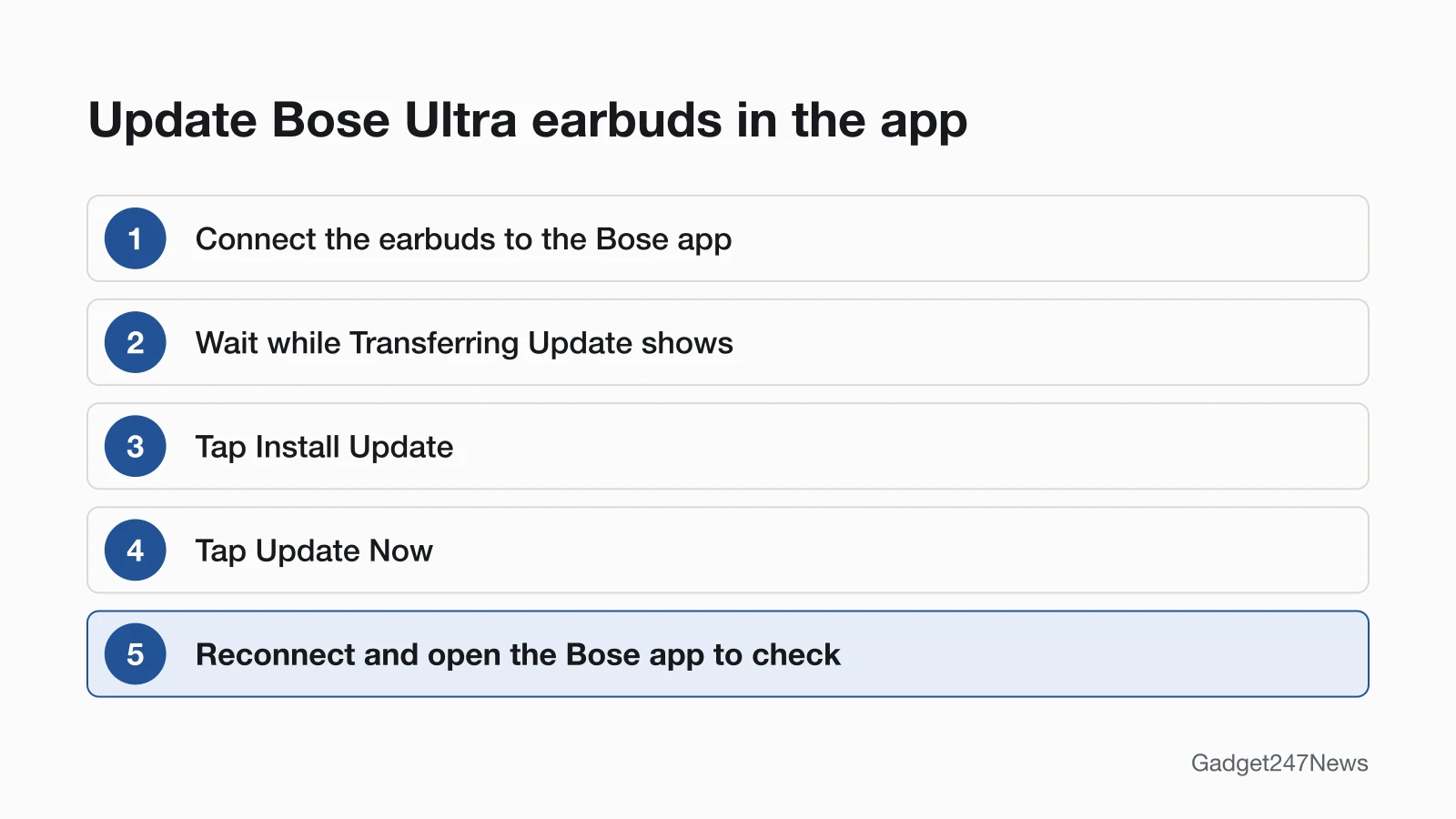
Ultra Open Earbuds begin updating automatically when connected to the Bose app and an update is available. On QuietComfort Earbuds (2024), tap the update message on the product control screen of the Bose QCE app.
How to Update Bose Headphones
QuietComfort Ultra Headphones (2nd Gen) update in four steps:
- Keep the headphones connected through the Bose app, which downloads the update automatically.
- Let the app transfer it to the headphones (up to 40 minutes). Stay in Bluetooth range with the app open or in the background.
- After the transfer, tap Install Update and follow the app instructions.
- Wait up to 15 minutes for the install, while the light continuously blinks white.
If the headphones power off mid-update, it resumes once they're on and connected again. QuietComfort Headphones also update through the Bose app; their status light blinks white slowly for 30 to 60 seconds while updating wirelessly. We didn't read update steps for QuietComfort 45 or Noise Cancelling Headphones 700.
How to Check Your Bose Firmware Version
Bose's version check for QuietComfort Ultra Earbuds and QuietComfort Ultra Headphones (2nd Gen) has five steps:
- Turn the product on and connect it to the Bose app.
- Open the product in the Bose app tray.
- Tap the gear icon in the upper right corner.
- Scroll down and select Technical Info under the Support section.
- Read Firmware Version, first in the list.
The QuietComfort Earbuds (2024) guide gives no version path for the Bose QCE app.
Updating From a Phone, Windows PC or Mac
A phone or tablet updates the earbuds and headphones; a computer handles QuietComfort Ultra Headphones (2nd Gen) and some charging cases:
| Host | Can it deliver the update? | Source |
|---|---|---|
| Phone or tablet with the Bose app (iOS 17 or later, Android 13 or later) | Yes, for every model above except the charging cases (QuietComfort Earbuds (2024): Bose QCE app) | Bose update articles |
| Windows 11, Windows 10 or macOS (the latest two versions) | Yes, for QuietComfort Ultra Headphones (2nd Gen): open btu.bose.com in Chrome, Edge, Firefox or Safari to run the Bose Updater | Bose headphones update article |
| Charging case, QuietComfort Ultra Earbuds (1st and 2nd Gen) | Computer only: the case "cannot be updated from the Bose app"; use the Bose Updater at BTU.Bose.com over USB-C | Bose earbuds update articles |
| Charging case, Ultra Open Earbuds | Only "If Bose customer service tells you to", through the Bose updater website | Ultra Open owner's guide |
How to Check the Update Worked
Confirm the new firmware in two steps:
- Reconnect your Bose and open the Bose app again to make sure the update was installed successfully.
- Compare Firmware Version under Technical Info with the newest version on Bose's update page for your model.
If Your Bose Won't Update
Bose lists these fixes for a QuietComfort Ultra Earbuds (2nd Gen) update that isn't successful:
- Uninstall the Bose app from your device, download and reinstall it, then try again.
- Reset your product (see Bose headphones soft and factory reset steps).
- Try installing the update again.
- If you're using a computer, reboot it by powering it off completely, then back on.
- Force close and restart the app to try activating again, if technical info in the app settings shows the message Bose pictures.
If your Bose won't connect at all, start with Bose headphones not connecting to your phone.
What Changed in the Latest Bose Update?
Version history and known issues live on Sony, Bose and JBL headphone firmware updates. One example from Bose's list, read on September 27, 2026: QuietComfort Ultra Headphones (2nd Gen) firmware 10.12.12 (September 8, 2026) adds Bluetooth LE Audio support (beta) for compatible Android and Windows devices, and 5.1 Spatial Audio with head tracking on compatible Android devices.
Bose Firmware: Quick Answers
How do I update Bose QuietComfort Earbuds?
QuietComfort Earbuds (2024) update from the message in the Bose QCE app, and QuietComfort Ultra Earbuds (1st and 2nd Gen) through Install Update, then Update Now, in the Bose app. For QuietComfort Earbuds II, Bose's dropped-connection article says to visit btu.Bose.com and follow the instructions.
How long does a Bose firmware update take?
A QuietComfort Ultra Earbuds update might take up to 45 minutes, though Bose says it usually finishes much faster. QuietComfort Ultra Headphones (2nd Gen) need up to 40 minutes to transfer an update and up to 15 minutes to install it.
How do I update the Bose charging case?
For QuietComfort Ultra Earbuds, update the case on a computer: go to BTU.Bose.com, download the Bose Updater, connect the case with a USB-C cable and follow the on-screen instructions. Update the Ultra Open Earbuds case only if Bose customer service tells you to.
Sources
We checked this page against the pages below, most recently on . How we verify fixes
- Updating Your Earbuds | Bose QuietComfort Ultra Earbuds (2nd Gen) (Bose, support.bose.com)Official
- Updating Your Headphones | Bose QuietComfort Ultra Headphones (2nd Gen) (Bose, support.bose.com)Official
- Updating Your Earbuds | Bose QuietComfort Ultra Earbuds (Bose, support.bose.com)Official
- Software or firmware update will not install | Bose QuietComfort Ultra Earbuds (2nd Gen) (Bose, support.bose.com)Official
- Software and firmware versions | Bose QuietComfort Ultra Headphones (Bose, support.bose.com)Official
- Bose QuietComfort Earbuds Owner's Guide (Bose, assets.bosecreative.com)Official
- Bose Ultra Open Earbuds Owner's Guide (Bose, assets.bosecreative.com)Official
- Bose QuietComfort Headphones Owner's Guide (Bose, assets.bosecreative.com)Official
- Dropped Bluetooth Connection | Bose QuietComfort Earbuds II (Bose, support.bose.com)Official