Garmin Watch Problems and Fixes: Pairing, Sync, Battery

By Suraj Giri, Founder & Publisher. Reviewed by Suraj Giri on .
Published · 8 min read
How this page was made
- Sources. Checked against 27 official pages from Garmin, most recently on . See the sources.
- No device testing. We don't test fixes on physical devices, so nothing on this page is a hands-on result. A fact counts as verified only when it matches an official source page.
- AI use. As with every page on Gadget247News, AI tools helped research, outline, draft and edit this page, and re-read the official pages to flag facts that didn't match. The illustration at the top was generated with Runway and is labelled under the image.
- Human sign-off. Suraj Giri, Founder & Publisher, read this page and signed it off on . The site won't publish a page without that sign-off.
- Changes. The published and updated dates move only when the content changes, and every change gets a dated note. Spot an error or a fix that didn't work? Email info@gadget247news.com.
Read our AI use policy, editorial policy and corrections policy.
Garmin watch problems sort into three groups: the Bluetooth link to your phone, syncing with the Garmin Connect app, and the battery or charger. Find your symptom in the table below; each row names the likely cause and the first fix, then links to the full steps. Garmin watches work with iPhone (iOS 18.2 or later) and Android phones (Android 9 or later) through the Garmin Connect app, and every step on these pages is checked against Garmin Support and Garmin's owner's manuals.
If your smartwatch isn't a Garmin, start with the guide for when a smartwatch stopped working, which covers the other brands. On a Garmin, the same fix means a different button on each family: LIGHT on a Forerunner 265, CTRL on an Instinct 3 Solar, the A (Action) button on a Venu 3. The model table further down names the button for your watch.
Find Your Garmin Watch Problem
The table lists nine Garmin watch symptoms with the most likely cause and the first fix from each linked guide.
| Symptom | Most likely cause | First fix | Full steps |
|---|---|---|---|
| Setting up or moving to a new phone | Not paired yet, or still paired to the old phone | In the Garmin Connect app, tap More › Garmin Devices › Add Device, then put the watch in pairing mode and confirm the six-digit code. | How to Pair a Garmin Watch With Your iPhone or Android Phone |
| Won't connect to your phone | A Bluetooth glitch on the phone or the watch | Turn your phone's Bluetooth off and on, then restart both your phone and your Garmin watch. | Garmin Watch Not Connecting to Your Phone |
| Not syncing with Garmin Connect | Bluetooth off, phone offline or a Garmin Connect outage | Turn on Bluetooth on your phone and watch, make sure the phone is online, then restart both devices. | Garmin Watch Not Syncing With Garmin Connect |
| Not charging | Dirty contacts or a damaged cable | Clean the watch's charging contacts and the cable pins with rubbing alcohol on a cotton swab, let them dry, then try a different wall outlet. | Garmin Watch Not Charging |
| Battery draining fast | Display brightness, Always On Display or GPS use | Lower the display brightness and turn off Always On Display, then turn on Battery Saver if you need more time. | Garmin Watch Battery Draining Fast |
| Frozen, glitchy or needs a reset | Frozen software | Restart first: hold the power button until the watch turns off (up to 30 seconds), then press it again to turn it back on. | How to Restart or Factory Reset a Garmin Watch |
| Won't turn on | A low-power state or a drained battery | Connect the watch to a wall outlet or computer and hold the power button for a full 60 seconds. | Garmin Watch Won't Turn On |
| Not getting notifications | Phone not sharing notifications, or a quiet mode on the watch | Turn on Share System Notifications for the watch in iPhone Bluetooth settings, or Notification Access in Garmin Connect on Android, then turn off Do Not Disturb. | Garmin Watch Not Getting Notifications |
| Needs an update | An update still waiting to download or install | Sync the watch with the Garmin Connect app, which sends new software automatically, or connect it to Garmin Express on a computer. | How to Update Your Garmin Watch |
If the first fix changes nothing, open the linked guide: it continues in Garmin's own order and leaves the factory reset for last.
Does a Garmin Watch Work With iPhone and Android?
Yes. A Garmin watch works with an iPhone on iOS 18.2 or higher and with Android phones on Android 9 or higher, and the link runs through the Garmin Connect app. Garmin warns that "using an unsupported OS version may lead to a loss of app functionality."
| Phone | Requirement for Garmin Connect | Source |
|---|---|---|
| iPhone | iOS 18.2 or higher | Garmin Connect App Compatibility Requirements |
| Android phone or tablet | Android 9 or higher, on a device that natively supports the Google Play Store; Android (Go edition) devices are not supported | Garmin Connect App Compatibility Requirements |
Garmin also lists Huawei phones among the models that "did not pass internal tests." Pair inside the Garmin Connect app: Garmin's pairing page says, "Do not pair your Garmin device directly through the Bluetooth settings of your smartphone." Pair each watch with one phone, since Garmin says to "avoid pairing your device with multiple mobile devices."
Garmin Watch Won't Connect or Sync
"Connect" and "sync" are two different faults. A connection is the Bluetooth link between the watch and your phone. A sync moves your steps, workouts and weather between the watch and your Garmin Connect account, and Garmin's sign that it works is a green dot at the top of the Garmin Connect app's Home screen. Garmin says "many issues related to Bluetooth can be resolved by restarting your phone and Garmin device." A sync also needs a phone with an active cellular or Wi-Fi signal and no outage on Garmin's status page; our Garmin Connect status page tracks that. Battery Saver, Stealth Mode and Expedition Mode "can disable Bluetooth," so check them next. To force a sync, open the watch's controls menu and select Sync: hold LIGHT on a Forerunner 265, CTRL on an Instinct 3 Solar, or the A button on a Venu 3 or vívoactive 5.
Garmin Watch Not Charging or Draining Fast
Garmin's charging checks cover three parts: the contacts, the cable and the power source. The Forerunner 265, fēnix 8 and Instinct 3 Solar manuals say each watch "comes with a proprietary charging cable." Garmin's cleaning method is a cotton swab or pencil eraser dipped in rubbing alcohol on "the gold contact points on both the device and the charger," dried completely before you plug it back in.
Many settings and features affect battery life, Garmin says, and "high display brightness significantly drains the battery." The same page also names Always On Display, GPS activities, All-Day or During Sleep Pulse Ox, music and continuous Bluetooth features such as calls and texting. Battery Saver sits under Watch Settings › Power Manager (System › Battery Manager on some models), and the watch prompts you to turn it on at 10%. Rated life depends on the model: the Forerunner 265 manual gives up to 13 days in smartwatch mode, and up to 15 days for the Forerunner 265S.
How to Restart or Reset a Garmin Watch
A restart turns the watch off and on; a factory reset erases it. Garmin's frozen-watch page says a restart may lose "recent steps taken" or "current time," and the Forerunner 265, Venu 3 and vívoactive 5 manuals add that "restarting the watch may erase your data or settings," so sync first if the watch still responds.
The factory reset option is Delete Data and Reset Settings, which deletes "all user-entered information and activity history," any Garmin Pay wallet and, on the Forerunner 265, fēnix 8 and Venu 3, stored music. On the Forerunner 265 and Instinct 3 Solar it sits under System › Reset (Venu 3 and vívoactive 5: Settings › System › Reset). The fēnix 8 uses Watch Settings › System › Restore & Reset › Reset. The manuals also say to sync with Garmin Connect before you reset. For other brands, see how to reset a smartwatch to factory settings.
Notifications and Power Problems
Notifications need settings in three places: the phone, the Garmin watch and the Garmin Connect app. On an iPhone, turn on Share System Notifications for the watch under Bluetooth; on Android, turn on Notification Access in Garmin Connect. Then check the watch: Do Not Disturb silences notifications, and Garmin says sleep times set in Garmin Connect "can enable Do Not Disturb mode." A dark screen needs a different fix. Garmin says a blank watch is "likely frozen or the battery is depleted," and its first step is the 60-second hold on a proven power source.
Which Garmin Watch Do I Have?
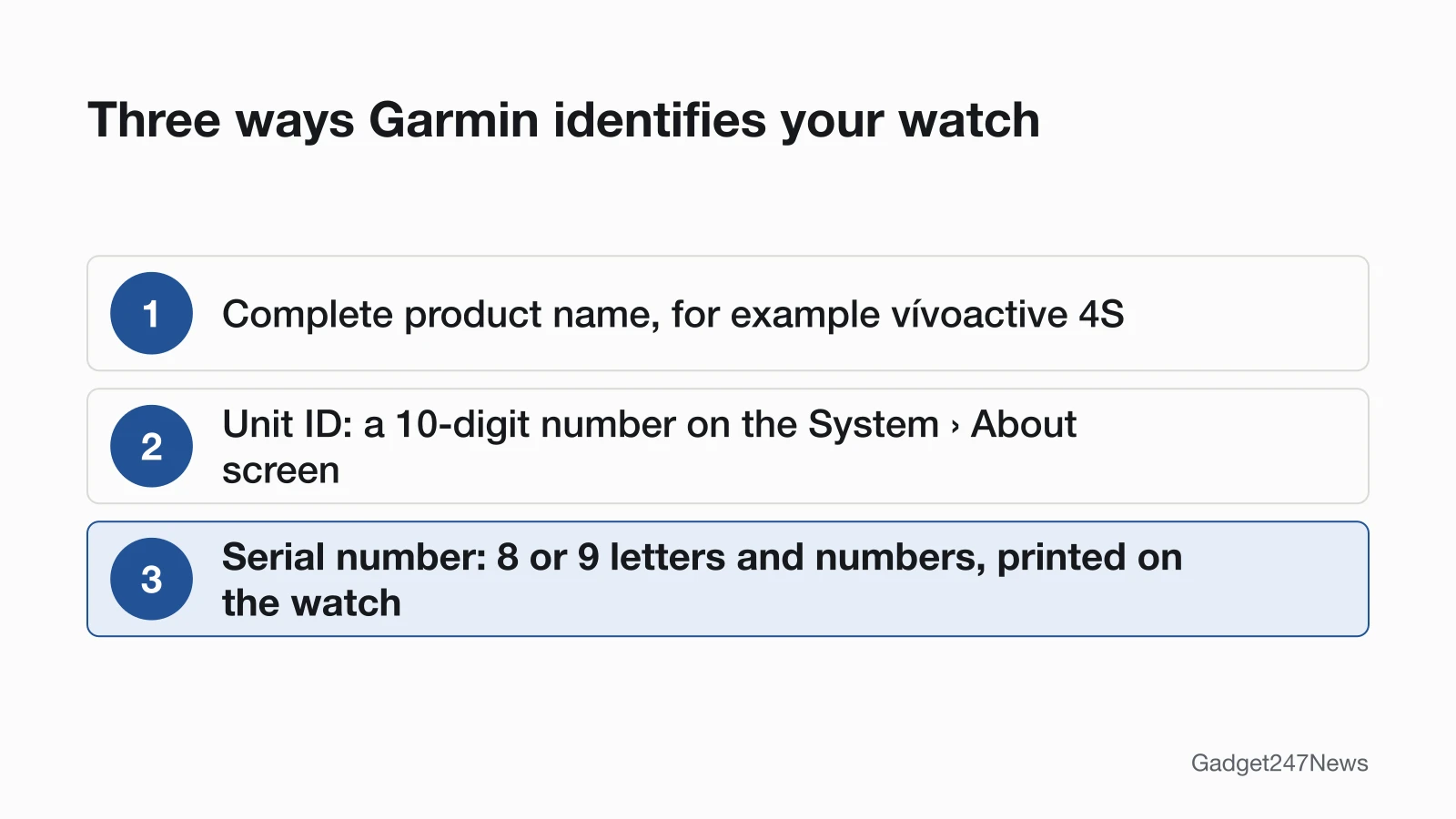
Garmin names three ways to identify a watch:
- The complete product name, with the series and model number, such as "vívoactive 4S" (Garmin's own example).
- The unit ID, a 10-digit number on the watch's System › About screen, along with the software version. On a Forerunner 265, hold UP, then select System › About.
- The serial number, 8 or 9 letters and numbers with no dashes, printed on the watch (often the back, near the charging contacts or under the band) and on the box label below a barcode.
Garmin Model Identifier Table
The table compares six Garmin families by the model whose owner's manual we read: the buttons it names, the power button and how the charger attaches.
| Family | Model we read | Buttons named in the manual | Power button | How it charges |
|---|---|---|---|---|
| Forerunner | Forerunner 265 | LIGHT, UP, DOWN, START·STOP, BACK | LIGHT | Cable plugs into the watch's charging port |
| fēnix | fēnix 8 | Upper-left, middle-left, lower-left, upper-right, lower-right | Upper-left button | Cable plugs into the watch's charging port |
| Instinct | Instinct 3 Solar | LIGHT/CTRL, UP/MENU, DOWN/ABC, GPS, BACK/SET | CTRL | Cable plugs into the watch's charging port |
| Venu | Venu 3 | A (Action), B (Back), C (Custom/Voice Assistant) | A (Action) | Cable plugs into the watch's charging port |
| vívoactive | vívoactive 5 | A (Action), B (Back/Menu) | A (Action) | Cable plugs into the watch's charging port |
| Lily | Lily 2 | Touchscreen and a touch button | Power Off is in the System settings menu; plugging into power turns it back on | Charging clip aligned with the contacts on the back |
We checked one model per family; if your buttons don't match the row, your own owner's manual has the right names. Software versions for these watches are listed on Garmin watch software updates. Edge bike computers, handhelds and golf devices are outside this page.
Garmin Updates and Known Issues
The Garmin Connect app sends new software to the watch, and the Forerunner 265 manual sets two conditions for that route: "you must have a Garmin Connect account, and you must pair the watch with a compatible phone." Garmin's update pages add that released updates "may take up to a week to download before prompting you to install," while Garmin Express checks "each time you connect your compatible device to the computer." September 2026 brought software 18.29 to the Forerunner 970 and 18.30 to the Venu 4. Earlier 2026 releases fixed two faults covered above: the May 2026 Forerunner 970 (17.33) and fēnix 8 AMOLED (22.35) updates fixed "a failure when uploading an activity file to Garmin Connect" and "excessive battery drain after using the phone assistant or accepting a phone call on the watch." Version history by model is on Garmin watch software updates, and fixes as they land are on Garmin watch updates on the Update Tracker. Get an email when a Garmin update breaks something, and when it's fixed.
Health, Setup and Features
These Garmin guides cover features rather than faults:
- Garmin Body Battery Explained: Garmin's energy score from 5 to 100, which uses heart rate variability, stress, sleep and activity levels.
- How to Install Connect IQ Apps on a Garmin Watch: watch faces, apps, widgets and data fields, which Garmin says "may draw more power."
- Garmin GPS drift: tracks that wander from your route, or distances that don't match the course.
- Is Garmin Connect Down? Status and Sync Fixes: what to do when the Garmin Connect Status page shows an outage.
This covers device settings only and isn't medical advice.
When to Contact Garmin Support
Contact Garmin after the table and the linked guide have both failed, in this order:
- Try the next fix on the linked guide for your symptom.
- Restart the watch, and factory reset it only as the last step, after a sync.
- Contact Garmin Product Support through Garmin Support, which troubleshoots the problem with you first.
- If the problem can't be solved remotely, Garmin may ask you to return the watch for service; Understanding Garmin Service Options explains the route.
Sources
We checked this page against the pages below, most recently on . How we verify fixes
- Garmin Connect App Compatibility Requirements (Garmin, support.garmin.com)Official
- Pairing Your Watch to the Garmin Connect App (Garmin, support.garmin.com)Official
- Garmin Connect App: Device or Accessory Not Found During the Pairing Process (Garmin, support.garmin.com)Official
- Garmin Connect App Bluetooth Troubleshooting (Garmin, support.garmin.com)Official
- My Device Is Not Syncing Data to the Garmin Connect App (Garmin, support.garmin.com)Official
- My Garmin Wearable or Edge Device Will Not Turn On (Garmin, support.garmin.com)Official
- Why Is the Battery of My Garmin Wearable Draining Faster Than Expected? (Garmin, support.garmin.com)Official
- How to Use Power Manager on Garmin Watches (Garmin, support.garmin.com)Official
- My Garmin Watch Freezes or Reboots (Garmin, support.garmin.com)Official
- Setting Up Smart Notifications For My Garmin Device (Garmin, support.garmin.com)Official
- How Do I Identify My Product Model? (Garmin, support.garmin.com)Official
- Forerunner 265 Series Watch Owner's Manual: Overview (Garmin, www8.garmin.com)Official
- Forerunner 265 Series Watch Owner's Manual: Restarting the Watch (Garmin, www8.garmin.com)Official
- Forerunner 265 Series Watch Owner's Manual: Resetting All Default Settings (Garmin, www8.garmin.com)Official
- Forerunner 265 Series Watch Owner's Manual: Battery Life Information (Garmin, www8.garmin.com)Official
- Forerunner 265 Series Watch Owner's Manual: Updating the Software Using the Garmin Connect App (Garmin, www8.garmin.com)Official
- fēnix 8 Series Owner's Manual: Button Functions (Garmin, www8.garmin.com)Official
- fēnix 8 Series Owner's Manual: Resetting All Default Settings (Garmin, www8.garmin.com)Official
- Instinct 3 Solar Series Owner's Manual: Buttons (Garmin, www8.garmin.com)Official
- Venu 3 Series Owner's Manual: Overview (Garmin, www8.garmin.com)Official
- vívoactive 5 Owner's Manual: Overview (Garmin, www8.garmin.com)Official
- Lily 2 Owner's Manual: Charging the Watch (Garmin, www8.garmin.com)Official
- Update and Learn More About the Software on Your Forerunner 970 (Garmin, support.garmin.com)Official
- Update and Learn More About the Software on Your Venu 4 (Garmin, support.garmin.com)Official
- Update and Learn More About the Software on Your fēnix 8 AMOLED (Garmin, support.garmin.com)Official
- Garmin Body Battery Frequently Asked Questions (Garmin, support.garmin.com)Official
- Understanding Garmin Service Options (Garmin, support.garmin.com)Official