Garmin Watch Not Syncing With Garmin Connect? How to Fix It

By Suraj Giri, Founder & Publisher. Reviewed by Suraj Giri on .
Published · 7 min read
How this page was made
- Sources. Checked against 18 official pages from Garmin, most recently on . See the sources.
- No device testing. We don't test fixes on physical devices, so nothing on this page is a hands-on result. A fact counts as verified only when it matches an official source page.
- AI use. As with every page on Gadget247News, AI tools helped research, outline, draft and edit this page, and re-read the official pages to flag facts that didn't match. The illustration at the top was generated with Runway and is labelled under the image.
- Human sign-off. Suraj Giri, Founder & Publisher, read this page and signed it off on . The site won't publish a page without that sign-off.
- Changes. The published and updated dates move only when the content changes, and every change gets a dated note. Spot an error or a fix that didn't work? Email info@gadget247news.com.
Read our AI use policy, editorial policy and corrections policy.
This guide is for a Garmin watch that is paired with your phone but has stopped passing data to the Garmin Connect app. Garmin lists three signs: daily steps that don't update in the app, recorded workouts missing from your account, and a weather forecast that is old or missing. A watch that won't connect at all needs the connection fixed first. Charging, pairing and reset problems are on the Garmin watch fixes hub.
Other watch brands sync through their own apps and follow different steps. The cross-brand guide for smartwatch data not syncing to the app gives the first fix for each brand we cover.
Why Your Garmin Watch Isn't Syncing
A Garmin watch stops syncing for one of six reasons, all taken from Garmin's support pages:
- Bluetooth is off on the phone or on the watch.
- The phone is offline. Garmin says: "Your phone requires an active cellular or Wi-Fi signal for Garmin Connect to sync."
- Garmin Connect has an outage, which shows on the Garmin Connect Status page.
- Battery Saver or Stealth Mode is on. Garmin says these modes "disable wireless connections like Bluetooth, preventing syncing."
- Android put Garmin Connect to sleep. Android battery optimization can stop apps running "in the background," and Garmin titles its fix page "Garmin Device No Longer Syncs or Receives Notifications From an Android Phone."
- The pairing itself is at fault, which Garmin's last step fixes by removing the watch and adding it again.
A broken link to Strava or another partner app is a separate fault, covered further down.
How to Fix a Garmin Watch That Won't Sync
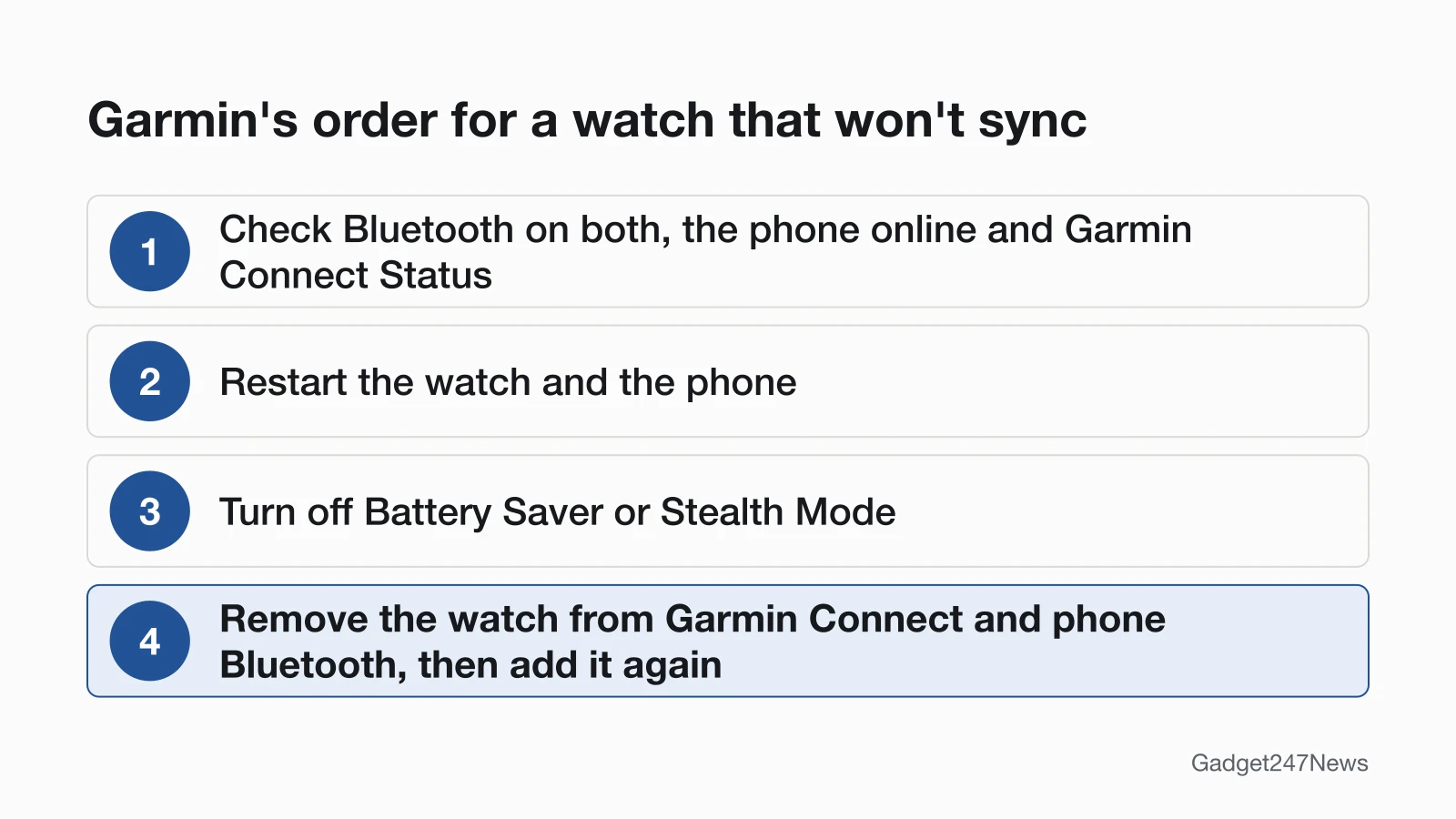
These follow Garmin's own order; after each step, check whether the watch syncs before moving on.
Fix 1: Check the Connection First
Open the Garmin Connect app with the watch near your phone and look at the top of the Home screen. Garmin's sign of a working sync is a green dot there, plus a syncing animation next to the image of your device while data moves. No green dot means the watch isn't connected, and syncing can't start until it is: work through Garmin watch not connecting to your phone first, then come back.
Fix 2: Force a Sync
You can start a sync from either end:
- From the phone: open Garmin Connect with the watch nearby. Garmin says that with the device connected, the app "should automatically start syncing your data." The Forerunner 265 manual asks you to bring the watch within 10 m (30 ft.) of the phone.
- From the watch: open the controls menu and select Sync. The button that opens the controls menu depends on the model:
| Watch | Open the menu | Then select |
|---|---|---|
| Forerunner 265 | Hold LIGHT (controls menu) | Sync |
| vívoactive 6 | Hold the top button (controls menu) | Sync |
| fēnix 8 | Hold the upper-left button (controls menu) | Sync |
| Instinct 3 Solar | Hold CTRL (controls menu) | Sync |
| Lily 2 | Press the touch button | Settings › System settings › Phone › Sync |
Fix 3: Restart Your Watch and Phone
Restart both devices, which is step 1 of Garmin's sync order: turn the watch off and on again, then restart your smartphone. On a Forerunner 265, hold LIGHT for 15 seconds until the watch turns off, then hold LIGHT for one second to turn it back on. That manual warns a restart "may erase your data or settings." For other models, see restart a Garmin watch.
Fix 4: Turn Off Battery Saver or Stealth Mode
Check the watch's power modes next, since Garmin's step 2 says they can block syncing:
- On the watch, open Watch Settings › Power Manager › Battery Saver and turn it off. Some models use Watch Settings › System › Battery Manager › Battery Saver instead.
- On a Garmin tactical watch, check that Stealth Mode is off too; Garmin covers it on a separate page, "Stealth Mode on Garmin Tactical Watches."
Garmin's Bluetooth checklist adds Expedition Mode to the modes that "can disable Bluetooth."
Fix 5: Let Garmin Connect Run in the Background (Android)
On Android, stop battery optimization from putting Garmin Connect to sleep. Garmin notes that menu options vary by phone model:
- Pixel: Settings › Apps › Garmin Connect › App Battery Usage, turn on Allow Background Usage, then disable battery optimization.
- Samsung: Settings › Apps › Garmin Connect › Battery, touch Optimize Battery Usage, then disable battery optimization.
- Other phones: Garmin's page has separate steps for BlackView, LG, Motorola, OnePlus, Unihertz, Vivo, Xiaomi and RealMe, and a separate page for Huawei.
Garmin's Bluetooth checklist also asks for the latest Garmin Connect app and up-to-date watch software; How to Update Your Garmin Watch covers the watch side.
Fix 6 (Last): Remove the Watch and Add It Again
Remove and add the watch only after Fixes 1 to 5. It is Garmin's last step, and removing the watch deletes any Garmin Pay wallet on it, which you set up again afterwards.
- Remove it from Garmin Connect: More › Garmin Devices › your watch › the three dots (top right) › Remove Device, then confirm.
- Remove it from the phone's Bluetooth list. iPhone: Settings › Bluetooth › (i) next to the watch › Forget This Device. Android: Settings › Connections › Bluetooth › the gear next to the watch › Unpair. Garmin Connect app version 5.21 and newer may do this for you.
- Add it back in Garmin Connect with More › Garmin Devices › Add Device, put the watch in pairing mode and confirm the six-digit code. The full iPhone and Android steps are on pair a Garmin watch with your phone.
Garmin says "a sync should occur during this process," and the green dot returns on the Home screen once the watch is connected.
Syncing Problems by App and Service
Two sync faults sit outside your watch and phone: an outage at Garmin, and a broken link between Garmin Connect and a partner app.
Is Garmin Connect Down?
Check Garmin's service status before you reset anything. Garmin's sync page tells you to "ensure there are no system outages by visiting the Garmin Connect Status page" at connect.garmin.com/status/. If a service shows a problem, Garmin's advice is to check back until it is resolved, then sync again. Our Garmin Connect outage page records the latest check.
Not Syncing to Strava, MyFitnessPal or Apple Health
Garmin's fix for a partner app that stops receiving your data is to disconnect and reconnect the two accounts, in this order:
- Check both status pages. On the Garmin Connect Status page, "a green ONLINE indicator for third-party indicates no issue from the Garmin Connect side." Then check the partner's own status page.
- Disconnect in Garmin Connect: More › Settings › Connected Apps › the app › Disconnect.
- Reconnect from the partner app. Strava: You › Settings › Connect an app or device › Garmin › Connect Garmin, then agree to the terms.
Garmin also recommends signing out of the Strava app and website before these steps, to avoid using two Strava accounts. For steps in MyFitnessPal, open the MyFitnessPal app and pick Garmin Connect under More › Steps › "Choose a device." Garmin Connect "will not forward data that has been received from one third-party fitness website to another." Garmin's third-party page covers MyFitnessPal, Strava and Zwift; it gives no Apple Health steps.
Still not working?
If the watch still won't sync after all six fixes, take these steps in order:
- Try the next fix: Garmin watch not getting notifications (if notifications stopped too).
- Reset your Garmin watch: factory reset a Garmin watch (you'll need to pair it again afterwards).
- Contact Garmin Support: Garmin Support.
- Check repair or warranty options: Understanding Garmin Service Options.
Started after an update? Check the Update Tracker for known issues.
Started After an Update?
Garmin has fixed several sync bugs in 2026 releases. The Forerunner 265's 29.05 update (August 2026) lists "Fix an issue with syncing strength personal records to Garmin Connect." The May 2026 updates for the Forerunner 970 (17.33) and fēnix 8 AMOLED (22.35) fixed "a failure when uploading an activity file to Garmin Connect." Update the watch, then look up your model on Garmin watch update known issues.
Garmin Sync: Quick Answers
How do I force my Garmin watch to sync?
Open the Garmin Connect app with the watch close by, or select Sync from the watch's controls menu. On a Forerunner 265 you hold LIGHT to reach that menu; on a vívoactive 6 you hold the top button.
How do I resync my Garmin watch to my iPhone?
Restart the watch and the iPhone first, then remove and add the watch if it still won't sync. Remove it in Garmin Connect, tap Forget This Device in the iPhone's Bluetooth settings, then choose Add Device › Find Nearby Accessories › Set Up, confirm the six-digit code and tap Done.
Why does my Garmin sync keep failing?
A "Sync Failed" message typically means the watch was too busy to respond and the request timed out, Garmin says, so wait a few minutes and try again. If it keeps failing, Garmin says a corrupt file on the watch is usually blocking the sync: connect the watch to Garmin Express on a computer, which names any file that is "Unable to Sync."
What to do when Garmin won't sync?
Work through Garmin's order: Bluetooth on both devices, the phone online, the status page clear, then restart both. After that, turn off Battery Saver or Stealth Mode, and remove and add the watch again only as the last step.
Sources
We checked this page against the pages below, most recently on . How we verify fixes
- My Device Is Not Syncing Data to the Garmin Connect App (Garmin, support.garmin.com)Official
- Garmin Connect App Bluetooth Troubleshooting (Garmin, support.garmin.com)Official
- How to Use Power Manager on Garmin Watches (Garmin, support.garmin.com)Official
- Garmin Device No Longer Syncs or Receives Notifications From an Android Phone (Garmin, support.garmin.com)Official
- Remove and Add a Device From the Garmin Connect App (Garmin, support.garmin.com)Official
- Garmin Connect Data Is Not Syncing Over to My Third-Party App (Garmin, support.garmin.com)Official
- Garmin Connect App Displays Sync Failed Message (Garmin, support.garmin.com)Official
- Forerunner 265 Series Watch Owner's Manual: Manually Syncing Data with Garmin Connect (Garmin, www8.garmin.com)Official
- Forerunner 265 Series Watch Owner's Manual: Using the Garmin Connect App (Garmin, www8.garmin.com)Official
- Forerunner 265 Series Watch Owner's Manual: Restarting the Watch (Garmin, www8.garmin.com)Official
- vívoactive 6 Owner's Manual: Manually Syncing Data with Garmin Connect (Garmin, www8.garmin.com)Official
- fēnix 8 Series Owner's Manual: Manually Syncing Data with Garmin Connect (Garmin, www8.garmin.com)Official
- Instinct 3 Solar Series Owner's Manual: Manually Syncing Data with Garmin Connect (Garmin, www8.garmin.com)Official
- Lily 2 Owner's Manual: Syncing Your Data with the Garmin Connect App (Garmin, www8.garmin.com)Official
- Update and Learn More About the Software on Your Forerunner 265 (Garmin, support.garmin.com)Official
- Update and Learn More About the Software on Your Forerunner 970 (Garmin, support.garmin.com)Official
- Update and Learn More About the Software on Your fēnix 8 AMOLED (Garmin, support.garmin.com)Official
- Understanding Garmin Service Options (Garmin, support.garmin.com)Official