Garmin Watch Not Getting Notifications? How to Fix It

By Suraj Giri, Founder & Publisher. Reviewed by Suraj Giri on .
Published · 7 min read
How this page was made
- Sources. Checked against 8 official pages from Garmin, most recently on . See the sources.
- No device testing. We don't test fixes on physical devices, so nothing on this page is a hands-on result. A fact counts as verified only when it matches an official source page.
- AI use. As with every page on Gadget247News, AI tools helped research, outline, draft and edit this page, and re-read the official pages to flag facts that didn't match. The illustration at the top was generated with Runway and is labelled under the image.
- Human sign-off. Suraj Giri, Founder & Publisher, read this page and signed it off on . The site won't publish a page without that sign-off.
- Changes. The published and updated dates move only when the content changes, and every change gets a dated note. Spot an error or a fix that didn't work? Email info@gadget247news.com.
Read our AI use policy, editorial policy and corrections policy.
A Garmin watch that isn't getting notifications misses the texts, calls and app alerts your phone still receives. Garmin calls the feature Smart Notifications, and its setup page says they need settings on three things: your paired phone, a Garmin app such as Garmin Connect, and the watch itself. If the watch won't pair or sync at all, start with Garmin watch pairing, sync and battery fixes.
For an Apple Watch, Fitbit, Pixel Watch or Galaxy Watch, our smartwatch won't sync guide links the notification fix for each brand.
Why Your Garmin Watch Isn't Getting Notifications
Garmin's support pages point to six causes of a Garmin watch not getting notifications, listed in the order the fixes below check them:
- No connection: Bluetooth is off on the phone or the watch.
- The phone isn't sharing alerts: an iPhone or Android notification setting, or a Garmin Connect permission, is off.
- A quiet mode: Do Not Disturb, a sleep schedule, a watch Focus Mode or an iPhone Focus profile.
- The app is switched off in Garmin Connect or blocked on the watch.
- Android battery optimization can put Garmin Connect to sleep.
- Battery Saver on the watch can limit Bluetooth or hold back some notifications.
Some alerts never reach the watch, whatever you set. Garmin says persistent Android notifications, such as reminders, "must be viewed on the phone," and apps inside a Samsung Secure Folder can't show on a Garmin device.
How to Fix a Garmin Watch That Isn't Getting Notifications
Work through these in order: the connection and the phone first, then Garmin Connect and the watch, with restarting and pairing again last.
Fix 1: Check the Connection
Check the connection first, because Garmin says Bluetooth "must remain enabled to review notifications from your connected smartphone":
- Turn on Bluetooth on your phone.
- On the watch, check Settings › Bluetooth or Phone.
- Open Garmin Connect and look for a green dot at the top of the Home screen.
The green dot shows the watch is connected to your phone. If it's missing, work through Garmin watch not connecting to the app before you change any notification setting.
Fix 2: Allow Notifications on Your Phone
Allow notifications on the phone next. Garmin's iPhone steps are based on iOS 18.2 or later.
iPhone:
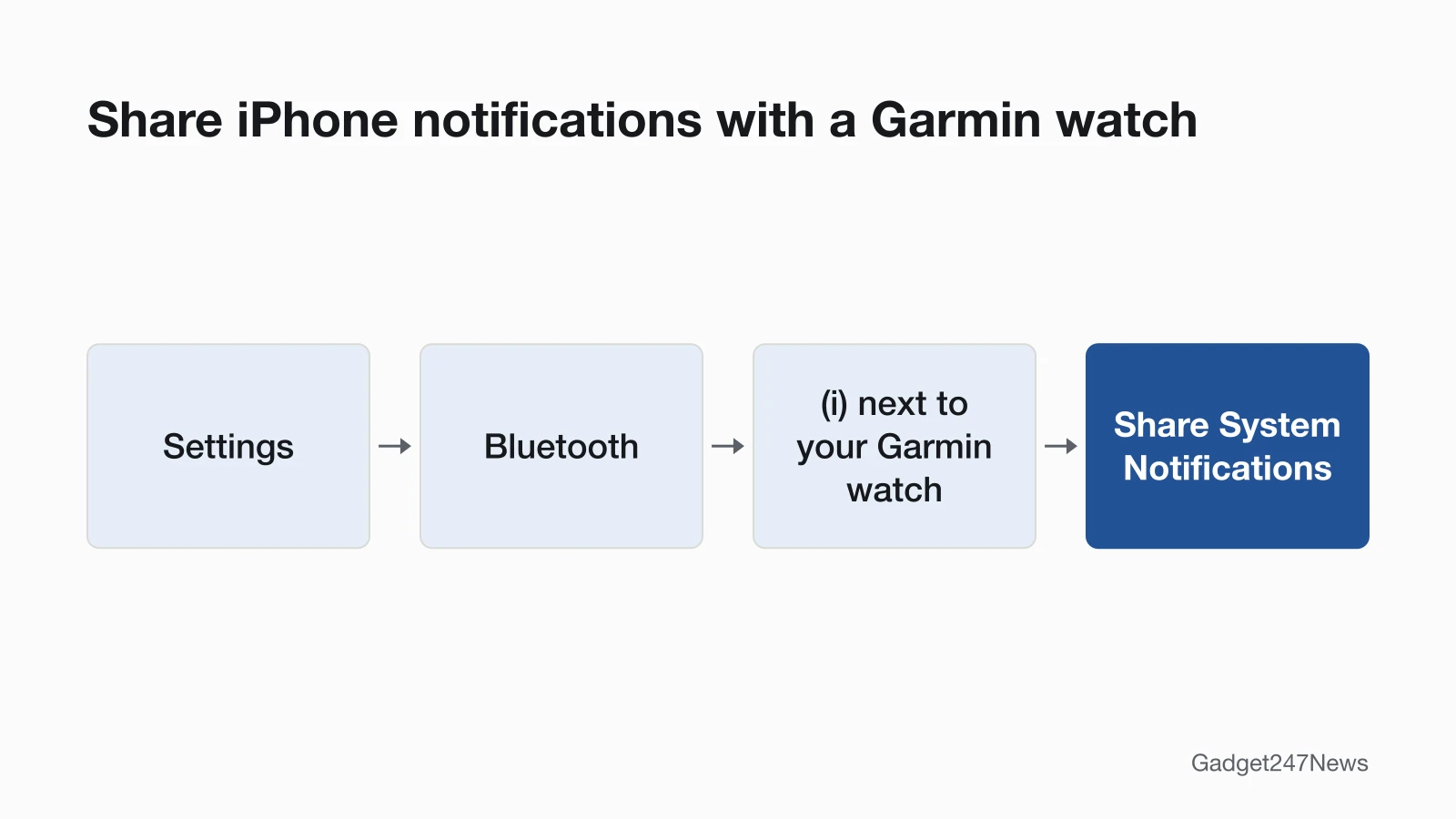
- Go to Settings › Bluetooth, tap the (i) next to your Garmin watch under MY DEVICES, and turn on Share System Notifications.
- Go to Settings › Notifications and set Show Previews to Always or When Unlocked. Garmin notes that "Apple requires this setting for notifications to appear on Bluetooth paired devices."
- Go to Settings › Apps › Garmin Connect and turn on its permissions.
Android:
- Go to Settings › Apps › Garmin Connect › Permissions, and turn on SMS, Contacts and Phone if any of them says off.
- In Garmin Connect, select More › Settings › Notifications › App Notifications/Smart Notifications.
- Make sure Notification Access is on, then switch on the apps you want on your wrist.
Fix 3: Turn Off Do Not Disturb, Sleep Mode or Focus
Turn off Do Not Disturb on the watch, because it silences notifications while it's on:
- On the watch, open Settings › System › Do Not Disturb and turn it off. Its icon is a half moon.
- In Garmin Connect, check your sleep schedule. Garmin says sleep time settings "can enable Do Not Disturb mode, preventing notifications from displaying on your Garmin watch."
- On watches with Focus Modes (Settings › Focus Modes), check each mode, since each one can handle notifications differently.
- On iPhone, go to Settings › Focus and review each Focus profile. An active Focus can stop pop-ups on the watch, although the alerts may still sit in its notification widget.
Fix 4: Check the Watch's Notification Settings
Check what the watch is set to show in Settings › Connectivity or Phone › Notifications. Options vary by model; Garmin's examples are on, off, show calls only, and show calls and texts only.
Some models can also block single apps. Garmin lists the D2 Mach 2 series, Enduro 3, fēnix 8 series, fēnix 9 series, fēnix E, Forerunner 70, Forerunner 170 series, Forerunner 570, Forerunner 970, quatix 8 series, tactix 8 series, Venu 4, Venu X1 and vívoactive 6. On those watches:
| Phone | Watch menu | What to do |
|---|---|---|
| iPhone | Settings › Notifications & Alerts › Smart Notifications › Apps › Connected Apps | Select the app and set it to Allow or On |
| Android | Settings › Notifications & Alerts › Smart Notifications › Apps › Blocked Apps | See which apps are blocked, then turn them back on in Garmin Connect's app notification settings |
An app appears under Connected Apps only after your phone and watch have received a notification from it.
Fix 5: Keep Garmin Connect Running (Android) and Battery Saver Off
On Android, stop battery optimization from putting Garmin Connect to sleep. Garmin warns that "Battery optimization for apps can prevent smart notifications from reaching your Garmin device." Garmin's FAQ also covers LG, Motorola, Xiaomi and other brands, and menus vary by model. Its Pixel and Samsung paths:
| Phone | Path | Change |
|---|---|---|
| Google Pixel | Settings › Apps › Garmin Connect › App Battery Usage | Turn on Allow Background Usage and turn off battery optimization |
| Samsung | Settings › Apps › Garmin Connect › Battery | Touch Optimize Battery Usage and turn off battery optimization |
On the watch, turn off Battery Saver (Settings › Power/Battery Manager › Battery Saver). Garmin says it "may limit Bluetooth connectivity or prevent some notifications from being delivered."
Fix 6 (Last): Restart Both, Then Pair Again
Restart your phone and the watch; Garmin says many Bluetooth issues "can be resolved by restarting your phone and Garmin device." If alerts still don't arrive, remove the watch and pair it again:
- In Garmin Connect, select More › Garmin Devices, pick your watch, open the three-dot menu and select Remove Device.
- Remove the watch from the phone's Bluetooth list: Forget This Device on iPhone, Unpair on Android.
- In Garmin Connect, select More › Garmin Devices › Add Device, put the watch in pairing mode and confirm the six-digit code.
Your Garmin Pay wallet has to be created again once the watch is back in the app. If notifications still fail after pairing again, reset a Garmin watch and pair it once more.
Texts, Calls and Specific Apps
When only texts or only calls go missing, check that app's own settings on the phone and on the watch.
Text Messages Not Showing on iPhone
Texts from an iPhone need the Messages app's own notification settings turned on:
- Go to Settings › Notifications › Messages.
- Turn on Allow Notifications and Notification Center.
- Set Show Previews to Always or When Unlocked.
Then check the contact isn't muted: in Messages, swipe right to left on the conversation. Garmin says a muted contact's bell icon does not have a slash through it, and muting a contact stops its messages coming through. On the watches listed in Fix 4, iPhone Phone and Messages alerts follow the watch's Calls and Texts settings, not the Connected Apps list.
Text Messages Not Showing on Android
Texts on Android need Garmin Connect's SMS, Contacts and Phone permissions and Notification Access turned on, with your messaging app switched on in Garmin Connect's app list. If texts arrive with the words missing, open your messaging app's Settings › Notifications and turn on Preview or Preview Message; labels vary by phone and app.
Calls Not Showing
Make sure the watch's Settings › Connectivity or Phone › Notifications setting isn't off. On Android, also turn on Garmin Connect's Phone permission. On watches with Focus Modes, open Notifications & Alerts › Smart Notifications › Calls: its Status controls whether the watch alerts for calls at all.
Still not working?
- Try the next fix: Garmin watch not syncing (if your steps and workouts aren't updating either).
- Reset your Garmin watch: reset a Garmin watch (you'll need to pair it again afterwards).
- Contact Garmin Support: Garmin Support.
- Check repair or warranty options: Understanding Garmin Service Options.
Started after an update? Check the Update Tracker for known issues.
Started After an Update?
Garmin has fixed notification bugs in software updates. The fēnix 8 AMOLED's version 20.19 (November 2025) "Fixed Smart Notifications not working when connected to Android devices." Its version 21.25 (February 2026) "Adds smart notifications to the stage menu to allow notifications to be delayed until after the activity." If alerts only go missing during workouts, check your Focus Modes, which Garmin says can override your general Smart Notification settings, and on a fēnix 8 AMOLED the activity option above. Fixes and known issues by model are in our Garmin watch release notes.
Want Fewer Alerts Instead?
For fewer alerts rather than none, set the watch to show calls only, or calls and texts only. You can also switch single apps off in Garmin Connect, block them on the watches in Fix 4, or let a sleep schedule turn on Do Not Disturb at night.
Garmin Notifications: Quick Answers
How do I get texts on my Garmin watch?
Pair the watch with Garmin Connect, then turn on Share System Notifications and Messages' Allow Notifications (iPhone), or Notification Access and the SMS permission (Android). Last, check the watch's notification setting includes texts.
Why is my Garmin watch not showing text messages on iPhone?
An iPhone doesn't pass texts to a Garmin watch when Share System Notifications is off, Show Previews isn't set to Always or When Unlocked, a Focus profile is active, or the contact is muted in Messages.
Why is my Garmin watch not showing text messages on Android?
Three Android settings can stop texts reaching a Garmin watch: Notification Access turned off, Garmin Connect's SMS permission turned off, or battery optimization putting Garmin Connect to sleep. Turn the first two on, then let Garmin Connect run in the background (Fix 5).
Sources
We checked this page against the pages below, most recently on . How we verify fixes
- Setting Up Smart Notifications For My Garmin Device (Garmin, support.garmin.com)Official
- Garmin Device No Longer Syncs or Receives Notifications From an Android Phone (Garmin, support.garmin.com)Official
- Garmin Device Notifications Arrive but Do Not Display or Alert Correctly (Garmin, support.garmin.com)Official
- My Device Is Not Syncing Data to the Garmin Connect App (Garmin, support.garmin.com)Official
- Garmin Connect App Bluetooth Troubleshooting (Garmin, support.garmin.com)Official
- Remove and Add a Device From the Garmin Connect App (Garmin, support.garmin.com)Official
- Update and Learn More About the Software on Your fēnix 8 AMOLED (Garmin, support.garmin.com)Official
- Understanding Garmin Service Options (Garmin, support.garmin.com)Official