Galaxy Buds Problems and Fixes: Pairing, Battery, Sound

By Suraj Giri, Founder & Publisher. Reviewed by Suraj Giri on .
Published · 9 min read
How this page was made
- Sources. Checked against 21 official pages from Samsung, most recently on . See the sources.
- No device testing. We don't test fixes on physical devices, so nothing on this page is a hands-on result. A fact counts as verified only when it matches an official source page.
- AI use. As with every page on Gadget247News, AI tools helped research, outline, draft and edit this page, and re-read the official pages to flag facts that didn't match. The illustration at the top was generated with Runway and is labelled under the image.
- Human sign-off. Suraj Giri, Founder & Publisher, read this page and signed it off on . The site won't publish a page without that sign-off.
- Changes. The published and updated dates move only when the content changes, and every change gets a dated note. Spot an error or a fix that didn't work? Email info@gadget247news.com.
Read our AI use policy, editorial policy and corrections policy.
Samsung Galaxy Buds problems fall into six groups: pairing, charging, resets, power, one silent bud and software updates. The step that turns up across Samsung's troubleshooting pages for connection, power and sound faults is to restart the buds in the charging case. Controls differ between Galaxy Buds4, Buds3, Buds2 and older models, so check your model first. For a first setup, or a move to a new phone, start with how to connect and pair Galaxy Buds with any device.
For AirPods, Pixel Buds, Sony and other brands, use the guide to fix your earbuds or headphones instead. If your Galaxy Buds stopped working suddenly after a software update, read the update section near the end of this page first. Hold off on a reset: Samsung has you connect the buds again afterwards.
Find Your Galaxy Buds Problem: Symptom, Cause and First Fix
Nine Galaxy Buds symptoms, plus two rows for pairing with an Android phone or a Windows PC, run in the order people search for them. The first fix in each row is the opening step of the linked guide.
| Symptom | Most likely cause | First fix | Full steps |
|---|---|---|---|
| Pairing for the first time, or with a new device | Not in pairing mode | Put both buds in the case, close the lid for 5 to 6 seconds, then open it and tap Connect on the pop-up, or select your Galaxy Buds in the Bluetooth list. | How to Connect and Pair Galaxy Buds With Any Device |
| Pairing with an Android phone | Phones that aren't Galaxy phones need the Galaxy Wearable app | Open the case next to your phone and tap Connect on the pop-up (Galaxy phones with One UI 8), or pair them from the Galaxy Wearable app on other Android phones. | How to Connect Galaxy Buds to Android |
| Pairing with a Windows PC | Not in pairing mode | Put the buds in pairing mode (case button on Buds3 and Buds4, touchpads on earlier models), then on the PC choose Settings → Bluetooth & devices → Add device → Bluetooth and select your Galaxy Buds. | How to Connect Galaxy Buds to a Windows PC |
| Won't connect or pair | The buds need a restart, or interference | Put both buds in the case, close the lid until the case light goes out (about 7 seconds), then take them out and connect again. | Galaxy Buds Not Connecting |
| Keep disconnecting or cutting out | Interference from Wi-Fi routers or microwaves | Move away from Wi-Fi routers and running microwaves, then restart the buds in the case. | Why Galaxy Buds Keep Disconnecting |
| Not charging | Dirty contacts, or the wrong charger | Clean the charging contacts on the buds and case, then charge with the included USB cable and a Samsung-approved wall adapter. | Galaxy Buds Not Charging |
| Battery draining fast | Buds left out of the case, or notifications | Store the buds in the charged case with the lid closed whenever you're not wearing them, and adjust their notification settings. | Galaxy Buds Battery Draining Fast |
| Needs a restart or reset | Settings or pairing stuck | Restart the buds in the case first (close the lid for at least seven seconds); if that fails, factory reset them from Reset in your phone's Galaxy Buds settings or the Galaxy Wearable app. | How to Reset Galaxy Buds |
| Turning them on and off | No power button | Open the case to wake your Galaxy Buds, and put them back in the case and close the lid to turn them off; there's no power button. | How to Turn Galaxy Buds On and Off |
| One bud silent, left or right | The two buds lost their link to each other | Put both buds in the case and re-sync them: hold the case's connect button (Buds3, Buds4) or both touchpads (earlier models) for 7 seconds. | one Galaxy Bud Not Working |
| Needs a software update | An update waiting to install | On a One UI 8 Galaxy phone, open Settings, tap your Galaxy Buds, then Earbuds software update → Download and install; on older software, use the same option in the Galaxy Wearable app. | How to Update Galaxy Buds Firmware |
Muffled, quiet or crackling sound on both buds has no row of its own; the sound section below routes it to the right guide.
Galaxy Buds Won't Connect or Keep Disconnecting
For Galaxy Buds that won't connect, Samsung's page for earbuds that "don't connect or won't stay connected" sets the order. Move the buds and phone away from Wi-Fi routers and running microwaves, restart the buds in the case and charge them. Then unpair and pair them again, and update the phone and the buds. A factory reset isn't on that page, so it comes after all of these. Pairing mode starts from a different control on each generation. Buds4 and Buds4 Pro use a connect button on the back of the case, and Buds3 and Buds3 Pro use one on the bottom. On Buds2 and Buds2 Pro you hold both earbuds in the open case; on Galaxy Buds, Buds+, Buds Live and Buds Pro you hold both touchpads while wearing them. On a Galaxy phone with One UI 8, the QuickPair pop-up pairs them without the Galaxy Wearable app; other Android phones pair through the app.
Buds that connect and then drop are a separate fault. Two Samsung features end a connection on purpose. Auto switch moves the buds to another Galaxy device signed in to the same Samsung account, and Sleep Mode disconnects them when they sit unused after you take them out of your ears. The guide on why Galaxy Buds keep disconnecting covers both, along with Samsung's interference checks.
Galaxy Buds Not Charging or Draining Fast
Charge Galaxy Buds with the included USB cable and a Samsung-approved wall adapter. Models with wireless charging also charge on a Samsung Qi-compatible pad, with the case placed on its center. Samsung warns that a computer's USB port can make the buds charge slower. Dust, wax or other debris on the charging contacts can stop charging altogether, so clean the contacts in the case and on each bud. Case lights differ by model: on Buds3 and Buds3 Pro, a flashing red light means charging is blocked by abnormal temperatures.
Buds that charge but empty quickly need two Samsung habits: keep them in the charged case with the lid closed whenever they're out of your ears, and adjust the notification settings in Galaxy Wearable. The full drain checks are in Galaxy Buds battery draining fast.
How to Reset or Turn Off Galaxy Buds
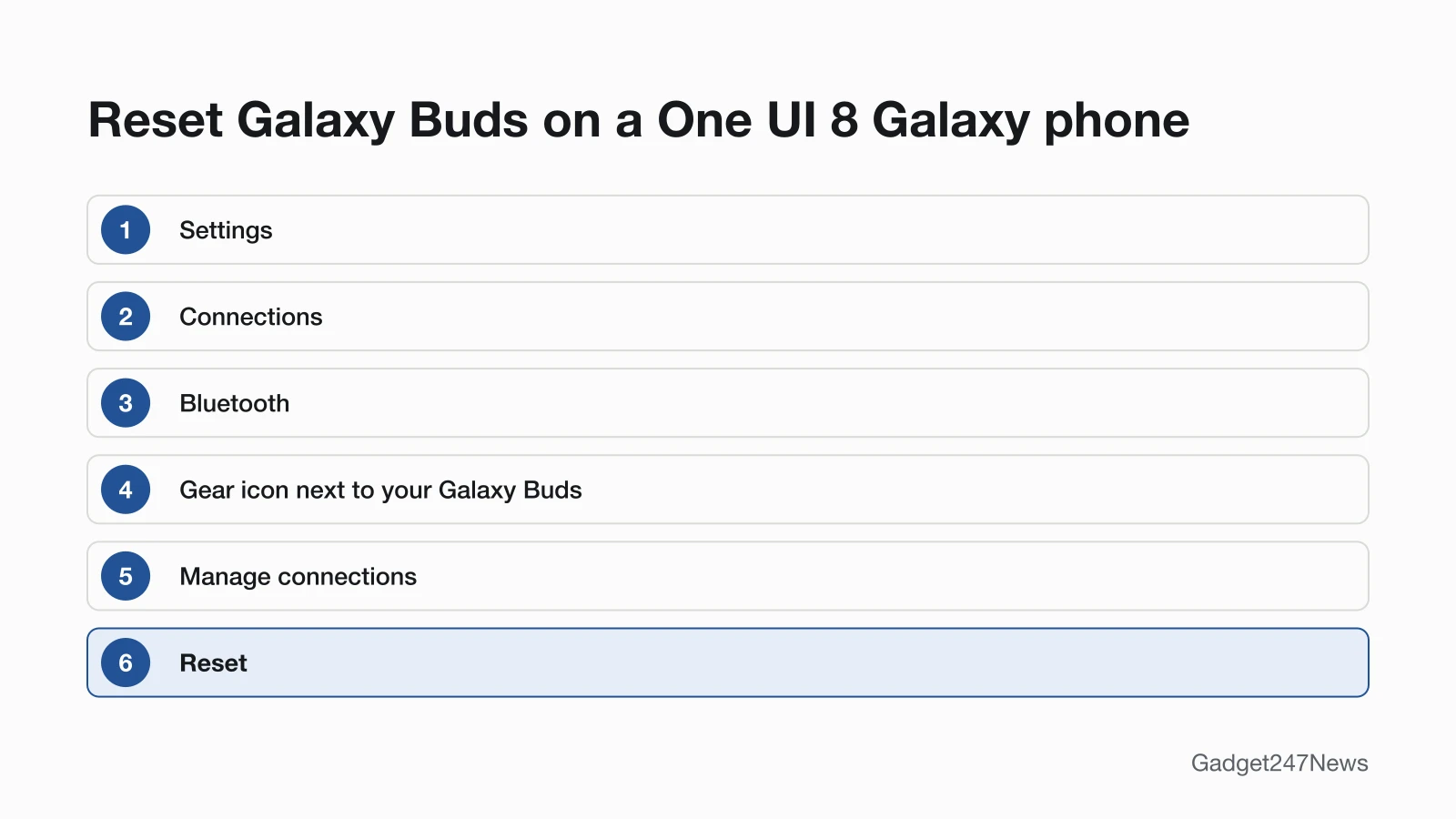
A restart and a factory reset do different jobs. A restart is Samsung's close-the-lid step: take the buds out of the closed case and they restart and reconnect to your device by themselves. A factory reset returns them "to their default settings," and you connect them again afterwards. Galaxy Buds have no reset button. On One UI 8, Reset sits in your phone's Settings under your Galaxy Buds, inside Manage connections. Samsung's Australian guide reaches Manage connections through Settings → Connections → Bluetooth → the gear icon next to the buds. On earlier One UI versions, Reset is in the Galaxy Wearable app. Samsung's UK guide asks for at least 15% battery in both earbuds before a reset. To compare Galaxy Buds with other brands, see how to reset Bluetooth earbuds.
Power follows the case too. Samsung says "The Galaxy Buds do not have a power on/off function," so opening the lid makes the buds try to reconnect, and placing them in the case disconnects them. The steps are in how to turn Galaxy Buds on and off.
One Side Silent, Quiet or Crackling Sound
When one bud is silent, Samsung says the pair "may no longer be properly coupled to each other," and the fix is to re-couple them in the case, as in the table's one-bud row. Samsung's UK guide checks four things first: both buds worn correctly, no debris or earwax on the speaker mesh, left and right ear tips of the same size, and a stable Bluetooth connection. Quiet or muffled sound on both sides starts with the cross-brand fixes for headphones sound muffled. For static, Samsung's order is to update the buds and the phone, unpair the buds, restart them in the case, pair them again, reset them, and then request service.
Which Galaxy Buds Do I Have?
Three Samsung checks identify your Galaxy Buds:
- Open Galaxy Wearable with the buds connected, tap Earbuds settings, then About earbuds to see the model and serial numbers. On a One UI 8 Galaxy phone, the Settings menu also shows which earbuds are connected.
- Turn the charging case over: the model and serial numbers are printed on the bottom. The case has its own model number, separate from the earbuds, and the box sticker carries the numbers too.
- Check the controls. A connect button on the back of the case means Buds4 or Buds4 Pro, and a button on the bottom means Buds3, Buds3 Pro or Buds3 FE. Blade lights point to Buds3 Pro.
Galaxy Buds Model Identifier Table
The table matches 12 Galaxy Buds models to the model number Samsung lists, the control that starts pairing mode, the control that re-couples the two buds, and how each model works with an iPhone.
| Model | Model number | Pairing mode | Re-couple the two buds | With an iPhone |
|---|---|---|---|---|
| Galaxy Buds4 Pro | SM-R640 | Connect button, back of the case | Connect button, back of the case | Bluetooth only |
| Galaxy Buds4 | SM-R540 | Connect button, back of the case | Connect button, back of the case | Bluetooth only |
| Galaxy Buds3 Pro | SM-R630 | Connect button, bottom of the case | Connect button, bottom of the case | Bluetooth only |
| Galaxy Buds3 | SM-R530 | Connect button, bottom of the case | Connect button, bottom of the case | Bluetooth only |
| Galaxy Buds3 FE | SM-R420 | Not in Samsung's laptop guide | Connect button, bottom of the case | Bluetooth only |
| Galaxy Buds FE | SM-R400 | Not in Samsung's laptop guide | Touch and hold both buds in the case | Bluetooth only |
| Galaxy Buds2 Pro | SM-R510 | Touch and hold both buds in the open case | Touch and hold both buds in the case | Bluetooth only |
| Galaxy Buds2 | SM-R177 | Touch and hold both buds in the open case | Touch and hold both buds in the case | Bluetooth only |
| Galaxy Buds Pro | SM-R190 | Touch and hold both touchpads while wearing them | Touch and hold both buds in the case | Bluetooth only |
| Galaxy Buds Live | SM-R180 | Touch and hold both touchpads while wearing them | Touch and hold both buds in the case | Galaxy Buds iOS app |
| Galaxy Buds+ | SM-R175 | Touch and hold both touchpads while wearing them | Touch and hold both buds in the case | Galaxy Buds iOS app |
| Galaxy Buds | SM-R170 | Touch and hold both touchpads while wearing them | Not on Samsung's re-coupling list | Bluetooth only |
Model numbers and re-coupling controls come from Samsung's UK guide for sound on one side, and pairing controls from its UK laptop guide, which skips Buds FE and Buds3 FE. Only Buds Live and Buds+ work with the Galaxy Buds app on an iPhone; Samsung says every other model connects to iOS through Bluetooth alone. On Android, Samsung's Galaxy Buds3 Pro product page says the Galaxy Wearable app needs a phone running Android 11.0 or above with at least 1.5 GB of memory. Plain Bluetooth audio works "regardless of the OS."

Galaxy Buds Software Updates and Known Issues
Update Galaxy Buds from your phone. On One UI 8, open Settings, tap your Galaxy Buds, then Earbuds software update and Download and install; Samsung's US settings guide lists the same entry as Software update. On One UI 7.0 or earlier, the option sits in the Galaxy Wearable app. Samsung's condition is to "make sure both earbuds are charged, and connected," and the buds "will disconnect from your phone" during the update, then "reconnect automatically." If your buds misbehaved suddenly after an update, compare your version with Samsung Galaxy Buds and Watch firmware versions, then check Galaxy Buds updates on the Update Tracker for known issues. Get an email when a Galaxy Buds update breaks something, and when it's fixed.
Lost Your Galaxy Buds?
Samsung's SmartThings Find and Samsung Find show missing buds on a map, make them ring and can notify you when they're found; in Galaxy Wearable, Find My Earbuds opens Samsung Find. How to find lost Galaxy Buds has the steps for both services.
When to Contact Samsung Support
Contact Samsung once the first fix and its full guide haven't worked, in this order:
- Try the next fix on the guide linked in your symptom's row.
- Reset the buds with the steps in How to Reset Galaxy Buds, then connect them again.
- Contact Samsung Support. Samsung's troubleshooting pages also give 1-800-SAMSUNG for service requests.
- Request a repair through Request Repair And Check Repair Status, where you can also find a service center or check a repair in progress.
Sources
We checked this page against the pages below, most recently on . How we verify fixes
- Samsung earbuds don't connect or won't stay connected (Samsung, samsung.com)Official
- How to connect your Samsung Galaxy earbuds (Samsung, samsung.com)Official
- How to pair Galaxy Buds using Bluetooth in Samsung One UI 8 (Samsung Australia) (Samsung, samsung.com)Official
- How to connect or disconnect Galaxy Buds to a mobile? (Samsung Singapore) (Samsung, samsung.com)Official
- How to connect Samsung Galaxy Buds series to a laptop to listen to music (Samsung UK) (Samsung, samsung.com)Official
- Samsung earbuds do not turn on or charge (Samsung, samsung.com)Official
- The battery life of your Samsung earbuds (Samsung, samsung.com)Official
- Getting started with your Galaxy Buds3 and Galaxy Buds3 Pro (Samsung Canada) (Samsung, samsung.com)Official
- How to restart or reset your Samsung earbuds (Samsung, samsung.com)Official
- How to reset your Samsung Galaxy Buds (Samsung UK) (Samsung, samsung.com)Official
- How to adjust your Galaxy Buds settings on One UI 8 (Samsung, samsung.com)Official
- What to do when sound is not heard from one side of your Samsung Galaxy Buds series (Samsung UK) (Samsung, samsung.com)Official
- Static noise coming from a Samsung earbud (Samsung, samsung.com)Official
- How to find the model and serial numbers for your Samsung product (Samsung Canada) (Samsung, samsung.com)Official
- What do the blade lights mean on the Galaxy Buds3 Pro? (Samsung, samsung.com)Official
- Galaxy Buds that are compatible with iOS (Samsung, samsung.com)Official
- Galaxy Buds3 Pro product page, footnotes (Samsung Gulf) (Samsung, samsung.com)Official
- How to update your Samsung Galaxy Buds software (Samsung UK) (Samsung, samsung.com)Official
- How to install software updates on your Samsung earbuds (Samsung, samsung.com)Official
- Find your lost Samsung Galaxy earbuds (Samsung, samsung.com)Official
- Request Repair And Check Repair Status (Samsung US) (Samsung, samsung.com)Official