Skullcandy Earbuds Problems and Fixes

By Suraj Giri, Founder & Publisher. Reviewed by Suraj Giri on .
Published · 8 min read
How this page was made
- Sources. Checked against 13 official pages from Skullcandy, Google and Microsoft, most recently on . See the sources.
- No device testing. We don't test fixes on physical devices, so nothing on this page is a hands-on result. A fact counts as verified only when it matches an official source page.
- AI use. As with every page on Gadget247News, AI tools helped research, outline, draft and edit this page, and re-read the official pages to flag facts that didn't match. The illustration at the top was generated with Runway and is labelled under the image.
- Human sign-off. Suraj Giri, Founder & Publisher, read this page and signed it off on . The site won't publish a page without that sign-off.
- Changes. The published and updated dates move only when the content changes, and every change gets a dated note. Spot an error or a fix that didn't work? Email info@gadget247news.com.
Read our AI use policy, editorial policy and corrections policy.
Most Skullcandy earbuds problems come down to pairing, the two earbuds losing sync with each other, or charging; start with the row that matches your symptom below. Fixes differ by model (button earbuds such as Dime 3, Method 360 ANC and Push Active, touch earbuds such as Rail ANC and Indy Evo, and Crusher and Hesh headphones), so check your model first. Steps on each page are checked against Skullcandy's own Product Help pages. To fix Bluetooth headphones from other brands, start at the family hub instead.
If your Skullcandy earbuds stopped working suddenly after an update, read the firmware section near the end of this page. Earbuds that refuse to pair with each other or with your phone have their own guide, Skullcandy earbuds not connecting, with the full order to follow.
Find Your Skullcandy Problem: Symptom, Cause and First Fix
Nine Skullcandy symptoms sit in the table below, including separate pairing rows for Android phones and Windows PCs. Every first fix matches the opening step of the linked guide.
| Symptom | Most likely cause | First fix | Full steps |
|---|---|---|---|
| Connect or pair Skullcandy earbuds | Not in pairing mode | Take both Skullcandy earbuds out of the case and wait for "Ready to pair" (or hold either earbud's button or touch sensor for 3 seconds on Dime 3, Rail ANC and Method 360 ANC), then select them in your device's Bluetooth list. | How to Connect and Pair Skullcandy Earbuds With Any Device |
| Connect to Android | The wrong ("-LE") entry, or not in pairing mode | Take your Skullcandy earbuds out of the case until they say "Ready to pair", then tap Pair new device in your Android phone's Bluetooth settings and pick the name without "-LE". | How to Connect Skullcandy Earbuds to Android |
| Connect to a Windows PC or laptop | Not in pairing mode, or Windows discovery not set to Advanced | Put your Skullcandy earbuds in pairing mode, then select them under New devices in Windows 11's Manage Bluetooth devices panel (Windows 10: Add Bluetooth or other device). | How to Connect Skullcandy Earbuds to a Windows PC |
| Won't connect, or not pairing together | The two earbuds out of sync, or a stale pairing | Put both Skullcandy earbuds back in the charging case until their lights come on, take them out together, then forget them in your Bluetooth settings and pair them again. | Skullcandy Earbuds Not Connecting |
| Keep disconnecting or cutting out | Distance, or a second paired device interrupting | Keep your phone within 30 feet (10 meters) of your Skullcandy earbuds, and turn off Multipoint Pairing in the Skullcandy App if a second device keeps interrupting your audio. | Why Skullcandy Earbuds Keep Disconnecting |
| Not charging | Debris on the pins, or an ear gel stopping the earbud seating | Clear any debris from the charging pins, check the ear gels aren't stopping both earbuds from sitting correctly in the case, then charge the case by USB-C and check its battery light. | Skullcandy Earbuds Not Charging |
| Need a reset | Pairing faults that remain after the fixes above | Forget the earbuds in Bluetooth settings and turn Bluetooth off, take both out of the case, then hold both earbud buttons for 6 seconds until you hear two tones, then "Ready to pair" (Dime 3; touch sensors on Rail ANC; other models differ). | How to Reset Skullcandy Earbuds |
| Won't turn on or off | A drained case, or the wrong control | Take your Skullcandy earbuds out of the case to turn them on, and put them back in the case and close the lid to turn them off (hold the button for 1 second to turn it on by hand on Dime 3 and Push Active, or both touch sensors on Rail ANC). | How to Turn Skullcandy Earbuds On and Off |
| One side silent | The two earbuds out of sync | Put both Skullcandy earbuds in the case until their lights come on (close the lid for 2 seconds on Rail ANC and Push Active), then take them out together so they re-sync. | one Skullcandy Earbud Not Working |
Fast battery drain, firmware questions and muffled sound on both sides have no Skullcandy guide of their own. The charging and firmware sections below cover the first two, and the cross-brand sound guide covers muffled audio.
Skullcandy Earbuds Won't Connect or Keep Disconnecting
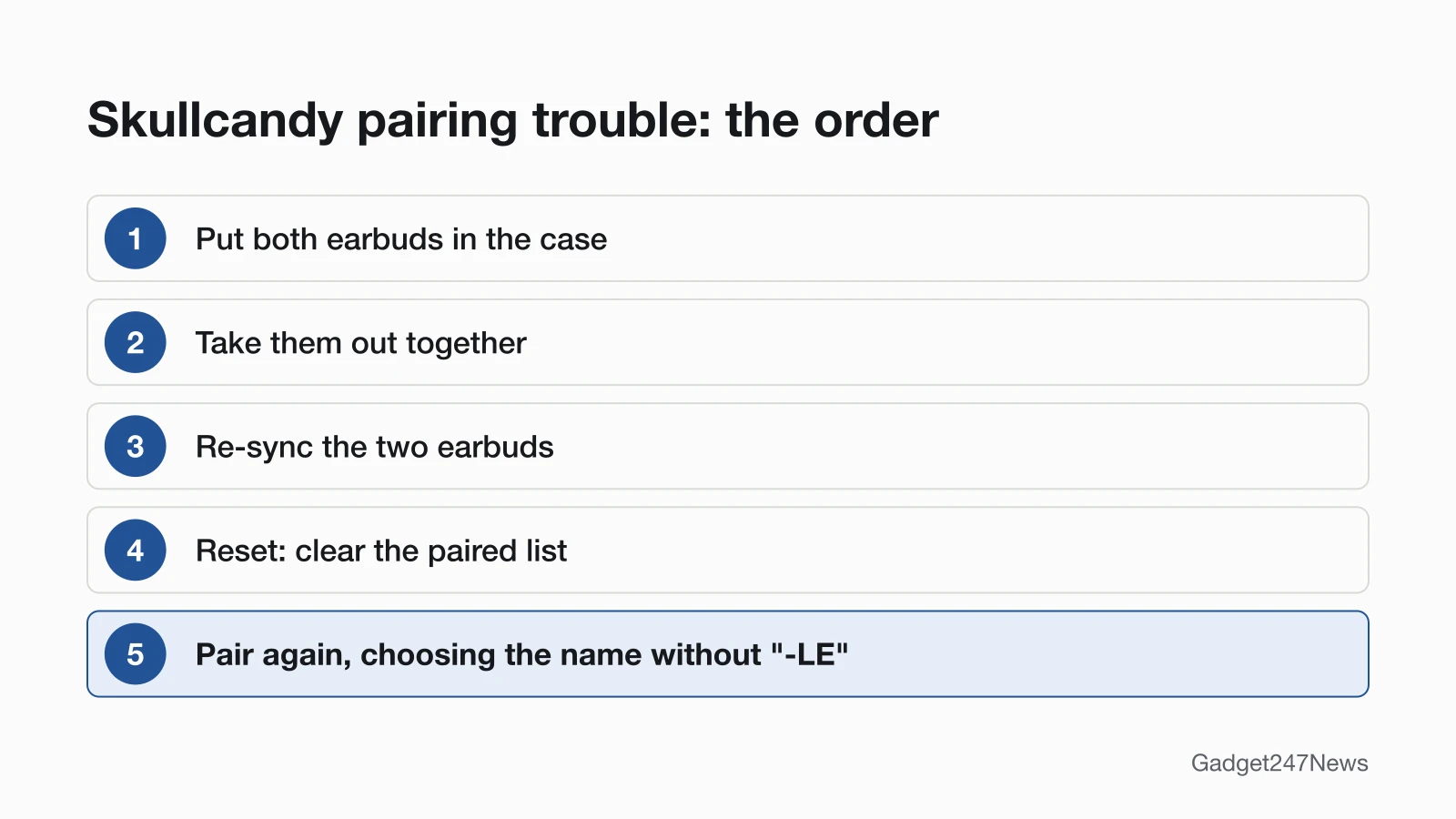
For Skullcandy earbuds that won't connect, Skullcandy's Dime 3 and Rail ANC pages start with the link between the two earbuds: put both in the case, take them out together, re-sync them, and reset last by clearing the paired list. When you pair again, pick the plain product name. An entry ending in "-LE" is the Tile connection, and Skullcandy says it "will not allow for audio and calls". Pairing mode differs by model: Dime 3 and Rail ANC announce "Ready to pair" as they leave the case for the first time, and on Method 360 ANC you hold either earbud for 3 seconds. Indy Evo and Sesh Evo sync with each other as you lift them out, then only the left earbud flashes red and blue. To connect and pair Skullcandy earbuds with a new phone, tablet or laptop, follow the full guide.
"Syncing" Skullcandy earbuds to a phone means this same Bluetooth pairing. The Skullcandy App works with some models only, and Skullcandy says to pair an app-compatible product with your phone first. Drops after a good connection are a separate fault: Skullcandy lists a range of "up to 30+ feet (10+ meters)", and on Multipoint models a call on the second device pauses your audio. The guide on why Skullcandy earbuds keep disconnecting covers both causes.
Skullcandy Earbuds Not Charging or Draining Fast
Skullcandy earbuds charge inside the case, and the case charges over USB-C. For Dime 3, Skullcandy lists a computer, wall charger, power bank or 12-volt adapter in a car as the power source. For Indy Evo, Sesh Evo, Crusher Evo and Hesh Evo, Skullcandy recommends a power output that "does not exceed 18-Watt (5 Volts/3.6amps)". When earbuds won't charge, check three blockers: debris on the charging pins, an ear gel twisted so the earbud can't sit correctly, and a case so drained that the earbuds can't tell they're inside it. Crusher Evo and Hesh Evo headphones charge through the port on the side, so clear that port and charge them on a flat surface. Skullcandy's Product Help has no separate battery-drain article. For a dead earbud that won't charge, the cross-brand guide compares charging fixes from other makers.
How to Reset Skullcandy Earbuds
Try a restart before a reset: put both earbuds in the case, then take them out again. A reset goes further. Skullcandy calls it "clearing the device paired list", so you pair the earbuds with your phone again afterwards. The reset control depends on the model:
- Dime 3: both earbud buttons
- Rail ANC: both touch sensors
- Method 360 ANC: the earbud button
- Push Active: the right earbud button only
- Indy Evo and Sesh Evo: each earbud in turn, after powering them off
- Crusher Evo: the top and bottom buttons; Hesh Evo: the main button and volume down; Crusher ANC 2: Volume Down
Hold times sit on the reset guide in the table. When resetting wireless earbuds from other brands, use the cross-brand guide.
One Side Silent, Power or Sound Problems
One side silent means the two earbuds have lost sync, so put both in the case and take them out together, as the table's one-side row shows. One earbud used alone is Solo Mode, which Skullcandy supports for calls and music. Earbuds that won't turn on need the case charged first, because a dead case stops them registering that they've left it. Noise cancelling and Stay-Aware Mode switch with a triple tap on Rail ANC (either earbud) and Method 360 ANC. Muffled sound on both sides belongs in the cross-brand sound guide.
Which Skullcandy Model Do I Have?
Check the product name before you follow any model's steps:
- Look inside the case lid or on the back of the case. Skullcandy says the name "will be printed either inside the charging case on the underside of the lid or on the back body of the charging case".
- Check the name in your phone's Bluetooth list, such as "Dime 3", "Rail ANC" or "METHOD 360 ANC". On app-compatible models, the Skullcandy App also shows the product on its Product Card.
The Skullcandy headphone pages we read don't say where the name is printed on Crusher or Hesh headphones, so use the Bluetooth list for those.
Skullcandy Model Identifier Table
The table covers the nine Skullcandy models whose Product Help pages we read, with the controls, reset control, charging method and app support each page gives; none of those pages lists a model number.
| Model | Type | Controls | Reset control | Charging | Skullcandy App |
|---|---|---|---|---|---|
| Dime 3 | Earbuds | One button per earbud, on the Skullcandy logo | Both earbud buttons | Case, USB-C | No |
| Rail ANC | Earbuds | Touch sensors | Both touch sensors | Case, USB-C | Yes |
| Method 360 ANC | Earbuds | Earbud button (Main Function Button) | Earbud button | Case, USB-C | Yes |
| Push Active | Earbuds | Earbud buttons | Right earbud button only | Case, USB-C (close the lid to charge) | Yes |
| Indy Evo | Earbuds | Touch sensors | Each earbud in turn | Case, USB-C | Yes |
| Sesh Evo | Earbuds | Touch and hold on each earbud | Each earbud in turn | Case, USB-C | No |
| Crusher Evo | Headphones | Buttons | Top and bottom buttons | USB-C port on the side | Yes |
| Crusher ANC 2 | Headphones | Power button, volume buttons, MFB and ANC switch | Volume Down button | USB-C | Yes |
| Hesh Evo | Headphones | Buttons | Main button and volume down | USB-C port on the side | No |
Skullcandy's Product Help lists many more models, including Dime Evo, Dime 360, Indy ANC, Sesh ANC, Smokin' Buds and EcoBuds. Their steps may differ, so open your model's own page before you follow the table.
Skullcandy Firmware Updates and Known Issues
Skullcandy delivers firmware updates through the Skullcandy App, so they apply to app-compatible models; you learn of one from App Banner Notifications or the "Update" button on the Product Card. Skullcandy lists four requirements before an update starts: earbuds with "at least 25% battery", a phone with "a network connection (internet access)" and "at least 30% battery", and both earbuds connected to the phone and the app. Dime 3, Sesh Evo and Hesh Evo don't work with the Skullcandy App, and the Skullcandy pages we read give them no other update route. If your Skullcandy earbuds stopped working suddenly after an update, check Skullcandy earbud updates on the Update Tracker; the tracker has no Skullcandy-only page yet. Get an email when a Skullcandy update breaks something, and when it's fixed.
When to Contact Skullcandy Support
Contact Skullcandy once the table's first fix and the linked guide have both failed, in this order:
- Try the next fix in the table above.
- Reset your Skullcandy earbuds with your model's reset control (you'll pair them again afterwards).
- Contact Skullcandy through its Product Help pages; Skullcandy asks you to "reach out to customer service before filing a claim".
- For a light that stays dark or a manufacturer's defect, file a claim on Skullcandy's warranty claim page, warranty.skullcandy.com.
Started after an update? Check the Update Tracker for known issues.
Sources
We checked this page against the pages below, most recently on . How we verify fixes
- Skullcandy Product Help (Skullcandy, skullcandy.com)Official
- DIME® 3 (Skullcandy Product Help) (Skullcandy, skullcandy.com)Official
- RAIL® ANC (Skullcandy Product Help) (Skullcandy, skullcandy.com)Official
- METHOD 360 ANC (Skullcandy Product Help) (Skullcandy, skullcandy.com)Official
- PUSH® ACTIVE (Skullcandy Product Help) (Skullcandy, skullcandy.com)Official
- INDY™ EVO (Skullcandy Product Help) (Skullcandy, skullcandy.com)Official
- SESH® EVO (Skullcandy Product Help) (Skullcandy, skullcandy.com)Official
- CRUSHER® EVO (Skullcandy Product Help) (Skullcandy, skullcandy.com)Official
- CRUSHER® ANC 2 (Skullcandy Product Help) (Skullcandy, skullcandy.com)Official
- HESH® EVO (Skullcandy Product Help) (Skullcandy, skullcandy.com)Official
- SKULLCANDY APP (Skullcandy Product Help) (Skullcandy, skullcandy.com)Official
- Find & set up Bluetooth devices near your Android device (Android Help) (Google, support.google.com)Official
- Pair a Bluetooth device in Windows (Microsoft Support) (Microsoft, support.microsoft.com)Official