Why Skullcandy Earbuds Keep Disconnecting

By Suraj Giri, Founder & Publisher. Reviewed by Suraj Giri on .
Published · 5 min read
How this page was made
- Sources. Checked against 9 official pages from Skullcandy and Microsoft, most recently on . See the sources.
- No device testing. We don't test fixes on physical devices, so nothing on this page is a hands-on result. A fact counts as verified only when it matches an official source page.
- AI use. As with every page on Gadget247News, AI tools helped research, outline, draft and edit this page, and re-read the official pages to flag facts that didn't match. The illustration at the top was generated with Runway and is labelled under the image.
- Human sign-off. Suraj Giri, Founder & Publisher, read this page and signed it off on . The site won't publish a page without that sign-off.
- Changes. The published and updated dates move only when the content changes, and every change gets a dated note. Spot an error or a fix that didn't work? Email info@gadget247news.com.
Read our AI use policy, editorial policy and corrections policy.
Use this guide when Skullcandy earbuds or headphones connect fine, then drop out, cut out or pause mid-song. Earbuds that never show up or never pair are a separate fault, listed under Still not working? near the end. Charging, reset and model questions start at Skullcandy earbuds fixes.
Every Skullcandy figure and setting below comes from its Product Help pages for each model. Owners of other brands can go to the cross-brand guide for earbuds that disconnect and reconnect.
Why Do My Skullcandy Earbuds Keep Cutting Out?
Skullcandy's Product Help pages point to five causes of drop-outs:
- Distance and surroundings: Skullcandy gives a range of "up to 30+ feet (10+ meters)" and adds that "your connection experience may vary based on your environment".
- A second paired device taking over: on Dime 3, Rail ANC and Crusher ANC 2, a phone or Zoom call on the other device pauses your audio, and "an important notification prompt tone" from it pauses streaming briefly.
- Low battery: Dime 3 and Rail ANC warn with a "Battery Low" voice prompt, and Dime 3 powers off once the battery is depleted.
- The two earbuds losing their link: audio drops on one side, and Skullcandy's fix is a re-sync.
- Old firmware on app-compatible models: Push Active's page says the latest firmware "will alleviate the majority of troubleshooting issues".
How to Fix Skullcandy Earbuds That Keep Disconnecting
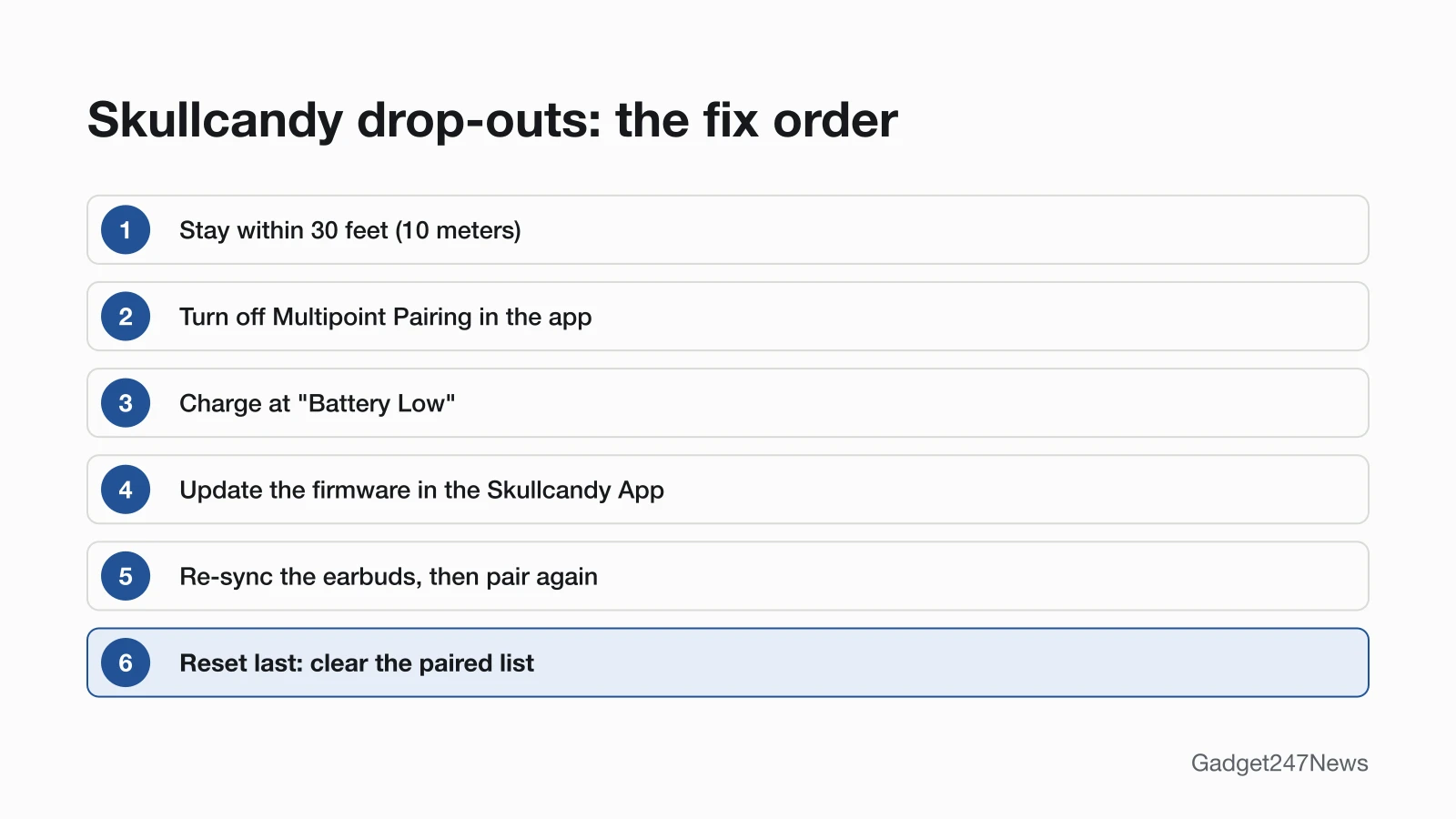
Skullcandy's pages don't give one order for drop-outs, so these fixes start with range and Multipoint and end with a reset.
Fix 1: Move Closer and Clear the Path
Skullcandy's range figure comes with a caveat about your surroundings, so check distance first:
- Keep your phone within 30 feet (10 meters) of your Skullcandy earbuds.
- Move closer when the audio starts breaking up, because Skullcandy says the connection "may vary based on your environment".
- Play the same audio in another spot to see whether the drops follow the location.
Fix 2: Manage Multipoint
Multipoint keeps your Skullcandy earbuds paired with two devices at once, and calls or alerts on the second device can interrupt what you're playing. Skullcandy's rules and the switch:
- Know what pauses you. On Dime 3, Rail ANC and Crusher ANC 2, a call on the second device takes priority, and a notification tone pauses the stream until "streaming will resume normally".
- Turn it off on Rail ANC, Method 360 ANC and Crusher ANC 2. In the Skullcandy App, find the tile for Multipoint Pairing, tap it and set "Multipoint Pairing" to "OFF".
- Turn Bluetooth off on the second device if you use Dime 3. Dime 3 doesn't work with the Skullcandy App, so its page offers no Multipoint switch.
Adding a third device changes which two stay connected: Skullcandy says the device "first paired to your earbuds will be disconnected". Our guide to headphones with Bluetooth multipoint explains which earbuds support it and when it causes problems.
Fix 3: Charge Your Skullcandy Earbuds
Skullcandy earbuds warn you before the battery runs out, so charge at the first warning:
- Charge when you hear "Battery Low". Dime 3 says it with about 40 minutes of play time left, then every 10 minutes until it powers off; Rail ANC says it at about 15% and again at about 8%.
- Seat both earbuds in the case so their lights turn solid red, which shows they're charging.
Fix 4: Update the Firmware (App-Compatible Models)
Firmware updates come through the Skullcandy App, and Skullcandy's Push Active page ties the latest version to fewer faults:
- Open the Skullcandy App and tap the "Update" button on your earbuds' Product Card.
- Meet Skullcandy's four conditions first: at least 25% battery on the earbuds, a network connection and at least 30% battery on the phone, and both earbuds connected.
Fix 5: Re-Sync Them and Pair Again
A re-sync relinks the two earbuds, and pairing again gives your phone a fresh connection:
- Put both earbuds in the case until their lights come on, then take them out together. On Rail ANC and Push Active, close the lid for 2 seconds first.
- Re-sync them if one side keeps dropping. On Dime 3, turn Bluetooth off on your device, then press both earbud buttons four times at once; four quick blue flashes confirm the sync. The guide for a left or right Skullcandy earbud not working has the other models.
- Forget the earbuds in your Bluetooth settings and pair them again, choosing the plain name, not the entry ending in "-LE".
Fix 6 (Last): Reset Your Skullcandy Earbuds
A reset clears the earbuds' paired-device list, so you'll pair them with each device again afterwards. To factory reset Skullcandy earbuds, use your model's control; Dime 3, for example, needs both earbud buttons held for 6 seconds until you hear two tones.
Disconnecting From a Laptop, Android Phone or With Headphones
The fixes above apply everywhere, with three differences by device.
Disconnecting From a Windows Laptop
Put your Skullcandy earbuds in pairing mode and connect Skullcandy earbuds to a Windows PC again from its Bluetooth settings. Skullcandy says its app "will not have app support with your PC, iPad and MacBook", so turn Multipoint Pairing off from the app on your phone if the phone keeps taking over.
Disconnecting on Android
Check which entry your phone is connected to. An entry ending in "-LE" is the Tile connection, and Skullcandy says it "will not allow for audio and calls"; pair Skullcandy earbuds with an Android phone using the plain name. If the Skullcandy App keeps losing the earbuds, give the app Bluetooth and Location permissions.
Skullcandy Headphones Cutting Out
Crusher Evo and Hesh Evo headphones share the earbuds' range of "up to 30+ feet (10+ meters)". Crusher ANC 2's page gives no range figure, but it follows the same Multipoint rules: a call on the second device takes priority, and you can turn Multipoint Pairing off in the Skullcandy App.
Still not working?
If your Skullcandy earbuds still drop out after all six fixes, go down this list:
- Try the next fix: Skullcandy earbuds not connecting to your phone (if they won't connect at all).
- Reset your Skullcandy earbuds: factory reset Skullcandy earbuds (you'll need to pair them again afterwards).
- Contact Skullcandy Support: Skullcandy Product Help (external).
- Check repair or warranty options: Skullcandy's warranty claim page, warranty.skullcandy.com (external).
Started after an update? Check the Update Tracker for known issues.
Related Problems
- Won't connect at all: Skullcandy earbuds not connecting to your phone (linked above).
- One side keeps dropping: left or right Skullcandy earbud not working (linked in Fix 5).
- Sound from only one side: the same one-earbud guide.
Started Cutting Out After an Update?
If your Skullcandy earbuds started cutting out suddenly after a firmware update, put them in the case, close the lid, wait about 5 seconds and take them out. That is Skullcandy's first step after a failed update. Then check Skullcandy earbud updates on the Update Tracker for known issues.
Skullcandy Disconnecting: Quick Answers
Why do my Skullcandy headphones keep cutting out?
Distance or a second paired device is the first thing to check. Keep your phone within 30 feet (10 meters). On Crusher ANC 2, turn Multipoint Pairing off in the Skullcandy App; on other models, turn Bluetooth off on the second device.
Why does my Skullcandy audio pause by itself?
On Multipoint models, a call or an alert on your second device pauses the audio. Dime 3, Rail ANC and Crusher ANC 2 pause for an incoming call and resume after it ends. A notification tone pauses the stream briefly, then playback carries on.
What is the range of Skullcandy earbuds?
Skullcandy lists up to 30+ feet (10+ meters) from your paired device. It adds that your connection experience "may vary based on your environment", so stay closer when the audio breaks up.
Sources
We checked this page against the pages below, most recently on . How we verify fixes
- RAIL® ANC (Skullcandy Product Help) (Skullcandy, skullcandy.com)Official
- DIME® 3 (Skullcandy Product Help) (Skullcandy, skullcandy.com)Official
- METHOD 360 ANC (Skullcandy Product Help) (Skullcandy, skullcandy.com)Official
- CRUSHER® ANC 2 (Skullcandy Product Help) (Skullcandy, skullcandy.com)Official
- PUSH® ACTIVE (Skullcandy Product Help) (Skullcandy, skullcandy.com)Official
- CRUSHER® EVO (Skullcandy Product Help) (Skullcandy, skullcandy.com)Official
- HESH® EVO (Skullcandy Product Help) (Skullcandy, skullcandy.com)Official
- SKULLCANDY APP (Skullcandy Product Help) (Skullcandy, skullcandy.com)Official
- Pair a Bluetooth device in Windows (Microsoft Support) (Microsoft, support.microsoft.com)Official