How to Pair and Connect Bluetooth Earbuds and Headphones

By Suraj Giri, Founder & Publisher. Reviewed by Suraj Giri on .
Published · 9 min read
How this page was made
- Sources. Checked against 32 official pages from Apple, Google, Samsung, Microsoft, Sony, Bose, JBL, Skullcandy, PlayStation, Nintendo and Microsoft (Xbox), most recently on . See the sources.
- No device testing. We don't test fixes on physical devices, so nothing on this page is a hands-on result. A fact counts as verified only when it matches an official source page.
- AI use. As with every page on Gadget247News, AI tools helped research, outline, draft and edit this page, and re-read the official pages to flag facts that didn't match. The illustration at the top was generated with Runway and is labelled under the image.
- Human sign-off. Suraj Giri, Founder & Publisher, read this page and signed it off on . The site won't publish a page without that sign-off.
- Changes. The published and updated dates move only when the content changes, and every change gets a dated note. Spot an error or a fix that didn't work? Email info@gadget247news.com.
Read our AI use policy, editorial policy and corrections policy.
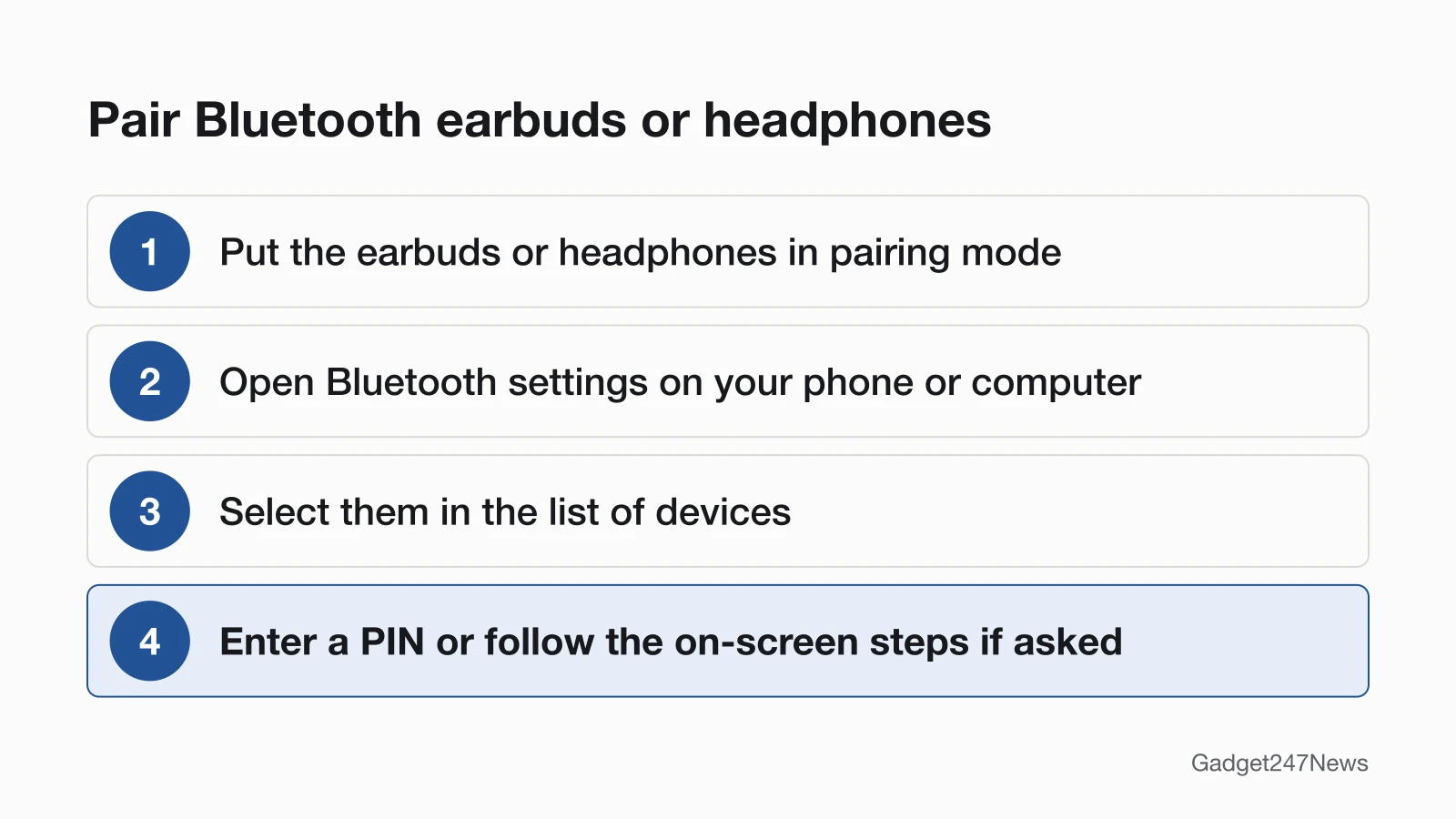
To pair Bluetooth earbuds or headphones, put them in pairing mode, open Bluetooth on your phone or computer, then select them from the list. After that first pairing they can reconnect on their own whenever Bluetooth is on and they're in range. How you start pairing mode depends on the brand, so check the table below. For problems beyond pairing, the family hub is earbuds and Headphones Not Working.
Pairing happens once: your phone saves the earbuds, and Google's Android help says your devices stay paired until you unpair them. Connecting happens every time you use them after that. AirPods owners can start with How to Connect and Pair AirPods With Any Device, because on an iPhone or iPad you pair AirPods by holding the open case next to the device and following the steps on the screen.
How to Put Earbuds in Pairing Mode, by Brand
Pairing mode makes earbuds or headphones discoverable, so your phone or computer can list them. Each brand starts it differently, and the table gives each maker's own first step.
| Brand | How to enter pairing mode | Companion app | Full steps |
|---|---|---|---|
| AirPods | With the AirPods in the open case, press and hold the setup button on the back of the case until the status light flashes white. For AirPods 4, AirPods 5 and AirPods Pro 3, double-tap the front of the case instead. | Settings on your iPhone or iPad | How to Put AirPods in Pairing Mode and How to Connect and Pair AirPods With Any Device |
| Beats headphones and earbuds | Near an iPhone or iPad, open the case or turn the Beats on and follow the setup animation. To pair manually, hold the power button (Solo 4, Beats Flex) or the system button (Studio Pro; on the open case for Fit Pro and Studio Buds +) until the lights flash. | Beats app on Android | connect and pair Beats headphones |
| Samsung Galaxy Buds | Put both buds in the case, close the lid for 5 to 6 seconds, then open it: the buds enter pairing mode, so tap Connect on the QuickPair pop-up (Galaxy phones with One UI 8) or pick them from the Bluetooth list. Already paired elsewhere: hold the connect button on the back of the case (Buds4, Buds4 Pro) or the bottom (Buds3, Buds3 Pro). | Galaxy Wearable; not needed to pair on Galaxy phones with One UI 8 | connect and pair Samsung Galaxy Buds |
| Google Pixel Buds | Open the case next to your device, press and hold the pairing button on the back until the status light pulses white, then tap the pairing notification (Android 6.0 or newer) or select Google Pixel Buds in your Bluetooth list. | Pixel Buds app (built into Settings on Pixel phones with Android 10 or higher) | How to Connect and Pair Pixel Buds With Any Device |
| Sony headphones | The first time, turning them on starts pairing mode (earbuds: take both out of the case). After that, hold the Bluetooth button (WH-1000XM6), the power button (WH-1000XM5) or the case's pairing button with the lid open (WF-1000XM5) for about 5 seconds, until the indicator flashes blue twice in a row. | Sony | Sound Connect (formerly Headphones Connect) | How to Connect and Pair Sony Headphones With Any Device |
| Bose headphones | Hold the button on the back of the open case (QuietComfort Ultra Earbuds (2nd Gen)) or the Bluetooth/Power button (QuietComfort Ultra Headphones (2nd Gen)) until the status light pulses blue, then select them in your Bluetooth list. | Bose app | How to Connect and Pair Bose Headphones With Any Device |
| JBL earbuds | Turn them on: on JBL headphones such as the Tune 520BT, a flashing LED the first time shows they're searching for a device, so pick the product name in your Bluetooth list. Steps for JBL earbuds and for later pairings depend on the model. | JBL Headphones | How to Connect and Pair JBL Earbuds With Any Device |
| Skullcandy earbuds | Take both earbuds out of the case and wait for the "Ready to pair" voice prompt. To add another device, hold either earbud for 3 seconds (Dime 3, Rail ANC, Method 360 ANC), then select them in your Bluetooth list. | Skullcandy App, on supported models only (not Dime 3) | How to Connect and Pair Skullcandy Earbuds With Any Device |
Pick the earbuds on your device soon after the light or voice prompt appears, because pairing mode can end on its own: Sony's WH-1000XM6 guide says it's canceled if pairing isn't established within 5 minutes.
How to Pair Earbuds With an iPhone
To pair earbuds with an iPhone or iPad, use Apple's three steps for any third-party Bluetooth accessory:
- Go to Settings > Bluetooth and turn on Bluetooth.
- Put the earbuds in pairing mode, then look for them under My Devices.
- Tap their name when it appears, and enter a PIN or passcode if asked.
If the earbuds don't show up, Apple points you to the accessory's own instructions for making it discoverable; the brand table above has each maker's first step. AirPods pair differently: you hold the charging case, with the AirPods inside and the lid open, next to the iPhone and follow the steps on the screen, as How to Connect AirPods to iPhone shows. Other brands' iPhone steps are in the matrix below.
How to Pair Earbuds With an Android Phone
To pair earbuds with an Android phone, touch and hold Bluetooth in the swipe-down menu and add a new device:
- Swipe down from the top of the screen, then touch and hold Bluetooth.
- Tap Pair new device. If you don't see it, check under Available devices, or tap More, then Refresh.
- Tap the earbuds' name and follow the on-screen steps.
Google notes that some of these steps work only on Android 15 and up, so labels on older phones can differ. Earbuds that support Google Fast Pair skip the menu: a pairing notification appears on the phone instead. The Android page for your brand is in the matrix below.
How to Pair Headphones With a Windows PC or Mac
To pair headphones with a Windows 11 PC, turn them on and make them discoverable, then check that Bluetooth is On in Settings > Bluetooth & devices. Select the Manage Bluetooth devices arrow on the Bluetooth quick setting and pick the headphones under New devices. Headphones that support Swift Pair trigger a Windows notification instead: select Connect. On a Mac, choose Apple menu > System Settings, click Bluetooth in the sidebar, hold the pointer over the headphones and click Connect. For AirPods, see How to Connect AirPods to a Mac.
How to Connect Bluetooth Headphones to a PS5, Xbox or TV
Consoles and TVs don't all accept Bluetooth headphones. Sony's PS5 support page says Bluetooth audio devices aren't compatible with PS5 consoles. Nintendo Switch pairs Bluetooth audio, but Nintendo says Bluetooth microphones can't be used. Microsoft's Xbox support page says Xbox One has no Bluetooth and lists a wired route through the controller's 3.5 mm audio jack. How to Connect Bluetooth Headphones to a PS5, Xbox or TV has the route for each console and TV.
Pairing Steps for Your Brand and Device
The matrix links the exact pairing steps for each brand and device. Cells marked "see Any device" use the brand's general connect page, which covers every host the maker supports.
| Brand | Any device | iPhone or Mac | Android | Windows PC | Other (consoles, TV) |
|---|---|---|---|---|---|
| AirPods | How to Connect and Pair AirPods With Any Device | How to Connect AirPods to iPhone, How to Connect AirPods to a Mac | How to Connect AirPods to Android | How to Connect AirPods to a Windows PC | How to Connect AirPods to PS5, Xbox and Switch, How to Connect AirPods to a TV |
| Beats | connect and pair Beats headphones | see Any device | connect Beats headphones to Android | connect Beats headphones to a Windows PC | How to Pair a Beats Pill Speaker |
| Sony | How to Connect and Pair Sony Headphones With Any Device | see Any device | How to Connect Sony Headphones to Android | How to Connect Sony Headphones to a Windows PC | see Any device |
| Bose | How to Connect and Pair Bose Headphones With Any Device | see Any device | How to Connect Bose Headphones to Android | How to Connect Bose Headphones to a Windows PC | see Any device |
| JBL | How to Connect and Pair JBL Earbuds With Any Device | see Any device | How to Connect JBL Earbuds to Android | How to Connect JBL Earbuds to a Windows PC | see Any device |
| Skullcandy | How to Connect and Pair Skullcandy Earbuds With Any Device | see Any device | How to Connect Skullcandy Earbuds to Android | How to Connect Skullcandy Earbuds to a Windows PC | see Any device |
| Galaxy Buds | connect and pair Samsung Galaxy Buds | see Any device | connect Samsung Galaxy Buds to Android | connect Samsung Galaxy Buds to a Windows PC | see Any device |
| Pixel Buds | How to Connect and Pair Pixel Buds With Any Device | see Any device | How to Connect Pixel Buds to Android | How to Connect Pixel Buds to a Windows PC | see Any device |
For brands not listed here, the family hub, earbuds and Headphones Not Working, routes other brands and symptoms. Whichever page you use, pairing is a one-time step.
Pairing vs Connecting: What's the Difference?
Pairing saves the earbuds on your device once; connecting is what happens each time you use them afterwards. Earbuds listed as paired that still won't connect have a fault rather than a pairing-mode problem, and the not-connecting guide further down covers it.
How to Check Your Earbuds Are Connected
Connected earbuds show as "Connected" under their name in Bluetooth settings on Android, and Apple's AirPods steps say to test them by playing audio from your device. Play a song and check that the sound comes from the earbuds, not the phone speaker. On Windows, select the Sound icon in the taskbar and make sure the headphones are chosen as the audio output. On a Mac, open System Settings > Sound and pick the headphones under Output.
If Your Earbuds Won't Pair
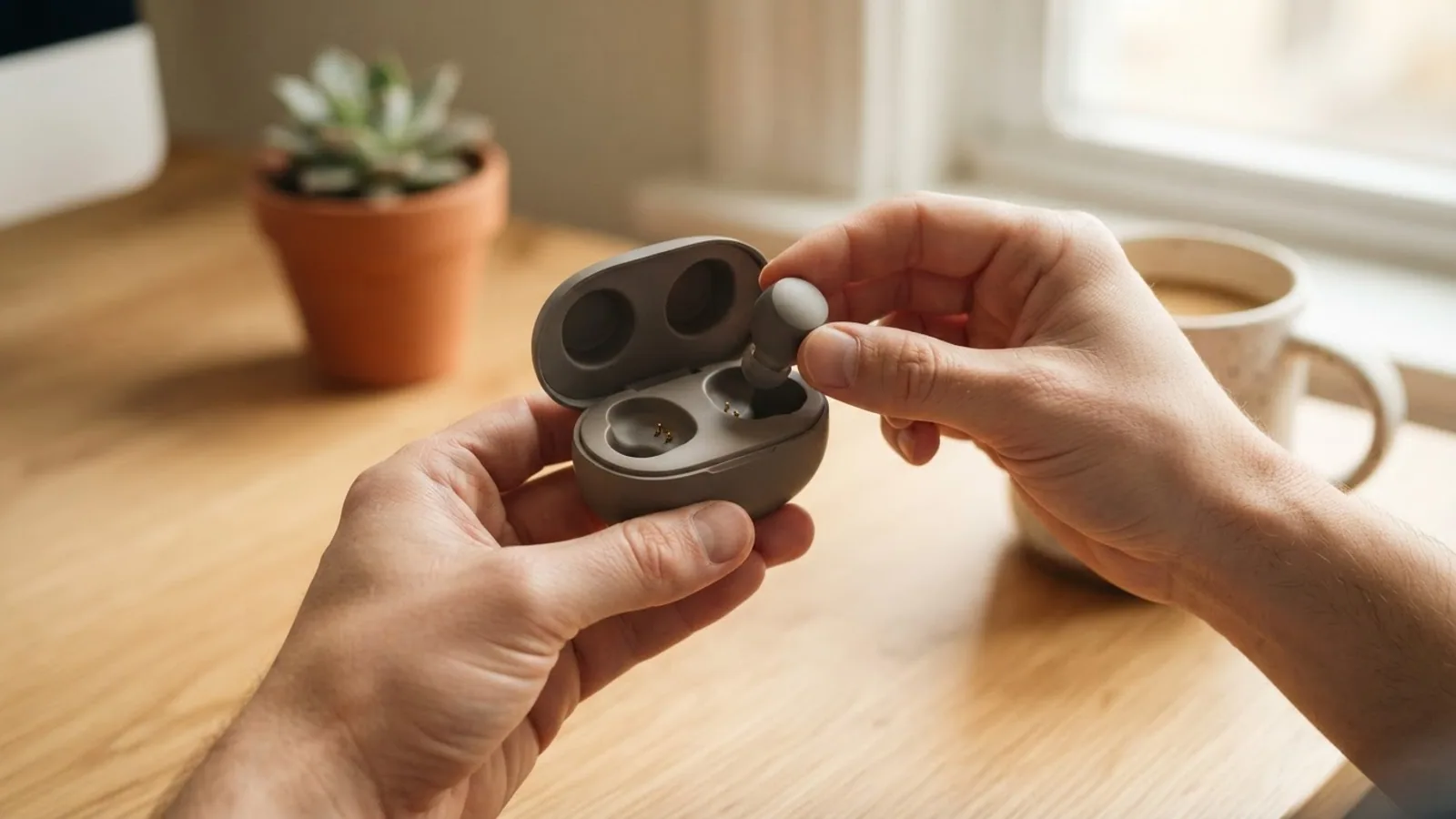
Earbuds that won't pair are often not in pairing mode, out of range or low on battery, three of the causes Microsoft lists for a Bluetooth device that won't pair with a Windows PC. Forget them in Bluetooth settings and pair them again. If they were connected to another device, Samsung's Galaxy Buds steps say to turn off Bluetooth on that first device. Apple's Beats steps and Google's Pixel Buds steps both put a reset last. If they still refuse, see what to do when earbuds won't connect.
"Sync" Means Pairing for Headphones
For earbuds and headphones, "sync" means pairing. Searches such as "how to sync JLab earbuds", "sync Beats" or "sync my Skullcandy earbuds" all ask the same thing, and the answer is the same: pairing mode, then the Bluetooth list. Syncing health data is a smartwatch topic and doesn't apply to headphones.
Looking for Headphone Repair Instead?
Re-pair means pairing again; repair means fixing damage. If your headphones are physically damaged, pairing them again won't help, and the maker's repair service is the next step. Beats owners can start with Beats Headphones Repair Options, and AirPods Battery Replacement and Repair Options and Bose Headphones Repair Options cover those two brands.
Earbuds Stopped Pairing After an Update?
Pairing depends on software at both ends: the phone's operating system and the earbuds' firmware. AirPods firmware installs by itself: Apple says updates are delivered automatically while your AirPods are charging and in Bluetooth range of an iPhone, iPad or Mac that's connected to Wi-Fi. Samsung changed its pairing flow with One UI 8: its Australian support page says Galaxy devices updated to One UI 8.0 pair Galaxy Buds from a QuickPair pop-up, with no Galaxy Wearable app needed. If pairing suddenly stopped right after an update, check earbud updates on the Update Tracker for known issues. Get an email when an earbud update breaks something, and when it's fixed.
Pairing Questions
Three more pairing questions, each with a short answer.
How do I force Galaxy Buds into pairing mode?
Force pairing mode from the case. Galaxy Buds4 and Buds4 Pro: press and hold the connect button on the back of the case for more than 3 seconds. Buds3 and Buds3 Pro: close the lid, reopen it, then hold the Connect button on the bottom of the case for three seconds. Buds2 and Buds2 Pro: touch and hold both touchpads in the case until the case lights flash. Samsung says a reset isn't required to switch to a new device.
Why is my phone not detecting my earbuds?
Your phone only lists earbuds that are discoverable, so check that they're in pairing mode and close by: Microsoft says a Bluetooth device must be in pairing mode and within range. Why Your Phone Can't Find Your Bluetooth Earbuds covers the other causes.
How do I stop Bluetooth from randomly disconnecting?
Stay close to your phone, move away from Wi-Fi routers and running microwaves, and keep both devices charged. For drops that keep coming back, see why earbuds keep disconnecting.
Sources
We checked this page against the pages below, most recently on . How we verify fixes
- Connect a third-party Bluetooth accessory to your iPhone or iPad (Apple, support.apple.com)Official
- Find & set up Bluetooth devices near your Android device (Google, support.google.com)Official
- Pair a Bluetooth device in Windows (Microsoft, support.microsoft.com)Official
- Fix Bluetooth connected but no sound issue on Windows (Microsoft, support.microsoft.com)Official
- Troubleshoot Bluetooth not connecting in Windows (Microsoft, support.microsoft.com)Official
- Connect a Bluetooth device with your Mac (Apple, support.apple.com)Official
- If your AirPods or AirPods Pro won't connect (Apple, support.apple.com)Official
- About firmware updates for AirPods (Apple, support.apple.com)Official
- Pair Beats (Apple, support.apple.com)Official
- If you can't connect to your wireless Beats product (Apple, support.apple.com)Official
- Samsung earbuds don't connect or won't stay connected (Samsung, samsung.com)Official
- How to connect your Samsung Galaxy earbuds (Samsung, samsung.com)Official
- How to connect Samsung Galaxy Buds series to a laptop to listen to music (Samsung UK) (Samsung, samsung.com)Official
- How to pair Galaxy Buds using Bluetooth in Samsung One UI 8 (Samsung Australia) (Samsung, samsung.com)Official
- Set up Google Pixel Buds (Google, support.google.com)Official
- Change Google Pixel Buds settings (Google, support.google.com)Official
- Troubleshoot connectivity issues (Google Pixel Buds Help) (Google, support.google.com)Official
- WH-1000XM6 Help Guide: Pairing and connecting with an Android smartphone (Sony, helpguide.sony.net)Official
- WH-1000XM5 Help Guide: Pairing and connecting with an Android smartphone (Sony, helpguide.sony.net)Official
- WF-1000XM5 Help Guide: Pairing and connecting with an Android smartphone (Sony, helpguide.sony.net)Official
- Sony | Sound Connect (App Store) (Apple, apps.apple.com)Official
- Connecting a Bluetooth Device: Bose QuietComfort Ultra Earbuds (2nd Gen) (Bose, support.bose.com)Official
- Bose QuietComfort Ultra Headphones (2nd Gen) owner's guide (Bose, assets.bosecreative.com)Official
- Multi-Point Connection Support (JBL) (JBL, support.jbl.com)Official
- JBL Headphones (App Store) (Apple, apps.apple.com)Official
- Dime 3 product help (Skullcandy) (Skullcandy, skullcandy.com)Official
- Rail ANC product help (Skullcandy) (Skullcandy, skullcandy.com)Official
- Method 360 ANC product help (Skullcandy) (Skullcandy, skullcandy.com)Official
- Skullcandy App (Skullcandy) (Skullcandy, skullcandy.com)Official
- PS5 Error Code CE-109531-9 (PlayStation, playstation.com)Official
- How to Pair and Manage Bluetooth Audio Devices on Nintendo Switch (Nintendo, en-americas-support.nintendo.com)Official
- Connect a compatible headset (Xbox Support) (Microsoft (Xbox), support.xbox.com)Official