Why Your Phone Can't Find Your Bluetooth Earbuds

By Suraj Giri, Founder & Publisher. Reviewed by Suraj Giri on .
Published · 5 min read
How this page was made
- Sources. Checked against 11 official pages from Google, Apple and Bose, most recently on . See the sources.
- No device testing. We don't test fixes on physical devices, so nothing on this page is a hands-on result. A fact counts as verified only when it matches an official source page.
- AI use. As with every page on Gadget247News, AI tools helped research, outline, draft and edit this page, and re-read the official pages to flag facts that didn't match. The illustration at the top was generated with Runway and is labelled under the image.
- Human sign-off. Suraj Giri, Founder & Publisher, read this page and signed it off on . The site won't publish a page without that sign-off.
- Changes. The published and updated dates move only when the content changes, and every change gets a dated note. Spot an error or a fix that didn't work? Email info@gadget247news.com.
Read our AI use policy, editorial policy and corrections policy.
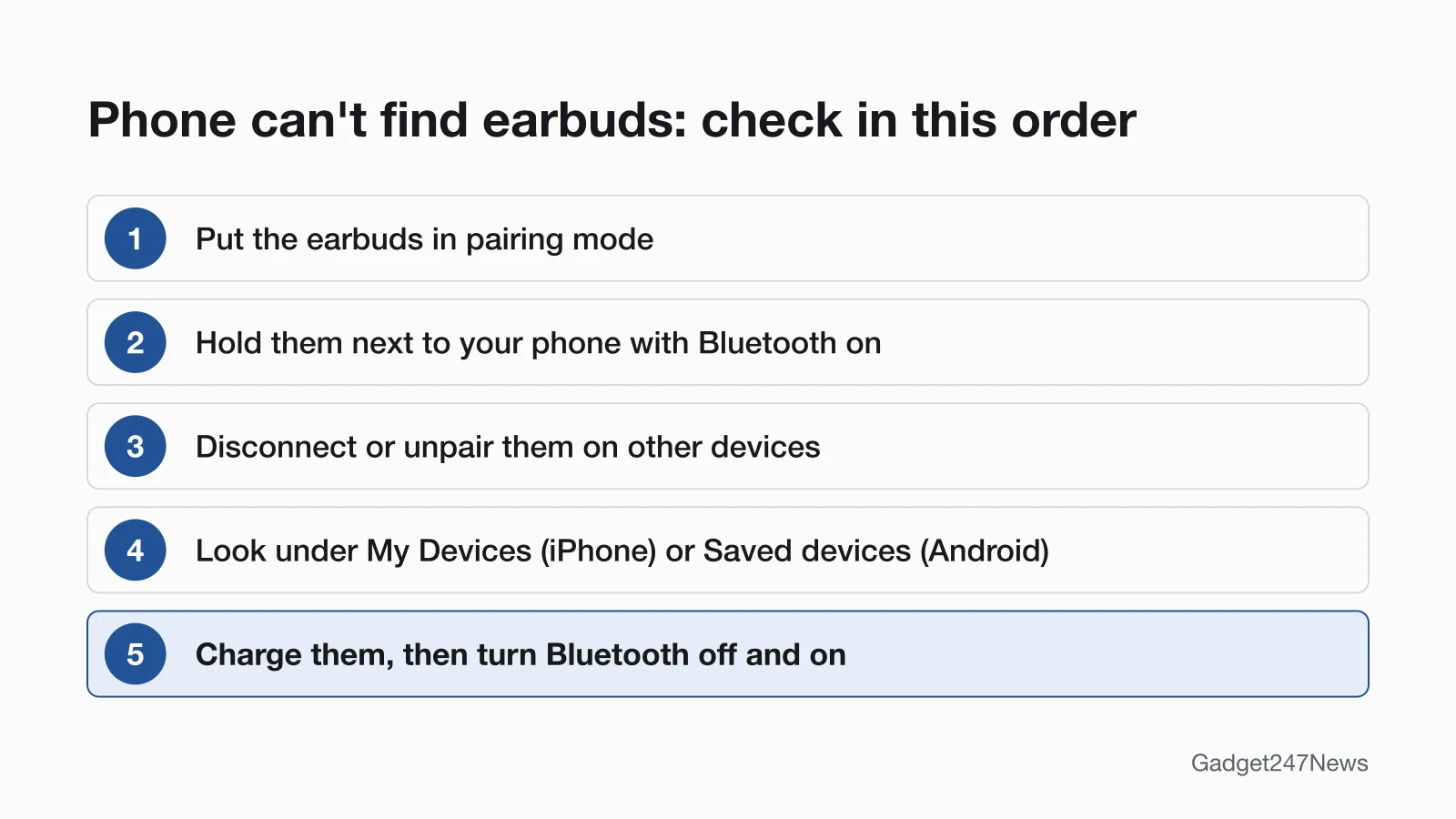
Put your earbuds in pairing mode and hold them next to your phone with Bluetooth on. If they still don't appear, they may be connected to another device: disconnect or unpair them there, then look again.
"Can't find" is a pairing problem, not a connection problem. Your phone's list of new devices only shows earbuds that are discoverable, and Google's first step for an accessory that won't pair is to check that it "is discoverable and ready to pair." Earbuds that are already saved sit in a different list. That split is the difference between pairing vs connecting on Bluetooth earbuds, and it decides where you look.
If the earbuds do show up but won't link or play sound, the fault is the connection, and earbuds Not Connecting has the fixes in order for each brand.
The Most Common Reasons, in Order
The table lists six causes in the order to check them, with the sign to look for and the first thing to do.
| Cause | How to tell | What to do |
|---|---|---|
| 1. Not in pairing mode | No pairing light. Often a blue light shows when ready; AirPods flash white | Put them in pairing mode (steps below) |
| 2. Still connected to another device | They play sound from a laptop, tablet or another phone | Disconnect or unpair them on that device, then look again |
| 3. Already paired with this phone | They're under My Devices (iPhone) or Saved devices (Android), not in the new-device list | Tap them in that list to connect |
| 4. Too far away | Nothing obvious | Hold the earbuds right next to the phone |
| 5. Off or out of charge | No light at all | Charge them, then try again |
| 6. A phone setting | Bluetooth is stuck, or Location is off for Fast Pair on Android | See the phone settings list below |
Checking that the accessory is discoverable is Google's first step for accessories that won't pair, and Apple's first step says a new accessory might need discovery mode. Start with row 1 even if you think the earbuds are ready.
What "Discoverable" Means
Discoverable means the earbuds are ready to pair and visible to phones they haven't paired with yet. Google's wording is "discoverable and ready to pair"; Apple calls the same state discovery mode. Apple's troubleshooting page says that if you haven't paired an accessory before, "you might need to place them in discovery mode first." Earbuds that aren't discoverable don't appear in the list of new devices.
How to Put Earbuds in Pairing Mode
Each maker uses its own control. The table lists only the models whose pairing-mode steps we read on Apple's and Bose's own pages on September 26, 2026.
| Earbuds | What to do | Sign it worked |
|---|---|---|
| AirPods 1, 2 or 3, AirPods Pro 1 or 2 | With the AirPods in the case and the lid open, press and hold the setup button on the back of the case for about 5 seconds | Status light flashes white |
| AirPods 4 or 5, AirPods Pro 3 | Open the case with the AirPods inside, hold it next to your phone, then double-tap the front of the case | Status light flashes white |
| AirPods Max | Press and hold the listening mode button for about 5 seconds | Status light flashes white |
| Bose QuietComfort Ultra Earbuds (2nd Gen) | With both earbuds in the open case, press and hold the button on the back of the case | Earbud status light slowly pulses blue |
| Bose Ultra Open Earbuds | With both earbuds in the open case, press and hold the button on the back of the case | Earbud status lights slowly pulse blue |
| Bose QuietComfort Earbuds (2024) | Touch and hold either earbud for 4 seconds | You hear "Ready to pair" |
| Bose QuietComfort Headphones | Slide the Power/Bluetooth switch to the right and hold for 3 seconds | You hear "Ready to connect" and the light blinks blue |
The 5-second holds are Apple's figures for AirPods, and the 3- and 4-second holds are Bose's for those two models only. For Samsung Galaxy Buds, Google Pixel Buds, Sony, JBL, Beats and Skullcandy, the button for each model is in How to Pair and Connect Bluetooth Earbuds and Headphones.
Why Don't Earbuds Show Up If They Were Paired Before?
Earbuds you paired before don't show up as new, because your phone already has them saved. On iPhone, look under My Devices in Settings, then Bluetooth; on Android, touch and hold Bluetooth and look under "Saved devices". Tap them there to connect. If they're listed but still won't connect, Apple's fix is to unpair them, "Put it back in discovery mode", then pair again. On Android, the matching step is Forget, then Pair new device.
Phone Settings That Hide Earbuds
Four phone-side settings can keep earbuds out of the list:
- Bluetooth stuck: Google's first step is "Turn Bluetooth off and then on again."
- Location off (Android): for Fast Pair accessories, Google says to make sure "your phone has Bluetooth and Location turned on."
- App permission (iPhone): if the earbuds use an app, go to Settings → Privacy & Security → Bluetooth and turn on Bluetooth for that app.
- Phone needs a restart: Google lists "Restart your devices" among its Bluetooth basics.
If Android shows no "Pair new device" button, Google says to check under "Available devices" or tap More, then Refresh.
How Close Should Your Phone Be?
Hold the earbuds right next to the phone while you pair them. Apple's iPhone guide says iPhone "must be within about 33 feet (10 meters)" of a Bluetooth accessory to pair, and its troubleshooting page asks you to keep the two "close to each other". Google sets a tighter figure for Fast Pair only: your phone "needs to be within 0.5 m or 1.6 ft" of accessories that work with Fast Pair.
When the Problem Isn't Finding Them
Once your phone can see the earbuds, the remaining problems are about connecting, AirPods on Android, or a single earbud.
They Show Up but Won't Connect
Earbuds that appear in the list but won't link have a connection fault, not a discovery one. The not-connecting guide linked above ranks those fixes. Consoles add their own limits: to use wireless headphones with an Xbox or a PS5, check the console and TV guide first, because some consoles don't accept Bluetooth audio at all.
Android Phone Can't Find AirPods?
AirPods pair with an Android phone like other Bluetooth headphones once they're in pairing mode. Apple's steps for Android start in Settings: tap Connections, then tap Bluetooth. Put the AirPods in pairing mode with the control in the table above, and select them "When your AirPods appear in the list of Bluetooth devices." For what works afterwards, see do AirPods Work with Android.
Phone Finds Only One Earbud?
Charge both earbuds in the case first. Apple's step for AirPods is to "Place both AirPods in your charging case and let them charge for 30 seconds," then open the case near your iPhone or iPad. If one side still doesn't show or stays silent, follow the steps to fix a silent earbud for your brand.
Earbuds Not Found: Quick Answers
Why did my earbuds suddenly stop showing up? If they vanished right after a phone or earbud update, check the latest firmware for your earbuds or watch and any known issue listed there. If nothing changed, go down the causes table from row 1: pairing mode first, then other devices.
What if my laptop can't find my headphones? Start with the same check: put the headphones in pairing mode, then look for them in the computer's Bluetooth settings. How to Pair and Connect Bluetooth Earbuds and Headphones has the computer steps.
Sources
We checked this page against the pages below, most recently on . How we verify fixes
- Google: Fix Bluetooth problems on Android (Google, support.google.com)Official
- Google: Find & set up Bluetooth devices near your Android device (Google, support.google.com)Official
- Apple: If a Bluetooth accessory won't connect to your iPhone or iPad (Apple, support.apple.com)Official
- Apple: Connect a third-party Bluetooth accessory to your iPhone or iPad (Apple, support.apple.com)Official
- Apple iPhone User Guide: Connect iPhone to Bluetooth accessories (Apple, support.apple.com)Official
- Apple AirPods User Guide: Pair AirPods with a non-Apple device (Apple, support.apple.com)Official
- Apple: If your left or right AirPod isn't working (Apple, support.apple.com)Official
- Bose: QuietComfort Ultra Earbuds (2nd Gen) owner's guide (Bose, assets.bosecreative.com)Official
- Bose: Ultra Open Earbuds owner's guide (Bose, assets.bosecreative.com)Official
- Bose: QuietComfort Earbuds owner's guide (Bose, assets.bosecreative.com)Official
- Bose: QuietComfort Headphones owner's guide (Bose, assets.bosecreative.com)Official