Pairing vs Connecting

By Suraj Giri, Founder & Publisher. Reviewed by Suraj Giri on .
Published · 5 min read
How this page was made
- Sources. Checked against 10 official pages from Google, Apple and PlayStation, most recently on . See the sources.
- No device testing. We don't test fixes on physical devices, so nothing on this page is a hands-on result. A fact counts as verified only when it matches an official source page.
- AI use. As with every page on Gadget247News, AI tools helped research, outline, draft and edit this page, and re-read the official pages to flag facts that didn't match. The illustration at the top was generated with Runway and is labelled under the image.
- Human sign-off. Suraj Giri, Founder & Publisher, read this page and signed it off on . The site won't publish a page without that sign-off.
- Changes. The published and updated dates move only when the content changes, and every change gets a dated note. Spot an error or a fix that didn't work? Email info@gadget247news.com.
Read our AI use policy, editorial policy and corrections policy.
Pairing is the one-time setup that saves two Bluetooth devices to each other; connecting is the live link between devices that are already paired. You pair your earbuds with a phone once, and after that they can connect on their own.
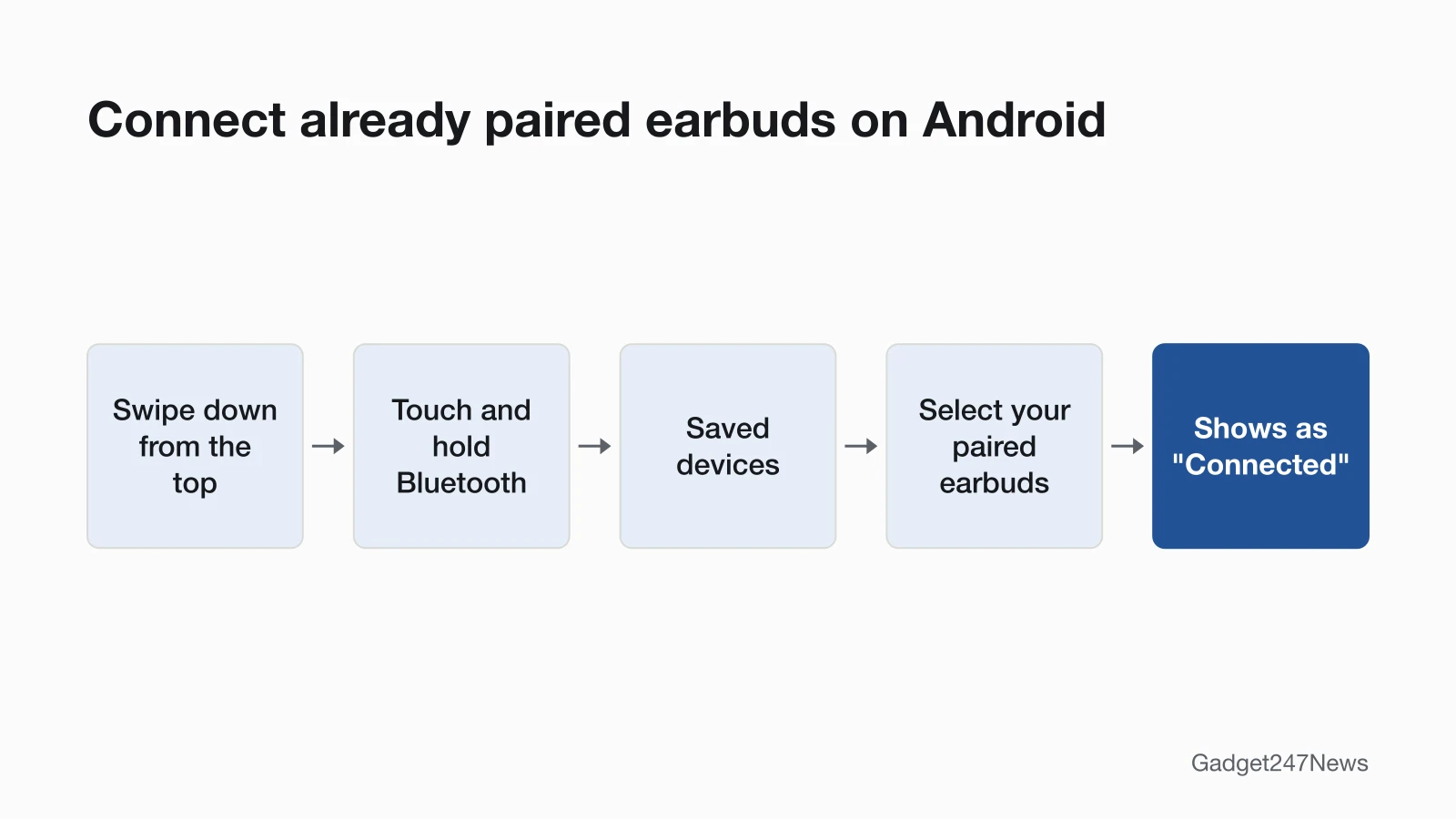
In your phone's Bluetooth settings, "paired" means the earbuds are saved and "connected" means sound can play through them right now. Google's Android help puts it this way: "After you pair a Bluetooth device for the first time, your devices can connect automatically." Android lists saved earbuds under "Saved devices" and marks the pair in use as "Connected". If your earbuds stopped working and won't do either, the family hub sorts the problem by symptom.
Setting up a new pair of earbuds is a separate job. To put Bluetooth earbuds in pairing mode and pair them with an iPhone, Android phone or computer, use the pairing guide, which has the steps for each brand.
Pairing vs Connecting at a Glance
The table sets pairing and connecting side by side, using the labels Apple and Google show on iPhone and Android.
| Pairing | Connecting | |
|---|---|---|
| What it is | Saving two devices to each other | The live link that carries sound and calls |
| How often | Once. Google: devices "stay paired until you unpair them" | Every time you use them, and it can happen automatically |
| Needs pairing mode? | Yes: the earbuds must be discoverable | No: you pick them from the saved list |
| Where it shows | iPhone: My Devices. Android: Saved devices | Android: the earbuds show as "Connected". iPhone: My Devices shows connected and unconnected devices |
| What undoes it | Forget (on iPhone, Forget This Device) | Disconnect |
| What you see when it fails | The earbuds don't show up as a new device, or won't pair | The earbuds are saved but not connected |
Pairing happens once per phone; connecting happens every time you listen.
What Is Pairing Mode?
Pairing mode means the earbuds are discoverable and ready to pair. Google's Android help asks you to check that an accessory "is discoverable and ready to pair" before you pair it. Apple calls the same state discovery mode; its iPhone guide says to "Put your Bluetooth accessory in discovery mode" before you pair. Google adds that "Often, you'll see a blue light on an accessory when it's ready to pair." AirPods show it with a status light that flashes white. Each brand has its own button or gesture, so the earbuds' own instructions are the place to check.
What Does "Paired but Not Connected" Mean?
Paired but not connected means your phone still has the earbuds saved, but no live link is running. Apple's troubleshooting page includes these checks: the accessory is "on and fully charged", the two devices are "close to each other", and, if the earbuds pair with other devices but not yours, "Unpair the accessory from your other devices." On Android, touch and hold Bluetooth, then pick the earbuds under "Saved devices". Once the link is up, they show as "Connected".
Disconnect vs Forget (Unpair)
Disconnect ends the live link and keeps the pairing; Forget removes the pairing, so you pair the earbuds again before the next use. On Android, both buttons sit in the earbuds' settings, and Google describes Forget as the way "To remove the device from your phone completely". On iPhone, tap the More Info button next to the earbuds, tap Forget This Device, then tap Forget Device to confirm.
Apple adds one catch: "When you unpair an accessory, it unpairs on all devices signed in to your Apple Account." To disconnect every Bluetooth accessory from an iPhone without turning Bluetooth off, open Control Center and tap the Bluetooth button. Apple says accessories then stay disconnected "until the next day".
When Do You Need to Pair Again?
You need to pair earbuds again in four situations:
- After Forget. Apple says Forget This Device removes the accessory from your list, "but you can repeat the steps to add it any time."
- After an AirPods reset. Apple's reset includes Forget This Device and ends with the on-screen steps "to reconnect your AirPods."
- On a new phone. A phone the earbuds have never paired with needs that first pairing before they can connect automatically.
- When saved earbuds won't connect. For an accessory that connected before, Apple's fix is to unpair it, "Put it back in discovery mode", then pair and connect it again.
Each time, the earbuds have to be discoverable again before your phone can save them.
Where to See Paired and Connected Devices
Both phones keep paired and connected earbuds in their Bluetooth settings. The table shows where to look.
| Phone | Where to look |
|---|---|
| iPhone | Settings → Bluetooth → My Devices lists connected and unconnected accessories. To pair a new one, tap its name when it appears. |
| Android | Swipe down from the top of the screen, touch and hold Bluetooth, then use Saved devices (already paired) or Pair new device. You can also open Settings, tap Connected devices (then Bluetooth, if you see it) and tap Pair new device. |
If there's no "Pair new device" on Android, Google says to check under "Available devices" or tap More, then Refresh.
Does "Sync" Mean Pairing?
For earbuds and headphones, "sync" means pairing. If a guide tells you to sync Beats, JBL, Bose or Skullcandy headphones with a phone, follow the pairing steps above. On a smartwatch, sync means moving data: after setup, Apple says an Apple Watch and iPhone keep "syncing information in the background."
Bluetooth and Compatibility Questions
Pairing and connecting also sit behind the other questions in our Bluetooth section, from missing earbuds to mixing Apple and Android devices.
Phone Can't Find Your Earbuds?
A phone only lists new earbuds that are in pairing mode. If they pair with your other devices but not your phone, Apple says to unpair them from those devices. Why Your Phone Can't Find Your Bluetooth Earbuds ranks the causes. For AirPods, learn how to put your AirPods in pairing mode or reconnect AirPods that are already saved.
AirPods or Apple Watch With Android?
AirPods pair with an Android phone as a Bluetooth headset; Apple says "You can't use Siri, but you can listen and talk." The full answer to do AirPods Work with Android covers the limits. An Apple Watch is different: Apple's setup page says you need an iPhone to set one up, and the answer to can You Use an Apple Watch with Android explains what that means for Android owners.
What Is Fast Pair?
Fast Pair is Android's notification-based pairing for accessories that support it, and those accessories "say so on their boxes." You put the device in pairing mode, and "You'll get a notification to set up the new device." What Is Google Fast Pair explains how it works.
Headphones on a PS5, Xbox or TV?
Not over Bluetooth on a PS5: PlayStation's support page says "Your Bluetooth audio device isn't compatible with PlayStation®5 consoles." How to Connect Bluetooth Headphones to a PS5, Xbox or TV covers the PS5, Xbox and TV options one by one.
Sources
We checked this page against the pages below, most recently on . How we verify fixes
- Google: Find & set up Bluetooth devices near your Android device (Google, support.google.com)Official
- Google: Fix Bluetooth problems on Android (Google, support.google.com)Official
- Apple: Connect a third-party Bluetooth accessory to your iPhone or iPad (Apple, support.apple.com)Official
- Apple iPhone User Guide: Connect iPhone to Bluetooth accessories (Apple, support.apple.com)Official
- Apple: If a Bluetooth accessory won't connect to your iPhone or iPad (Apple, support.apple.com)Official
- Apple: How to reset your AirPods and AirPods Pro (Apple, support.apple.com)Official
- Apple AirPods User Guide: Pair AirPods with a non-Apple device (Apple, support.apple.com)Official
- Apple: Set up your Apple Watch (Apple, support.apple.com)Official
- Google: Use Fast Pair (Google, support.google.com)Official
- PlayStation: How to fix CE-109531-9 (PlayStation, playstation.com)Official