What Is Google Fast Pair?

By Suraj Giri, Founder & Publisher. Reviewed by Suraj Giri on .
Published · 5 min read
How this page was made
- Sources. Checked against 6 official pages from Google, Samsung and Apple, most recently on . See the sources.
- No device testing. We don't test fixes on physical devices, so nothing on this page is a hands-on result. A fact counts as verified only when it matches an official source page.
- AI use. As with every page on Gadget247News, AI tools helped research, outline, draft and edit this page, and re-read the official pages to flag facts that didn't match. The illustration at the top was generated with Runway and is labelled under the image.
- Human sign-off. Suraj Giri, Founder & Publisher, read this page and signed it off on . The site won't publish a page without that sign-off.
- Changes. The published and updated dates move only when the content changes, and every change gets a dated note. Spot an error or a fix that didn't work? Email info@gadget247news.com.
Read our AI use policy, editorial policy and corrections policy.
Google Fast Pair is an Android feature that shows a pop-up to set up a compatible Bluetooth accessory when you put it in pairing mode nearby. Accessories you pair this way are linked to your Google Account. Google calls the pop-up a notification.
Fast Pair is still Bluetooth pairing, only started from that notification: Google's page on setting up Bluetooth devices points you to Fast Pair "If you see a notification to pair." For what happens after the first pairing, see the difference between pairing and connecting Bluetooth headphones. If no pop-up appears, you can still pair through Bluetooth settings, and our guide to connect wireless earbuds to your phone has the steps for each brand.
How Does Fast Pair Work?
Fast Pair works by spotting a nearby accessory in pairing mode and offering to set it up. With Bluetooth and Location on, your Android phone detects a new accessory that isn't set up yet and shows a notification; you tap it and follow the on-screen instructions. When you connect this way, Google says "your Bluetooth accessories are associated with your Google Account," so your other connected devices "can recognize newly added accessories and prompt you to pair with the accessories automatically." If you turn the notifications off, you can still find nearby devices in the Settings app.
What You Need for Fast Pair
Fast Pair needs four things, according to Google's Android Help:
- An accessory that works with Fast Pair. Google says these accessories "say so on their boxes," and many also say "Made by Google" or "Made for Google."
- Bluetooth and Location turned on.
- Device notifications turned on.
- A Wi-Fi or mobile network connection, which Google's troubleshooting steps check for.
Google's two Fast Pair pages give different Android versions. The Fast Pair article lists "Android 6.0 or higher," while the Android Help lesson says some of its steps "Only work on Android 10 and up." A phone on Android 10 or later meets both figures (our reading of the two pages), so check your Android version first if the pop-up never appears.
Fast Pair vs Regular Bluetooth Pairing
Fast Pair and regular pairing both use Bluetooth; the difference is how setup starts and what gets saved to your account. The table compares what Google's help pages say about each:
| Fast Pair | Regular Bluetooth pairing | |
|---|---|---|
| How it starts | A notification appears when the accessory is in pairing mode nearby | Swipe down from the top of the screen, touch and hold Bluetooth, then tap Pair new device |
| Location | Must be on, with Bluetooth | Not listed in Google's pairing steps |
| Google Account | Accessory is associated with your Google Account | Google says a notification about account association follows, and you can disregard it |
| Distance | Phone within 0.5 m (1.6 ft) of the accessory | Google's pairing steps give no distance |
| Your other devices | Can recognize the accessory and prompt you to pair | Not mentioned |
Because of that account link, an accessory you set up once with Fast Pair can be offered to your other connected devices, which prompt you to pair it.
How to Pair Earbuds With Fast Pair
To pair earbuds with Fast Pair, turn on Bluetooth and Location first, then put the earbuds in pairing mode near your phone:
- Open your phone's Settings app. Tap Bluetooth and turn on Bluetooth, then tap Location and turn on Use location.
- Turn on the new earbuds and put them in pairing mode.
- Tap the notification to set up the new device. Google's Fast Pair article names the button Connect; you'll then get a "Device connected" or "Pairing complete" notification.
- Follow the on-screen instructions. If the earbuds need setting up, tap Set up.
Google's setup steps add one more check before step 2: "If you turned off device notifications, turn them on."
How to Turn Fast Pair On or Off
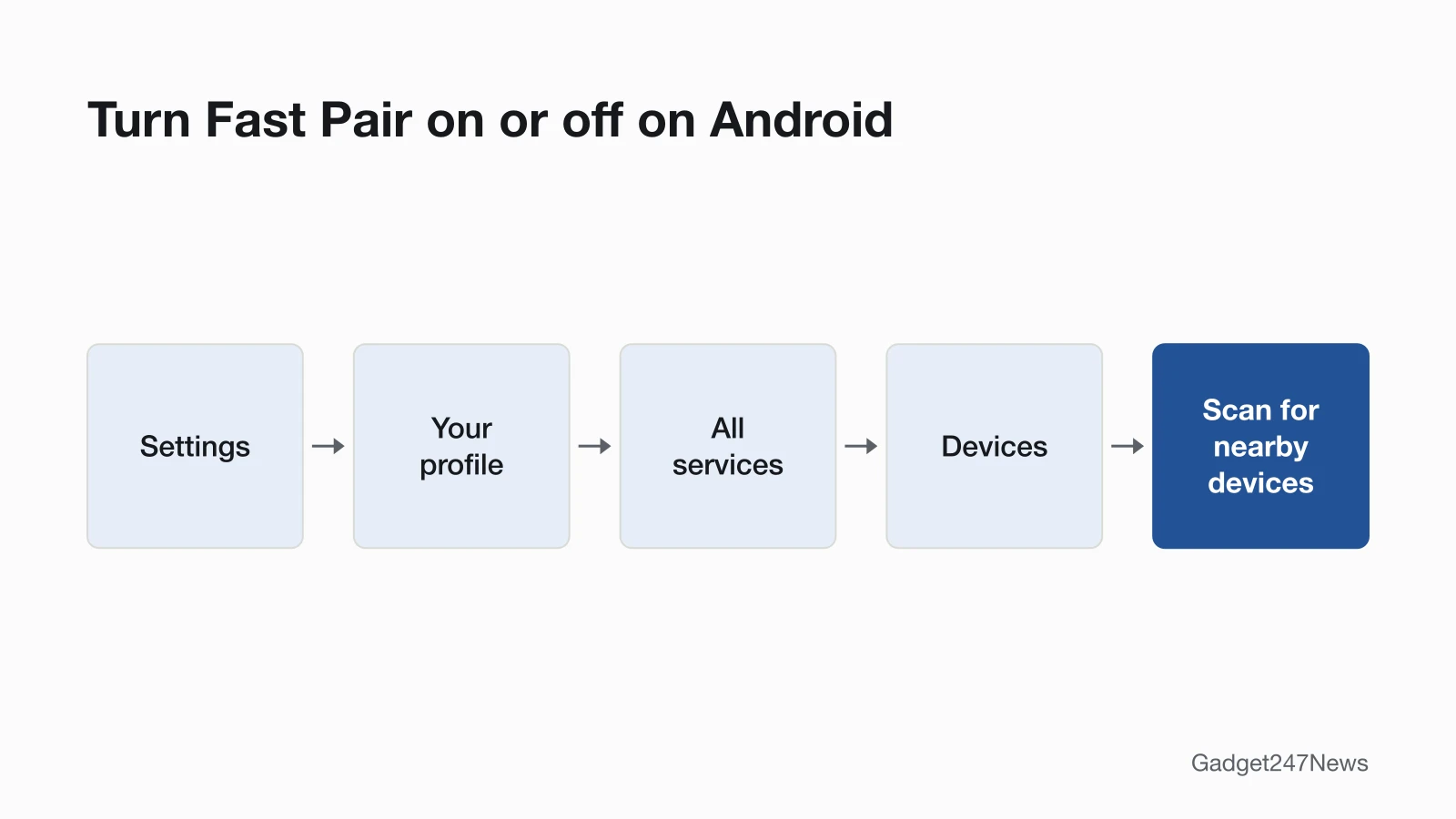
Fast Pair's pop-ups are controlled by one switch, Scan for nearby devices:
- Open your phone's Settings app.
- Tap your profile, then All services.
- Under "Connected devices & sharing," tap Devices.
- Turn Scan for nearby devices on or off.
Google's other Fast Pair page shows a different path, Google, then Devices & sharing, then Devices, so the menu names on your phone may differ from either page. Google's tip for the same screen: to save devices automatically, turn on Automatically save devices.
Which Accessories Work With Fast Pair?
Fast Pair works with accessories whose box says they work with Fast Pair, and Google lists three other device types it can find and connect: Chromecast, Wear OS watches and other Android devices. Many compatible accessories also carry a "Made by Google" or "Made for Google" label. If the box doesn't mention Fast Pair, pair the accessory through Bluetooth settings.
When Fast Pair Doesn't Work
Fast Pair problems fall into two groups: the pop-up doesn't show for an accessory that supports it, or the device isn't one Fast Pair can set up at all. An Apple Watch on a Samsung or Pixel phone is the second case, because Apple's setup needs an iPhone. As Google puts it, "Your phone can't find and automatically set up all devices."
Why Isn't the Fast Pair Pop-Up Showing?
Google's Fast Pair pages point to four reasons the pop-up doesn't show:
- Bluetooth or Location is off. Turn both on in Settings.
- Notifications are off. You can still find the accessory under your profile, All services, then Devices.
- The phone is too far away. Google says your phone "needs to be within 0.5 m or 1.6 ft" of Fast Pair accessories.
- The accessory isn't ready. It doesn't work with Fast Pair, or it isn't in pairing mode.
Google's troubleshooting list also says to check that the phone is on Wi-Fi or a mobile network. If there's still no pop-up, pair the accessory in Settings instead: tap Connected devices, then Pair new device, and pick it under "Available devices." The pairing guide linked at the top of this page covers that route, and our guide to earbuds that don't show up on a phone covers accessories missing from the list.
Fast Pair on Consoles and TVs?
Google's Fast Pair list includes Chromecast but no other TVs and no game consoles, so those pair through their own settings. On most Samsung TVs, for example, you put the headphones in pairing mode, then go to Menu, Settings, Sound, Sound Output and Bluetooth Speaker List. How to Connect Bluetooth Headphones to a PS5, Xbox or TV covers each device.
Fast Pair: Quick Answers
Does Fast Pair work on iPhone? Google documents Fast Pair in its Android Help, and its requirements name "Your Android device" with Android 6.0 or higher. Neither of Google's Fast Pair pages mentions the iPhone. On an iPhone, pair earbuds in Bluetooth settings with the pairing guide linked at the top.
Is Fast Pair the same as Find Hub? Google's Fast Pair page manages them in different places: Fast Pair accessories such as earbuds sit under Saved Devices, while "Find Hub-compatible tracker tags" are removed through Find Hub.
Sources
We checked this page against the pages below, most recently on . How we verify fixes
- Use Fast Pair (Android Help) (Google, support.google.com)Official
- Automatically connect your Bluetooth devices with Fast Pair (Android Help) (Google, support.google.com)Official
- Fix Bluetooth problems on Android (Android Help) (Google, support.google.com)Official
- Find & set up Bluetooth devices near your Android device (Android Help) (Google, support.google.com)Official
- Pair Bluetooth headphones to your Samsung TV (Samsung) (Samsung, samsung.com)Official
- Set up your Apple Watch (Apple) (Apple, support.apple.com)Official