How to Connect AirPods to a TV

By Suraj Giri, Founder & Publisher. Reviewed by Suraj Giri on .
Published · 4 min read
How this page was made
- Sources. Checked against 9 official pages from Apple, Samsung, Roku, PlayStation and Microsoft (Xbox), most recently on . See the sources.
- No device testing. We don't test fixes on physical devices, so nothing on this page is a hands-on result. A fact counts as verified only when it matches an official source page.
- AI use. As with every page on Gadget247News, AI tools helped research, outline, draft and edit this page, and re-read the official pages to flag facts that didn't match. The illustration at the top was generated with Runway and is labelled under the image.
- Human sign-off. Suraj Giri, Founder & Publisher, read this page and signed it off on . The site won't publish a page without that sign-off.
- Changes. The published and updated dates move only when the content changes, and every change gets a dated note. Spot an error or a fix that didn't work? Email info@gadget247news.com.
Read our AI use policy, editorial policy and corrections policy.
On Apple TV 4K, AirPods signed in to the same Apple Account connect from Control Center. On other TVs, put AirPods in pairing mode and pick them from the TV's Bluetooth headphone list. To fix your AirPods on other devices, start from the AirPods hub; for other brands, use the Bluetooth pairing steps for any earbuds.
How to Connect AirPods to Apple TV
AirPods connect to Apple TV 4K from Control Center when the Apple TV is signed in with the same Apple Account as your AirPods. After the first connection, Apple says they connect automatically the next time you put them on. Put them on while your profile is active and an onscreen alert offers to connect them; turn it off with Suggest Nearby AirPods in Settings → Remotes and Devices → Bluetooth.
Connect From Control Center
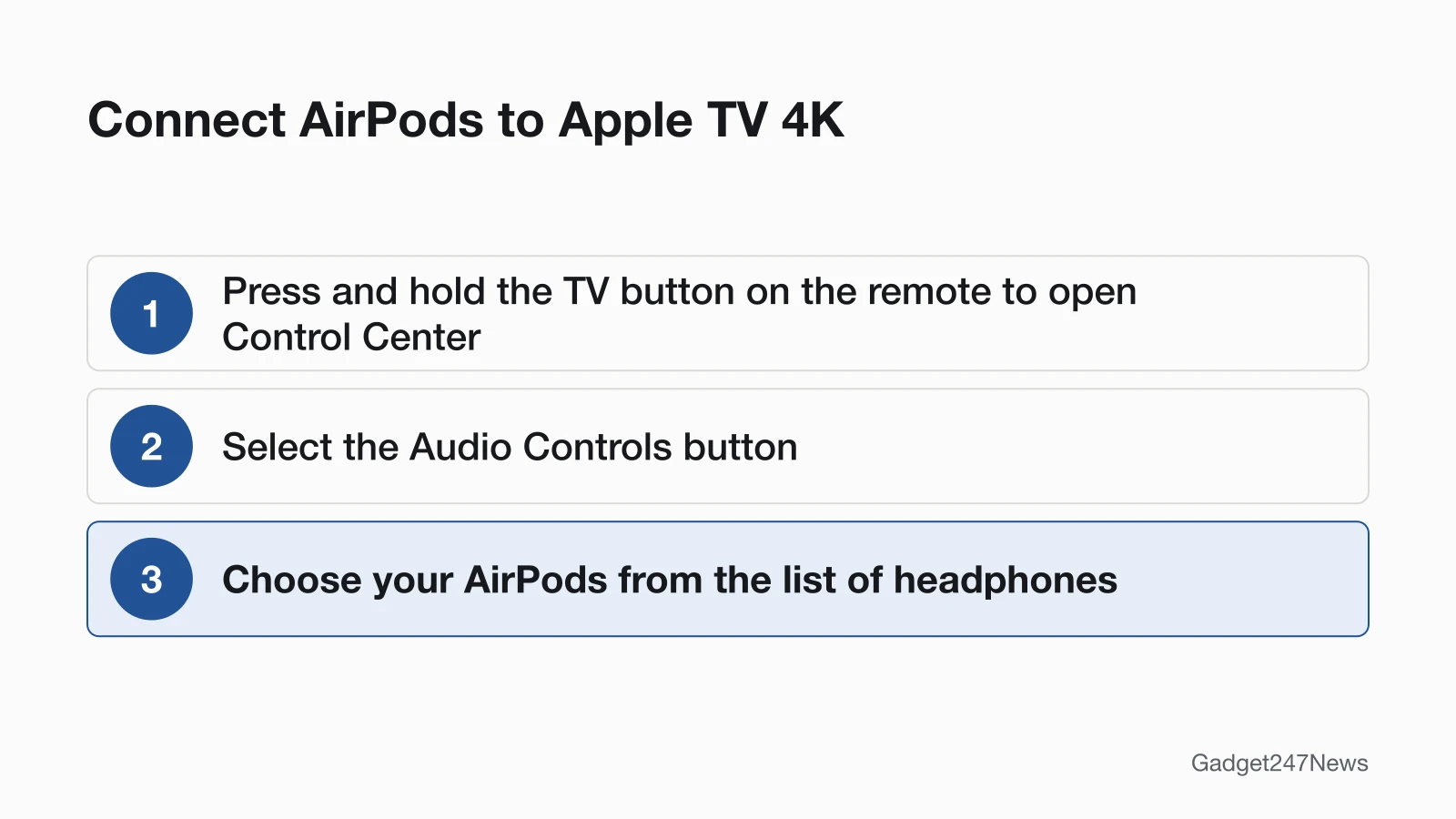
To connect AirPods from Control Center, use the Apple TV remote:
- Press and hold the TV button on the remote to open Control Center.
- Select the Audio Controls button.
- Choose your AirPods from the list of headphones.
Once headphones connect, Apple TV 4K turns off any other device speakers. The headphones icon in Control Center then opens Noise Control, Conversation Awareness and Spatial Audio, though "not all options are available for all AirPods and Beats models," Apple notes.
Pair AirPods With Apple TV Manually
If AirPods don't appear in Control Center, pair them as a Bluetooth device:
- Make your AirPods discoverable with the AirPods pairing mode control for your model; the status light flashes white.
- On Apple TV 4K, open Settings, then go to Remotes and Devices → Bluetooth.
- Select your AirPods in the Other Devices list.
Every TV below needs the same pairing-mode step.
How to Connect AirPods to a Samsung TV
Samsung TVs pair AirPods from the Bluetooth Speaker List:
- Put your AirPods in pairing mode.
- On the TV, press Menu and go to Settings → Sound → Sound Output → Bluetooth Speaker List. Samsung gives this path for most models; its steps for newer TVs go through Settings → All Settings first.
- Select your AirPods in the list. On newer TVs they show Needs Pairing: highlight them and select Pair and Connect.
Samsung says only one paired Bluetooth audio device can output audio, though newer TVs add a Multi Connect option for two. Some headphones designed for mobile devices exclusively won't pair with a TV.
Can You Connect AirPods to a Roku TV?
Yes, on Roku players and Roku TVs that support Bluetooth Headphone Mode; on other Roku TVs, try the Roku mobile app. To pair AirPods directly:
- Press Home on the Roku remote, then go to Settings → Remotes & devices → Wireless headphones → Add new wireless headphones.
- Put your AirPods in pairing mode.
- Wait while the Roku scans, which Roku says can take up to 30 seconds, then select your AirPods from the list.
The Wireless headphones option only appears on compatible devices, which Roku's Headphone Mode page lists: players include the Roku Ultra (models 4800, 4802 and 4850) and Roku Streaming Stick (3840), and TVs include the Roku Select Series 4K (2025), Plus Series and Pro Series. On other Roku TVs, the Roku mobile app can play what's streaming through headphones connected to your phone, on up to 4 devices; Roku's comparison chart lists supported products.
Connect AirPods to Other TVs
On other TVs, look for the same Bluetooth pattern:
- Open the TV's Bluetooth or sound output settings.
- Put your AirPods in pairing mode.
- Select your AirPods when they appear in the list.
A TV with no Bluetooth headphone option can't connect AirPods directly. The same pairing-mode step is how you pair AirPods with an Android phone or a Windows PC.
TV Menu Paths at a Glance
Where each TV pairs AirPods, and whose support page gives the path:
| TV | Where to pair | Source |
|---|---|---|
| Apple TV 4K | Control Center → Audio Controls (or Settings → Remotes and Devices → Bluetooth) | Apple |
| Samsung TV | Menu → Settings → Sound → Sound Output → Bluetooth Speaker List (newer TVs: Settings → All Settings → Sound) | Samsung |
| Roku | Home → Settings → Remotes & devices → Wireless headphones | Roku |
Once connected, Bluetooth brings its own limits to TV sound.
Sound Out of Sync or Cutting Out on the TV?
Sit closer to the TV, with no wall between you and it. Samsung lists lip-sync errors as a Bluetooth limit, says the TV and headphones may disconnect depending on the distance between them, and names microwave ovens and wireless LANs as interference that can make headphones malfunction. If your AirPods drop out on your phone too, see AirPods keep disconnecting.
If AirPods Won't Connect to Your TV
Check first that your TV pairs Bluetooth headphones at all. Then put both AirPods back in the case, close the lid, wait 15 seconds, open it and put them in pairing mode again. If they still don't appear, follow the fix order for AirPods won't pair problems, where a reset comes last.
Playing on a Console Through the TV?
Sony says Bluetooth audio devices aren't compatible with PS5 consoles, and Microsoft says the Xbox One console doesn't feature Bluetooth functionality. A console plugged into a TV with AirPods connected plays through them like any TV sound; that's our reading, not a Sony or Microsoft method. For the consoles themselves, see how to connect AirPods to a PS5.
AirPods and TV: Quick Answers
To put AirPods in pairing mode, open the case with both AirPods inside and double-tap the front of the case until the status light flashes white (AirPods 4, AirPods 5, AirPods Pro 3), or press and hold the setup button on the back (other AirPods). On AirPods Max, hold the listening mode button until the light flashes white.
Why are my AirPods suddenly not pairing?
Charge both AirPods in the case, close the lid for 15 seconds, then use pairing mode again. If pairing stopped right after an iOS, tvOS or AirPods update, check the AirPods firmware history.
Sources
We checked this page against the pages below, most recently on . How we verify fixes
- Use AirPods or Beats with Apple TV 4K (Apple, support.apple.com)Official
- Connect Bluetooth devices to Apple TV 4K (Apple, support.apple.com)Official
- Pair Bluetooth headphones to your Samsung TV (Samsung, samsung.com)Official
- How to use Bluetooth headphones for Headphone Mode on your Roku streaming device (Roku, support.roku.com)Official
- How to use headphones with the Roku remote app for Headphone Mode (Roku, support.roku.com)Official
- If your AirPods or AirPods Pro won't connect (Apple, support.apple.com)Official
- Set up AirPods Max with your Mac and other Bluetooth devices (Apple, support.apple.com)Official
- PS5 error code CE-109531-9 (PlayStation Support) (PlayStation, playstation.com)Official
- Connect a compatible headset (Xbox Support) (Microsoft (Xbox), support.xbox.com)Official