How to Connect AirPods to PS5, Xbox and Switch

By Suraj Giri, Founder & Publisher. Reviewed by Suraj Giri on .
Published · 4 min read
How this page was made
- Sources. Checked against 10 official pages from Nintendo, PlayStation, Microsoft (Xbox), Samsung and Apple, most recently on . See the sources.
- No device testing. We don't test fixes on physical devices, so nothing on this page is a hands-on result. A fact counts as verified only when it matches an official source page.
- AI use. As with every page on Gadget247News, AI tools helped research, outline, draft and edit this page, and re-read the official pages to flag facts that didn't match. The illustration at the top was generated with Runway and is labelled under the image.
- Human sign-off. Suraj Giri, Founder & Publisher, read this page and signed it off on . The site won't publish a page without that sign-off.
- Changes. The published and updated dates move only when the content changes, and every change gets a dated note. Spot an error or a fix that didn't work? Email info@gadget247news.com.
Read our AI use policy, editorial policy and corrections policy.
AirPods connect to a Nintendo Switch, but not directly to a PS5 or an Xbox:
- Nintendo Switch and Nintendo Switch 2: yes, through Bluetooth Audio, for sound only (no microphone).
- PS5: no. Sony says Bluetooth audio devices aren't compatible with PS5 consoles.
- Xbox: no Bluetooth option. Microsoft's headset page lists none for the console.
The PS5 and Xbox workarounds below are unofficial. For AirPods problems beyond consoles, see AirPods troubleshooting; headphones from other brands follow the general steps to pair Bluetooth headphones.
Which Consoles Work With AirPods?
Of the three, only the Switch family has official support for Bluetooth headphones such as AirPods. The table sums up each maker's support page:
| Console | Bluetooth audio (AirPods) | Mic over Bluetooth | Source |
|---|---|---|---|
| Nintendo Switch and Switch 2 | Yes, one audio device at a time | No | Nintendo Support |
| PS5 | No, "isn't compatible" | No | PlayStation Support (CE-109531-9) |
| Xbox Series X|S and Xbox One | No Bluetooth headset option listed; Xbox One has no Bluetooth | Not listed | Xbox Support |
How to Connect AirPods to a Nintendo Switch or Switch 2
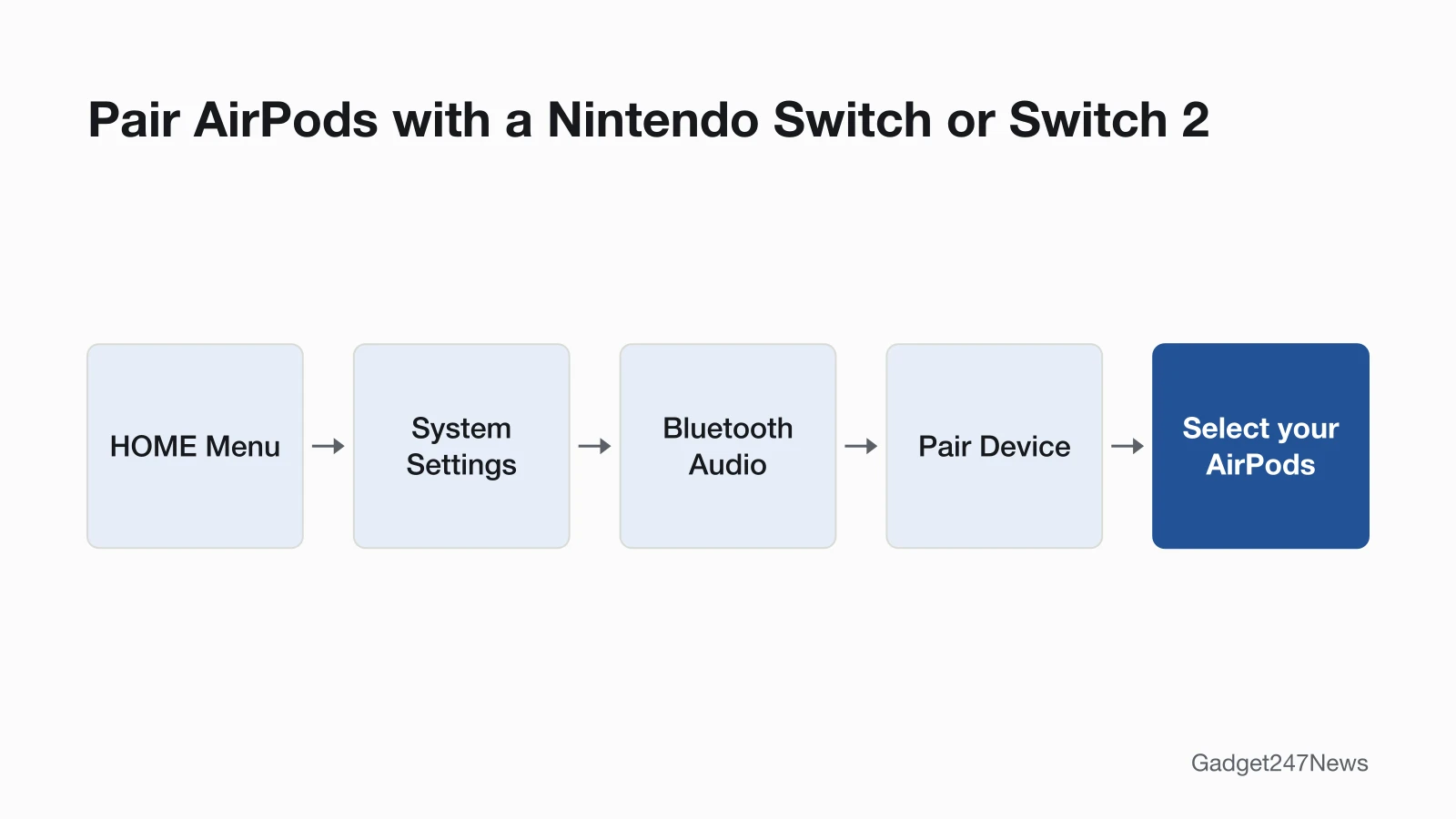
To connect AirPods to a Nintendo Switch or Switch 2, pair them from Bluetooth Audio in System Settings. Nintendo gives the same steps for both consoles:
- Update the console: from the HOME Menu, select System Settings → System → System Update.
- Make sure no more than two wireless controllers are connected. To disconnect one, hold its SYNC Button for at least one second.
- Put your AirPods in pairing mode: open the case lid, then double-tap the front of the case or hold the setup button, by model, until the status light flashes white. AirPods Max: hold the listening mode button.
- From the HOME Menu, open System Settings, select Bluetooth Audio, then select Pair Device.
- Select your AirPods when their name appears. The search can take several seconds.
If 10 audio devices are already saved on the console, remove one before you pair the AirPods.
What Works (and Doesn't) With AirPods on Switch
AirPods on a Switch play sound only, and Nintendo lists four limits:
- No microphone: Bluetooth microphones cannot be used, so the AirPods mic won't work on the console.
- One audio device at a time: only one Bluetooth audio device can be paired at once, and up to 10 can be saved.
- Local multiplayer cuts the sound: Bluetooth audio disconnects during local wireless multiplayer.
- Some delay: audio latency may occur, depending on the Bluetooth device.
Can You Connect AirPods to a PS5?
No. Sony's page for PS5 error CE-109531-9 says, "Your Bluetooth audio device isn't compatible with PlayStation®5 consoles." Sony's 2020 launch FAQ said the same about headsets: "Wireless headsets from third-party companies that use a Bluetooth connection will not be supported on PS5, though most USB and analog headsets will be supported."
PS5 Workarounds (Unofficial)
Sony's support pages give no way to use AirPods with a PS5, so each route below is unofficial and has a catch:
- Unofficial, through your TV: if your TV supports Bluetooth headphones, pair the AirPods with the TV and play the PS5 through it, as in How to Connect AirPods to a TV. Samsung's TV support page warns that lip-sync errors may occur and that some Bluetooth headphones won't pair with a TV.
- Unofficial, through PS Remote Play: the app shows the PS5 screen on an iPhone or iPad over a high-speed connection, and voice chat can use the phone's built-in microphone. Sony doesn't mention AirPods or other Bluetooth headphones for Remote Play.
Can You Connect AirPods to an Xbox?
Not directly. Microsoft's headset page says, "The XBOX One console does not feature Bluetooth functionality," and it gives Bluetooth steps only for Windows, Android, iOS and smart TV devices, not for Xbox Series X|S. On the console, the Xbox Wireless Headset pairs the way a controller does, and other compatible headsets connect to the controller through a 3.5mm audio jack or the Xbox One Stereo Headset Adapter. The unofficial TV route works the same way on Xbox. For headphones from other brands, see how to connect Bluetooth headphones to a PS5, Xbox or TV.
How to Check AirPods Are Connected to the Switch
On Switch, AirPods are connected when game sound plays through them: Nintendo says any audio played is output through your Bluetooth device once it connects. To reconnect saved AirPods later, make sure they aren't connected to another device, open System Settings, select Bluetooth Audio, pick the AirPods and select Connect Device. The same screen disconnects or removes them.
If AirPods Won't Pair With Your Switch
AirPods that won't pair with a Switch need Nintendo's limits checked first: no more than two wireless controllers, the latest system update, and fewer than 10 saved audio devices. Then close the AirPods in their case for 15 seconds and put them in pairing mode again, as Apple's steps do. If saved AirPods won't reconnect, Nintendo suggests removing them and pairing them as a new device. AirPods that show up nowhere need Apple's full order to fix AirPods that won't connect.
Using AirPods With a PC or Phone Instead?
A Windows laptop has its own steps to connect AirPods to a laptop. For a phone, tablet or another laptop, follow the AirPods pairing steps for iPhone, Android and Windows.
AirPods and Consoles: Quick Answers
How do you put AirPods in pairing mode?
Open the case and double-tap its front (AirPods 4, AirPods 5, AirPods Pro 3) or hold the setup button on the back (other models) until the status light flashes white. AirPods Max use the listening mode button instead. How to Put AirPods in Pairing Mode covers each model.
Why are my AirPods suddenly not pairing?
Neither Apple nor Nintendo names one cause, so check the console side first: the two-controller limit and the Switch system update. Then pair the AirPods again after a 15-second lid close. If it began after an AirPods update, compare yours with the latest AirPods firmware version; Apple's full order is in AirPods Not Connecting.
Sources
We checked this page against the pages below, most recently on . How we verify fixes
- How to Pair and Manage Bluetooth Audio Devices on Nintendo Switch (Nintendo, en-americas-support.nintendo.com)Official
- How to Pair and Manage Bluetooth Audio Devices on Nintendo Switch 2 (Nintendo, en-americas-support.nintendo.com)Official
- How to fix CE-109531-9 (PS5) (PlayStation, playstation.com)Official
- PS5 launch FAQ (PlayStation Blog, November 9, 2020) (PlayStation, blog.playstation.com)Official
- How to use PS Remote Play on mobile devices (PlayStation, playstation.com)Official
- Connect a compatible headset (Xbox Support) (Microsoft (Xbox), support.xbox.com)Official
- Pair Bluetooth headphones to your Samsung TV (Samsung, samsung.com)Official
- Set up AirPods with your Mac and other Bluetooth devices (Apple, support.apple.com)Official
- Set up AirPods Max with your Mac and other Bluetooth devices (Apple, support.apple.com)Official
- If your AirPods or AirPods Pro won't connect (Apple, support.apple.com)Official