How to Connect AirPods to a Windows PC

By Suraj Giri, Founder & Publisher. Reviewed by Suraj Giri on .
Published · 4 min read
How this page was made
- Sources. Checked against 7 official pages from Microsoft and Apple, most recently on . See the sources.
- No device testing. We don't test fixes on physical devices, so nothing on this page is a hands-on result. A fact counts as verified only when it matches an official source page.
- AI use. As with every page on Gadget247News, AI tools helped research, outline, draft and edit this page, and re-read the official pages to flag facts that didn't match. The illustration at the top was generated with Runway and is labelled under the image.
- Human sign-off. Suraj Giri, Founder & Publisher, read this page and signed it off on . The site won't publish a page without that sign-off.
- Changes. The published and updated dates move only when the content changes, and every change gets a dated note. Spot an error or a fix that didn't work? Email info@gadget247news.com.
Read our AI use policy, editorial policy and corrections policy.
AirPods connect to any Windows laptop or desktop the same way, HP, Dell or Lenovo alike: turn on Bluetooth, put the AirPods in pairing mode, then select them under New devices. Only the Windows version changes the menus. For other AirPods problems, see our AirPods fixes; for other brands, see how to pair Bluetooth earbuds with a Windows PC.
How to Connect AirPods to a Windows 11 PC
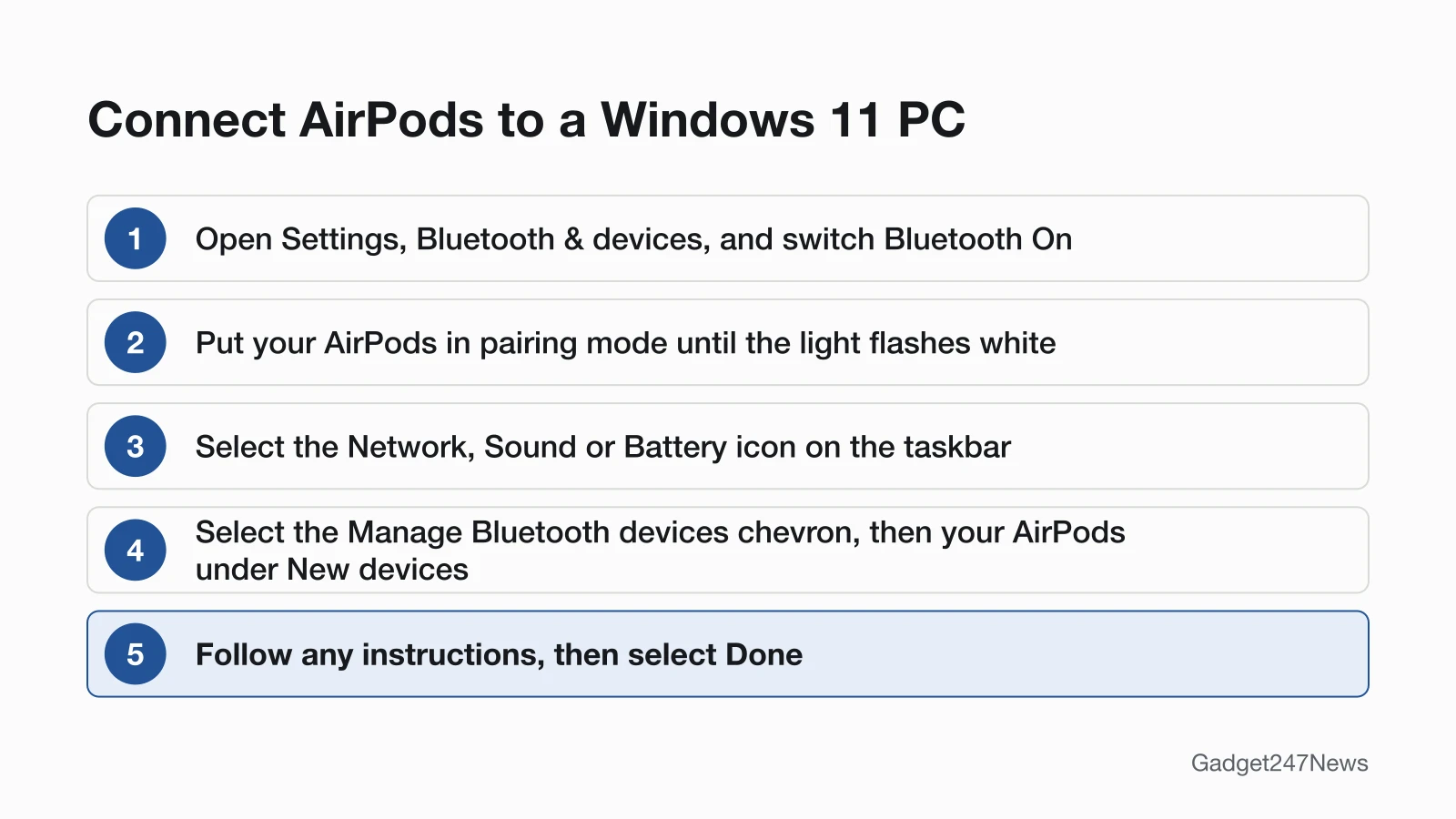
To connect AirPods to a Windows 11 PC, turn Bluetooth on, put the AirPods in pairing mode, then select them under New devices:
- Select Start > Settings > Bluetooth & devices, and make sure Bluetooth is switched On.
- Start pairing mode for your model (see the table below). The status light flashes white.
- On the taskbar, select the Network, Sound or Battery icon next to the time and date.
- Select the Manage Bluetooth devices chevron on the Bluetooth quick setting, then select your AirPods under New devices. You might need to scroll through Your devices first.
- Follow any extra instructions on screen, then select Done.
If a Swift Pair notification says a new Bluetooth device was found, select Connect instead. After pairing, Microsoft says the two devices connect automatically whenever Bluetooth is on and they're in range.
Pairing Mode for Each AirPods Model
AirPods enter pairing mode when the status light flashes white, and the button you use depends on the model:
| AirPods model | How to start pairing mode | Status light |
|---|---|---|
| AirPods 1, 2 or 3; AirPods Pro 1 or 2 | With the lid open, press and hold the setup button on the back of the case for about 5 seconds | Flashes white |
| AirPods 4 or 5; AirPods Pro 3 | Open the case with the AirPods inside, hold it next to the PC, then double-tap the front of the case | Flashes white |
| AirPods Max | Press and hold the listening mode button for about 5 seconds | Flashes white |
Every model's full steps are in How to Put AirPods in Pairing Mode.
How to Connect AirPods on Windows 10
To connect AirPods on Windows 10, use Add Bluetooth or other device in Settings:
- Select Start > Settings > Devices > Bluetooth & other devices, and make sure Bluetooth is switched On.
- Put your AirPods in pairing mode (table above) so they're discoverable.
- Select Add Bluetooth or other device, then select Bluetooth in the Add a device window.
- Select your AirPods in the list and follow any extra instructions.
- When they're paired, select Done.
Microsoft ended Windows 10 support on October 14, 2025, but the PC still works, and Microsoft's pairing page still lists these steps.
HP, Dell, Lenovo and Other Laptops
HP, Dell, Lenovo and other Windows laptops use the same steps: Microsoft's pairing page splits its steps by Windows version only, not by PC maker. AirPods Pro, AirPods 3, AirPods 4 and AirPods Max follow the pairing table above. If Bluetooth stops working after a Windows update, Microsoft names an outdated or incompatible driver as one of the most common causes: update it in Device Manager, or download the latest Bluetooth driver from the PC manufacturer's website.
How to Check It Worked
Your AirPods are connected when the Bluetooth quick setting shows them and sound plays through them:
- Open the Bluetooth quick setting from the taskbar: with Bluetooth on, the tile is highlighted and says Connected or shows the device it's connected to.
- Play audio. If sound still comes from the laptop speakers, select Start > Settings > System > Sound, and under Output, select your AirPods.
- Make sure the volume isn't muted and the slider is turned up.
If your AirPods never appear under New devices, go to Start > Settings > Bluetooth & devices > Devices and, under Device settings, set Bluetooth devices discovery to Advanced. Default displays common Bluetooth devices; Advanced displays all types. If people can't hear you on calls, see the fixes for AirPods microphone not working on a PC.
If AirPods Won't Connect to Your PC
If your AirPods won't connect to your PC, pair them again. Put both AirPods back in the case and close the lid, then open it and start pairing mode until the light flashes white (Apple's won't-connect steps for iPhone, iPad and Mac wait 15 seconds first). If Windows lists them but they won't connect, remove them and pair again: on Windows 11, in Bluetooth & devices > Devices, select More options next to the AirPods, then Remove device > Yes. The full order is in AirPods won't connect. For a phone or console, see how to pair AirPods with each device, including How to Connect AirPods to iPhone and How to Connect AirPods to PS5, Xbox and Switch.
Using a MacBook Instead?
A MacBook pairs AirPods in System Settings > Bluetooth: start pairing mode, then click Connect next to your AirPods in the Nearby Devices list. AirPods set up on your iPhone should connect to a Mac on the same Apple Account automatically; see How to Connect AirPods to a Mac. To update AirPods firmware, Apple lists an iPhone, iPad or Mac.
AirPods on Windows: Quick Answers
Why can't I connect my AirPods to my laptop?
AirPods won't connect to a laptop until they're in pairing mode, with the status light flashing white, and Bluetooth is switched On in Windows Settings. If they still don't appear under New devices, set Bluetooth devices discovery to Advanced, which displays all types of Bluetooth devices.
How do I connect my AirPods to my laptop?
On a Windows laptop, turn on Bluetooth in Bluetooth & devices, put the AirPods in pairing mode and select them under New devices. On a MacBook, open System Settings, click Bluetooth, start pairing mode and click Connect next to your AirPods.
Can I update AirPods from Windows?
Apple's firmware page lists no way to update from Windows. Updates are delivered automatically while your AirPods are charging and in Bluetooth range of an iPhone, iPad or Mac that's connected to Wi-Fi. With no Apple device nearby, Apple offers an appointment at an Apple Store or an Apple Authorized Service Provider.
Sources
We checked this page against the pages below, most recently on . How we verify fixes
- Pair a Bluetooth device in Windows (Microsoft, support.microsoft.com)Official
- Fix Bluetooth problems in Windows (Microsoft, support.microsoft.com)Official
- Fix audio issues when no sound plays from speakers or headphones in Windows (Microsoft, support.microsoft.com)Official
- Pair AirPods with a non-Apple device (AirPods User Guide) (Apple, support.apple.com)Official
- Set up AirPods with your Mac and other Bluetooth devices (Apple, support.apple.com)Official
- If your AirPods or AirPods Pro won't connect (Apple, support.apple.com)Official
- About firmware updates for AirPods (Apple, support.apple.com)Official