How to Update AirPods Firmware

By Suraj Giri, Founder & Publisher. Reviewed by Suraj Giri on .
Published · 4 min read
How this page was made
- Sources. Checked against 3 official pages from Apple, most recently on . See the sources.
- No device testing. We don't test fixes on physical devices, so nothing on this page is a hands-on result. A fact counts as verified only when it matches an official source page.
- AI use. As with every page on Gadget247News, AI tools helped research, outline, draft and edit this page, and re-read the official pages to flag facts that didn't match. The illustration at the top was generated with Runway and is labelled under the image.
- Human sign-off. Suraj Giri, Founder & Publisher, read this page and signed it off on . The site won't publish a page without that sign-off.
- Changes. The published and updated dates move only when the content changes, and every change gets a dated note. Spot an error or a fix that didn't work? Email info@gadget247news.com.
Read our AI use policy, editorial policy and corrections policy.
There's no install button for AirPods firmware in Apple's instructions. Apple says firmware updates are delivered automatically while your AirPods are charging and in Bluetooth range of an iPhone, iPad or Mac that's connected to Wi-Fi. This guide sets up those conditions, then checks your version. For other problems, start with our AirPods fixes. To see the latest version for your model, use AirPods Firmware Versions and What Each Update Changed.
How to Update AirPods Firmware
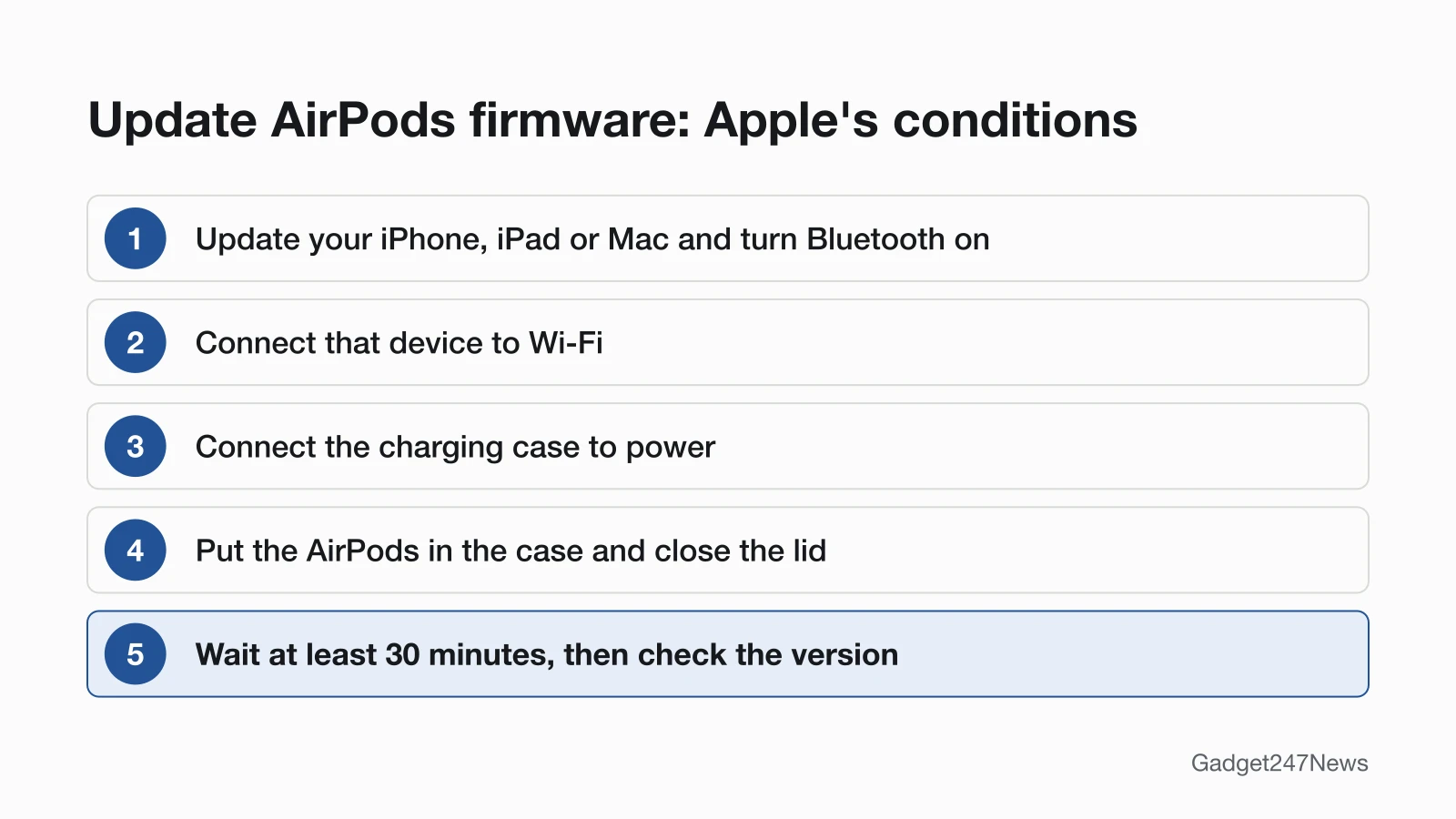
To update AirPods firmware, keep your AirPods charging in their closed case near an up-to-date iPhone, iPad or Mac on Wi-Fi for at least 30 minutes. Apple's steps for AirPods and AirPods Pro:
- Update your iPhone, iPad or Mac to the latest iOS, iPadOS or macOS, and make sure Bluetooth is on.
- Make sure your AirPods are connected to that device by Bluetooth.
- Connect the iPhone, iPad or Mac to Wi-Fi.
- Connect your charging case to power.
- Put your AirPods in the case and close the lid. Keep the lid closed and the AirPods in Bluetooth range of your device.
- Wait at least 30 minutes, then open the lid to reconnect your AirPods and check the firmware version again.
Apple's final step is that version check, and the next section shows where to find the number.
How to Check Your AirPods Firmware Version
You check your AirPods firmware version in Bluetooth settings, next to the name of your AirPods:
- iPhone or iPad: open the Settings app, tap Bluetooth, then tap the Info button (ⓘ) next to the name of your AirPods. Scroll down to the About section to find the firmware version.
- Mac: from the Apple menu, choose System Settings. Click Bluetooth, then click the Info button next to the name of your AirPods.
Apple says to use the latest iOS, iPadOS or macOS for this check too. Compare the number you see with the latest version for your model on our firmware versions page, linked above.
How to Update AirPods Max
Apple's AirPods Max steps leave out the case, and the charging cable goes into the headphones:
- Plug the charging cable into the bottom-right earphone, then plug the other end into a USB charger or port.
- Keep your AirPods Max in Bluetooth range of your up-to-date iPhone, iPad or Mac on Wi-Fi.
- Wait at least 30 minutes, then reconnect your AirPods Max and check the firmware version again.
Updating From a Mac, iPad, Android or Windows
Apple's firmware page names only an iPhone, iPad or Mac as devices that deliver AirPods firmware. The table shows what it lists for each kind of device.
| Host | Can it deliver AirPods firmware? | Source |
|---|---|---|
| iPhone or iPad | Yes, on the latest iOS or iPadOS, with Bluetooth on and Wi-Fi connected | Apple, About firmware updates for AirPods |
| Mac | Yes, on the latest macOS, with Bluetooth on and Wi-Fi connected | Apple, About firmware updates for AirPods |
| Android phone | No route listed by Apple | Apple, About firmware updates for AirPods |
| Windows PC | No route listed by Apple | Apple, About firmware updates for AirPods |
AirPods work as a Bluetooth headset with a non-Apple device, but Apple's setup page for those devices says nothing about firmware. If you don't have an Apple device nearby, Apple says you can set up an appointment at an Apple Store or with an Apple Authorized Service Provider to update your firmware.
How to Check the Update Worked
The update worked when the firmware version in Bluetooth settings matches the latest version for your model:
- Check the version again with the steps above.
- If it's still behind, go through the six update steps again and check each condition: the case on power, the lid closed, and your device on Wi-Fi and nearby.
If your AirPods don't reconnect after the update, follow AirPods won't connect.
If Your AirPods Won't Update
When the version stays the same after 30 minutes, reset your AirPods, then try the update again, which is Apple's own next step. The full troubleshooting is in AirPods Won't Update Firmware. If you're updating to fix another problem, such as AirPods ANC not working or AirPods keep cutting out, those guides list the other fixes to try. If you connect AirPods to Android, Apple's firmware page lists no Android route: use an Apple device, or book the Apple Store or Apple Authorized Service Provider appointment above.
What Changed in the Latest Update?
Apple's firmware page carries release notes for AirPods firmware versions, and many say only "Bug fixes and other improvements". To see what a release changed on your model, and whether it has any known issues, check the wearable and earbud Update Tracker. It lists the current version for AirPods and the other earbuds and watches we cover, what the latest updates changed, and known issues with their fixes. Get an email when an AirPods update breaks something, and when it's fixed.
AirPods Firmware: Quick Answers
Do AirPods automatically update firmware?
Yes, AirPods update their firmware automatically. Apple says updates are delivered while your AirPods are charging and in Bluetooth range of your iPhone, iPad or Mac that's connected to Wi-Fi. Apple lists no manual button, so keep them charging in the closed case near your device on Wi-Fi.
How do I know if my AirPods need a firmware update?
Check the version, then compare it with Apple's latest version for your model. On iPhone, go to Settings, tap Bluetooth, tap the Info button next to your AirPods and scroll to About. Apple lists the latest version for each model on its firmware page, and our firmware versions page tracks the same list.
Sources
We checked this page against the pages below, most recently on . How we verify fixes
- About firmware updates for AirPods (Apple, support.apple.com)Official
- Set up AirPods with your Mac and other Bluetooth devices (Apple, support.apple.com)Official
- How to reset your AirPods and AirPods Pro (Apple, support.apple.com)Official