AirPods Won't Update Firmware? How to Force It

By Suraj Giri, Founder & Publisher. Reviewed by Suraj Giri on .
Published · 6 min read
How this page was made
- Sources. Checked against 5 official pages from Apple, most recently on . See the sources.
- No device testing. We don't test fixes on physical devices, so nothing on this page is a hands-on result. A fact counts as verified only when it matches an official source page.
- AI use. As with every page on Gadget247News, AI tools helped research, outline, draft and edit this page, and re-read the official pages to flag facts that didn't match. The illustration at the top was generated with Runway and is labelled under the image.
- Human sign-off. Suraj Giri, Founder & Publisher, read this page and signed it off on . The site won't publish a page without that sign-off.
- Changes. The published and updated dates move only when the content changes, and every change gets a dated note. Spot an error or a fix that didn't work? Email info@gadget247news.com.
Read our AI use policy, editorial policy and corrections policy.
AirPods have no update button. Apple's firmware page says updates are delivered automatically while your AirPods are charging and in Bluetooth range of an iPhone, iPad or Mac that's connected to Wi-Fi. So "forcing" an AirPods firmware update means meeting every condition at the same time, then waiting. For other problems, see our AirPods connection and charging fixes.
If an update started causing problems, or you want to know which version is current, see AirPods Firmware Versions and What Each Update Changed. This page doesn't list version numbers, because Apple changes them with each release.
Why Won't My AirPods Update?
AirPods won't update when one of Apple's update conditions is missing. Apple's firmware page lists every condition as a step, so each cause below is one step left out. These six causes are ranked from most to least likely:
- The case isn't on power: the charging case has to be connected to power during the update.
- The lid is open, or an AirPod is out: both AirPods belong in the case with the lid closed.
- The iPhone, iPad or Mac isn't ready: it's off Wi-Fi, has Bluetooth turned off, isn't connected to the AirPods, or is out of Bluetooth range.
- Old software on the iPhone, iPad or Mac: Apple asks for the latest iOS, iPadOS or macOS first.
- Not enough time: Apple says to wait at least 30 minutes for the firmware to update.
- Only an Android phone or a Windows PC nearby: Apple lists only an iPhone, iPad or Mac as the update route.
The Quick Fix covers the first three causes in one step, and the fixes below cover all six in order.
How to Force an AirPods Firmware Update
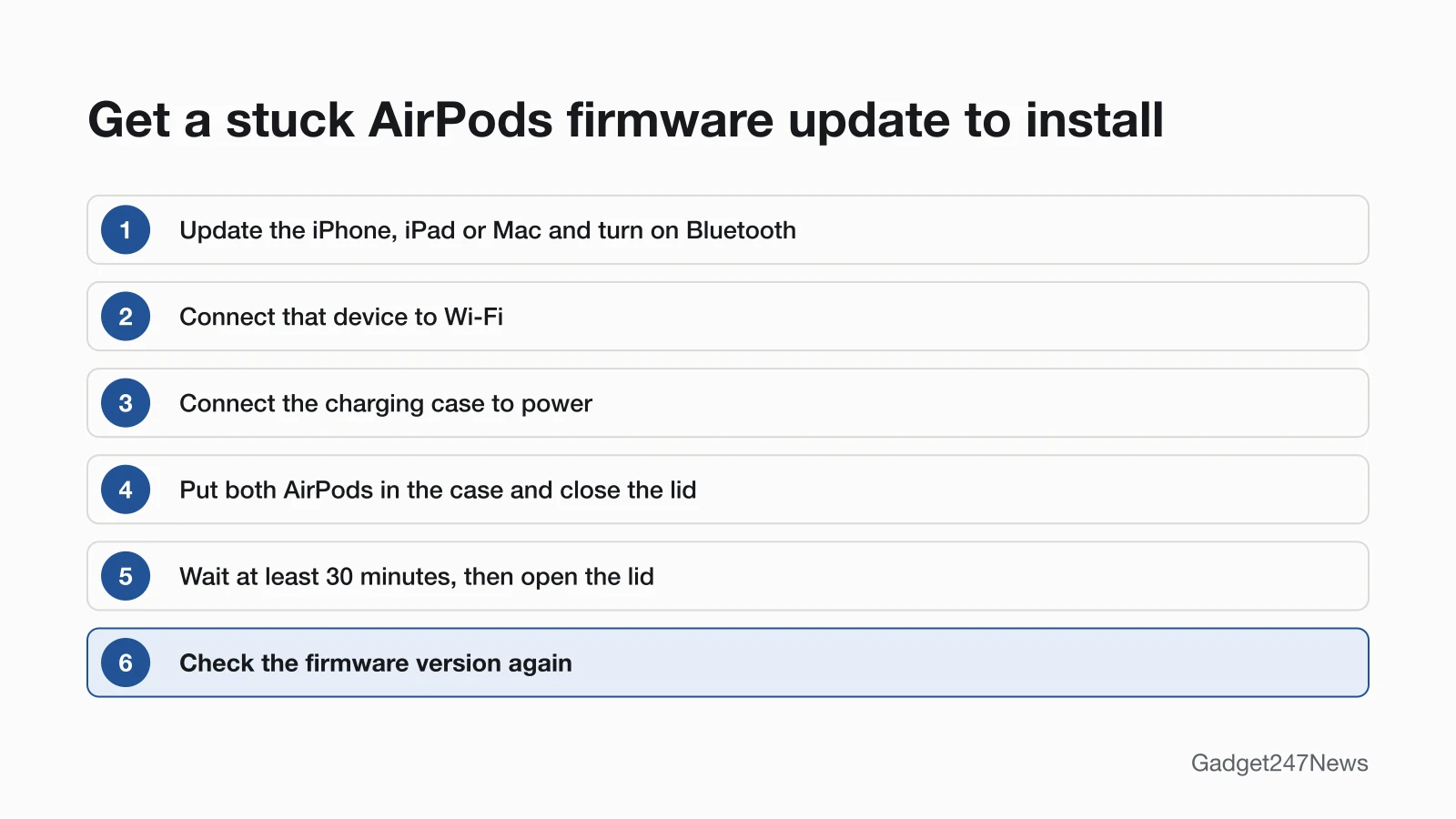
Work through these in order; each one is a condition Apple lists for the automatic update, and together they are the closest thing to a forced update.
Fix 1: Update Your iPhone, iPad or Mac First
Update your iPhone, iPad or Mac first, because Apple lists the latest iOS, iPadOS or macOS as step one:
- On an iPhone or iPad, open Settings, tap General, then tap Software Update. If an update is available, tap Download and Install. On a Mac, choose System Settings from the Apple menu, click General, then click Software Update.
- Turn Bluetooth on, and make sure your AirPods are connected to that iPhone, iPad or Mac.
Fix 2: Put the AirPods in the Case and Connect It to Power
Put both AirPods in the case, connect the case to power and close the lid:
- Put both AirPods in their charging case.
- Connect the charging case to power.
- Close the lid, and keep it closed while you wait.
Apple's steps list the power connection and the closed lid as separate conditions, so check both.
Fix 3: Keep Your iPhone on Wi-Fi and Close By
Apple's automatic update needs your iPhone, iPad or Mac on Wi-Fi, with the AirPods in Bluetooth range of it:
- Connect your iPhone, iPad or Mac to Wi-Fi.
- Keep the AirPods in Bluetooth range of that device. Apple's firmware page doesn't give a distance in feet or meters.
- Leave the device and the case where they are until the wait in Fix 4 is over.
Fix 4: Wait at Least 30 Minutes, Then Open the Lid
Wait at least 30 minutes with every condition in place, then reconnect:
- Wait at least 30 minutes for the firmware to update.
- Open the lid of the charging case to reconnect your AirPods to your iPhone, iPad or Mac.
Apple's page gives 30 minutes as the minimum wait and doesn't say how long an install takes after that, so a longer wait still meets the condition.
Fix 5: Check Your Firmware Version
Check the version in Bluetooth settings to see whether the update installed:
- iPhone or iPad: open Settings, tap Bluetooth, tap the Info button (ⓘ) next to the name of your AirPods, then scroll down to the About section.
- Mac: from the Apple menu, choose System Settings, click Bluetooth, then click the Info button (ⓘ) next to the name of your AirPods.
Compare the number with the latest version Apple lists for your model; our firmware versions page, linked above, keeps that list with what each update changed. If the version hasn't changed, go to Fix 6.
Fix 6: Reset Your AirPods, Then Try Again
Reset your AirPods, then run the update steps again. That's Apple's own order: if you still can't update your firmware, reset your AirPods, then try again.
- Follow the steps to reset your AirPods to factory settings. AirPods Max reset with the listening mode button and the Digital Crown instead of the case.
- When the status light flashes amber, then white, follow the steps on your device's screen to reconnect them.
- Repeat Fixes 2, 3 and 4, then check the version again.
Apple's update steps need the AirPods connected to your iPhone, iPad or Mac, so reconnect them before you repeat the steps.
AirPods Max, Android and Windows: What's Different
AirPods Max skip the case step, and AirPods used only with Android or Windows need an Apple device or an Apple appointment:
| Device or situation | How the update arrives | What to do |
|---|---|---|
| AirPods and AirPods Pro | Automatically while charging in Bluetooth range of an iPhone, iPad or Mac on Wi-Fi | Case on power, lid closed, wait at least 30 minutes |
| AirPods Max | The same automatic route, with no case step | Plug the charging cable into the bottom-right earphone and a USB charger or port, keep them in range, wait at least 30 minutes, then reconnect |
| AirPods used only with an Android phone | Apple lists only an iPhone, iPad or Mac | Connect them to an iPhone, iPad or Mac and follow Fixes 1 to 4, or book an appointment at an Apple Store or Apple Authorized Service Provider |
| AirPods used with a Windows PC | Apple lists only an iPhone, iPad or Mac | Same as Android |
If you don't have an Apple device nearby, Apple's firmware page offers that appointment as the way to update your firmware.
Still not working?
If the version still hasn't changed after a reset, work through this order:
- Try the next fix: AirPods not connecting, if they won't reconnect after the update.
- Reset your AirPods with the steps in Fix 6 (you'll need to pair them again afterwards).
- Contact Apple Support, or set up an appointment at an Apple Store or with an Apple Authorized Service Provider.
- Check repair or warranty options on Apple's official service pages.
Started after an update? Check the Update Tracker for known issues.
Updating AirPods the Normal Way
When every condition is in place, AirPods update without any action from you, and the fixes above are only for updates that stall. The task version, with each step and the version checks for iPhone, iPad and Mac, is our guide to the AirPods firmware update. Use it before a stall happens, or to confirm that a new release reached your AirPods.
Did an Update Change Something?
If your AirPods started acting differently after a firmware release, check AirPods updates on the Update Tracker. Apple's release notes for many versions say only "Bug fixes and other improvements", so the tracker lists each version with any known issue and the date we checked it. Get an email when an AirPods update breaks something, and when it's fixed.
AirPods Firmware: Quick Answers
Two short answers about AirPods updates that won't install.
Why won't AirPods update firmware?
AirPods won't update firmware when one of Apple's conditions is missing: the case isn't on power, the lid is open, the iPhone isn't on Wi-Fi or is out of range, the iPhone runs old software, or less than 30 minutes have passed. Meet all of them together, then check the version.
How can I force my AirPods to update their firmware?
You can't start an AirPods firmware update by hand. Put the AirPods in the case on power, close the lid, keep your iPhone nearby on Wi-Fi and wait at least 30 minutes. If the version still doesn't change, reset your AirPods and repeat the steps.
Sources
We checked this page against the pages below, most recently on . How we verify fixes
- About firmware updates for AirPods (Apple, support.apple.com)Official
- Update your iPhone or iPad (Apple, support.apple.com)Official
- Update macOS on Mac (Apple, support.apple.com)Official
- How to reset your AirPods and AirPods Pro (Apple, support.apple.com)Official
- How to restart or reset AirPods Max (Apple, support.apple.com)Official