How to Reset AirPods

By Suraj Giri, Founder & Publisher. Reviewed by Suraj Giri on .
Published · 5 min read
How this page was made
- Sources. Checked against 5 official pages from Apple, most recently on . See the sources.
- No device testing. We don't test fixes on physical devices, so nothing on this page is a hands-on result. A fact counts as verified only when it matches an official source page.
- AI use. As with every page on Gadget247News, AI tools helped research, outline, draft and edit this page, and re-read the official pages to flag facts that didn't match. The illustration at the top was generated with Runway and is labelled under the image.
- Human sign-off. Suraj Giri, Founder & Publisher, read this page and signed it off on . The site won't publish a page without that sign-off.
- Changes. The published and updated dates move only when the content changes, and every change gets a dated note. Spot an error or a fix that didn't work? Email info@gadget247news.com.
Read our AI use policy, editorial policy and corrections policy.
Resetting AirPods is the last step in Apple's troubleshooting order, so try a restart first. This guide covers every model on the AirPods Problems and Fixes list; for other brands, see How to Reset Earbuds.
Restart vs Reset: What's the Difference?
A restart turns the AirPods off and on and keeps everything; a factory reset erases your settings and pairing, so you set the AirPods up again afterwards.
| Action | What it does | When to use it |
|---|---|---|
| Restart (soft reset) | Turns the AirPods off and on. Keeps your settings and pairing. | First, for any glitch. |
| Factory reset | Erases custom settings and the pairing. You pair the AirPods again. | When a restart didn't help, or before you sell them. |
Restart first; most problems clear without wiping anything.
How to Restart (Soft Reset) AirPods
To restart AirPods or AirPods Pro, use the case:
- Put both AirPods in the charging case.
- Close the lid for at least 10 seconds, then open it.
AirPods Max have no lid to close, so they use a button combination instead (see below).
How to Reset AirPods 1, 2, 3 and AirPods Pro 1, 2
To reset AirPods 1, 2 and 3 or AirPods Pro 1 and 2, hold the setup button on the back of the case:
- Put both AirPods in the case, close the lid and wait 30 seconds.
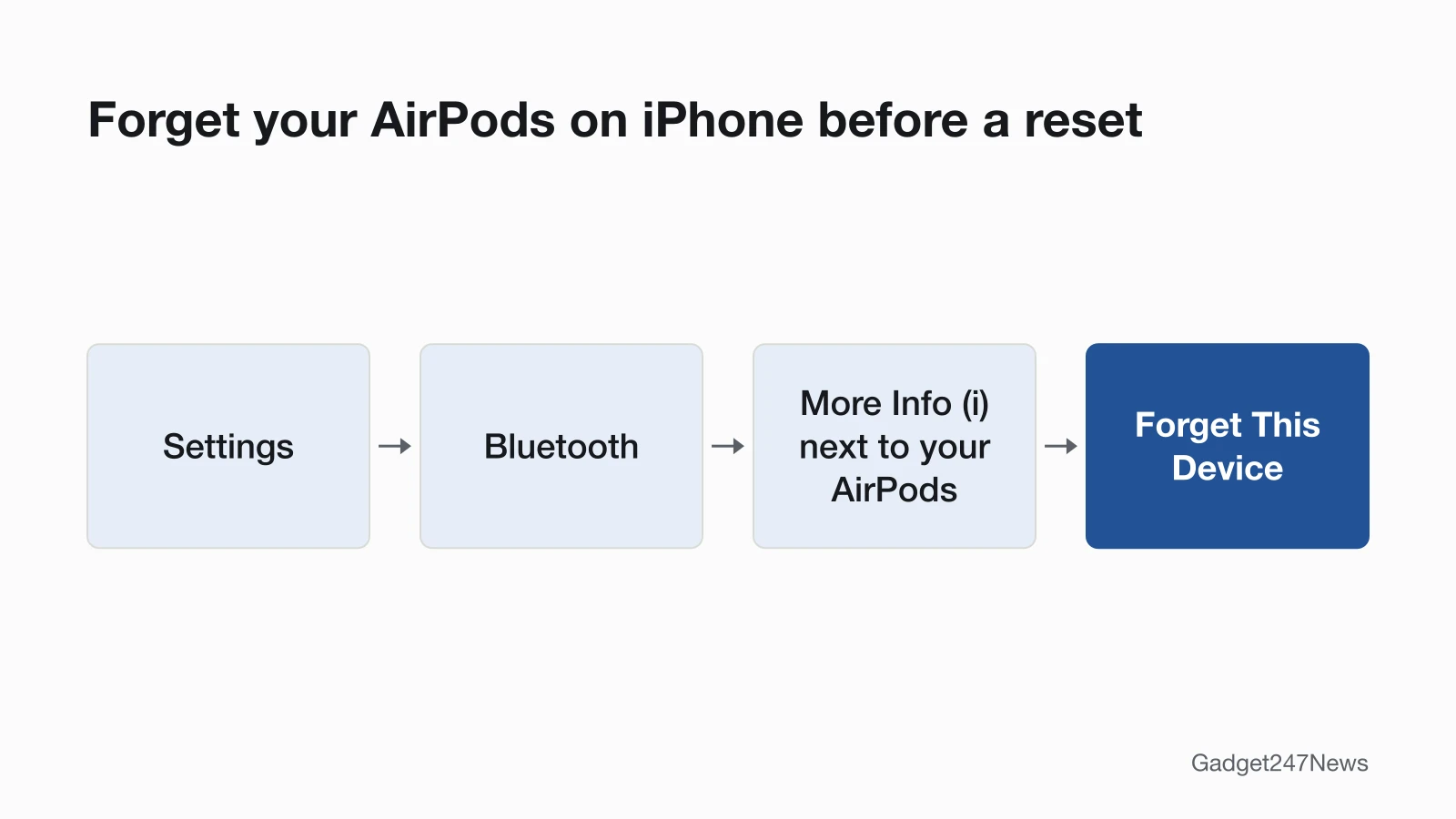
- On the iPhone or iPad they're paired with, open Settings, tap Bluetooth, then tap the More Info button (ⓘ) next to your AirPods and tap Forget This Device. Confirm when asked. If the AirPods aren't in the list, go to the next step.
- Open the lid.
- Press and hold the setup button on the back of the case for about 15 seconds.
- When the status light on the front of the case flashes amber, then white, hold the open case next to your device and follow the steps on its screen to reconnect.
Step 2 is also how you unpair AirPods. Amber means the pairing is being wiped; white means they're ready to pair again.
How to Reset AirPods 4, AirPods 5 and AirPods Pro 3
To reset AirPods 4, AirPods 5 or AirPods Pro 3, double-tap the front of the case three times instead of holding a button:
- Put both AirPods in the case, close the lid and wait 30 seconds.
- On your iPhone or iPad, go to Settings, tap Bluetooth, tap the More Info button (ⓘ) next to your AirPods and tap Forget This Device, if they're listed.
- Open the lid.
- Double-tap the front of the case while the status light is on.
- Double-tap again when the light flashes white.
- Double-tap a third time when the light flashes faster. When it flashes amber, then white, follow the steps on your device's screen to reconnect.
These cases have no setup button, so there is no hold step; the double-tap sequence replaces it for all AirPods 4 and AirPods 5 models and AirPods Pro 3.
How to Restart or Reset AirPods Max
To restart or reset AirPods Max, hold the listening mode button and the Digital Crown together, and charge to at least 50% first.
Restart AirPods Max:
- Charge your AirPods Max to at least 50%.
- Press and hold the listening mode button and the Digital Crown until the LED flashes amber.
Reset AirPods Max to factory settings:
- Charge your AirPods Max to at least 50%.
- Press and hold the listening mode button and the Digital Crown for 15 seconds, until the LED flashes amber, then white.
- Connect them again from your iPhone, iPad, Mac or other device.
If the LED stays dark after charging, the problem is power, not pairing: see AirPods Max Not Turning On.
How to Check the Reset Worked
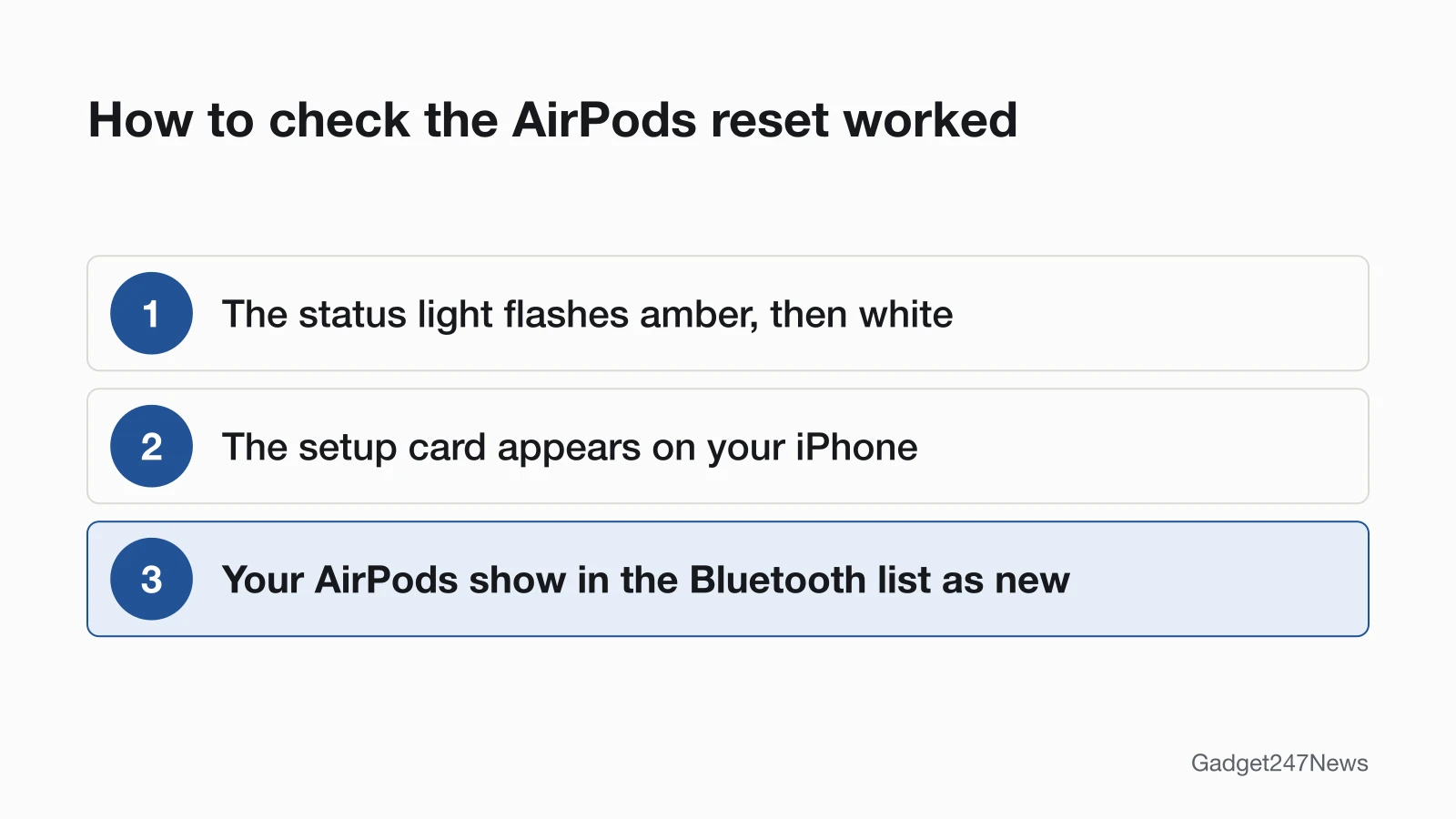
A reset worked when the status light flashed amber and then white, and the AirPods show up as new:
- Watch the light: amber, then white confirms the reset (AirPods Max: the LED does the same).
- Hold the open case near your iPhone; the setup card appears. On a Mac, Android phone or other device, pick the AirPods in its Bluetooth settings.
- Check Settings, then Bluetooth: your AirPods appear as a new device.
If the light never turns white, the reset didn't take. The next section covers that, and the one case a reset can't fix.
If Resetting AirPods Doesn't Work
A reset that fails needs a longer wait and a second try; a reset that works but leaves the AirPods disconnected needs AirPods Not Connecting. Two things are not reset problems: AirPods that won't wake (see How to Turn AirPods On and Off) and AirPods tied to another person's Apple Account.
The Light Won't Flash White
Close the lid for 20 seconds, then repeat the steps for your model: hold the setup button about 15 seconds (AirPods 1, 2, 3, Pro 1 and 2) or run the three double-taps (AirPods 4, AirPods 5, Pro 3) until the light flashes amber, then white.
AirPods Linked to a Previous Owner
A reset does not remove AirPods from another person's Apple Account. AirPods Max, in Apple's words, "can be associated with one Apple Account". The previous owner has to remove them from their account before you can pair them as your own; the steps are on How to Reset AirPods Without the Previous Owner.
Resetting AirPods: Quick Answers
How do you reset AirPods when one is not working?
Charge both AirPods in the case for 30 seconds and test them again; if one stays silent, reset the pair with the steps above. Apple's fix for a left or right AirPod not working starts with that 30-second charge and ends with the reset.
How do I reset noise cancelling on AirPods?
A factory reset returns the custom settings on your AirPods to their defaults, and you set them up again afterwards. If noise cancelling has stopped working, use AirPods Noise Cancelling Not Working first; it checks the listening mode before any reset.
How do you fix unresponsive AirPods?
Restart first: put both AirPods in the case and close the lid for at least 10 seconds (AirPods Max: hold the listening mode button and the Digital Crown until the LED flashes amber). If they still don't respond, charge them, then run the factory reset for your model.
Sources
We checked this page against the pages below, most recently on . How we verify fixes
- How to reset your AirPods and AirPods Pro (Apple, support.apple.com)Official
- How to restart or reset AirPods Max (Apple, support.apple.com)Official
- Unpair, restart, or reset AirPods (AirPods User Guide) (Apple, support.apple.com)Official
- If your AirPods won't charge (Apple, support.apple.com)Official
- If your left or right AirPod isn't working (Apple, support.apple.com)Official