How to Turn AirPods On and Off

By Suraj Giri, Founder & Publisher. Reviewed by Suraj Giri on .
Published · 4 min read
How this page was made
- Sources. Checked against 10 official pages from Apple, most recently on . See the sources.
- No device testing. We don't test fixes on physical devices, so nothing on this page is a hands-on result. A fact counts as verified only when it matches an official source page.
- AI use. As with every page on Gadget247News, AI tools helped research, outline, draft and edit this page, and re-read the official pages to flag facts that didn't match. The illustration at the top was generated with Runway and is labelled under the image.
- Human sign-off. Suraj Giri, Founder & Publisher, read this page and signed it off on . The site won't publish a page without that sign-off.
- Changes. The published and updated dates move only when the content changes, and every change gets a dated note. Spot an error or a fix that didn't work? Email info@gadget247news.com.
Read our AI use policy, editorial policy and corrections policy.
AirPods have no power button in Apple's documentation. Taking them out of the case and putting them in your ears starts the audio, and closing them in the case turns them off: Apple's AirPods User Guide says AirPods shut down and charge whenever they're in the case with the lid closed. AirPods Max go into an ultralow power mode in their Smart Case instead. The steps cover every model in our AirPods fixes. If yours seem stuck "off," they may need a charge, as with any earbuds not charging.
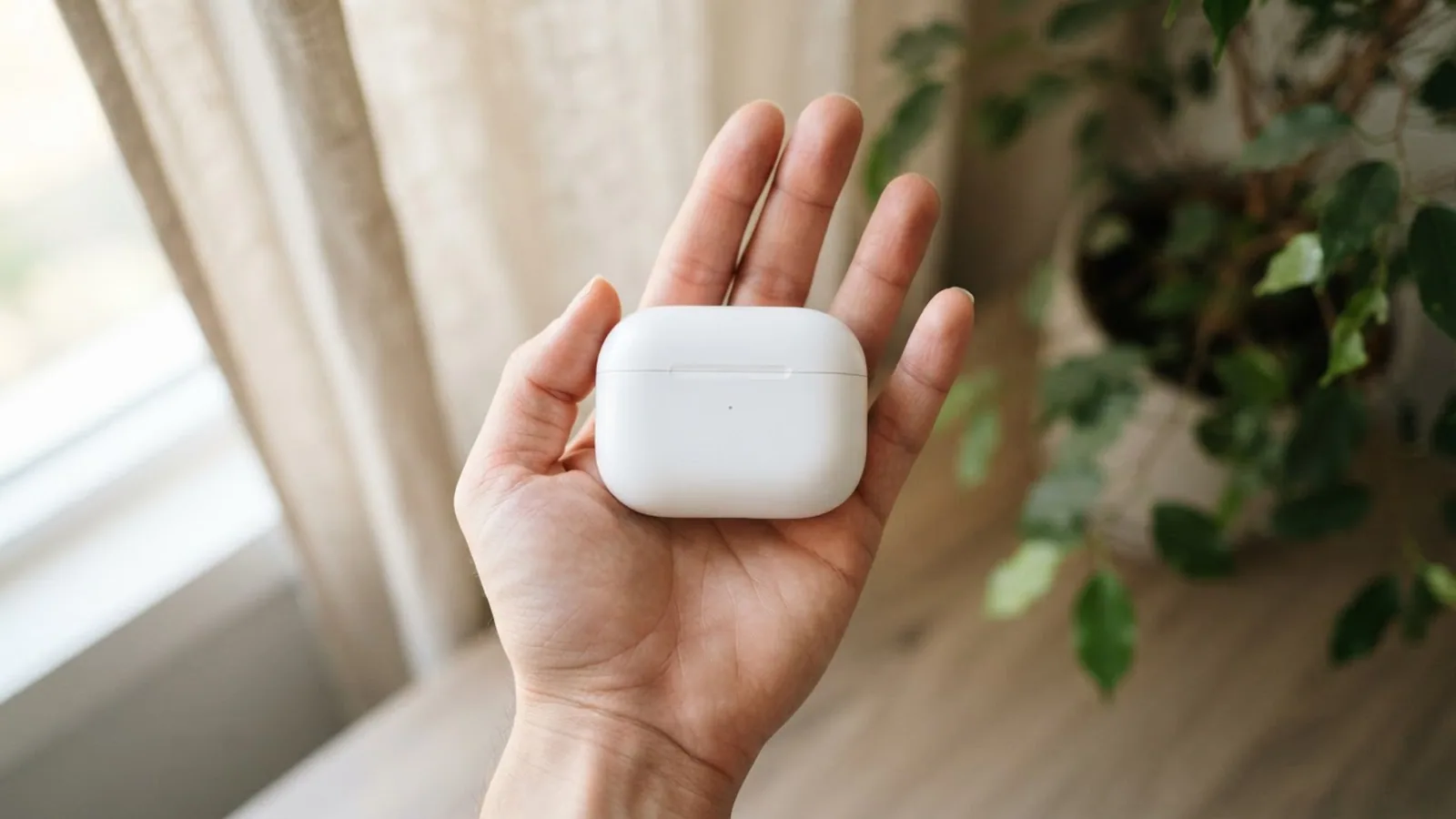
How to Turn On AirPods
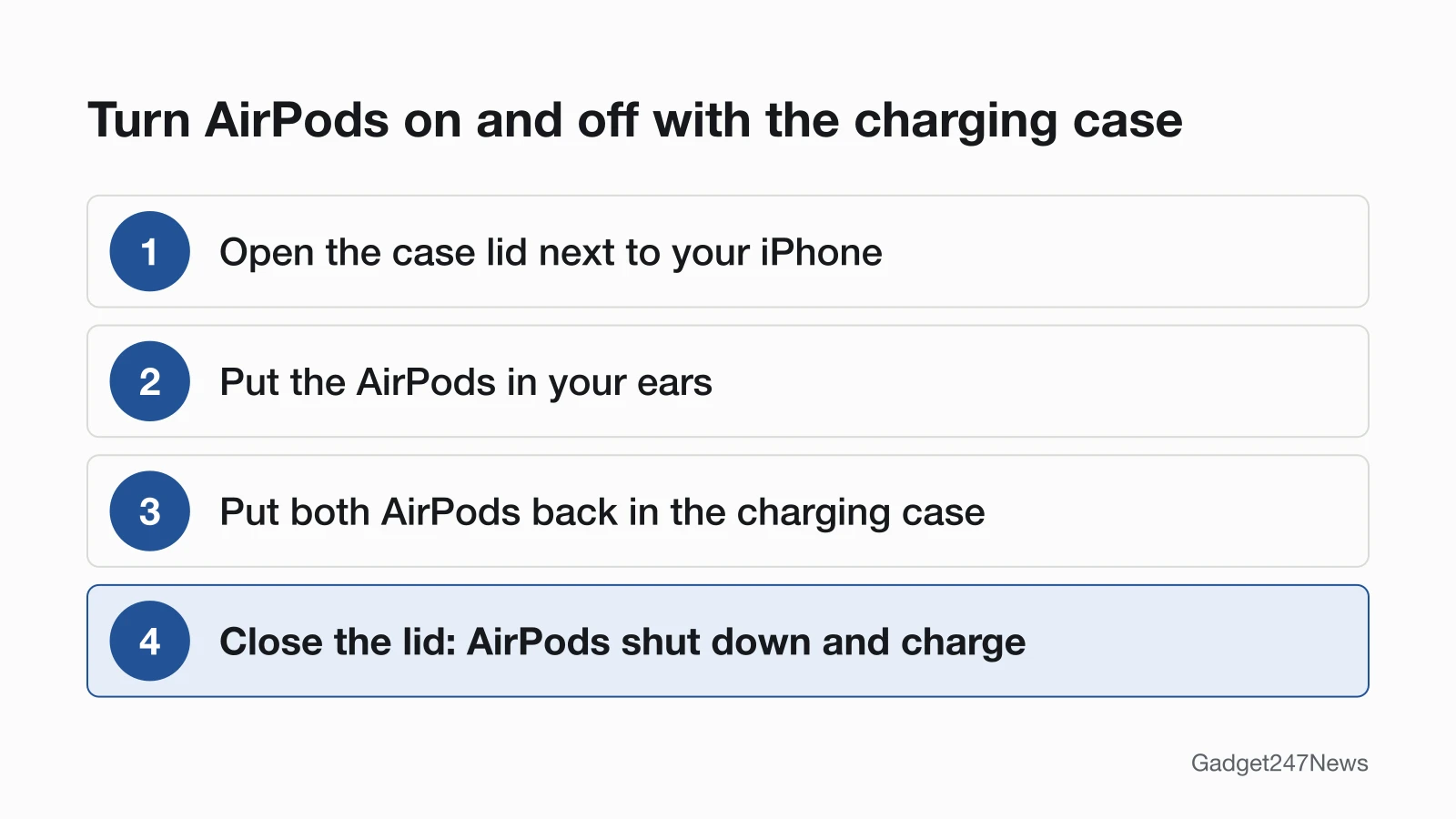
To turn on AirPods, open the charging case next to your iPhone and put the AirPods in your ears:
- With your AirPods in the charging case, open the lid and hold the case next to your iPhone.
- Take the AirPods out and put them in your ears.
- Play audio. Automatic Ear Detection senses when the AirPods are in your ears and sends the sound to them. Its switch is in Settings > [your AirPods] (tap Audio & Routing first if you don't see it).
On first use, a setup animation appears on your iPhone: tap Connect, follow the on-screen instructions, then tap Done. AirPods Pro use the same steps.
How to Turn Off AirPods
To turn off AirPods, put both back in the charging case and close the lid:
- Take both AirPods out of your ears and put them in the charging case.
- Close the lid.
Apple's user guide says AirPods shut down and charge whenever they're in the case with the lid closed. Taking one AirPod out of your ear only pauses playback, and taking both out stops it.
How to Turn Off AirPods Max
To turn off AirPods Max, take them off and put them in the Smart Case:
- Take off your AirPods Max.
- Put them in the Smart Case.
Apple says the Smart Case puts AirPods Max into an ultralow power mode to preserve battery charge; its user guide calls this sleep mode, and no audio plays in the case. Apple lists no power button or shutdown step. Its charging page mentions AirPods Max turning off only when the battery runs low: a tone chimes at 10 percent, and again right before they turn off. If they won't come back on, see AirPods Max not turning on. To restart frozen AirPods Max, see Quick Answers below.
Turn AirPods "Off" Without the Case
Without the case, cut the connection on your iPhone instead:
- Disconnect everything: open Control Center, then tap the Bluetooth button. Your Bluetooth accessories disconnect from your iPhone until the next day, and Bluetooth stays on.
- Turn off Bluetooth: go to Settings > Bluetooth and turn Bluetooth off.
- Unpair them: go to Settings > Bluetooth, tap the Info button (ⓘ) next to your AirPods, tap Forget This Device, then tap Forget Device to confirm. This unpairs them from your other devices on the same Apple Account too, so you'll pair them again.
Apple describes these as disconnecting and unpairing, not a way to power off the AirPods.
How to Check Your AirPods Are On or Off
To check your AirPods are on, look for their battery level on your iPhone or the status light on the case:
- Open the lid or take your AirPods out of the case. Go to Settings, tap Bluetooth, tap the name of your AirPods, then tap the Info button (ⓘ) to see the battery level.
- Check the status light with the AirPods in the case and the lid open: green means fully charged, amber means less than one full charge remains. If no light appears, you may need to charge your AirPods before you can use them again.
On AirPods Max, press the listening mode button. Off the charger, the status light on the right earphone turns green at 15 percent or more, or amber below 15 percent (AirPods Max 2 briefly flash amber).
If Your AirPods Won't Turn On
AirPods that won't turn on need a charge first, then a connection check.
AirPods Won't Turn On or Connect
Charge them first: AirPods and case on a cable, lid closed, for at least 15 minutes, or AirPods Max for at least 5 minutes with the cable that came with them. If the light now shows a charge but the AirPods don't appear on your iPhone, follow AirPods won't connect. If the light stays dark, see AirPods not charging. If only one side stays silent, use the one AirPod not working guide.
Turning Off AirPods Features Instead
Sometimes "turn off AirPods" means a feature, such as Siri reading messages aloud. Apple calls it Announce Notifications; turn it off on your iPhone or iPad:
- Open the Settings app.
- Tap Notifications, then tap Announce Notifications.
- Turn Announce Notifications off.
You can also add it to Control Center and turn it off there. Siri announces only while you wear the AirPods and your iPhone is locked; taking out one AirPod stops a run of announcements. To change what a press, tap or swipe does, see How to Use AirPods Controls: Tap, Press and Swipe.
Live Translate on AirPods
The steps to turn on Live Translate are in How to Use Live Translate on AirPods.
AirPods Power: Quick Answers
How do you fix unresponsive AirPods?
Restart them: put both AirPods in the case and close the lid for at least 10 seconds, or charge AirPods Max to at least 50 percent, then press and hold the listening mode button and the Digital Crown until the LED flashes amber, then let go. If they still don't respond, reset your AirPods to factory settings.
Do AirPods turn off automatically?
Yes, in the case: AirPods shut down in the closed case, and AirPods Max go into sleep mode in the Smart Case. Out of your ears, they pause or stop playback, and a low battery turns them off. Apple's AirPods settings page lists no timer that switches them off; Pause Media While Falling Asleep (AirPods 4 or later, AirPods Pro 2 or later) only pauses media.
Sources
We checked this page against the pages below, most recently on . How we verify fixes
- Charge AirPods, AirPods Pro, or AirPods Max (AirPods User Guide) (Apple, support.apple.com)Official
- Charge your AirPods Max (Apple, support.apple.com)Official
- Connect your AirPods and AirPods Pro to your iPhone (Apple, support.apple.com)Official
- Change the settings of your AirPods and AirPods Pro (Apple, support.apple.com)Official
- Charge your AirPods (Apple, support.apple.com)Official
- If your AirPods won't charge (Apple, support.apple.com)Official
- Restart, unpair, or reset your AirPods (AirPods User Guide) (Apple, support.apple.com)Official
- How to restart or reset AirPods Max (Apple, support.apple.com)Official
- Connect iPhone to Bluetooth accessories (iPhone User Guide) (Apple, support.apple.com)Official
- Announce Notifications with Siri on AirPods or Beats (Apple, support.apple.com)Official