How to Use AirPods Controls: Tap, Press and Swipe

By Suraj Giri, Founder & Publisher. Reviewed by Suraj Giri on .
Published · 5 min read
How this page was made
- Sources. Checked against 7 official pages from Apple, most recently on . See the sources.
- No device testing. We don't test fixes on physical devices, so nothing on this page is a hands-on result. A fact counts as verified only when it matches an official source page.
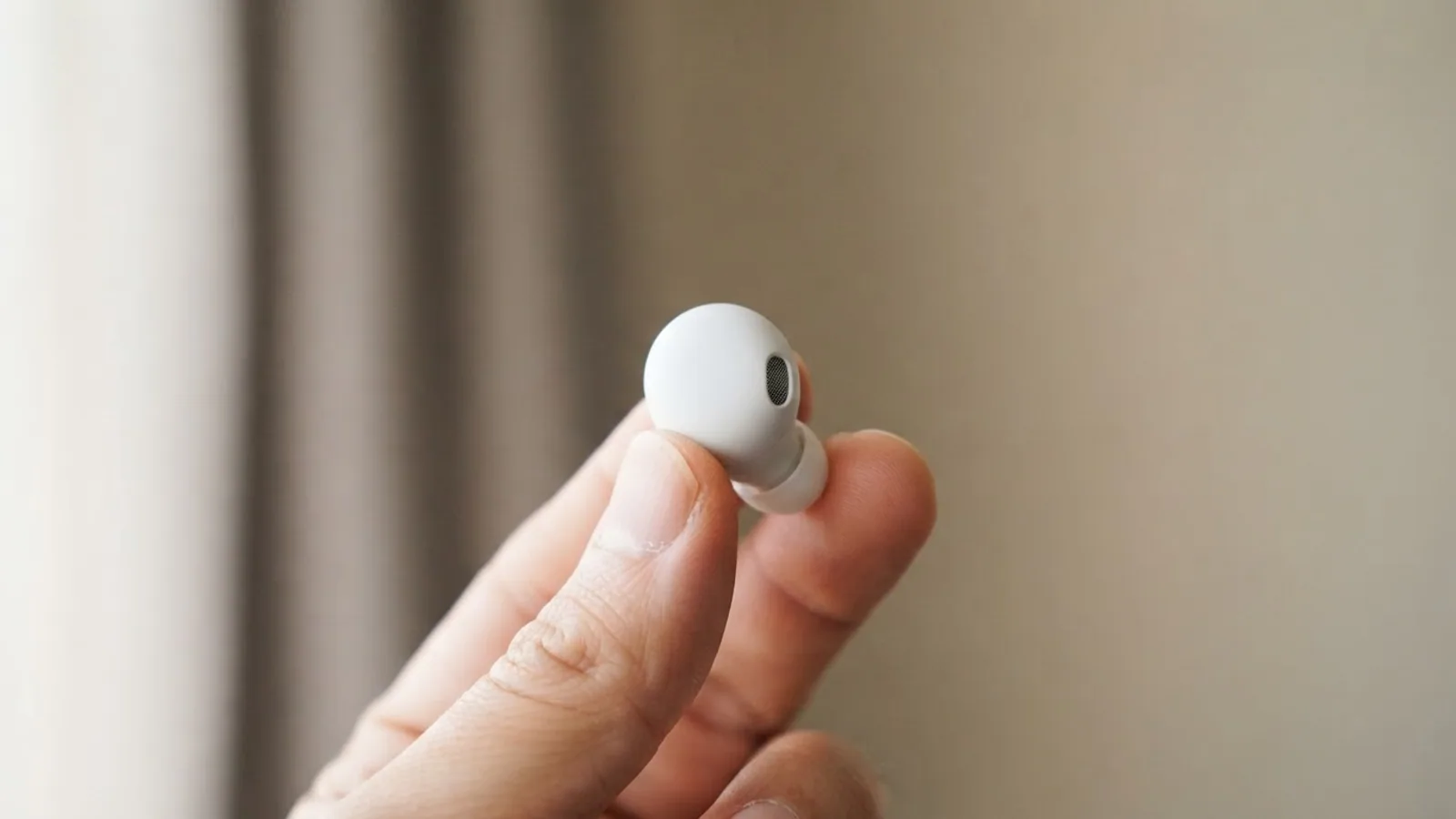
- AI use. As with every page on Gadget247News, AI tools helped research, outline, draft and edit this page, and re-read the official pages to flag facts that didn't match. The illustration at the top was generated with Runway and is labelled under the image.
- Human sign-off. Suraj Giri, Founder & Publisher, read this page and signed it off on . The site won't publish a page without that sign-off.
- Changes. The published and updated dates move only when the content changes, and every change gets a dated note. Spot an error or a fix that didn't work? Email info@gadget247news.com.
Read our AI use policy, editorial policy and corrections policy.
To skip a song on AirPods 4, double-press the stem; triple-press to go back. The same presses skip tracks on AirPods 3, AirPods 5 and every AirPods Pro, and on models with noise cancelling a press and hold on the stem also switches listening modes, as explained in What Is Noise Cancelling and How Does It Work on Earbuds.
If nothing happens when you press, check that your AirPods are connected first. How to Connect and Pair AirPods With Any Device covers every device.
AirPods Controls by Model
AirPods 1 and 2 use a double-tap, AirPods Max use the Digital Crown, and every other model uses presses on the stem. The table shows the control for each action, model by model:
| Model | Play or pause | Next track | Previous track | Answer a call | Volume | Listening mode |
|---|---|---|---|---|---|---|
| AirPods 1 and 2 | Double-tap, if set | Double-tap, if set | Double-tap, if set | Double-tap | Your device (no AirPods control listed) | None |
| AirPods 3, AirPods 4 (both models), AirPods 5 | Press the stem | Double-press | Triple-press | Press | Siri or your device | Press and hold (AirPods 4 (ANC), AirPods 5) |
| AirPods Pro 1 | Press the stem | Double-press | Triple-press | Press | Siri or your device | Press and hold |
| AirPods Pro 2, AirPods Pro 3, AirPods 5 with Wireless Charging Case | Press the stem | Double-press | Triple-press | Press | Swipe up or down on the stem | Press and hold |
| AirPods Max 1 and 2 | Press the Digital Crown | Double-click the Digital Crown | Triple-click the Digital Crown | Press the Digital Crown | Turn the Digital Crown | Press the listening mode button |
On AirPods 1 and 2, each AirPod does one job when you double-tap it: Siri, play and pause, next track or previous track, chosen in Settings. Apple's controls page says a double-tap plays audio or skips forward on AirPods 2 and activates Siri on AirPods 1.
How to Answer or Decline a Call
Press the stem once to answer a call on AirPods 3, AirPods 4, AirPods 5 and AirPods Pro, and double-press it to decline. On AirPods 1 and 2, double-tap to answer and decline with the controls on your iPhone. On AirPods Max, press the Digital Crown to answer and double-click it to decline. During a call, one press mutes or unmutes you and a double-press ends the call; Settings lets you swap the two under Mute & Unmute or End Call.
How to Change the Volume
Swipe up or down on the stem to change the volume on AirPods Pro 2, AirPods Pro 3 and AirPods 5 with Wireless Charging Case. Apple's method: press the bud into your ear with your index finger, rest your thumb on the stem, then swipe with your index or middle finger. On AirPods Max, turn the Digital Crown. On AirPods 3, AirPods 4, AirPods 5 and AirPods Pro 1, say "Hey Siri," then "Turn up the volume," or drag the volume slider in your app, on the Lock Screen or in Control Center.
How to Switch Noise Cancelling and Transparency
Press and hold the stem until a chime plays. This works on AirPods 4 (ANC), AirPods 5 and AirPods Pro. By default, the hold switches between Active Noise Cancellation and Transparency mode. In Settings you can pick two or three modes, including Adaptive Audio on AirPods 4 (ANC), AirPods 5, AirPods Pro 2 and AirPods Pro 3. On AirPods Max, press the listening mode button instead.
How to Use Head Gestures
Nod your head up and down to accept a call or reply, and shake it side to side to decline or dismiss. Head gestures respond to Siri announcements, so you answer without your voice or hands. They work on AirPods 4, AirPods 5, AirPods Pro 2, AirPods Pro 3 and AirPods Max 2, and only while Announce Calls and Announce Notifications are turned on.
How to Customize AirPods Controls
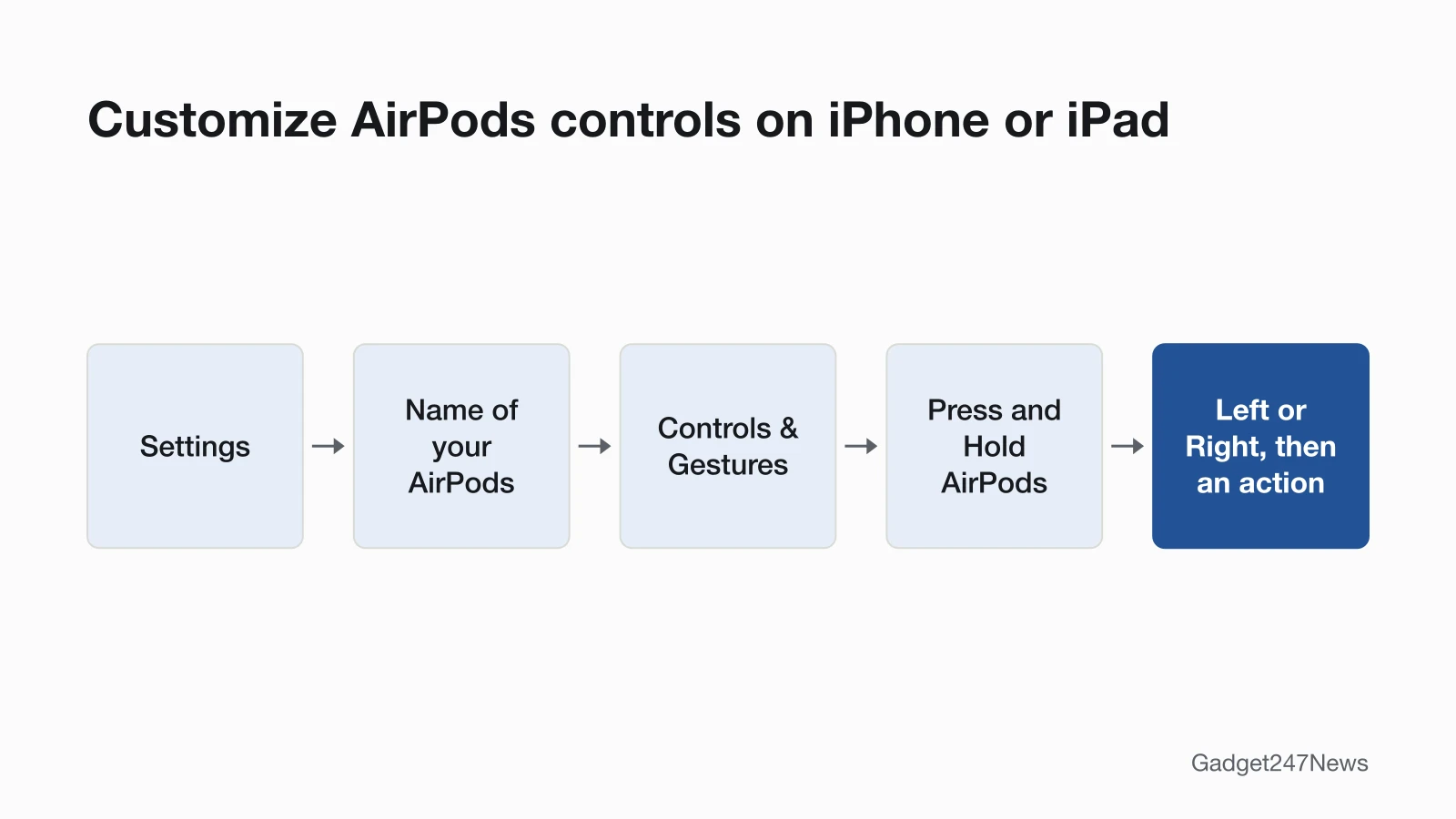
You customize AirPods controls under Controls & Gestures in the settings for your AirPods:
- Wear your AirPods and make sure they're connected to your device.
- On an iPhone or iPad, open Settings and tap the name of your AirPods near the top of the screen. On a Mac, open System Settings and click your AirPods in the sidebar. If the controls aren't shown, tap or click Controls & Gestures.
- Below Press and Hold AirPods, choose Left or Right, then choose the action, such as listening modes or Siri. On AirPods 1 and 2, choose what each AirPod's double-tap does instead.
One AirPod can use Siri while the other changes listening modes. For motor needs, Settings > Accessibility > AirPods adds Press Speed, Press and Hold Duration and, on AirPods Pro 2, AirPods Pro 3 and AirPods 5 with Wireless Charging Case, Volume Swipe.
How to Check Your Controls Work
Play a song and double-press the stem, or double-click the Digital Crown on AirPods Max: the next track should start. Then press and hold to test the action you chose. If it switches listening modes, you hear a chime.
Why Aren't My AirPods Controls Working?
Check these five things when your AirPods controls don't respond:
- Connection: the AirPods aren't connected to your device; the connection guide linked at the top covers every device.
- Timing or swipe settings: a double- or triple-press is too slow, or a hold too short, for your settings. Adjust Press Speed and Press and Hold Duration in Settings > Accessibility > AirPods; if swiping does nothing, check that Volume Swipe is on there.
- Position: the force sensor is on the stem, not the bud. On AirPods 1 and 2, double-tap at the top of the stem.
- Camera Remote: with Press Once chosen, media control gestures are unavailable while a supported camera app is open; with Press and Hold, listening modes and Siri gestures are unavailable instead.
- Another device: your AirPods moved to your Mac or iPad; see What Is AirPods Automatic Switching.
Why Is Double Tap Not Working on AirPods?
Double-tap is the control on AirPods 1 and 2 only; newer AirPods and AirPods Pro respond to a press on the stem, not a tap. On AirPods 1 or 2, tap at the top of the stem, then check what that AirPod's double-tap is set to in Settings. On supported models, holding both stems starts Live Translate on AirPods, and a press and hold can turn off Transparency mode on AirPods. A pause when you take one AirPod out is automatic ear detection pausing AirPods, not a control fault. If the controls work but the sound doesn't, see AirPods sound muffled. Apple lists no stem control that switches AirPods off; the power off AirPods steps cover that.
AirPods Controls: Quick Answers
How do you pause AirPods? Press the stem once on AirPods 3, 4 and 5 or AirPods Pro, or press the Digital Crown on AirPods Max; press again to resume. On AirPods 1 and 2, double-tap an AirPod that's set to play and pause. With Automatic Ear Detection on, taking one AirPod out also pauses playback, and taking both out stops it.
Can you skip songs on AirPods with Android? Apple's pages don't say whether the stem presses skip tracks on an Android phone. Its guide for non-Apple devices says you can use AirPods as a Bluetooth headset: "You can't use Siri, but you can listen and talk." That rules out the Siri volume method on Android.
Sources
We checked this page against the pages below, most recently on . How we verify fixes
- Pause, skip, and adjust volume with your AirPods and AirPods Pro (Apple, support.apple.com)Official
- Use controls and gestures with your AirPods (AirPods User Guide) (Apple, support.apple.com)Official
- Active Noise Cancellation and Transparency modes for AirPods (Apple, support.apple.com)Official
- Change the settings of your AirPods and AirPods Pro (Apple, support.apple.com)Official
- Change settings for AirPods or AirPods Pro (AirPods User Guide) (Apple, support.apple.com)Official
- Change force sensor or button settings for AirPods (AirPods User Guide) (Apple, support.apple.com)Official
- Pair AirPods with a non-Apple device (AirPods User Guide) (Apple, support.apple.com)Official