Why Are My AirPods So Quiet? How to Fix Low Volume

By Suraj Giri, Founder & Publisher. Reviewed by Suraj Giri on .
Published · 7 min read
How this page was made
- Sources. Checked against 15 official pages from Apple and Google, most recently on . See the sources.
- No device testing. We don't test fixes on physical devices, so nothing on this page is a hands-on result. A fact counts as verified only when it matches an official source page.
- AI use. As with every page on Gadget247News, AI tools helped research, outline, draft and edit this page, and re-read the official pages to flag facts that didn't match. The illustration at the top was generated with Runway and is labelled under the image.
- Human sign-off. Suraj Giri, Founder & Publisher, read this page and signed it off on . The site won't publish a page without that sign-off.
- Changes. The published and updated dates move only when the content changes, and every change gets a dated note. Spot an error or a fix that didn't work? Email info@gadget247news.com.
Read our AI use policy, editorial policy and corrections policy.
Quiet AirPods usually have debris on the speaker mesh, a Balance slider pushed to one side, or a setting that lowers the volume for you. The fixes run in that order, then move to your phone's volume, the fit and a reset. If the sound is muffled rather than quiet, start with the mesh and the fit. For other AirPods problems, see AirPods pairing, battery and sound fixes; for other brands, see headphones muffled or quiet.

Why AirPods Get Quiet
AirPods get quiet for six common reasons, listed here from the most likely to the least:
- Debris on the speaker mesh, the first thing Apple checks when one AirPod is quieter than the other.
- A Balance slider moved off center, which makes one side quieter.
- Conversation Awareness or Personalized Volume changing the media volume by themselves on AirPods 4, AirPods 5, AirPods Pro 2 and 3, and AirPods Max 2.
- Reduce Loud Audio, which lowers any headphone sound above the level you set.
- A low volume on the phone or app, including the media volume on Android.
- A loose fit or the wrong ear tip size on AirPods Pro, which weakens the seal Apple says you need for the best sound quality.
How to Fix Quiet AirPods
Try these in order; each one removes one cause above.
Fix 1: Clean the Speaker Mesh
Clean the speaker mesh first: checking it for debris is Apple's first step when one AirPod is too quiet.
- Remove the ear tips if you have AirPods Pro, then check the microphone and speaker mesh on each AirPod.
- If you see debris, clean the meshes with the method on Apple's cleaning page for your model.
- Let the AirPods dry for at least two hours, then play audio and compare both sides.
For AirPods 3, 4 and 5 and AirPods Pro 2 and 3, Apple's method uses a soft-bristled children's toothbrush dipped in micellar water. You brush each mesh in circles for about 15 seconds and blot it on a paper towel, three times in all, then repeat the steps with distilled water to rinse. The same pages name the exact micellar water type and say not to use sharp objects or abrasive materials. Our care guide also shows how to clean the AirPods charging case.
Fix 2: Center the Balance Slider
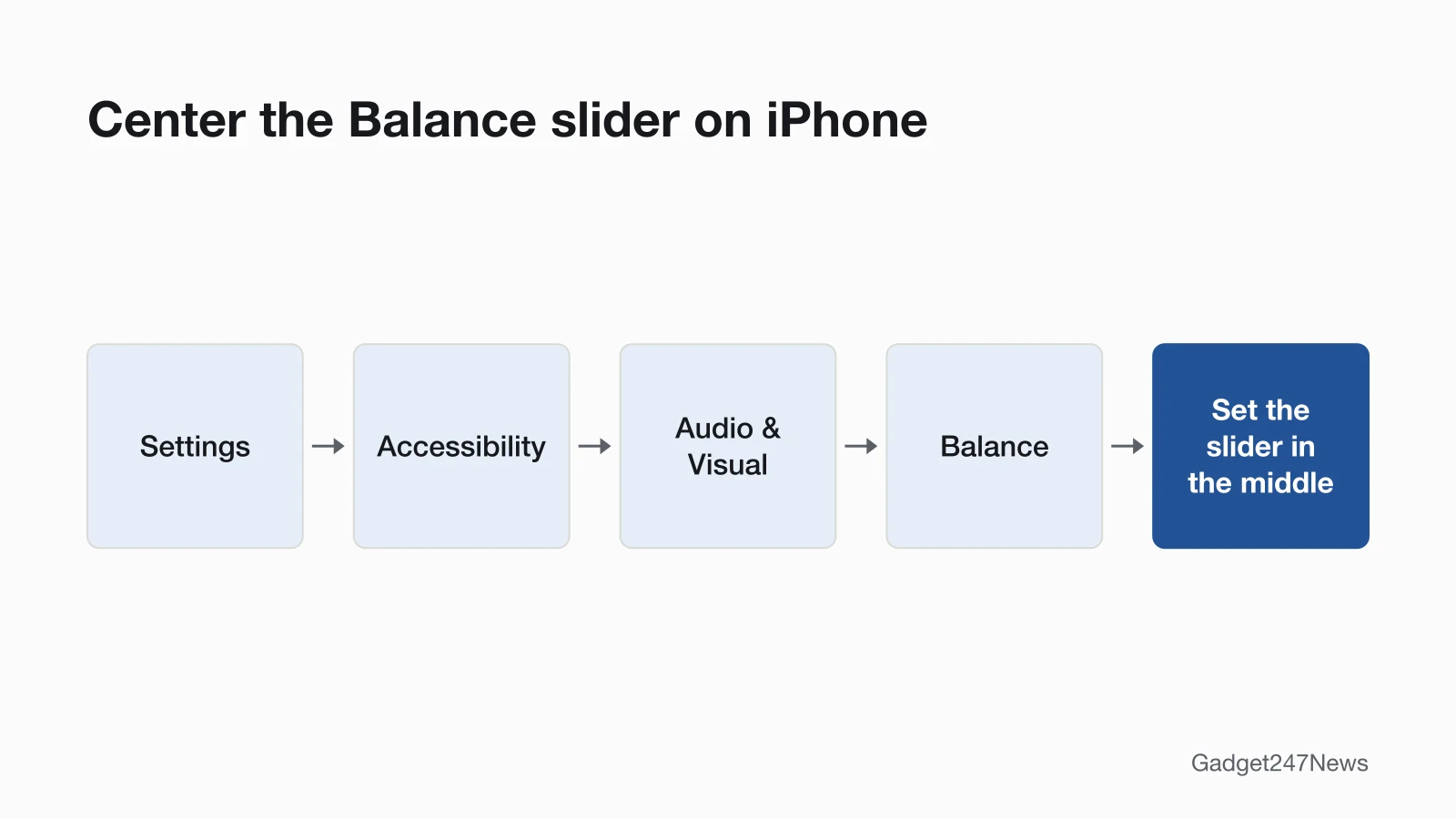
When one AirPod is quieter than the other, set the Balance slider to the middle:
- Open the Settings app, then tap Accessibility.
- Tap Audio & Visual, then scroll down to Balance.
- Drag the slider so it sits in the middle.
Balance sits in the iPhone's Accessibility settings, not in your AirPods settings. If one side has no sound at all, the fix is different: see sound from only one AirPod.
Fix 3: Turn Off Conversation Awareness and Personalized Volume
Two features change the media volume without a button press, which is how AirPods can get quieter on their own. Conversation Awareness lowers your media volume when you start speaking and pauses spoken media, like a podcast, after a few seconds. Personalized Volume adjusts the media volume based on your surroundings and your volume preferences over time.
- While wearing your AirPods, open Control Center, touch and hold the volume control, then tap Conversation Awareness to turn it off.
- Open Settings, tap the name of your AirPods near the top of the screen, then turn off Personalized Volume (tap Audio & Routing first if you don't see it).
- Play audio and set the volume again.
Conversation Awareness is on AirPods 4 (ANC), AirPods 5, AirPods Pro 2, AirPods Pro 3 and AirPods Max 2. Personalized Volume adds AirPods 4. Neither is on Apple's list for AirPods 1 to 3, AirPods Pro 1 or AirPods Max 1. Conversation Awareness can also stop your podcast: see Why Do My AirPods Keep Pausing.
Fix 4: Check Reduce Loud Audio
Reduce Loud Audio can keep AirPods quiet even at full volume, because iPhone reduces any headphone sound above the level you set:
- Open Settings and tap Sounds & Haptics.
- Scroll down and tap Headphone Safety.
- Turn off Reduce Loud Audio, or drag its slider to a higher level.
A headphone notification has a similar effect. After one, iPhone sets the volume lower the next time you connect headphones by Bluetooth, and you can turn it back up yourself.
Fix 5: Turn Up the Volume From AirPods or Your Device
Turn the volume up on the device playing the audio or on the AirPods themselves:
- iPhone or iPad: drag the volume slider in the app you're listening to, on the Lock Screen or in Control Center.
- Siri: say "Hey Siri," then "Turn up the volume." Apple gives this method for AirPods Pro 1, AirPods 3, AirPods 4 and AirPods 5.
- AirPods Pro 2, AirPods Pro 3 and AirPods 5 with Wireless Charging Case: press the bud into your ear with your index finger, place your thumb on the stem, then swipe up on the stem.
- AirPods Max: turn the Digital Crown.
- Apple Watch: open Now Playing and turn the Digital Crown (AirPods Pro, or AirPods 3 or later).
How to Use AirPods Controls: Tap, Press and Swipe explains every other button and gesture.
Fix 6: Android Volume Is Low
On an Android phone, raise the media volume, not the ringer. Press a volume button, tap the Menu at the right, then slide Media volume up. Google notes that some of these steps work only on Android 12 and up. If the phone is paired with more than one Bluetooth device, tap Play media to under Media volume and pick your AirPods. How to Connect AirPods to Android covers pairing.
Fix 7: Quiet or Muffled on Mac Calls
Apple says audio quality and volume drop when an app uses your Bluetooth headphones' microphone, because Bluetooth switches to a second mode for speaking and listening. Quit video-call and chat apps that use the microphone, and close the Sound pane in System Settings. If it's still quiet, click Control Center, click Sound, pick your Mac's speakers, then pick your AirPods again.
Fix 8: Check the Fit and Ear Tips
For AirPods Pro that sound muffled, check the seal. Apple says the ear tips should make a good seal with your ear canal for the best sound quality. Go to Settings → Bluetooth, tap the Info button next to your AirPods, then tap Ear Tip Fit Test (AirPods Pro 1 and 2) or Test Acoustic Seal (AirPods Pro 3). If the test suggests changes, adjust the position first, then try another ear tip size. How to Wear AirPods So They Don't Fall Out has fit tips.
Fix 9: Reset Your AirPods
Reset your AirPods last, after every fix above. Apple says a reset also resets any custom settings you've made for your AirPods, so after you reconnect them from your device's screen, check Conversation Awareness and Personalized Volume again. The steps for each model are in how to reset AirPods.
Quiet on AirPods Max or AirPods Pro?
AirPods Pro and AirPods Max each have an extra check of their own:
| Model | Extra check | Source |
|---|---|---|
| AirPods Pro 1 and 2 | Run the Ear Tip Fit Test in Settings → Bluetooth → Info button next to your AirPods. | Apple 111108 |
| AirPods Pro 3 | Run the Acoustic Seal Test (Test Acoustic Seal) in the same menu. | Apple 111108 |
| AirPods Max | If turning the Digital Crown doesn't make them louder, raise the volume on your phone. The Crown's direction is set in Settings → your AirPods Max → Digital Crown. | Apple 108364 |
On every other model, Fixes 1 to 7 and the reset cover a quiet AirPod.
Still not working?
Work through the next steps in this order:
- Try the next fix: if one side has no sound at all, one AirPod Not Working covers it.
- Reset your AirPods: How to Reset AirPods (you'll need to pair them again afterwards).
- Contact Apple Support: support.apple.com/airpods.
- Check repair or warranty options: AirPods battery replacement.
Started after an update? Check the Update Tracker for known issues.
Related AirPods Sound Problems
Weak noise cancelling is a different problem from low volume; AirPods Noise Cancelling Not Working follows Apple's steps for it. If you want soft sounds amplified for your hearing needs, Apple's Headphone Accommodations setting sits in Settings → Accessibility → Audio & Visual, and How to Use AirPods as a Hearing Aid covers the device settings.
Quiet AirPods: Quick Answers
Why are my AirPods not noise cancelling anymore?
Check the listening mode first: it has to be Noise Cancellation, not Transparency, Adaptive or Off. Apple's steps also ask you to keep the external microphones uncovered and to check the seal. AirPods Noise Cancelling Not Working has the full order.
Why can I still hear noise with noise cancellation AirPods?
Apple says noise cancelling works best when AirPods Pro fit well, so run the Ear Tip Fit Test or Acoustic Seal Test above. If you hear a hiss, clean the mesh first; if it stays, AirPods Noise Cancelling Not Working covers the next steps.
How to fix AirPods with no sound on one side?
Put both AirPods in the charging case for 30 seconds, open it near your iPhone, then check that each one is charging and the Balance slider is centered. The one AirPod Not Working page has Apple's full order.
Sources
We checked this page against the pages below, most recently on . How we verify fixes
- If your left or right AirPod isn't working (Apple, support.apple.com)Official
- Adjust listening mode settings on AirPods (AirPods User Guide) (Apple, support.apple.com)Official
- Use Adaptive Audio with your AirPods (Apple, support.apple.com)Official
- Check your headphone audio levels on iPhone (iPhone User Guide) (Apple, support.apple.com)Official
- Pause, skip, and adjust volume with your AirPods and AirPods Pro (Apple, support.apple.com)Official
- Use controls and gestures with your AirPods (AirPods User Guide) (Apple, support.apple.com)Official
- Connect and use your AirPods Max (Apple, support.apple.com)Official
- Change volume, sound, & vibrate settings (Android Help) (Google, support.google.com)Official
- If sound quality is reduced when using Bluetooth headphones with your Mac (Apple, support.apple.com)Official
- If Active Noise Cancellation isn't working as expected on your AirPods (Apple, support.apple.com)Official
- Find the right fit with AirPods Pro (AirPods User Guide) (Apple, support.apple.com)Official
- How to clean your AirPods (Apple, support.apple.com)Official
- How to clean your AirPods Pro (Apple, support.apple.com)Official
- If your AirPods won't charge (Apple, support.apple.com)Official
- Customize headphone audio levels on your iPhone or iPad (Apple, support.apple.com)Official