How to Use AirPods as a Hearing Aid

By Suraj Giri, Founder & Publisher. Reviewed by Suraj Giri on .
Published · 6 min read
How this page was made
- Sources. Checked against 5 official pages from Apple, most recently on . See the sources.
- No device testing. We don't test fixes on physical devices, so nothing on this page is a hands-on result. A fact counts as verified only when it matches an official source page.
- AI use. As with every page on Gadget247News, AI tools helped research, outline, draft and edit this page, and re-read the official pages to flag facts that didn't match. The illustration at the top was generated with Runway and is labelled under the image.
- Human sign-off. Suraj Giri, Founder & Publisher, read this page and signed it off on . The site won't publish a page without that sign-off.
- Changes. The published and updated dates move only when the content changes, and every change gets a dated note. Spot an error or a fix that didn't work? Email info@gadget247news.com.
Read our AI use policy, editorial policy and corrections policy.
Hearing Aid is an Apple feature for AirPods Pro 2 and AirPods Pro 3 intended for adults 18 or older with perceived mild to moderate hearing loss. It uses a Hearing Test result or an audiogram "to customize the sound of your AirPods for your specific hearing needs," in Apple's words. Apple's availability page lists the United States for both the Hearing Test and Hearing Aid features.
If your AirPods only sound quiet, start with volume, fit and a clean speaker mesh in Why Are My AirPods So Quiet. Hearing Aid is a different tool: Apple says it "amplifies sounds in your environment only when you're in Transparency mode," one of the listening modes next to noise cancelling, which is explained in how noise cancelling works on earbuds.

What You Need to Use AirPods as a Hearing Aid
You need AirPods Pro 2 or AirPods Pro 3 with the latest firmware and an iPhone or iPad running the latest software. The table lists each requirement as Apple states it on its support and availability pages.
| Requirement | What Apple lists |
|---|---|
| AirPods model | AirPods Pro 2 or AirPods Pro 3, with the latest firmware |
| iPhone or iPad | The latest software; a compatible iPhone or iPad with iOS 18 or iPadOS 18 and later |
| Mac | A compatible Mac with macOS Sequoia and later (Hearing Aid only) |
| Age and intended use | 18 years or older, with perceived mild to moderate hearing loss |
| Where it's available | The United States and other listed countries; check Apple's availability page |
Apple calls the Hearing Test and Hearing Aid "regulated health features that require approval" and offers them only after authorization is received, so check the list for your country. Apple's Hearing Aid page gives no firmware number, only "the latest firmware." Apple's AirPods firmware notes list 7B19 as the AirPods Pro 2 update that added Hearing Aid, for use with iOS 18.1 or iPadOS 18.1 or later.
How to Set Up the Hearing Aid Feature
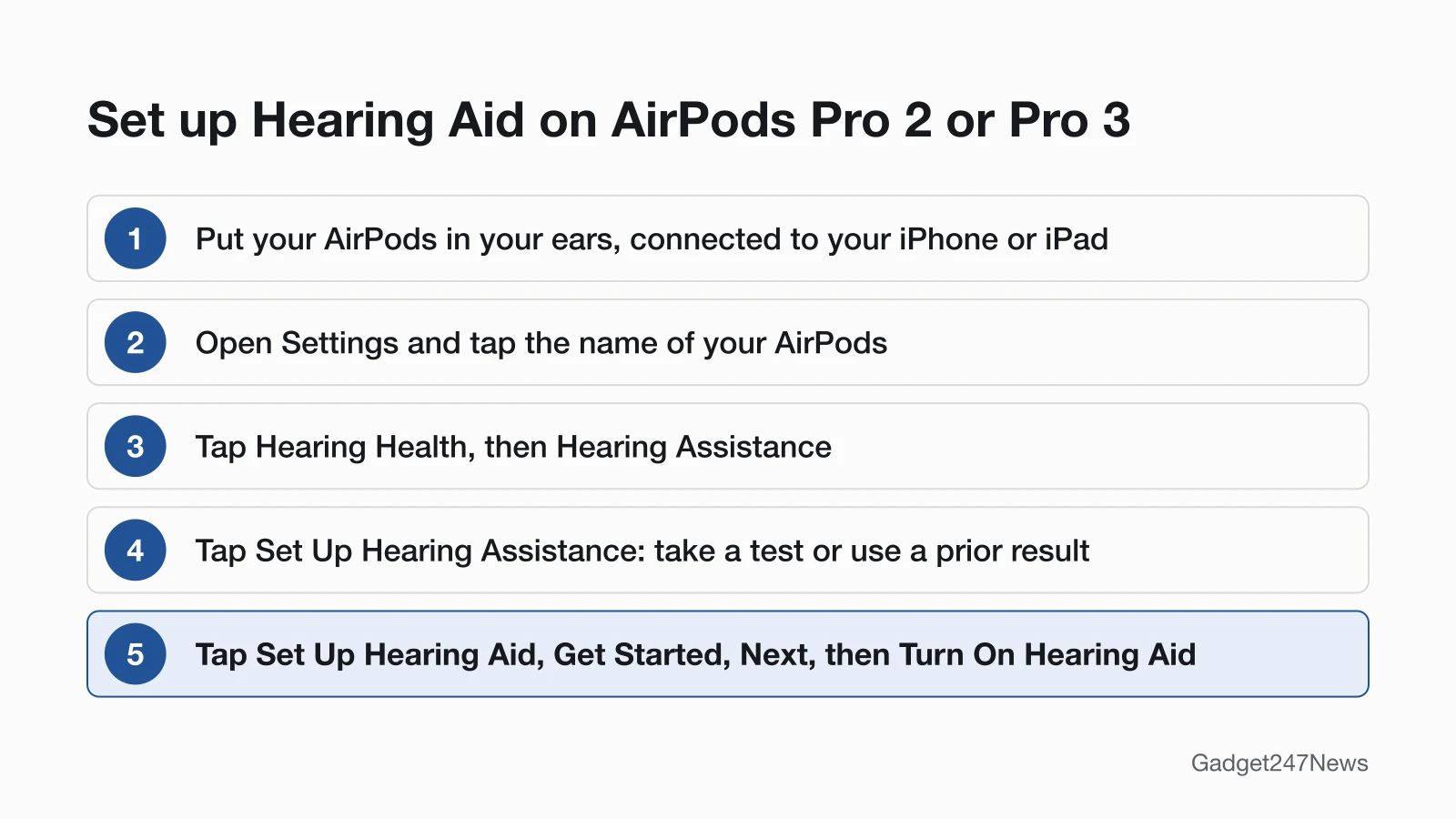
To set up Hearing Aid, go to your AirPods in the Settings app and follow these steps, condensed from Apple's list:
- Put your AirPods in your ears and connect them to your iPhone or iPad.
- Open Settings, then tap the name of your AirPods.
- Tap Hearing Health, then tap Hearing Assistance.
- Tap Set Up Hearing Assistance. Choose Take a Hearing Test if you haven't taken one, or Use a Prior Test Result.
- Tap Set Up Hearing Aid, tap Get Started, tap Next, then tap Turn On Hearing Aid.
Depending on your test results, Apple says you might be prompted to turn on Media Assist instead of Hearing Aid. "It can take time to get used to the Hearing Aid feature," Apple adds, so make small changes to the settings over time. The settings are stored on your AirPods and keep working with the most recent settings when your iPhone or iPad isn't nearby.
How to Take the Hearing Test
To take the Hearing Test, start it from your AirPods settings or the Health app:
- With your AirPods in your ears and connected to your paired iPhone or iPad, go to Settings → your AirPods. You can also start from the Health app.
- Tap Hearing Health, if the option is displayed.
- Tap Take a Hearing Test, then follow the instructions. Tap the screen when you hear a tone.
The test takes approximately five minutes and plays tones from 250 Hz to 8 kHz. Take it in a quiet room without intermittent noise, people talking, or loud air conditioning or fans nearby. Your AirPods need a complete seal in your ears, and the test checks the fit too. Apple's Hearing Test page explains what the results show; this guide stays with the device steps.
Can You Use an Audiogram Instead?
Yes, you can use an audiogram from your hearing health professional. In step 4 above, tap Use a Prior Test Result. When asked to choose a Hearing Test result, tap Add Hearing Test Result, then follow the onscreen instructions. After you add them, the test results are also available in the Health app.
How to Turn Hearing Aid On, Off or Adjust It
You turn Hearing Aid on and adjust it from your AirPods settings, with extra controls in Control Center:
- On iPhone or iPad: go to Settings, tap the name of your AirPods, then tap Hearing Assistance (tap Hearing Health first if you don't see it). Turn on Hearing Aid if it's not already on. Apple's guide doesn't describe a separate off control.
- On Mac: go to System Settings, click your AirPods in the sidebar, then click Hearing Health and turn on Hearing Aid.
- To adjust: tap or click Adjustments to change amplification, balance and tone. In Control Center on iPhone or iPad, touch and hold the volume control, then drag the amplification slider. To change amplification with a swipe on the force sensor, turn on Swipe to Control Amplification; it works only in Transparency mode with no media playing.
The volume buttons on your iPhone or iPad don't change Hearing Aid amplification. They change the volume of music, videos and calls.
How to Check Hearing Aid Is On
Hearing Aid is on when the Hearing Aid switch under Hearing Assistance is turned on. It amplifies the sound around you only in Transparency mode, so check the listening mode too. Apple also adds Hearing Assistance controls to Control Center "automatically" when you set up Hearing Aid, so you can check and adjust it there. Apple's pages don't describe any other on-screen indicator.
If Hearing Aid Doesn't Work as Expected
Most of the checks below are device settings: the listening mode, the volume controls and the firmware. How audio streams to your AirPods is a separate topic, covered in Bluetooth Codecs Explained.
AirPods Still Sound Quiet?
If music or calls sound quiet with Hearing Aid on, use the volume buttons or the volume control in the app you're using; Apple notes that most media apps have their own. For quiet sound in general, check the volume, ear tip fit and speaker mesh with the AirPods quiet guide linked above. If the Hearing Aid option doesn't appear, check that you have AirPods Pro 2 or AirPods Pro 3, that your country is listed, and check your AirPods firmware version.
Talk to a Hearing Professional
Apple says: "For those with severe or profound hearing loss, or if you experience difficulty hearing or a sudden change in your hearing, talk to your doctor." That advice comes from Apple's Hearing Test page. This covers device settings only and isn't medical advice.
Hearing Aid on AirPods: Quick Answers
Is the AirPods Hearing Aid feature available in the US?
Yes. Apple's Hearing Health availability page, checked on September 26, 2026, lists the United States under both the Hearing Test feature and the Hearing Aid feature. You also need AirPods Pro 2 or AirPods Pro 3 with the latest firmware.
Is it the same as a prescription hearing aid?
Apple describes Hearing Aid for people 18 or older with perceived mild to moderate hearing loss, and its availability page states: "The Hearing Aid feature has received FDA authorization." It is set up from your own Hearing Test or an audiogram. For hearing loss beyond mild to moderate, or if you're unsure, see a hearing professional.
Can I use Live Translation too?
Yes, on AirPods Pro 2 and AirPods Pro 3, and also on AirPods 4 (ANC), AirPods 5 (both models) and AirPods Max 2. Apple says Live Translation needs an Apple Intelligence iPhone running iOS 26 or later. The steps are in How to Use Live Translate on AirPods.
Sources
We checked this page against the pages below, most recently on . How we verify fixes
- Apple: Use the Hearing Aid feature on your AirPods Pro 2 or AirPods Pro 3 (Apple, support.apple.com)Official
- Apple: Take a Hearing Test with AirPods Pro 2 or AirPods Pro 3 (Apple, support.apple.com)Official
- Apple: AirPods Pro 3 Hearing Health Feature Availability (Apple, apple.com)Official
- Apple AirPods User Guide: Hearing Health features on AirPods Pro 2 and AirPods Pro 3 (Apple, support.apple.com)Official
- Apple: Use Live Translation with your AirPods (Apple, support.apple.com)Official