How to Use Live Translate on AirPods

By Suraj Giri, Founder & Publisher. Reviewed by Suraj Giri on .
Published · 5 min read
How this page was made
- Sources. Checked against 5 official pages from Apple, most recently on . See the sources.
- No device testing. We don't test fixes on physical devices, so nothing on this page is a hands-on result. A fact counts as verified only when it matches an official source page.
- AI use. As with every page on Gadget247News, AI tools helped research, outline, draft and edit this page, and re-read the official pages to flag facts that didn't match. The illustration at the top was generated with Runway and is labelled under the image.
- Human sign-off. Suraj Giri, Founder & Publisher, read this page and signed it off on . The site won't publish a page without that sign-off.
- Changes. The published and updated dates move only when the content changes, and every change gets a dated note. Spot an error or a fix that didn't work? Email info@gadget247news.com.
Read our AI use policy, editorial policy and corrections policy.
Live Translation on AirPods translates in-person speech into your language through your AirPods, using an iPhone with Apple Intelligence turned on. Apple's name for it is Live Translation, not Live Translate. On AirPods Pro 3 and the other supported earbuds, you start it by pressing and holding both stems at once, and it switches your AirPods to Adaptive Audio, one of the listening modes covered in What Is Noise Cancelling and How Does It Work on Earbuds.
Apple requires the latest AirPods firmware, so check that first if Live Translation won't start. The version check is in How to Update AirPods Firmware.

Which AirPods and iPhones Support Live Translation?
Live Translation needs one of the supported AirPods models and an iPhone 15 Pro or later. The table lists each requirement exactly as Apple states it:
| Requirement | What Apple lists |
|---|---|
| AirPods | AirPods 4 (ANC), AirPods 5 (both models), AirPods Pro 2, AirPods Pro 3, AirPods Max 2 |
| iPhone | iPhone 15 Pro, iPhone 15 Pro Max, iPhone 16 models or later |
| iOS | iOS 26 or later |
| Apple Intelligence | Turned on |
| Translate app | Apple's Translate app downloaded |
| AirPods firmware | The latest version (Apple gives no version number) |
Apple Intelligence isn't available in all languages or regions, so check the language list in the quick answers below as well as the hardware.
How to Download Languages for Live Translation
Download two languages before your first conversation: the one the other person speaks and the one you want to hear. Apple's example is a Spanish-to-English conversation, which needs both Spanish and English.
- Wear your AirPods and make sure they're connected to your iPhone.
- Open Settings and tap the name of your AirPods near the top of the screen.
- Below Translation, tap Languages. If you don't see it, tap Live Translation (Beta) first.
- Tap each language you want to download. The icon to the right of the language shows the download progress.
Once the languages are on your iPhone, Apple says all processing takes place there and your conversation data remains private. To delete a language, swipe left on it and tap the Delete button.
How to Start Live Translation With Your AirPods
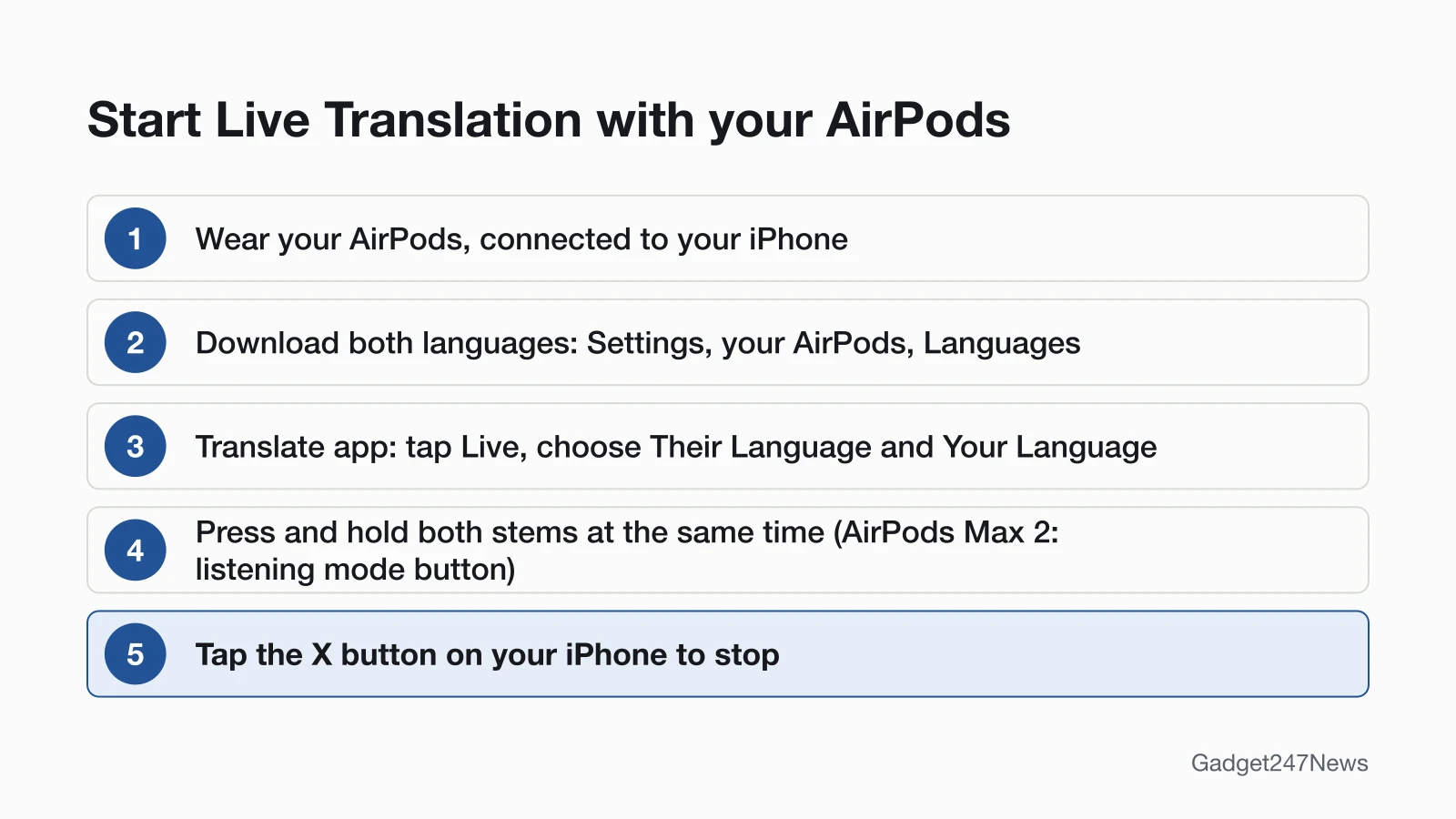
To start Live Translation on AirPods Pro 3, AirPods Pro 2, AirPods 4 (ANC) or AirPods 5, press and hold the stem on both AirPods at the same time:
- Wear both AirPods and connect them to your iPhone.
- Open the Translate app, tap Live at the bottom of the screen, then choose Their Language and Your Language.
- Press and hold the stem on both AirPods at the same time. On AirPods Max 2, press and hold the listening mode button instead.
- Listen while the other person speaks. Your AirPods translate what they say into your preferred language, and a transcript appears in the Live tab of the Translate app.
Other Ways to Start It
Apple's pages list five other ways to start Live Translation while you wear your AirPods:
- Translate app: tap Live, then tap Start Translation.
- Action button: set the iPhone's Action button to the Translate app, and it starts Live Translation when you're wearing your AirPods.
- Siri: say something like "Siri, start Live Translation."
- Control Center: swipe down from the top-right corner of the iPhone screen, then tap Translate (add it to Control Center first if it's missing).
- Phone or FaceTime: use Live Translation on a call in the Phone app or during FaceTime.
How to Stop Live Translation
Tap the X button on your iPhone to stop Live Translation. Apple's AirPods User Guide calls the same control the Delete button.
What the Other Person Hears
The other person can hear your reply through their own AirPods if they have supported AirPods and have set up and started Live Translation too. When both of you wear supported AirPods, each person hears the conversation in the language they chose. Apple's note: both people need the latest firmware and an iPhone 15 Pro or later with iOS 26 or later. Without AirPods, speak your reply, then show them the transcript in the Live tab or tap the Play button to play the translation on your iPhone speaker.
How to Check Live Translation Is Working
Two signs show Live Translation is working: Adaptive Audio turns on (if it wasn't on already), and a transcript of what the other person says appears in the Live tab of the Translate app. In a noisy place, move your iPhone closer to the person speaking; Apple says its microphones then add to the ones on your AirPods. Apple also warns that outputs may be inaccurate, so check important information.
If Live Translation Doesn't Work
Work through the four checks below when Live Translation won't start. If the AirPods don't respond at all, turn on your AirPods first, and if you want clearer speech in your own language rather than a translation, see AirPods as a hearing aid.
Why Won't Live Translation Start?
Live Translation won't start while any requirement on Apple's list is missing:
- Hardware: your AirPods or iPhone model isn't on the supported list above.
- iPhone software: Apple Intelligence is off, or the iPhone runs a version older than iOS 26.
- AirPods firmware: Apple requires the latest version. Firmware updates are delivered automatically while your AirPods are charging and in Bluetooth range of your iPhone, iPad or Mac that's connected to Wi-Fi. To see your version, open Settings, tap Bluetooth, tap the Info button next to your AirPods, then scroll to About.
- Languages: both languages aren't downloaded, or the feature isn't available in your language or region.
If Live Translation worked before and suddenly stopped after an update, check the AirPods firmware release notes for what changed.
The Stem Press Does Something Else
Hold both stems at the same time. Pressing and holding one stem runs whatever action you set for that AirPod, such as switching listening modes or Siri. To see those actions, open Settings, tap the name of your AirPods, then tap Controls & Gestures if the controls aren't shown. On AirPods 4, only the ANC model starts Live Translation from the stems. Every press and swipe is listed in How to Use AirPods Controls.
Live Translation: Quick Answers
Which languages does Live Translation support? On September 26, 2026, Apple's iOS feature availability page listed these languages for Live Translation with AirPods: Chinese (Mandarin, Simplified; not available in China mainland), Chinese (Mandarin, Traditional), English (United Kingdom), English (United States), French (France), German (Germany), Italian, Japanese, Korean, Portuguese (Brazil) and Spanish (Spain). Check that page again before a trip.
Does Live Translation work on AirPods Pro 1 or AirPods 4 without ANC? Apple doesn't list AirPods Pro 1 or AirPods 4 without ANC for Live Translation, and AirPods Max 1 isn't listed either. The supported models are AirPods 4 (ANC), AirPods 5 (both models), AirPods Pro 2, AirPods Pro 3 and AirPods Max 2, and Apple's controls guide limits the stem shortcut on AirPods 4 to "AirPods 4 (ANC) only".
Sources
We checked this page against the pages below, most recently on . How we verify fixes
- Use Live Translation with your AirPods (Apple, support.apple.com)Official
- Translate in-person conversations with AirPods (AirPods User Guide) (Apple, support.apple.com)Official
- iOS and iPadOS 27 Feature Availability: Live Translation with AirPods (Apple, apple.com)Official
- Use controls and gestures with your AirPods (AirPods User Guide) (Apple, support.apple.com)Official
- About firmware updates for AirPods (Apple, support.apple.com)Official