One AirPod Not Working? Left or Right Side Fixes

By Suraj Giri, Founder & Publisher. Reviewed by Suraj Giri on .
Published · 6 min read
How this page was made
- Sources. Checked against 11 official pages from Apple, most recently on . See the sources.
- No device testing. We don't test fixes on physical devices, so nothing on this page is a hands-on result. A fact counts as verified only when it matches an official source page.
- AI use. As with every page on Gadget247News, AI tools helped research, outline, draft and edit this page, and re-read the official pages to flag facts that didn't match. The illustration at the top was generated with Runway and is labelled under the image.
- Human sign-off. Suraj Giri, Founder & Publisher, read this page and signed it off on . The site won't publish a page without that sign-off.
- Changes. The published and updated dates move only when the content changes, and every change gets a dated note. Spot an error or a fix that didn't work? Email info@gadget247news.com.
Read our AI use policy, editorial policy and corrections policy.
When one AirPod stops working, Apple's steps are the same for the left or right one. A silent AirPod and a quieter one get different checks, and this page covers both. Start with a 30-second charge in the case, because charging comes first in Apple's list. Other AirPods problems are on our page to fix your AirPods.
Every check below comes from Apple's support pages: charge and test first, as Apple's left-or-right page does, and reset last. For Galaxy Buds, Pixel Buds, Beats and other brands, use one earbud not working, which covers each maker's own re-sync steps.

Why Is Only One AirPod Working?
Only one AirPod works when the other is flat, turned down by the Balance slider, blocked, or disconnected. Six causes explain it, for the left or right AirPod alike, listed in the order the fixes below check them:
- A flat AirPod or case: Apple's first steps check the case's charge and that each AirPod is charging.
- An off-center Balance slider: your iPhone sends less sound to one side.
- Debris on the speaker mesh: Apple checks the mesh when one side sounds quieter.
- A lost connection: your AirPods aren't connected to your iPhone or iPad.
- Out-of-date software: Apple's user guide asks you to make sure the paired device is up to date.
- A damaged or lost AirPod: you can order a replacement, and Apple has steps to set it up.
How to Fix One AirPod That Isn't Working
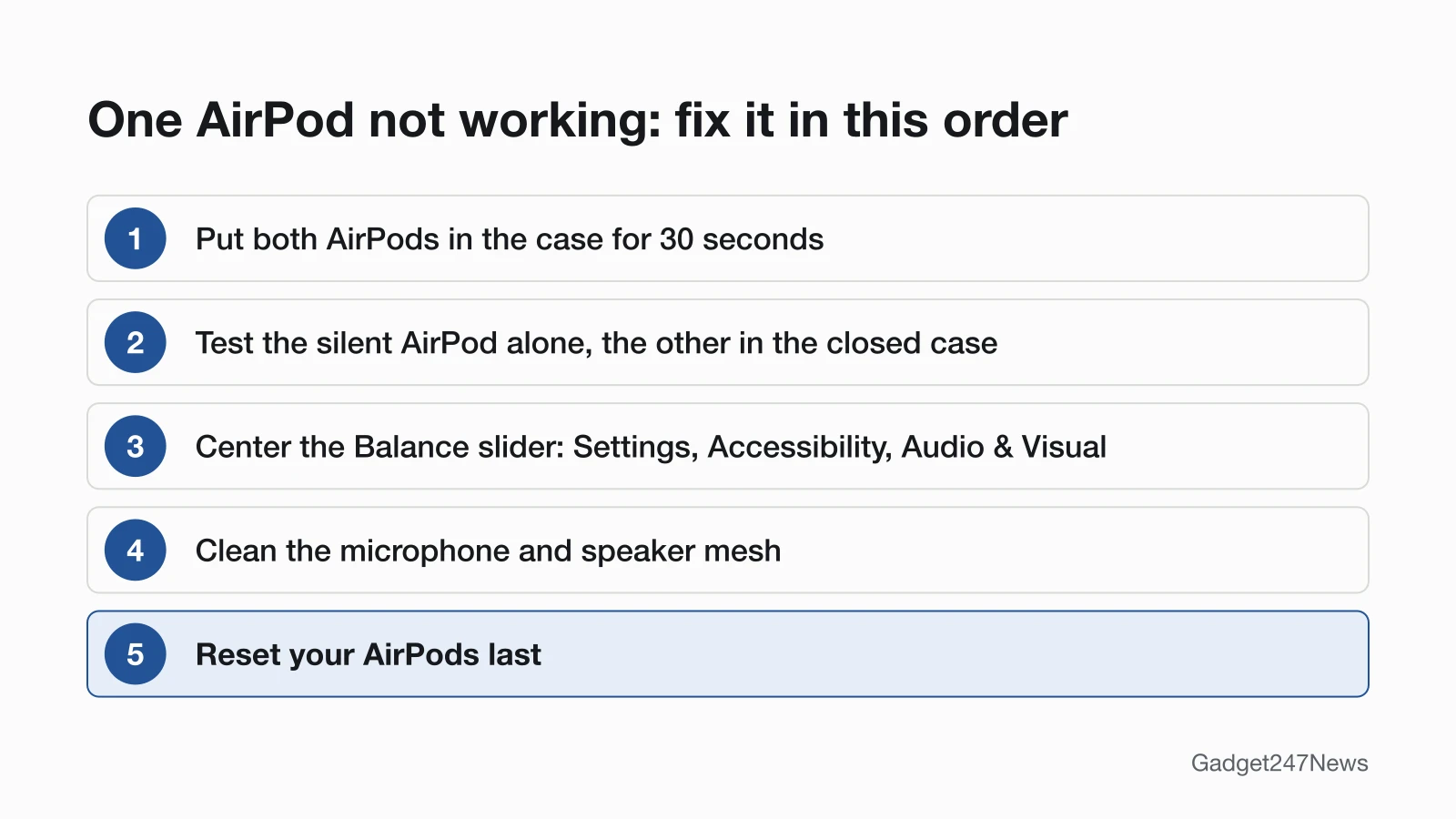
To fix one AirPod, left or right, work through these six fixes in order and test after each one.
Fix 1: Charge Both AirPods for 30 Seconds
- Make sure the charging case is fully charged.
- Clean the case's charging port with a clean, dry, soft-bristled brush. Don't put anything in the port.
- Place both AirPods in the case and let them charge for 30 seconds.
- Open the case near your iPhone or iPad and check the charge status to make sure each AirPod is charging.
If one side won't take a charge at all, see AirPods won't charge.
Fix 2: Test the Silent AirPod on Its Own
- Put the AirPod that isn't working in the matching ear.
- With the other AirPod still in the case, close the lid.
- Make sure your AirPods are connected to your iPhone or iPad.
- Play audio to test that AirPod.
If it plays, put both AirPods in the case for another 30 seconds, open it near your iPhone and test both again. If it stays silent, Apple's next step is the reset in Fix 6. If it plays but sounds quieter than the other side, go on to Fix 3.
Fix 3: Center the Balance Slider
- Go to the Settings app, then tap Accessibility.
- Tap Audio & Visual, then scroll down to Balance.
- Set the Balance slider in the middle.
The slider sets your iPhone's left-right stereo balance, so an off-center slider makes one AirPod quieter. On the same screen, Mono Audio makes the left and right speakers play the same content.
Fix 4: Clean the Speaker Mesh
- Check the microphone and speaker mesh on each AirPod. On AirPods Pro, remove the ear tips first by pulling firmly at the base.
- If there's debris, clean the mesh. Apple's method for AirPods 3, 4 and 5 and AirPods Pro 2 and 3 uses micellar water and a soft-bristled children's toothbrush, a rinse with distilled water, then at least two hours to dry before the AirPods go back in the case.
Don't run AirPods under water or clean them with sharp objects. Our cleaning guide shows how to clean the AirPods charging case as well.
Fix 5: Update iOS and Your AirPods Firmware
- Update your iPhone or iPad to the latest iOS or iPadOS.
- Let the firmware update install: connect the case to power, close the AirPods in it, keep your iPhone on Wi-Fi and in Bluetooth range, and wait at least 30 minutes.
Apple delivers AirPods firmware automatically while your AirPods are charging and in Bluetooth range of an iPhone, iPad or Mac that's connected to Wi-Fi. Apple lists no button to start it.
Fix 6: Reset Your AirPods (Last Step)
If an AirPod still isn't working, reset your AirPods: Apple's reset puts both AirPods in the case and resets them together, and the AirPods soft and factory reset steps cover every model. The reset has worked when the status light on the case flashes amber, then white. If you've replaced an AirPod, set up the replacement instead; Apple's steps start with both AirPods in the case on power for 20 minutes.
Left, Right, AirPods Pro and AirPods Max
The fixes change a little by model, mostly in how you reach the mesh. The table shows what's different for each case.
| Situation | What's different |
|---|---|
| Left or right AirPod | Nothing. Apple's steps are the same for either side. |
| AirPods Pro 1, 2 and 3 | Remove the ear tips to check the microphone and speaker mesh, then click them back on. |
| AirPods 3, 4 and 5 | No ear tip step: Apple's cleaning method goes straight to the meshes. |
| AirPods Max, one ear cup silent | Apple's left-or-right page doesn't cover AirPods Max. Check the Balance slider, then restart: charge to at least 50%, then hold the listening mode button and the Digital Crown until the LED flashes amber, then let go. |
For AirPods and AirPods Pro, the order holds: charge, test, check Balance, clean, update, then reset. If the trouble is your voice on calls rather than the sound, check the Microphone setting instead: set to Always Left AirPod or Always Right AirPod, that AirPod uses the microphone even when it's out of your ear or in the case. Choose Automatically Switch AirPods under Settings > [your AirPods] > Microphone.

Still not working?
If one AirPod is still silent after Apple's steps, work through these:
- Try the next fix: if the sound is quiet on both sides rather than missing on one, see Why Are My AirPods So Quiet?
- Reset your AirPods: use the reset steps in Fix 6 (you'll need to pair them again afterwards).
- Contact Apple Support: getsupport.apple.com. Tell Apple which side has failed.
- Check repair or warranty options: AirPods battery replacement.
Started after an update? Check the Update Tracker for known issues.
Related Problems
- One AirPod or both won't connect, including AirPods stopped connecting after an update.
- Sound quiet on both sides: Why Are My AirPods So Quiet?
- AirPods got wet: see our guide to wet AirPods.
Stopped Working After an Update?
If one AirPod stopped working suddenly after an update, check your firmware version before you reset anything. Open Settings, tap Bluetooth, tap the Info button (ⓘ) next to your AirPods and scroll to About. Compare that number with the list of AirPods firmware versions, where we track each release and its known issues. If you're behind, leave the AirPods charging in the closed case near your iPhone on Wi-Fi, as in Fix 5.
One AirPod: Quick Answers
Why does one AirPod suddenly stop working?
Apple's steps for one AirPod that stops working check the charge first, then the connection. Put both AirPods in the case for 30 seconds, then test the silent one alone in your ear with the other closed in the case. If it started right after an update, check your version against the firmware list above.
Can only one AirPod be dead?
Yes, one AirPod can run low on charge before the other. Apple's low-battery tone chimes in one or both AirPods, and its steps check that each AirPod is charging. Open the case near your iPhone and check the charge status of each AirPod. If one never charges, clean the case's charging port, and ask Apple about a replacement AirPod if that fails.
How much is it to fix one AirPod?
The cost depends on your coverage, and Apple sets the final fee after it inspects your AirPods. Apple can replace a single AirPod; our AirPods battery replacement page above lists the service routes.
Sources
We checked this page against the pages below, most recently on . How we verify fixes
- If your left or right AirPod isn't working (Apple, support.apple.com)Official
- How to clean your AirPods (Apple, support.apple.com)Official
- How to clean your AirPods Pro (Apple, support.apple.com)Official
- About firmware updates for AirPods (Apple, support.apple.com)Official
- How to reset your AirPods and AirPods Pro (Apple, support.apple.com)Official
- Set up your replacement AirPods or charging case (Apple, support.apple.com)Official
- Charge your AirPods (Apple, support.apple.com)Official
- Restart, unpair, or reset your AirPods (AirPods User Guide) (Apple, support.apple.com)Official
- How to restart or reset AirPods Max (Apple, support.apple.com)Official
- Adjust audio settings on iPhone (iPhone User Guide) (Apple, support.apple.com)Official
- Apple Service and Repair for AirPods (Apple, support.apple.com)Official