AirPods Not Charging? Causes and Fixes

By Suraj Giri, Founder & Publisher. Reviewed by Suraj Giri on .
Published · 6 min read
How this page was made
- Sources. Checked against 8 official pages from Apple, most recently on . See the sources.
- No device testing. We don't test fixes on physical devices, so nothing on this page is a hands-on result. A fact counts as verified only when it matches an official source page.
- AI use. As with every page on Gadget247News, AI tools helped research, outline, draft and edit this page, and re-read the official pages to flag facts that didn't match. The illustration at the top was generated with Runway and is labelled under the image.
- Human sign-off. Suraj Giri, Founder & Publisher, read this page and signed it off on . The site won't publish a page without that sign-off.
- Changes. The published and updated dates move only when the content changes, and every change gets a dated note. Spot an error or a fix that didn't work? Email info@gadget247news.com.
Read our AI use policy, editorial policy and corrections policy.
If your AirPods won't charge, check the case first: the earbuds charge from the case's battery, and Apple's checklist includes clearing debris from its charging port. This guide covers the AirPods themselves, both earbuds or one side, plus AirPods Max. For other AirPods problems, fix your AirPods from our hub; if the case itself won't take a charge, see AirPods Case Not Charging.
Other brands, such as Beats, Galaxy Buds and Pixel Buds, follow their own maker's steps; use our earbuds charging fixes for those.
Why Won't My AirPods Charge?
AirPods won't charge when power doesn't reach the case, the case is empty or a setting holds the level below 100%. These six causes follow Apple's charging checks:
- A flat case: the case holds the charges for your AirPods, so an empty case can't top them up.
- A cable, adapter or outlet fault: power never reaches the case.
- Debris in the charging port: Apple's fix is to brush it out of the case's port.
- A wireless case in the wrong position: the case needs its status light facing up and the lid closed on the charger.
- Optimized Battery Charging or Optimized Charge Limit: the level stops short of 100% on purpose, which looks like a fault.
- A glitch or a worn battery: Apple says AirPods that won't charge might need a reset, and its warranty doesn't cover batteries that wear down from normal use.
How to Fix AirPods That Won't Charge
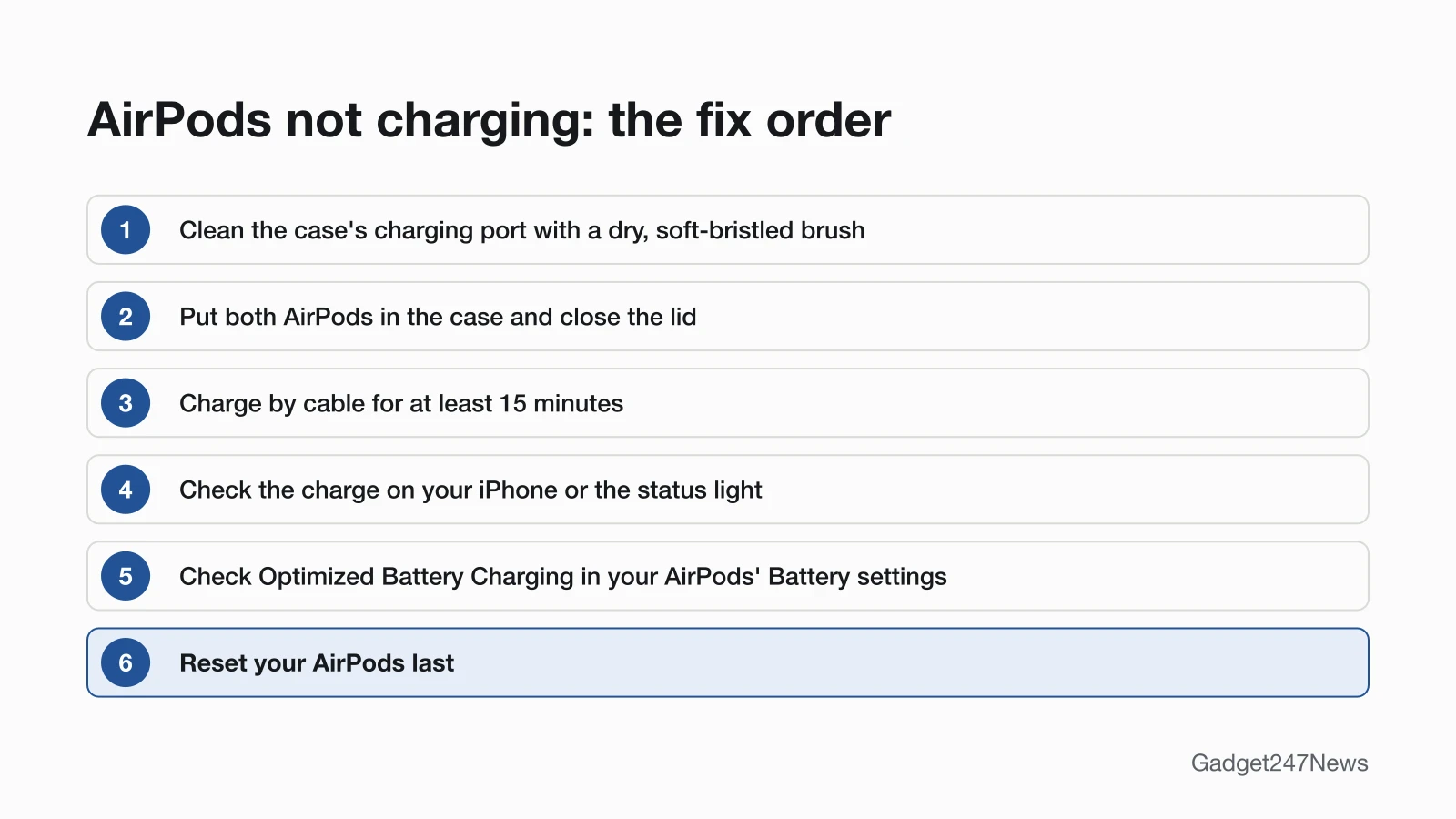
Work through these seven fixes in order and stop when the charge starts climbing; the reset comes last because your custom settings reset with it.
Fix 1: Charge in the Closed Case for at Least 15 Minutes
Charge AirPods and AirPods Pro in the closed case, by cable, for at least 15 minutes:
- Put both AirPods in the charging case and close the lid.
- Connect a Lightning or USB-C cable to the case, depending on your model, and plug the other end into a USB charger or port.
- Leave the AirPods and case charging for at least 15 minutes.
Apple's 15 minutes applies to AirPods and AirPods Pro; AirPods Max use a 5-minute minimum instead (see below).
Fix 2: Check the Cable, Adapter and Outlet
Check that power reaches the case. Apple's charging pages list these connections:
- The charging cable is plugged firmly into the charging case and the USB power adapter.
- The power adapter is correctly plugged into a working power outlet.
- Charging is fastest on an iPhone or iPad USB charger, or with the case connected to your Mac.
If one of these fails, swap that part before you move on to the port.
Fix 3: Clean the Charging Port
Clean the case's charging port, then charge again:
- Remove any debris from the charging port with a clean, dry, soft-bristled brush.
- Repeat Fix 1 and watch the status light.
Don't put anything in the port: Apple warns it can damage the metal contacts, and no liquid should get inside. The full method is in our guide to clean AirPods.
Fix 4: Check the Charge on Your iPhone
Your iPhone shows the charge status of each AirPod, so you can see whether charging has started:
- Open the lid, or take your AirPods out of the case.
- On your iPhone, go to Settings, tap Bluetooth, tap the name of your AirPods, then tap the Info button (ⓘ) next to them.
The status light on the case gives the same answer without a phone:
- Green: fully charged.
- Amber: less than one full charge remains.
- No light: the AirPods may need charging before you can use them again.
With the AirPods inside and the lid open, the light shows their charge; with the AirPods out, it shows the case. On AirPods 4, AirPods 5, AirPods Pro 2 and AirPods Pro 3 with the latest firmware, a brief amber pulse means the AirPods or case are less than 95% charged.
Fix 5: Check Optimized Battery Charging
AirPods that stop short of 100% may be waiting on purpose, not failing to charge. Optimized Battery Charging on AirPods Pro and AirPods 3 or later learns your daily charging routine and waits to charge to full until right before you need them. AirPods Pro 3 also have Optimized Charge Limit, which charges to a limit that adapts to your use. Both are on by default and are designed to preserve battery lifespan.
To test a full charge, wear your AirPods connected to your iPhone, open Settings, tap the name of your AirPods, then tap Battery and turn off Optimized Battery Charging (on AirPods Pro 3, Optimized Charge Limit, which you can turn off entirely or for one day). Turn it back on after the test to protect battery lifespan.
Fix 6: Wireless Charging: Light Up, Lid Closed
A MagSafe Charging Case or Wireless Charging Case charges wirelessly with the status light facing up and the lid closed:
- Place the case on a Qi-certified charging mat or MagSafe charger, light up and lid closed. The light shows the current charge for 8 seconds.
- Tap the case on the mat: amber means the AirPods are charging, green means fully charged. This works on AirPods Pro 1 to 3, AirPods 3, AirPods 4 (ANC) and AirPods 5 with Wireless Charging Case.
If the light doesn't turn on, reposition the case. If it still won't charge, charge it by cable.
Fix 7: Reset Your AirPods (Last Step)
Reset your AirPods only after the six fixes above: Apple lists the reset last, and any custom settings reset too, so you restore them afterwards. Follow the steps to reset AirPods for your model, then charge in the closed case again.
Only One AirPod or AirPods Max Not Charging
One AirPod or an AirPods Max headset that won't charge needs a separate check, because your iPhone shows each AirPod's charge, and AirPods Max charge through a cable in the bottom-right earphone.
Left or Right AirPod Not Charging
A left or right AirPod that isn't charging follows Apple's one-AirPod order:
- Make sure the charging case is fully charged.
- Clean the charging port of the case.
- Place both AirPods in the case and let them charge for 30 seconds.
- Open the case near your iPhone and check the charge status to make sure each AirPod is charging.
If one side still shows no charge, or charges but plays no sound, go to AirPods working on one side only. Apple's order ends with a reset.
AirPods Max Not Charging
AirPods Max need at least 5 minutes on the cable that came with them, plugged into the bottom-right earphone. Then press the listening mode button: on power, the status light turns green at 95 percent or more and amber below that (AirPods Max 2 briefly pulse amber). When you're not using them, Apple suggests charging them in the Smart Case, which puts them into ultra-low power mode. If no light appears at all, follow the steps for AirPods Max won't turn on.
Still not working?
If your AirPods still won't charge, work through this order:
- Try the next fix: AirPods Case Not Charging, if the case itself won't take a charge.
- Reset your AirPods with the steps in Fix 7 (you'll need to reconnect them afterwards).
- Contact Apple Support.
- Check repair or battery service options: AirPods Pro and AirPods Max repair.
Started after an update? Check the Update Tracker for known issues.
Related Battery Problems
Two battery problems sit next to AirPods that won't charge:
- AirPods charge but run out fast: see AirPods Battery Draining Fast. Apple's warranty doesn't cover batteries that wear down from normal use.
- The case won't take a charge: see AirPods Case Not Charging.
AirPods Charging: Quick Answers
Why won't my AirPods charge to 100%?
Optimized Battery Charging holds AirPods Pro and AirPods 3 or later below full until right before you need them, and AirPods Pro 3 add Optimized Charge Limit. Both are designed to preserve battery lifespan. For a full charge now, open Settings, tap your AirPods' name, tap Battery and turn the feature off.
Can only one AirPod be dead?
Yes. Your iPhone shows each AirPod's charge status separately, and Apple's one-AirPod steps check that each one is charging: put both in the case for 30 seconds, then open it near your iPhone. The full steps are in One AirPod Not Working.
Sources
We checked this page against the pages below, most recently on . How we verify fixes
- If your AirPods won't charge (Apple, support.apple.com)Official
- Charge your AirPods (Apple, support.apple.com)Official
- How to clean your AirPods (Apple, support.apple.com)Official
- How to clean your AirPods Pro (Apple, support.apple.com)Official
- If your left or right AirPod isn't working (Apple, support.apple.com)Official
- Charge your AirPods Max (Apple, support.apple.com)Official
- How to reset your AirPods and AirPods Pro (Apple, support.apple.com)Official
- Apple Service and Repair for AirPods (Apple, support.apple.com)Official