AirPods Max Not Turning On? How to Fix It

By Suraj Giri, Founder & Publisher. Reviewed by Suraj Giri on .
Published · 7 min read
How this page was made
- Sources. Checked against 12 official pages from Apple, most recently on . See the sources.
- No device testing. We don't test fixes on physical devices, so nothing on this page is a hands-on result. A fact counts as verified only when it matches an official source page.
- AI use. As with every page on Gadget247News, AI tools helped research, outline, draft and edit this page, and re-read the official pages to flag facts that didn't match. The illustration at the top was generated with Runway and is labelled under the image.
- Human sign-off. Suraj Giri, Founder & Publisher, read this page and signed it off on . The site won't publish a page without that sign-off.
- Changes. The published and updated dates move only when the content changes, and every change gets a dated note. Spot an error or a fix that didn't work? Email info@gadget247news.com.
Read our AI use policy, editorial policy and corrections policy.
Most AirPods Max that won't turn on have a flat battery. None of the Apple pages we read for this guide lists a power button: the Smart Case puts the headphones into an ultralow power mode instead. So from the outside, a drained battery and a frozen headset can look the same. For AirPods earbuds and cases, start with our AirPods battery and sound fixes.
The fixes below run from the most likely cause to a reset, which comes last because it resets your custom settings too. For other brands, see earbuds not charging in the case.
Why Won't My AirPods Max Turn On?
AirPods Max usually won't turn on because the battery is fully drained. Apple's charging page says a tone plays at 10 percent and again right before AirPods Max turn off. These five causes are ranked from most to least likely:
- A fully drained battery: the headset turned off at empty and needs time on the cable.
- A cable, adapter or outlet fault: power never reaches the bottom-right earphone.
- A frozen headset: the battery has charge, but the headset stopped responding and needs a restart.
- A fault a restart doesn't clear: Apple's next step is a factory reset.
- A hardware fault: if no fix here brings back the light, Apple Support needs to check the headset.
The first two are power problems, and they come first because Apple asks for at least 50 percent charge before a restart or a reset.
How to Fix AirPods Max That Won't Turn On
Try these in order and stop when the status light comes on. Each fix follows Apple's support pages for AirPods Max.
Fix 1: Charge AirPods Max for at Least 5 Minutes
Charge AirPods Max for at least 5 minutes with the cable that came with them before you try anything else:
- Plug the USB-C or Lightning cable into the bottom-right earphone. The port depends on your model (see the table below).
- Plug the other end of the cable into a USB charger or port.
- Leave the headphones charging for at least 5 minutes.
- Press the listening mode button to see the status light.
You can also charge them inside the Smart Case: align the cutout on the case with the port on the headphones. If you're not using them, Apple suggests charging them in the Smart Case, which places them into ultra-low power mode and can help preserve the battery charge.
Fix 2: Check the Cable, Adapter and Outlet
Check that power reaches the headset. Apple's page for AirPods that won't charge gives one cable check for AirPods, AirPods Pro and AirPods Max; on AirPods Max, the cable goes into the bottom-right earphone:
- The charging cable is plugged firmly into the bottom-right earphone.
- The cable is plugged firmly into the USB power adapter.
- The power adapter is correctly plugged into a working power outlet.
If you switch to another cable, use a type Apple lists for your port. For a USB-C port, that's a USB-C to USB-C cable or a USB-C to USB cable. For a Lightning port, it's a USB-C to Lightning cable or a USB to Lightning cable.
Fix 3: Read the Status Light
The status light on the right earphone shows the charge level each time you press the listening mode button: green means the charge is at or above Apple's threshold, amber means it's below. The threshold changes with the power connection:
| State | Light | Meaning |
|---|---|---|
| Connected to power | Green | 95 percent or more |
| Connected to power | Amber (AirPods Max 2: briefly pulses amber) | Less than 95 percent |
| Not connected to power | Green | 15 percent or more |
| Not connected to power | Amber (AirPods Max 2: briefly flashes amber) | Less than 15 percent |
Amber on the charger means less than 95 percent, so keep charging. If there's no light at all after 5 minutes on the charger, move on to Fix 4.
Fix 4: Restart AirPods Max
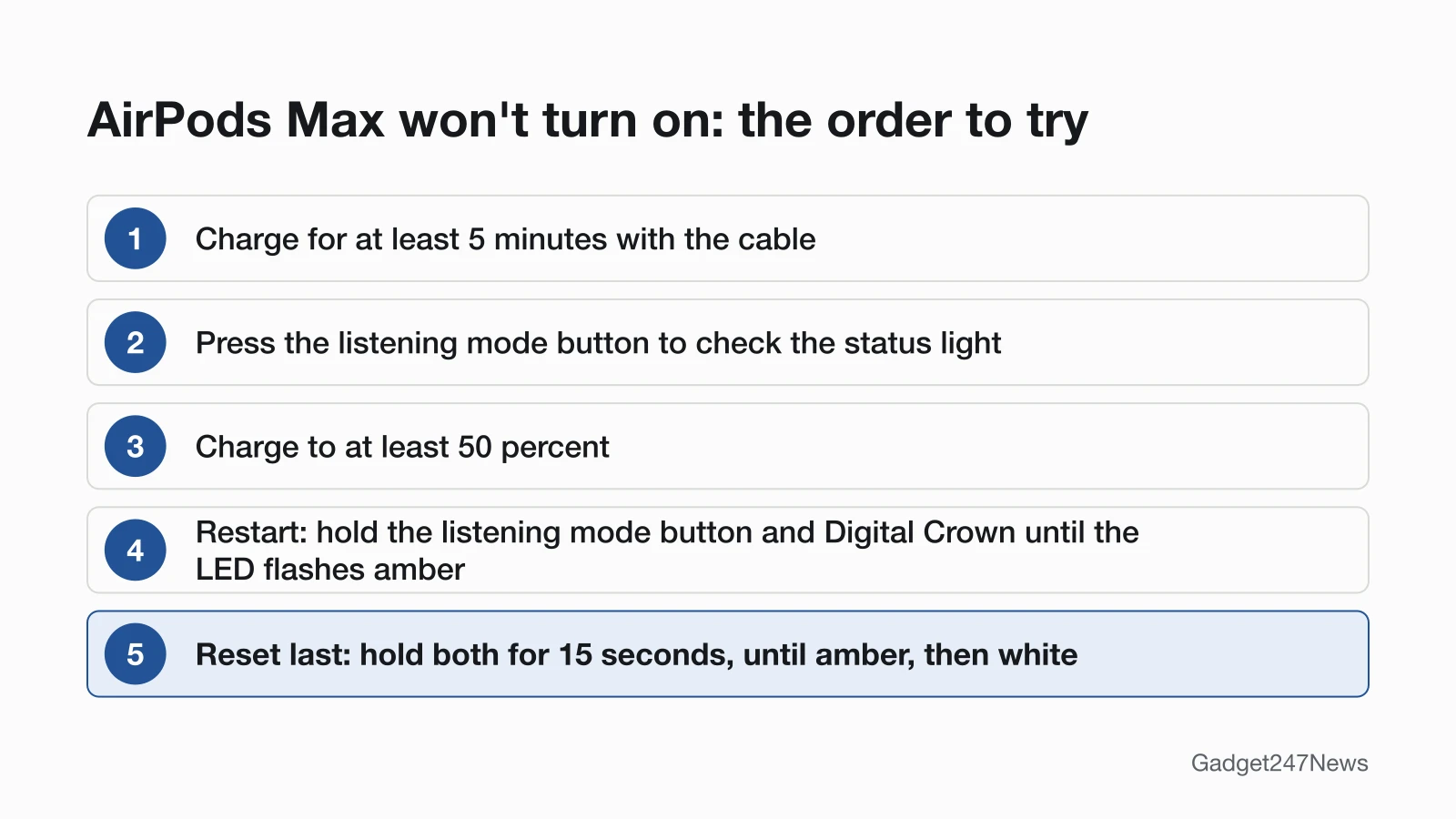
Restart AirPods Max by holding the listening mode button and the Digital Crown until the LED flashes amber:
- Charge your AirPods Max to at least 50 percent.
- Press and hold the listening mode button and the Digital Crown together until the LED flashes amber, which takes around 10 seconds.
- Release both buttons right away.
Apple's user guide warns that holding the buttons longer than around 10 seconds resets AirPods Max to factory settings. Apple lists the loss of custom settings under a reset, not a restart. Older Apple guides call the listening mode button the "noise control button".
Fix 5: Reset AirPods Max (Last Step)
Reset AirPods Max when a restart doesn't help. Holding both buttons for 15 seconds returns them to factory settings:
- Charge your AirPods Max to at least 50 percent.
- Press and hold the listening mode button and the Digital Crown for 15 seconds, until the LED flashes amber, then white.
- Connect them again to your iPhone, iPad, Mac or other device.
- If someone else used them before you, ask that person to remove them from their Apple Account first, because AirPods Max can be associated with one Apple Account.
Apple's reset page also lists a reset for AirPods Max that won't charge. The reset is done when the LED flashes amber, then white; if the LED never lights at all, go to Still not working? below instead of repeating it. For earbuds, the guide to factory reset AirPods has the full steps for every AirPods model.
AirPods Max Models: Lightning, USB-C and AirPods Max 2
Apple's restart and reset page, published May 27, 2026, gives one method for AirPods Max, the listening mode button plus the Digital Crown, and lists no separate steps for AirPods Max 2. What differs by model is the charging port and the amber signal:
| Model | Model number | Charging port | Status light while charging | Restart and reset |
|---|---|---|---|---|
| AirPods Max 1 (Lightning), 2020 | A2096 | Lightning | Green at 95 percent or more, amber below | Listening mode button and Digital Crown |
| AirPods Max 1 (USB-C), 2024 | A3184 | USB-C | Green at 95 percent or more, amber below | Listening mode button and Digital Crown |
| AirPods Max 2, 2026 | A3454 | USB-C | Green at 95 percent or more, briefly pulses amber below | Same steps on Apple's page; no separate AirPods Max 2 steps listed |
To find your model number, look behind the cushion on the left ear cup.
Off, or Resting in the Smart Case?
AirPods Max resting in the Smart Case are in an ultralow power mode that preserves battery charge, not switched off. Apple's pages on charging, restarting and resetting, and connecting AirPods Max list no power button or manual shutdown. Apple's charging page also gives no time for low power outside the case. To see whether they have charge, press the listening mode button, which shows the charge status even when AirPods Max aren't connected to power. A green or amber light means some charge is left. Apple also recommends storing them in the Smart Case, because loose in a bag they can be damaged.
Still not working?
If the light still won't come on, work through this order:
- Try the next fix: AirPods not charging, if the headset lights up but won't hold a charge.
- Reset your AirPods Max with the steps in Fix 5 (you'll need to connect them again afterwards).
- Contact Apple Support.
- Check repair or battery service options: AirPods Pro and AirPods Max repair.
Started after an update? Check the Update Tracker for known issues.
Related AirPods Max Problems
Two other problems look like a headset that won't turn on: one that won't charge, and one that lights up but won't connect.
AirPods Max Won't Charge
AirPods Max that won't charge usually respond to the same fixes above: at least 5 minutes on the cable, a firm connection at the bottom-right earphone and the adapter, and a working outlet. Apple's reset page lists a reset as the next step when they still won't charge. For AirPods earbuds and their case, see AirPods not charging in the case.
AirPods Max Turn On but Won't Connect
If your AirPods Max won't connect after the light comes on, put them in pairing mode. Press and hold the listening mode button for about 5 seconds, until the status light flashes white, then pick them in the Bluetooth list of your device. If they connected before and stopped after new software, see AirPods stopped connecting after an update. To learn what the Smart Case and the buttons do for power, see turn AirPods on and off.
AirPods Max: Quick Answers
Short answers to three questions about AirPods Max that seem dead.
How do you fix unresponsive AirPods Max?
Charge unresponsive AirPods Max to at least 50 percent, then restart them: hold the listening mode button and the Digital Crown until the LED flashes amber, about 10 seconds. If that fails, reset them by holding both for 15 seconds, until the LED flashes amber, then white.
Why won't my AirPods Max charge?
AirPods Max won't charge when the cable isn't seated in the bottom-right earphone, the adapter or outlet isn't giving power, or the headset needs a reset. Charge for at least 5 minutes, press the listening mode button to check the light, then restart them. Apple lists a reset if they still won't charge.
Can only one AirPod be dead?
Yes, for AirPods earbuds: each earbud charges in the case, and Apple's fix for a left or right AirPod not working checks that each one is charging. AirPods Max are a single headset that charges through one port on the bottom-right earphone.
Sources
We checked this page against the pages below, most recently on . How we verify fixes
- If your AirPods won't charge (Apple, support.apple.com)Official
- Charge your AirPods Max (Apple, support.apple.com)Official
- How to restart or reset AirPods Max (Apple, support.apple.com)Official
- Restart, unpair, or reset your AirPods (AirPods User Guide) (Apple, support.apple.com)Official
- Restart, unpair, or reset your AirPods (AirPods User Guide, version 1.0) (Apple, support.apple.com)Official
- Pair AirPods with a non-Apple device (AirPods User Guide) (Apple, support.apple.com)Official
- Identify your AirPods (Apple, support.apple.com)Official
- AirPods Max 1 - Tech Specs (Apple, support.apple.com)Official
- AirPods Max 1 (USB-C) - Tech Specs (Apple, support.apple.com)Official
- AirPods Max 2 - Tech Specs (Apple, support.apple.com)Official
- Connect and use your AirPods Max (Apple, support.apple.com)Official
- If your left or right AirPod isn't working (Apple, support.apple.com)Official