How to Turn On Noise Cancelling on AirPods

By Suraj Giri, Founder & Publisher. Reviewed by Suraj Giri on .
Published · 4 min read
How this page was made
- Sources. Checked against 6 official pages from Apple, most recently on . See the sources.
- No device testing. We don't test fixes on physical devices, so nothing on this page is a hands-on result. A fact counts as verified only when it matches an official source page.
- AI use. As with every page on Gadget247News, AI tools helped research, outline, draft and edit this page, and re-read the official pages to flag facts that didn't match. The illustration at the top was generated with Runway and is labelled under the image.
- Human sign-off. Suraj Giri, Founder & Publisher, read this page and signed it off on . The site won't publish a page without that sign-off.
- Changes. The published and updated dates move only when the content changes, and every change gets a dated note. Spot an error or a fix that didn't work? Email info@gadget247news.com.
Read our AI use policy, editorial policy and corrections policy.
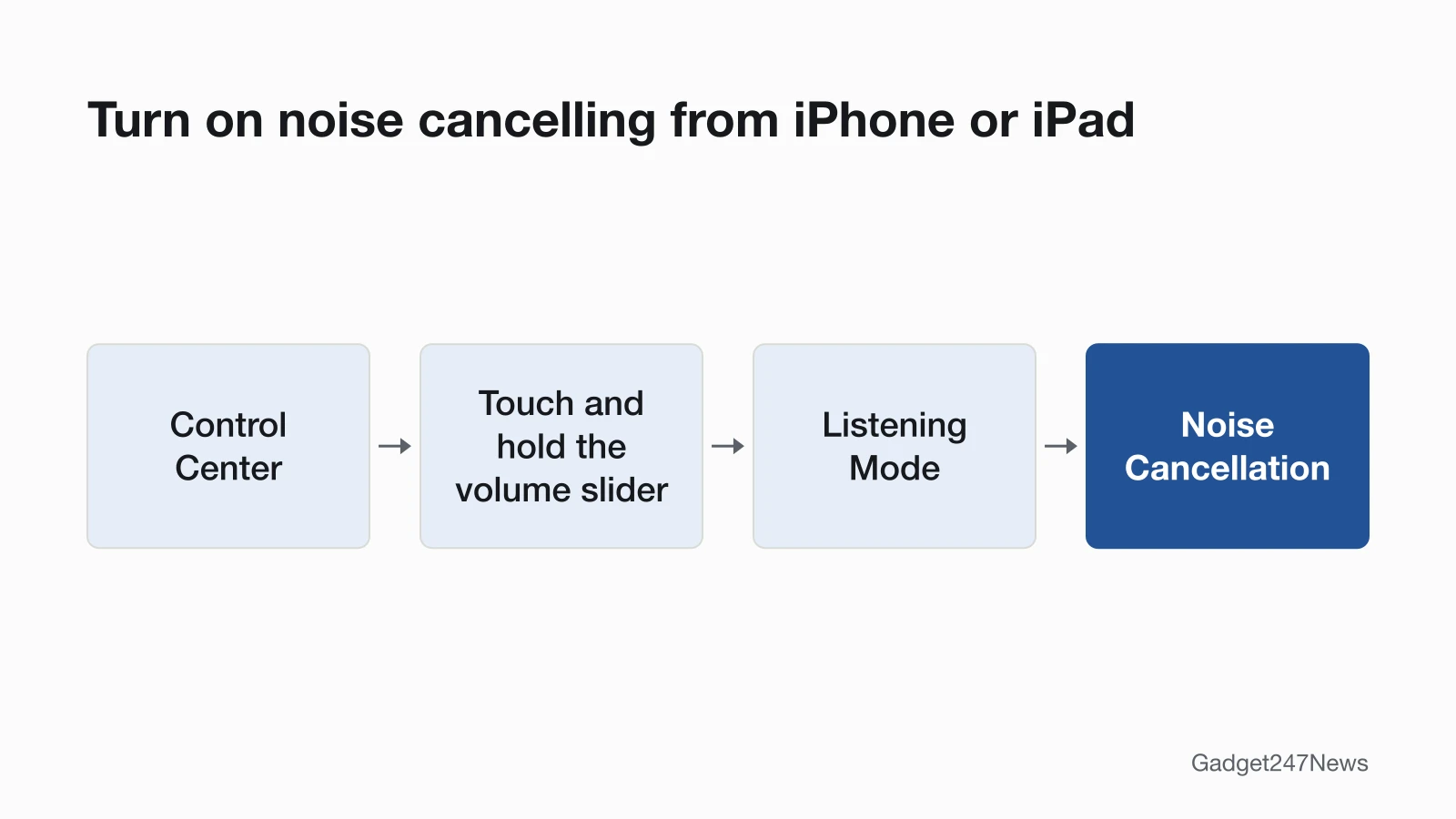
Open Control Center on your iPhone, touch and hold the volume slider, tap Listening Mode, then choose Noise Cancellation. On the AirPods themselves, press and hold the stem until you hear a chime. Other AirPods settings and fixes start from AirPods troubleshooting; for sound problems on other brands, see headphones muffled or quiet.
Turn On Noise Cancelling From Your iPhone or iPad
To turn on noise cancelling from an iPhone or iPad, use Control Center:
- Put in both AirPods, then swipe down from the top-right corner of the screen to open Control Center.
- Touch and hold the volume slider until the extra controls appear.
- Tap Listening Mode, then choose Noise Cancellation.
Apple's software labels Active Noise Cancellation as Noise Cancellation. The same modes are in Settings under the name of your AirPods.
Turn On Noise Cancelling on the AirPods Stem
On AirPods Pro, AirPods 4 (ANC) and AirPods 5, the stem switches modes without your phone:
- Wear both AirPods, then press and hold the force sensor on the stem of either AirPod until a chime plays.
- Press and hold again to move to the next mode.
Out of the box, the stem switches between Noise Cancellation and Transparency. You can add Off, and Adaptive Audio on AirPods 4 (ANC), AirPods 5, AirPods Pro 2 and AirPods Pro 3.
Turn On Noise Cancelling on AirPods Max
Press the listening mode button on top of the right ear cup to switch AirPods Max between Noise Cancellation and Transparency. AirPods Max 2 also switch to Adaptive Audio. To pick the button's modes, go to Settings, choose your AirPods Max, then tap Button Cycles Between.
Turn It On From a Mac, Apple Watch or Apple TV
A Mac, an Apple Watch and an Apple TV 4K each have a listening mode control:
- Mac: click the AirPods icon in the menu bar, click the name of your AirPods, then choose Noise Cancellation.
- Apple Watch: with AirPods Pro or AirPods Max connected, press the side button to open Control Center, tap the AirPods icon while audio plays, then choose a listening mode.
- Apple TV 4K: press and hold the TV button to open Control Center, go to the headphones icon, then choose Noise Cancellation under Noise Control.
For one AirPod, go to Settings → Accessibility → AirPods, tap the name of your AirPods and turn on Noise Cancellation with One AirPod.
How to Turn Off Noise Cancelling or Transparency Mode
To turn off noise cancelling, pick another mode in the same control:
- Open Control Center, then touch and hold the volume slider.
- Tap Listening Mode.
- Choose Transparency to hear your surroundings, or Adaptive to let the AirPods adjust to them (AirPods 4 (ANC), AirPods 5, AirPods Pro 2 and 3, and AirPods Max 2).
To turn off Transparency mode, choose Noise Cancellation instead. On AirPods Pro 2 and 3, you can switch listening modes off entirely: in Settings, tap the name of your AirPods, turn on Off Listening Mode (under Audio & Routing if it isn't shown), then select Off. This also turns off Hearing Protection features. Transparency Mode vs Noise Cancelling: What's the Difference compares the two.
Choose Which Modes the Stem Switches Between
To change the stem's modes on AirPods Pro, AirPods 4 (ANC) or AirPods 5:
- Open the charging case, then open Settings on your iPhone or iPad and tap the name of your AirPods.
- Under Press and Hold AirPods, tap Left or Right and make sure Listening Mode is selected. If Press and Hold AirPods isn't shown, tap Controls & Gestures first.
- Select the two or three listening modes you want the stem to cycle through.
A change on one AirPod applies to both when both change listening modes. Other stem actions are in How to Use AirPods Controls: Tap, Press and Swipe.
How to Check Noise Cancelling Is On
To check noise cancelling is on, open the Listening Mode control in Control Center, or the listening modes in your AirPods settings, and look for Noise Cancellation as the selected mode. Apple says a chime plays whenever you switch modes.
If Noise Cancelling Won't Turn On
Noise cancelling that won't turn on needs three checks: your model has ANC, the AirPods are connected, and they have the latest firmware. Firmware updates are delivered automatically while your AirPods are charging and in Bluetooth range of an iPhone, iPad or Mac that's connected to Wi-Fi. Apple's steps assume AirPods "in your ears and connected", so if they aren't, see AirPods won't pair. If you can't enable noise cancelling from Settings or Control Center, Apple says to reset your AirPods. The full order is in AirPods noise cancelling fixes.
What Noise Cancelling Does
Active Noise Cancellation uses outward-facing microphones to detect outside sounds and counters them with anti-noise before you hear them; an inward-facing microphone does the same inside your ear. Apple says it works best when AirPods Pro fit well. The features guide explains how ANC works in headphones.
AirPods Noise Cancelling: Quick Answers
No sound on one side is a different problem, covered in one AirPod Not Working.
How to reset noise cancelling on AirPods?
Noise cancelling has no separate reset on Apple's two noise cancelling support pages. If it won't turn on from Settings or Control Center, Apple says to reset your AirPods.
Why are my AirPods not noise cancelling anymore?
AirPods stop cancelling noise when the listening mode changes to Transparency or Off, and Adaptive Audio adjusts the cancellation to your surroundings. Confirm you have the latest AirPods firmware version, check that the mode is Noise Cancellation, turn off Adaptive Audio, then check the ear tip seal with the Ear Tip Fit Test (AirPods Pro 1 and 2) or the Acoustic Seal Test (AirPods Pro 3).
Why can I still hear noise with noise cancellation AirPods?
Noise cancellation works best with a good fit and seal, and Adaptive Audio adjusts the cancellation to your surroundings. Apple also links more background sound with ANC on to AirPods that need cleaning. Check the fit, choose Noise Cancellation over Adaptive, then clean them.
Sources
We checked this page against the pages below, most recently on . How we verify fixes
- Active Noise Cancellation and Transparency modes for AirPods (Apple, support.apple.com)Official
- Change the settings of your AirPods and AirPods Pro (Apple, support.apple.com)Official
- If Active Noise Cancellation isn't working as expected on your AirPods (Apple, support.apple.com)Official
- Connect and use your AirPods Max (Apple, support.apple.com)Official
- Use AirPods or Beats with Apple TV 4K (Apple, support.apple.com)Official
- About firmware updates for AirPods (Apple, support.apple.com)Official