What Is AirPods Automatic Switching? How to Turn It Off

By Suraj Giri, Founder & Publisher. Reviewed by Suraj Giri on .
Published · 5 min read
How this page was made
- Sources. Checked against 7 official pages from Apple, Google and Bluetooth SIG, most recently on . See the sources.
- No device testing. We don't test fixes on physical devices, so nothing on this page is a hands-on result. A fact counts as verified only when it matches an official source page.
- AI use. As with every page on Gadget247News, AI tools helped research, outline, draft and edit this page, and re-read the official pages to flag facts that didn't match. The illustration at the top was generated with Runway and is labelled under the image.
- Human sign-off. Suraj Giri, Founder & Publisher, read this page and signed it off on . The site won't publish a page without that sign-off.
- Changes. The published and updated dates move only when the content changes, and every change gets a dated note. Spot an error or a fix that didn't work? Email info@gadget247news.com.
Read our AI use policy, editorial policy and corrections policy.
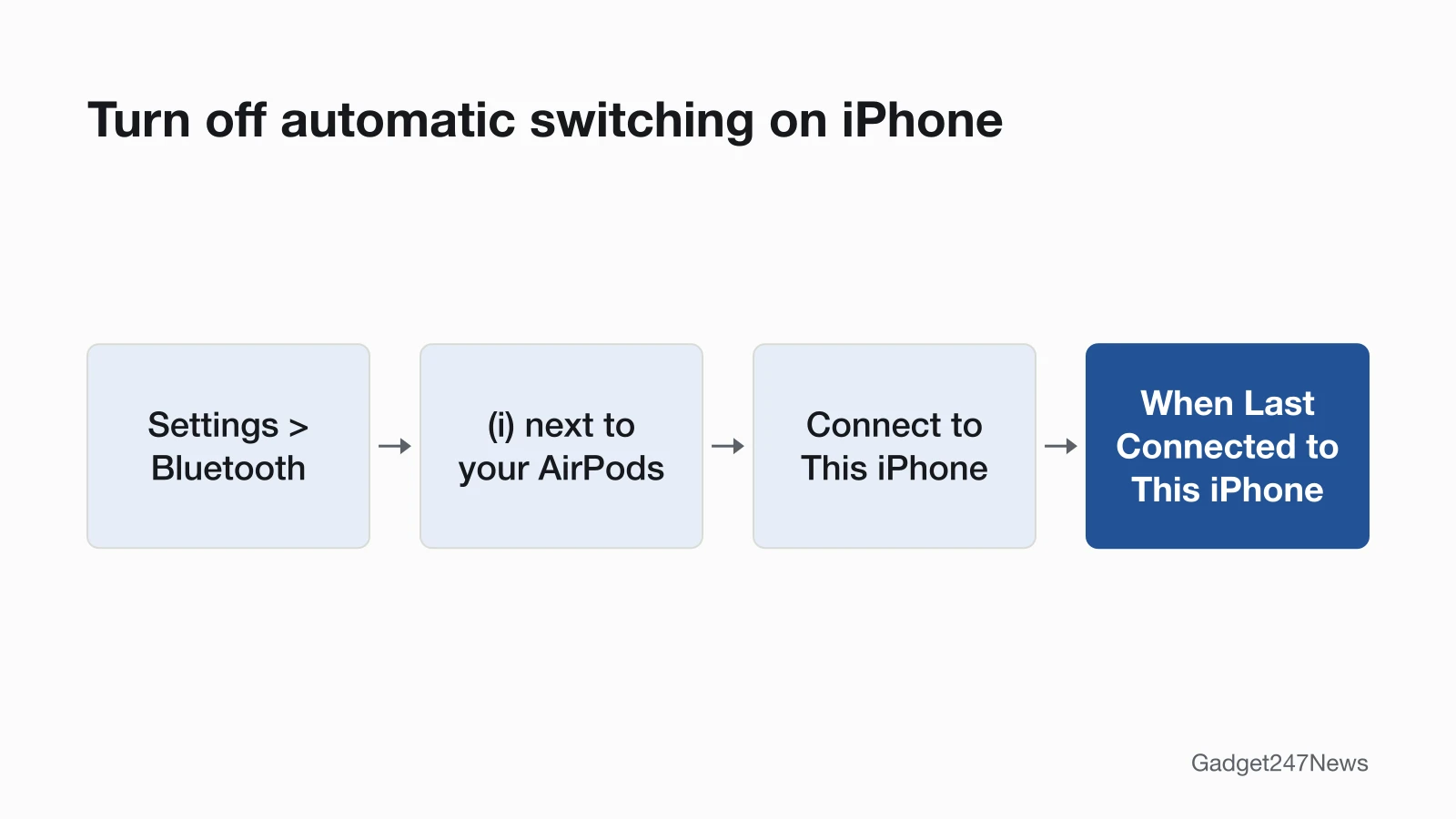
Automatic switching moves your AirPods to whichever Apple device you start listening on, as long as each device is signed in to the same Apple Account. To stop it on iPhone, set Connect to This iPhone to When Last Connected to This iPhone.
Apple's example: you're listening to music on your Mac, start a podcast on your iPhone, and the AirPods follow you to the iPhone. An iPhone call you answer on your Apple Watch routes to your AirPods too. Switching is a connection setting, separate from sound features such as active noise cancellation on earbuds.
If your AirPods keep jumping to your Mac or iPad, check this setting first. Why AirPods Keep Disconnecting has the full list of fixes.
How Does Automatic Switching Work?
Automatic switching works across Apple devices signed in to the same Apple Account: start playing audio on one of them, and your AirPods move to it. Apple lists iPhone, iPad, Mac, Apple Watch and Apple Vision Pro. Sound shouldn't switch while you're in a conversation, such as a phone call, FaceTime call or video conference. Macs differ by version: in macOS Sequoia and later, compatible AirPods switch automatically; in macOS Sonoma, a notification appears and you click Connect to confirm the switch. Apple's notes for firmware update 8A356, for AirPods 4, AirPods 4 with Active Noise Cancellation, AirPods Pro 2 and AirPods Pro 3, say automatic switching now includes CarPlay.
What You Need for Automatic Switching
Automatic switching needs three things on every device you want your AirPods to move between:
- The latest version of each device's operating system.
- The same Apple Account signed in on each device.
- Two-factor authentication turned on for that Apple Account.
Apple gives no minimum version numbers here; it asks for the latest versions on all your devices.
Which AirPods Support It?
Apple lists AirPods 2, AirPods 3, AirPods 4 (both models), all AirPods Pro models and all AirPods Max models. Apple's page, published April 7, 2026 and read on September 26, 2026, doesn't list AirPods 5. Four Beats models also switch automatically between Apple devices: Beats Fit Pro, Powerbeats Fit, Beats 360 and Powerbeats Pro 2.
How to Turn Off Automatic Switching
Turn off automatic switching on each device you don't want your AirPods to jump to. Wear your AirPods and connect them to that device first, then use its path from the table:
| Device | Path | Setting to choose |
|---|---|---|
| iPhone or iPad | Settings → Bluetooth → More Info button (ⓘ) next to your AirPods → Connect to This iPhone (or iPad) | When Last Connected to This iPhone (or iPad) |
| Mac | Apple menu → System Settings → Bluetooth → Options next to your AirPods → Connect to This Mac | When Last Connected to This Mac |
| Apple TV | Settings → Remotes and Devices → Bluetooth | Turn off Suggest Nearby AirPods |
| Apple Vision Pro | Settings → Bluetooth | Turn off Automatic Ear Detection |
Repeat the change on every device you want to stop. Apple's AirPods User Guide also gives a shorter iPhone route: Settings → the name of your AirPods → Connect to This iPhone (tap Audio & Routing first if you don't see it). To turn switching back on for an iPhone or iPad, tap Automatically in the same menu. To keep audio in your AirPods when your iPhone connects to a car or speakers, for example to keep a phone conversation private in the car, turn on Keep Audio with Headphones in Settings → General → AirPlay & Continuity.
How to Switch AirPods by Hand
Wear your AirPods near the device you want to switch to. On an iPhone or iPad, tap the AirPlay button on the Now Playing screen, the Lock Screen or in Control Center, then choose your AirPods. On a Mac, click Control Center in the menu bar, click Bluetooth, then choose your AirPods. On Apple Watch, press the side button, tap the Playback Destination button, then choose your AirPods. On Apple TV 4K or Apple TV HD, press the TV Control Center button on the Siri Remote when the name of your AirPods appears.
To undo an automatic switch on your iPhone or iPad, tap the Return Headphone Connection button in the "Moved to" notice at the top of the screen.
Automatic Switching vs Bluetooth Multipoint
Automatic switching moves one pair of AirPods between Apple devices on one Apple Account, following the device you're listening to. Multipoint is a Bluetooth feature on some other earbuds that keeps them connected to two devices at once. Google says Multipoint on Pixel Buds 2a and Pixel Buds Pro lets you "maintain connections to 2 devices at the same time", and it's off by default. Our guide to multipoint earbuds and headphones lists which models have it.
When Automatic Switching Causes Problems
Automatic switching can look like a fault when your music stops on one device because the AirPods moved to another. If a press on the stem seems to do nothing, the AirPods may be connected elsewhere; the controls guide covers AirPods double-tap not working and other control problems. Pauses that come from ear detection or other settings are covered in how to stop AirPods from pausing, and other brands have their own list of causes for Bluetooth earbuds dropping the connection.
Why Do My AirPods Keep Switching or Disconnecting?
A switch to another nearby Apple device looks like a disconnect on the device you were using, so turn automatic switching off on that other device first. Range, battery and firmware causes are covered in Why AirPods Keep Disconnecting. If the switching started suddenly after an update, check what the latest AirPods update changed.
Sharing Audio With Other Earbuds: LE Audio
Automatic switching moves one pair of AirPods between your own devices, while LE Audio adds broadcast audio, which lets one source send audio to an unlimited number of devices. Its Auracast broadcast audio lets a phone, laptop or TV broadcast to nearby earbuds, speakers or hearing devices. LE Audio and Auracast explained covers how it works.
Automatic Switching: Quick Answers
Does automatic switching work with Android or Windows? Apple describes automatic switching only for Apple devices signed in to the same Apple Account: iPhone, iPad, Mac, Apple Watch and Apple Vision Pro. Android phones and Windows PCs aren't on Apple's list, so on those devices you select the AirPods in the list of Bluetooth devices yourself.
Why do my AirPods connect to my iPad instead of my iPhone? Automatic switching moves them to the iPad when you start playing audio there, because both devices share your Apple Account. On the iPad, set Connect to This iPad to When Last Connected to This iPad, and the AirPods connect to the iPad only when they were last connected to it.
Sources
We checked this page against the pages below, most recently on . How we verify fixes
- Switch your AirPods to another device (Apple, support.apple.com)Official
- Switch AirPods between Apple devices (AirPods User Guide) (Apple, support.apple.com)Official
- Switch Beats between Apple devices (Beats User Guide) (Apple, support.apple.com)Official
- About firmware updates for AirPods (Apple, support.apple.com)Official
- Use Multipoint and audio switch on Google Pixel Buds 2a and Pro (Google, support.google.com)Official
- LE Audio (Bluetooth SIG) (Bluetooth SIG, bluetooth.com)Official
- Auracast FAQ (Bluetooth SIG) (Bluetooth SIG, bluetooth.com)Official