LE Audio and Auracast Explained

By Suraj Giri, Founder & Publisher. Reviewed by Suraj Giri on .
Published · 5 min read
How this page was made
- Sources. Checked against 7 official pages from Bluetooth SIG, Samsung, Google, Sony and Bose, most recently on . See the sources.
- No device testing. We don't test fixes on physical devices, so nothing on this page is a hands-on result. A fact counts as verified only when it matches an official source page.
- AI use. As with every page on Gadget247News, AI tools helped research, outline, draft and edit this page, and re-read the official pages to flag facts that didn't match. The illustration at the top was generated with Runway and is labelled under the image.
- Human sign-off. Suraj Giri, Founder & Publisher, read this page and signed it off on . The site won't publish a page without that sign-off.
- Changes. The published and updated dates move only when the content changes, and every change gets a dated note. Spot an error or a fix that didn't work? Email info@gadget247news.com.
Read our AI use policy, editorial policy and corrections policy.
LE Audio is the newer version of Bluetooth audio, built on Bluetooth Low Energy with a new codec called LC3. Auracast is an LE Audio feature that lets one phone, TV or public-address system broadcast audio to any number of nearby earbuds. Both sit beside the other earbud listening features covered in noise cancelling explained for earbuds and headphones.
To use either one, your phone and your earbuds both need LE Audio support. For audio sharing, Google lists an Android device that supports LE Audio and Bluetooth LE Audio accessories. If yours aren't paired yet, connect wireless earbuds to your phone first, then come back to share or join a broadcast.
LE Audio vs Classic Bluetooth Audio
LE Audio and Classic Audio are two separate kinds of Bluetooth audio: Classic Audio runs on the Bluetooth Classic radio, and LE Audio runs on the Bluetooth Low Energy radio. The table sets out the differences the Bluetooth SIG lists.
| Feature | Classic Audio | LE Audio |
|---|---|---|
| Radio | Bluetooth Classic | Bluetooth Low Energy |
| Standard codec | SBC | LC3 |
| Broadcast to many listeners | Not included | Auracast broadcast audio |
| Hearing aid support | Not included | Added by LE Audio |
The Bluetooth SIG describes broadcast audio and hearing aid support as things LE Audio adds, which is why the Classic column reads "Not included". Because the two use different radios, the phone and the earbuds each need LE Audio support. Sony's WH-1000XM6 shows the split on one product: it uses SBC, AAC or LDAC over Classic Audio and LC3 over LE Audio.
What LE Audio Adds
Besides Auracast, the Bluetooth SIG's LE Audio page describes three more additions:
- LC3 codec: in listening tests cited on the SIG's page, LC3 sounds better than SBC "even at a 50% lower bit rate", which makers can turn into longer battery life or a smaller battery.
- Multi-Stream Audio: several independent, synchronized audio streams between one source, such as a smartphone, and one or more audio devices, such as truly wireless earbuds.
- Hearing aid support: LE Audio adds support for hearing aids, building on its low power, quality and multi-stream features.
How LC3 compares with the older options is covered in Bluetooth codecs for earbuds.
How Does Auracast Work?
Auracast works like a radio station: one transmitter sends one audio signal, and any number of in-range receivers can tune in. The transmitter can be a smartphone, laptop, TV or public-address system; the receivers can be earbuds, headphones, speakers or hearing devices. To pick a broadcast, you use an "assistant" such as your phone, a smartwatch or a hearing aid remote. It scans for nearby broadcasts and lists them, much like choosing a Wi-Fi network in a public space. The transmitter doesn't know how many people are listening, and the SIG says quality doesn't drop as more people join. On Android, you can also join a shared broadcast by scanning its QR code.
Where Is Auracast Used?
Auracast broadcasts already run in theatres, universities, churches, museums and stadiums, according to the Bluetooth SIG.
What You Need for LE Audio and Auracast
You need three things, and both the phone and the earbuds have to support LE Audio:
- An Android phone that supports LE Audio, the first item on Google's list.
- LE Audio earbuds, headphones or hearing aids, listed by Google as "Bluetooth LE Audio accessories".
- Auracast support in the product, which the SIG says means features from version 5.2 of the Bluetooth Core Specification plus the Public Broadcast Profile.
Samsung lists the Galaxy Buds2 Pro and newer models, such as the Galaxy Buds4 Pro, for its broadcast feature. Sony's WH-1000XM6 help guide lists LC3 for LE Audio connections, with a setting you have to change first (see the problems section below).
How to Share or Join a Broadcast
Menu names differ by phone maker and software version, so match the steps to your phone.
On a Samsung Galaxy Phone
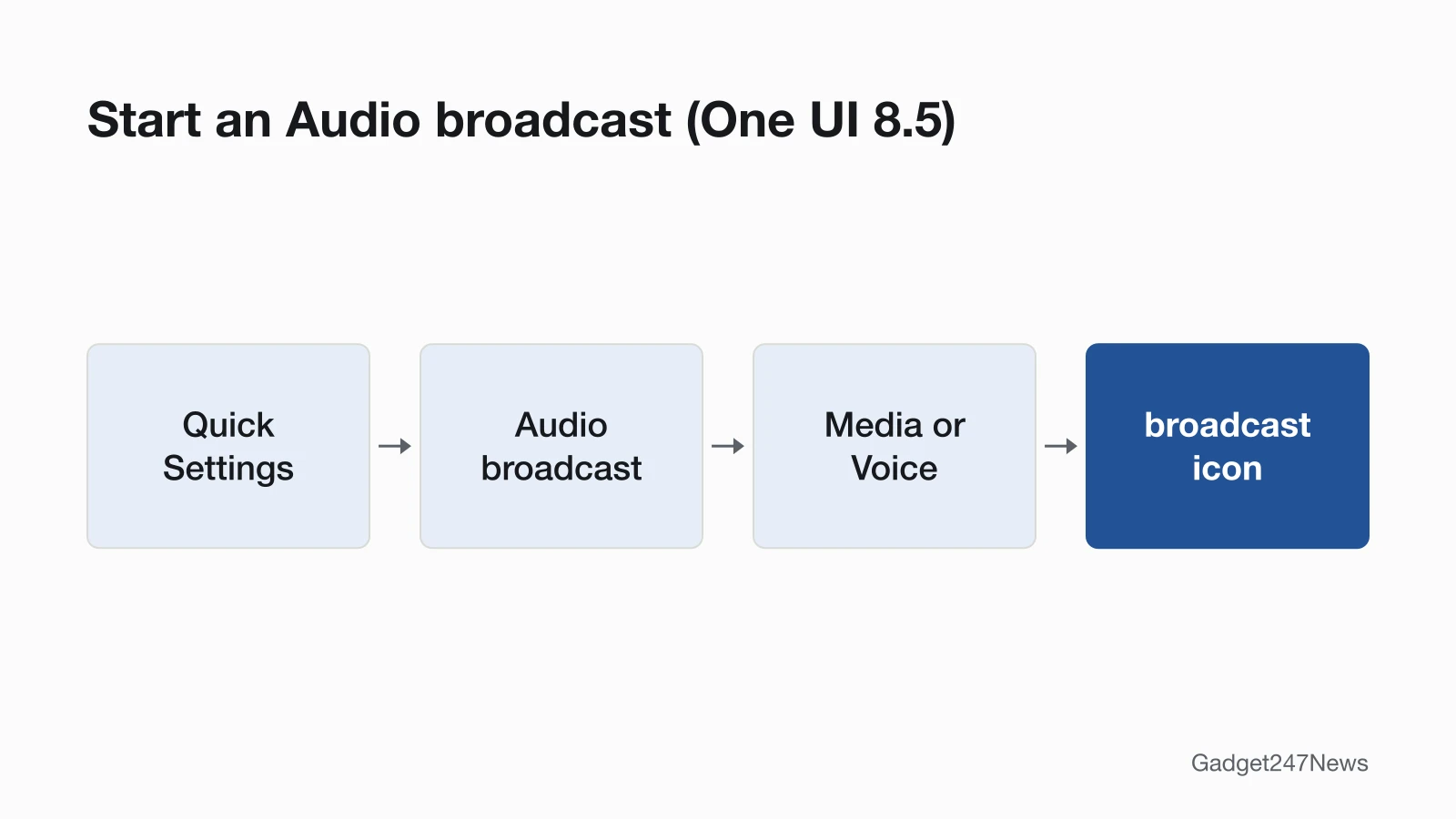
On One UI 8.5, Samsung renamed the feature from Auracast to Audio broadcast. To share your audio on One UI 8.5:
- Open Quick Settings and tap Audio broadcast.
- Tap Media to share your music, or Voice to share your voice through the phone's mic.
- Tap the broadcast icon to start.
- Tap the X icon to end the broadcast.
When you share media, turn on the switch next to Allow hearing aids to connect to let hearing aid users listen.
To listen to someone else's broadcast, open your Galaxy Buds settings and tap Listen to audio broadcast (or tap Audio broadcast in Quick Settings). Tap the Listen tab, then tap the audio stream you want.
On One UI 6.1 through One UI 8.0, the feature is still called Auracast. Open Settings, tap Connections, then Bluetooth, tap More options (the three vertical dots) and tap Broadcast sound using Auracast. You can edit the broadcast's name and set a password to keep unwanted guests out, then tap Start broadcast. To listen, go to the same Bluetooth screen, find your Galaxy Buds under Paired devices, tap the Settings icon next to them, then tap Find a broadcast or Listen to Auracast broadcast.
On a Pixel or Other Android Phone
On a Pixel, the feature is called Share audio and sits in the Bluetooth panel of Quick Settings:
- Connect a compatible pair of LE Audio headphones to your phone.
- Swipe down from your home screen to open Quick Settings.
- Tap Bluetooth.
- At the bottom left, tap Share audio, then share to a second paired set, tap Pair new device, or use a QR code.
To join audio someone else is sharing, connect your phone to your LE Audio headphones, then open the Camera app, scan the QR code from their phone, tap the Playlist button, and tap Listen. Google's page gives the sharing steps for Pixel phones and a separate set for Samsung phones; other makers' menu names aren't on that page.
LE Audio Problems
The questions below cover a missing menu, firmware updates, and how Auracast differs from transparency mode. Sharing audio is also different from Bluetooth multipoint on earbuds and from What Is AirPods Automatic Switching, which each have their own guide.
Why Can't I Find Auracast or Share Audio?
The option appears only when both devices support LE Audio and you look under the right name:
- The phone doesn't support LE Audio. Google lists an "Android device that supports LE Audio" as a requirement.
- The earbuds don't support LE Audio, or it's switched off. Google's tip: to find Share audio, make sure your LE Audio headphones are connected. On the Sony WH-1000XM6, LE Audio isn't available in the factory Prioritize Sound Quality mode; set the sound quality mode to Low latency in the Sony | Sound Connect app.
- The menu has a new name. Samsung renamed Auracast to Audio broadcast in One UI 8.5.
If the earbuds won't pair at all, start with the pairing guide linked at the top of this page.
Will My Earbuds Get Auracast in an Update?
It depends on the Bluetooth hardware already inside your earbuds and on the maker's plans, says the Bluetooth SIG, which expects many TVs to need new hardware or a plug-in Auracast transmitter. Bose's firmware 10.12.12 for the QuietComfort Ultra Headphones (2nd Gen), released September 8, 2026, added LE Audio support (beta), including Auracast, with compatible Android and Windows devices. Check current firmware versions for earbuds and smartwatches.
LE Audio vs Transparency Mode
Auracast and transparency mode both help you hear more, in different ways. Auracast brings a venue's or a friend's audio straight into your earbuds. Transparency mode lets in the sound around you. Read when to use transparency mode on earbuds for the settings.
Sources
We checked this page against the pages below, most recently on . How we verify fixes
- LE Audio (Bluetooth SIG) (Bluetooth SIG, bluetooth.com)Official
- Auracast FAQ (Bluetooth SIG) (Bluetooth SIG, bluetooth.com)Official
- Broadcast audio from your Galaxy phone (Samsung) (Samsung, samsung.com)Official
- Use multiple Bluetooth audio accessories at once on an Android device (Android Help) (Google, support.google.com)Official
- WH-1000XM6 Help Guide: Supported codecs (Sony) (Sony, helpguide.sony.net)Official
- Updating Your Headphones: Bose QuietComfort Ultra Headphones (2nd Gen) (Bose) (Bose, support.bose.com)Official
- Use Active Noise Control on Google Pixel Buds (Google) (Google, support.google.com)Official