How to Connect AirPods to Android

By Suraj Giri, Founder & Publisher. Reviewed by Suraj Giri on .
Published · 4 min read
How this page was made
- Sources. Checked against 9 official pages from Apple, Google and Samsung, most recently on . See the sources.
- No device testing. We don't test fixes on physical devices, so nothing on this page is a hands-on result. A fact counts as verified only when it matches an official source page.
- AI use. As with every page on Gadget247News, AI tools helped research, outline, draft and edit this page, and re-read the official pages to flag facts that didn't match. The illustration at the top was generated with Runway and is labelled under the image.
- Human sign-off. Suraj Giri, Founder & Publisher, read this page and signed it off on . The site won't publish a page without that sign-off.
- Changes. The published and updated dates move only when the content changes, and every change gets a dated note. Spot an error or a fix that didn't work? Email info@gadget247news.com.
Read our AI use policy, editorial policy and corrections policy.
AirPods pair with an Android phone or tablet like any other Bluetooth headphones: open Pair new device on the phone, put the AirPods in pairing mode, then tap their name. Pairing mode is the only AirPods-specific step, and it differs by model. For other brands, see how to pair Bluetooth earbuds with an Android phone; for everything else, start from AirPods battery and sound fixes.

How to Pair AirPods With an Android Phone
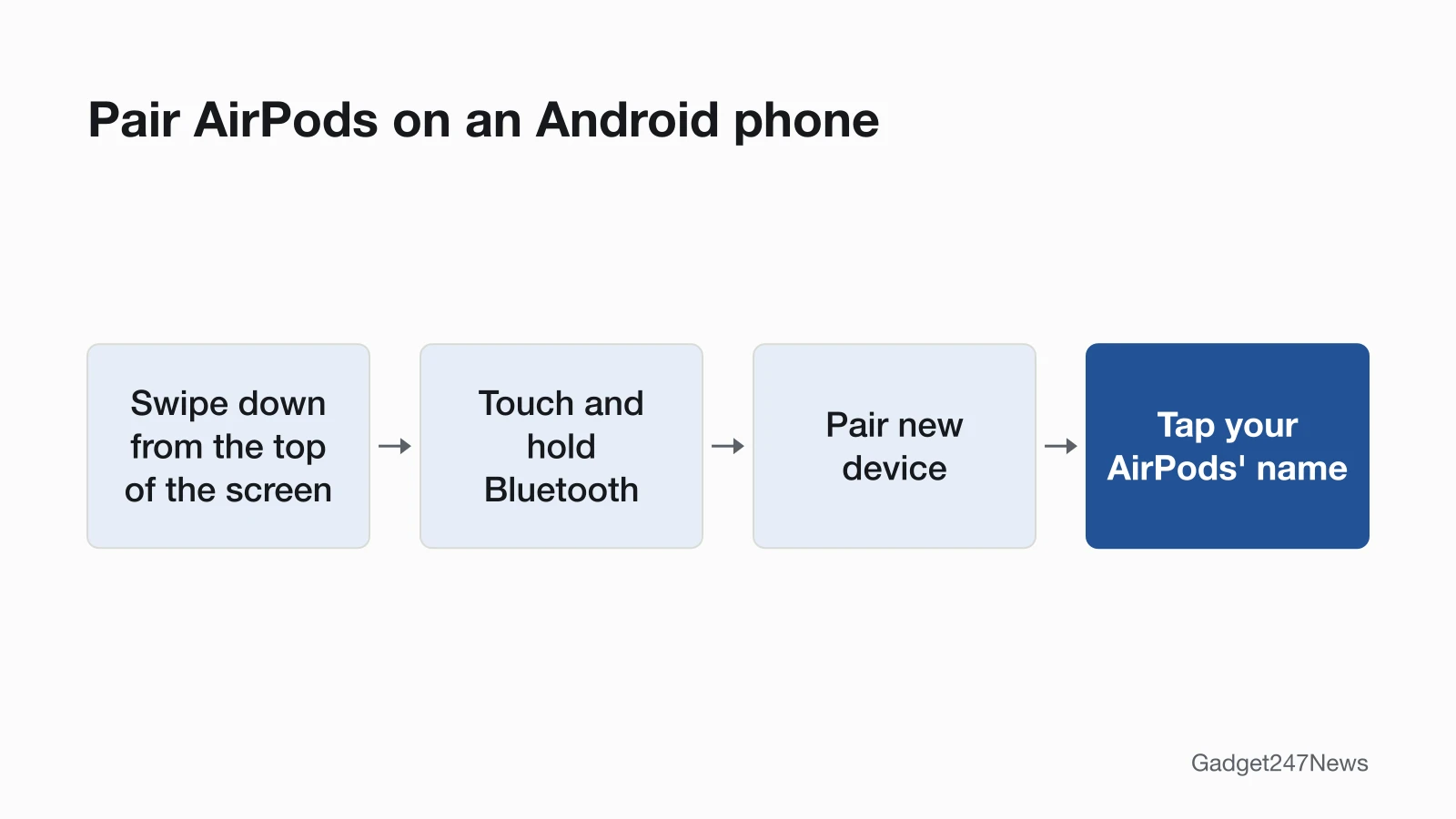
To pair AirPods with an Android phone, open Pair new device, start pairing mode, then tap the AirPods' name:
- On your phone, swipe down from the top of the screen, touch and hold Bluetooth, then tap Pair new device. If there's no Pair new device, check under Available devices, or tap More, then Refresh.
- Open the AirPods case next to the phone, with both AirPods inside. (AirPods Max: skip to step 3.)
- Put the AirPods in pairing mode for your model (table below) until the status light flashes white.
- Tap your AirPods' name when it appears.
- Follow the on-screen instructions.
After this first pairing, Google says your devices can connect automatically, and they stay paired until you unpair them.
Pairing Mode for Each AirPods Model
On Android, Apple's pairing action differs by AirPods model, and every model's status light flashes white once pairing mode starts.
| Model | What to do next to your Android phone | Light |
|---|---|---|
| AirPods 1, 2 or 3; AirPods Pro 1 or 2 | With both AirPods in the case, open the lid and hold the setup button on the back for about 5 seconds | Flashes white |
| AirPods 4 or 5; AirPods Pro 3 | Hold the open case beside the phone and double-tap the front of the case | Flashes white |
| AirPods Max | Hold the listening mode button for about 5 seconds | Flashes white |
How to Put AirPods in Pairing Mode covers each model in more detail.
Connecting AirPods 4 to Android
To connect AirPods 4 to Android, double-tap the front of the open case until the status light flashes white, then tap the AirPods under Pair new device. This works for both AirPods 4 models, including AirPods 4 with Active Noise Cancellation. Keep both AirPods in the case and hold it next to the phone while you double-tap: Apple's steps for AirPods 4 use the double-tap, not a setup button. AirPods 5 and AirPods Pro 3 pair the same way.
On a Samsung Galaxy Phone
On a Samsung Galaxy phone, turn Bluetooth on through Settings > Connections > Bluetooth. Apple's own AirPods guide gives this same path for Android, and Samsung's support page names the same menus. From there the steps don't change: start pairing mode on the AirPods, then select them in the list of Bluetooth devices.
How to Check AirPods Are Connected on Android
Your AirPods are connected when Android shows them as "Connected" and sound plays through them:
- Touch and hold Bluetooth: your AirPods show as "Connected", and a Bluetooth icon appears at the top of the screen.
- Play audio from the phone to test them.
- To check the battery, put the AirPods in the case and open the lid. The status light shows their charge: green means fully charged, amber means less than one full charge remains.
Google's Android Bluetooth help doesn't describe a battery readout for AirPods, so the case light is the check we can confirm from an official source.
If AirPods Won't Connect to Android
If the AirPods don't appear or the light won't flash white, work through AirPods won't pair: it follows Apple's fix order, with a reset last. To clear an old pairing on the phone, touch and hold Bluetooth, tap Settings next to the AirPods, tap Forget, then pair them again. Steps to connect and pair AirPods with other devices are in the main guide.
What Works Differently on Android
Pairing works the same as on any device, but three things differ once your AirPods are paired with an Android phone:
- No Siri. You can listen and talk, but Siri isn't available.
- No firmware updates from Android. Apple's firmware page lists only an iPhone, iPad or Mac, or an appointment at an Apple Store or Apple Authorized Service Provider if you don't have an Apple device nearby. The steps are in AirPods firmware update.
- Other Apple features vary; Do AirPods Work with Android? has the full list.
Hardware fixes still apply on Android. Apple's steps for one AirPod quieter than the other start with checking and cleaning the speaker mesh, which you do on the AirPods themselves.
AirPods and Android: Quick Answers
Do AirPods work with Android?
Yes, AirPods work with Android as a Bluetooth headset: you can listen and talk, but you can't use Siri. Do AirPods Work with Android? explains the other differences.
Can you check AirPods battery on Android?
You can check it on the case: open the lid with the AirPods inside, and the status light shows green for fully charged or amber for less than one full charge. Google's Android Bluetooth help doesn't describe an AirPods battery readout; Do AirPods Work with Android? covers the details.
Sources
We checked this page against the pages below, most recently on . How we verify fixes
- Pair AirPods with a non-Apple device (Apple, support.apple.com)Official
- Find & set up Bluetooth devices near your Android device (Google, support.google.com)Official
- Set up AirPods with your Mac and other Bluetooth devices (Apple, support.apple.com)Official
- Connect your AirPods and AirPods Pro to your iPhone (Apple, support.apple.com)Official
- Pair Bluetooth with your Samsung devices (Samsung, samsung.com)Official
- Charge your AirPods (Apple, support.apple.com)Official
- If your AirPods or AirPods Pro won't connect (Apple, support.apple.com)Official
- About firmware updates for AirPods (Apple, support.apple.com)Official
- If your left or right AirPod isn't working (Apple, support.apple.com)Official