How to Connect AirPods to a Mac

By Suraj Giri, Founder & Publisher. Reviewed by Suraj Giri on .
Published · 4 min read
How this page was made
- Sources. Checked against 5 official pages from Apple, most recently on . See the sources.
- No device testing. We don't test fixes on physical devices, so nothing on this page is a hands-on result. A fact counts as verified only when it matches an official source page.
- AI use. As with every page on Gadget247News, AI tools helped research, outline, draft and edit this page, and re-read the official pages to flag facts that didn't match. The illustration at the top was generated with Runway and is labelled under the image.
- Human sign-off. Suraj Giri, Founder & Publisher, read this page and signed it off on . The site won't publish a page without that sign-off.
- Changes. The published and updated dates move only when the content changes, and every change gets a dated note. Spot an error or a fix that didn't work? Email info@gadget247news.com.
Read our AI use policy, editorial policy and corrections policy.
Open System Settings → Bluetooth on your Mac, put your AirPods in pairing mode, then click Connect. If the AirPods are already set up with your iPhone and the Mac is signed in to iCloud with the same Apple Account, they should connect to the Mac automatically. For other AirPods problems, start at AirPods not working; earbuds from other brands use the general steps to pair Bluetooth earbuds with a Mac.
Connect Automatically With Your Apple Account
AirPods set up with your iPhone should connect to your Mac automatically when the Mac is signed in to iCloud with the same Apple Account. To use them, put the AirPods in your ears, click Control Center in the menu bar, click Sound and choose your AirPods. AirPods 2 and later and AirPods Pro also switch automatically between a Mac with macOS Big Sur or later and an iPhone with iOS 14 or later, as long as both use that Apple Account with two-factor authentication. If the AirPods don't appear in Control Center, pair them manually.
How to Pair AirPods With a Mac Manually
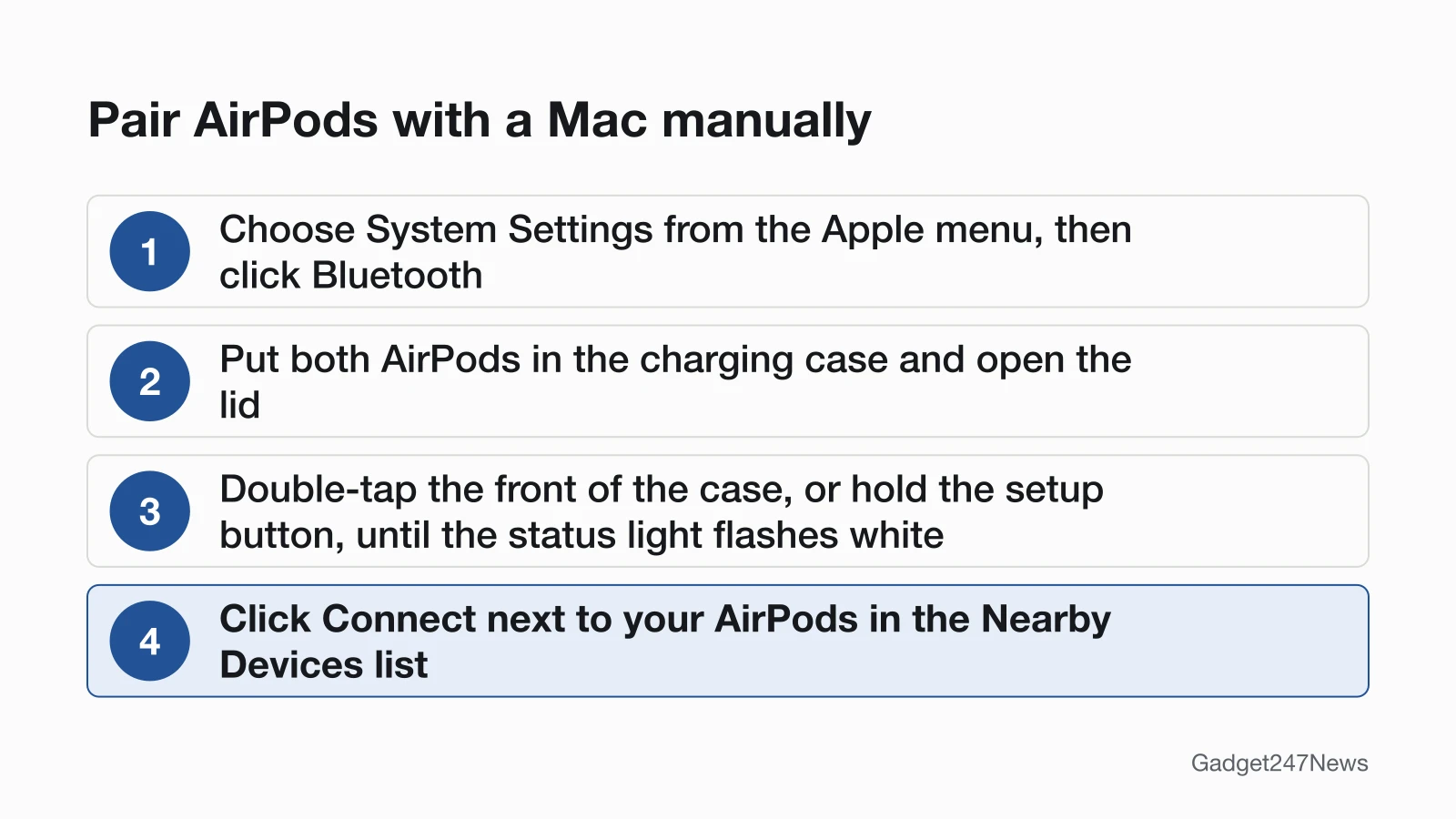
To pair AirPods with a Mac manually, use Bluetooth in System Settings. Apple's page gives one set of Mac steps and no separate ones for MacBook Air or MacBook Pro:
- Choose System Settings from the Apple menu, then click Bluetooth. Make sure Bluetooth is on.
- Put both AirPods in the charging case and open the lid.
- Put the AirPods in pairing mode. AirPods 4, AirPods 5 or AirPods Pro 3: double-tap the front of the case until the status light flashes white. All other models: press and hold the setup button on the back of the case until the status light flashes white.
- Click Connect next to your AirPods in the Nearby Devices list.
- If sound still plays from the Mac speakers, click Control Center in the menu bar, click Sound and select your AirPods.
Connecting AirPods 4 to a MacBook uses the double-tap in step 3, not the setup button. If the status light never flashes white, see AirPods won't go into pairing mode.
Connect AirPods Max to a Mac
AirPods Max use the listening mode button for pairing:
- Choose System Settings from the Apple menu, then click Bluetooth.
- Make sure Bluetooth is on.
- Press and hold the listening mode button on your AirPods Max until the status light flashes white.
- Click Connect next to your AirPods Max in the Nearby Devices list.
AirPods Max already set up with your iPhone are ready on a Mac that uses the same Apple Account; if they don't connect, update macOS first.
How to Check AirPods Are the Mac's Sound Output
AirPods are the Mac's sound output when they're selected in the Sound menu. If the AirPods show as connected but the sound still comes from the Mac speakers, check this:
- Click Control Center in the menu bar, then click Sound.
- Choose your AirPods from the list, so audio plays through them.
The same menu shows the AirPods charge: open the lid, hold the AirPods close to your Mac, click Sound in Control Center, then choose your AirPods from the list.
If AirPods Won't Connect to Your Mac
AirPods that won't connect to a Mac get the same Apple fix order as on iPhone, and the reset still comes last. Start with a macOS update, then charge both AirPods in the case and confirm Bluetooth is on in System Settings. Close the lid for 15 seconds, open it, and run the manual pairing steps above. The full order, including the reset, is in our guide to AirPods not connecting to your phone.
Sound Quality Drops When You Use the Mic
Sound quality drops because Bluetooth switches to a mode for speaking and listening while an app uses the AirPods microphone. Quality stays reduced until the mic is no longer in use, and you may hear static or popping. Quit apps that use the microphone, such as video conferencing or chat apps. If it's still reduced, open Control Center, click Sound, select the Mac's internal speakers, then reselect your AirPods. A microphone that picks up nothing is covered in AirPods Microphone Not Working.
Connecting to Another Device?
A Windows laptop has its own steps to connect AirPods to a Windows PC. For an iPhone, Android phone, TV or console, follow the steps to pair AirPods with that device.
AirPods and Mac: Quick Answers
Short answers for Mac owners; the linked pages carry the full steps.
How do I force AirPods to connect?
Open System Settings → Bluetooth, put the AirPods in pairing mode, then click Connect next to them in Nearby Devices. If they still won't connect, AirPods Not Connecting has Apple's full order.
Why are my AirPods suddenly not pairing?
Apple doesn't name a cause for sudden pairing failures. On a Mac, its fix order begins with updating macOS and charging both AirPods in the case, followed by a 15-second lid close and a fresh pairing. When it began after an update, compare the AirPods firmware versions and work through AirPods Not Connecting.
How do I connect my AirPods to my laptop?
On a MacBook, use the steps above: the AirPods should connect automatically with the same Apple Account, or you pair them in System Settings → Bluetooth. On a Windows laptop, put the AirPods in pairing mode and select them in its Bluetooth settings; the Windows guide linked above has every step.
Sources
We checked this page against the pages below, most recently on . How we verify fixes
- Set up AirPods with your Mac and other Bluetooth devices (Apple, support.apple.com)Official
- Set up AirPods Max with your Mac and other Bluetooth devices (Apple, support.apple.com)Official
- If your AirPods or AirPods Pro won't connect (Apple, support.apple.com)Official
- If sound quality is reduced when using Bluetooth headphones with your Mac (Apple, support.apple.com)Official
- Charge your AirPods (Apple, support.apple.com)Official