How to Connect Sony Headphones to Android

By Suraj Giri, Founder & Publisher. Reviewed by Suraj Giri on .
Published · 4 min read
How this page was made
- Sources. Checked against 16 official pages from Sony, Google and Samsung, most recently on . See the sources.
- No device testing. We don't test fixes on physical devices, so nothing on this page is a hands-on result. A fact counts as verified only when it matches an official source page.
- AI use. As with every page on Gadget247News, AI tools helped research, outline, draft and edit this page, and re-read the official pages to flag facts that didn't match. The illustration at the top was generated with Runway and is labelled under the image.
- Human sign-off. Suraj Giri, Founder & Publisher, read this page and signed it off on . The site won't publish a page without that sign-off.
- Changes. The published and updated dates move only when the content changes, and every change gets a dated note. Spot an error or a fix that didn't work? Email info@gadget247news.com.
Read our AI use policy, editorial policy and corrections policy.
Android pairs Sony headphones from its own Bluetooth settings, so the only Sony-specific part is putting the headphones in pairing mode. For every model and symptom, see Sony headphones pairing, battery and sound fixes; for other brands, the steps to pair Bluetooth earbuds with an Android phone work the same way.
How to Pair Sony Headphones With an Android Phone
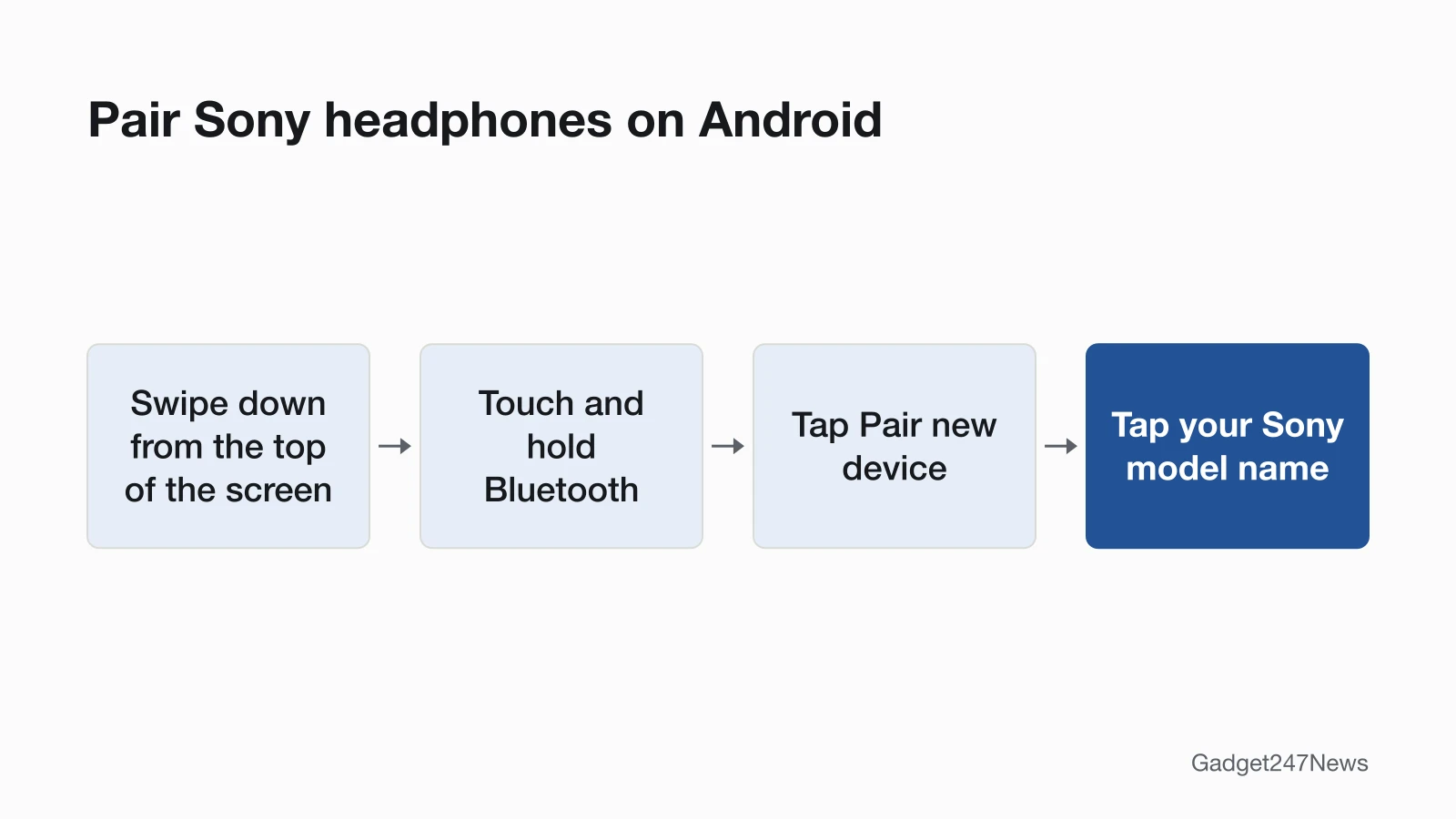
To pair Sony headphones with Android, start pairing mode on the headphones, then tap Pair new device in the phone's Bluetooth settings:
- Put the headphones in pairing mode (table below). On the WH-1000XM6, the indicator (blue) repeatedly flashes twice in a row and you hear "Pairing".
- On the phone, swipe down from the top of the screen and touch and hold Bluetooth (Google's steps). Sony's own example path is [Settings] - [Device connection] - [Bluetooth].
- Tap Pair new device, then tap the model name, for example WF-1000XM5.
- If a passkey is requested, enter 0000. A notification sound tells you the connection is established.
Menus vary by phone maker: Google says some of these steps only work on devices with supporting hardware, and some only on Android 15 and up.
Pairing Mode for Each Sony Model
Sony's Android pages use a different control for each model family. The first time, every model below enters pairing mode automatically when you turn it on or take the earbuds out of the case:
| Sony model | Control for a second phone | Hold for | Voice guidance |
|---|---|---|---|
| WH-1000XM6, WH-CH520 | (Bluetooth) button | about 5 seconds or more | "Pairing" |
| WH-1000XM5 | (power) button | about 5 seconds | "Pairing" |
| WF-1000XM6, WF-1000XM5, WF-C510 | Pairing button on the back of the case, lid open | about 5 seconds or more | "Pairing" |
| WF-C500 | Buttons on both earbuds | about 5 seconds | "Bluetooth pairing" |
Other models, and the light each one shows, are in How to Connect and Pair Sony Headphones With Any Device.
The Sony Sound Connect App on Android
The Sony | Sound Connect app is optional on Android; pairing never needs it. Sony says to download it from the Google Play store (for models outside Chinese mainland). On the WH-1000XM6 it adds software updates, multipoint connection to 2 devices, the sound quality mode and automatic power off. If the app's connection is unstable, Sony says to connect from Bluetooth settings instead. Google's Android page mentions a pairing notification for devices with Fast Pair, but no Sony guide we read confirms it for these models; Google Fast Pair for earbuds explains the feature.
On a Samsung Galaxy Phone
Pairing mode works the same with a Galaxy phone, but Samsung names the phone's menus differently. Samsung's support page uses Settings > Connections > Bluetooth, and its option for removing a device is Unpair rather than Google's Forget.
How to Check Your Sony Headphones Are Connected to Android
Sony headphones are connected to Android when you hear the confirmation and audio plays through them:
- Listen for the notification sound that says the connection is established (WF-C500: the voice guidance says "Bluetooth connected").
- Open Bluetooth settings: the model stays in your list, because Google says devices "stay paired until you unpair them".
- Play music on the phone and check it comes from the headphones.
If Your Sony Headphones Won't Connect to Android
Sony headphones that won't connect to Android usually went back to another device: Sony's WF-1000XM5 guide says that if the headset "automatically connects to the last connected Bluetooth device", other devices may fail to connect. Turn off Bluetooth on that device. After an initialize, tap Forget on the phone first, then pair again. A device that used LE Audio can also grab WF-1000XM5 earbuds, so turn its Bluetooth off. Every fix is on Sony headphones not connecting to your phone.
What Works Differently on Android
Three details matter when an Android phone is your main device:
- Menu names: Sony's [Settings] - [Device connection] - [Bluetooth] path is an example; Google and Samsung label the same menus their own way.
- LE Audio: on the WH-1000XM6, both the phone and the headphones must support LE Audio, and you connect through the Sony | Sound Connect app. On the WF-1000XM5, the app's [LE Audio connection setting for headphones] switches back to Classic Audio. The WH-1000XM6 guide also covers Auracast broadcast audio on headphones.
- Laptops: if you also use the headphones with a laptop, see how to connect Sony headphones to a Windows PC.
Sony Headphones and Android: Quick Answers
Do Sony headphones work with Android?
Yes. Every Sony Help Guide we read has an Android pairing page, and pairing uses the phone's own Bluetooth settings, with no app required.
Why won't my Sony headphones connect to my Android phone?
They reconnected to another device, pairing mode ended after 5 minutes, or the phone kept old pairing data. Turn off Bluetooth on the other device, or tap Forget on the phone and pair again.
Do I need the Sony app on Android?
No, not to pair. The Sony | Sound Connect app adds software updates and settings such as multipoint and sound quality mode, but pairing happens in Android's Bluetooth settings.
Sources
We checked this page against the pages below, most recently on . How we verify fixes
- WH-1000XM6 Help Guide: Pairing and connecting with an Android smartphone (Sony, helpguide.sony.net)Official
- WH-1000XM6 Help Guide: Pairing and connecting with an Android smartphone using LE Audio (Sony, helpguide.sony.net)Official
- WH-1000XM6 Help Guide: Installing the "Sony | Sound Connect" app (Sony, helpguide.sony.net)Official
- WH-1000XM6 Help Guide: What you can do with the "Sony | Sound Connect" app (Sony, helpguide.sony.net)Official
- WH-1000XM6 Help Guide: Connecting with the "Sony | Sound Connect" app (Sony, helpguide.sony.net)Official
- WH-1000XM5 Help Guide: Pairing and connecting with an Android smartphone (Sony, helpguide.sony.net)Official
- WH-CH520 Help Guide: Pairing and connecting with an Android smartphone (Sony, helpguide.sony.net)Official
- WF-1000XM6 Help Guide: Pairing and connecting with an Android smartphone (Sony, helpguide.sony.net)Official
- WF-1000XM5 Help Guide: Pairing and connecting with an Android smartphone (Sony, helpguide.sony.net)Official
- WF-1000XM5 Help Guide: Unable to make a Bluetooth connection. (Sony, helpguide.sony.net)Official
- WF-1000XM5 Help Guide: Pairing with a Bluetooth device cannot be done. (Sony, helpguide.sony.net)Official
- WF-1000XM5 Help Guide: Sound skips frequently. (Sony, helpguide.sony.net)Official
- WF-C510 Help Guide: Pairing and connecting with an Android smartphone (Sony, helpguide.sony.net)Official
- WF-C500 Help Guide: Pairing and connecting with an Android smartphone (Sony, helpguide.sony.net)Official
- Find & set up Bluetooth devices near your Android device (Google, support.google.com)Official
- How to connect your Samsung Galaxy earbuds (Samsung, samsung.com)Official