How to Connect Sony Headphones to a Windows PC

By Suraj Giri, Founder & Publisher. Reviewed by Suraj Giri on .
Published · 4 min read
How this page was made
- Sources. Checked against 15 official pages from Sony and Microsoft, most recently on . See the sources.
- No device testing. We don't test fixes on physical devices, so nothing on this page is a hands-on result. A fact counts as verified only when it matches an official source page.
- AI use. As with every page on Gadget247News, AI tools helped research, outline, draft and edit this page, and re-read the official pages to flag facts that didn't match. The illustration at the top was generated with Runway and is labelled under the image.
- Human sign-off. Suraj Giri, Founder & Publisher, read this page and signed it off on . The site won't publish a page without that sign-off.
- Changes. The published and updated dates move only when the content changes, and every change gets a dated note. Spot an error or a fix that didn't work? Email info@gadget247news.com.
Read our AI use policy, editorial policy and corrections policy.
Sony's Help Guide gives separate pairing steps for Windows 11 and Windows 10, so your Windows version sets the menu names. This guide covers the models on Sony Headphones Problems and Fixes; for other brands, see how to put Bluetooth earbuds in pairing mode.
How to Pair Sony Headphones With a Windows 11 PC
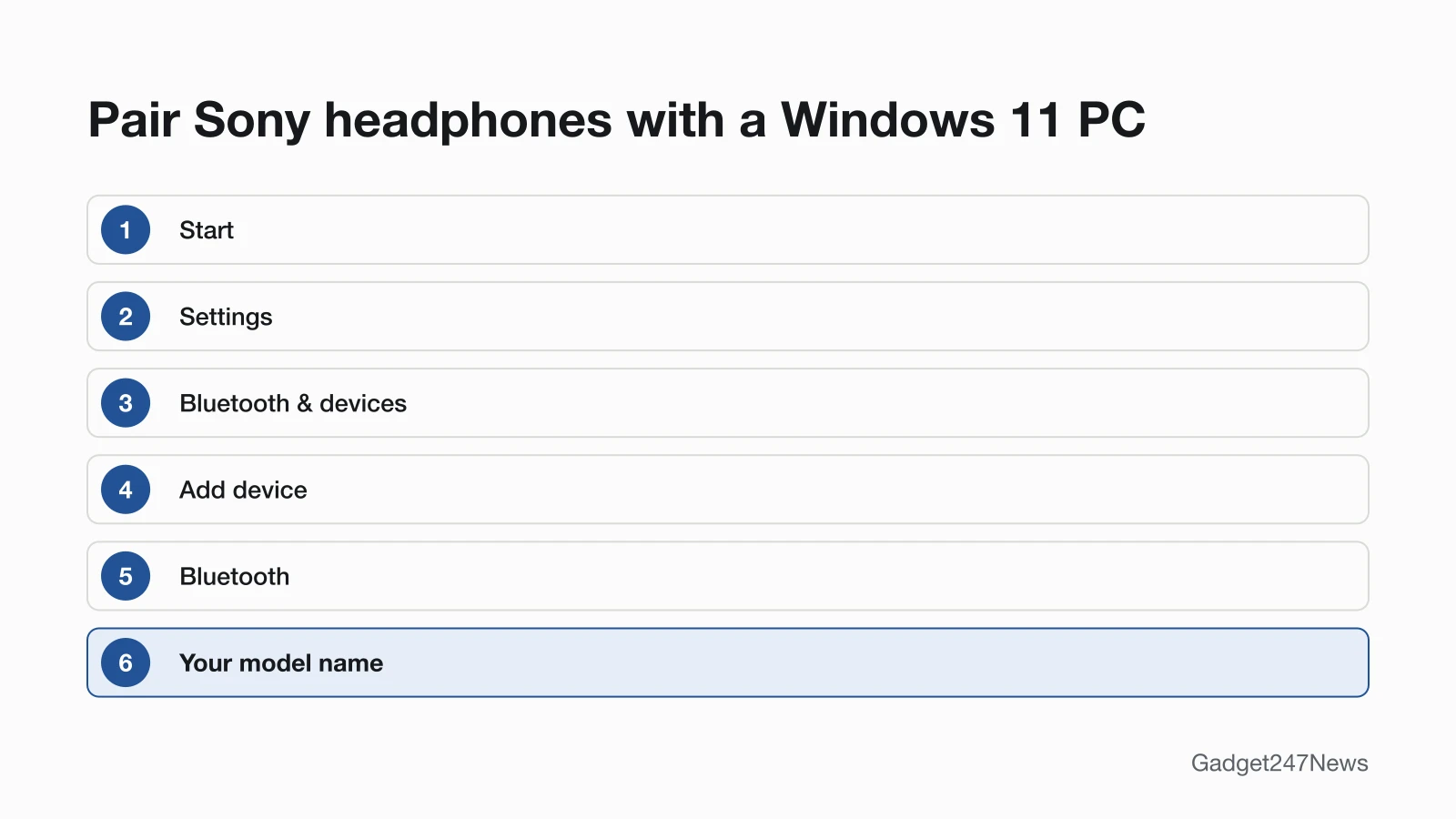
Put your Sony headphones in pairing mode, then on your PC go to Start > Settings > Bluetooth & devices > Add device > Bluetooth and select the model name. The bracketed labels come from Sony's WH-1000XM6 guide; with another model, click that model's name in step 5.
- Put the headset in pairing mode (control for your model in the table below).
- On the PC, click [Start], then [Settings].
- Click [Bluetooth & devices], click the [Bluetooth] switch to turn Bluetooth on, then click [Add device].
- Click [Bluetooth].
- Click the model name, for example [WH-1000XM6]. If a passkey is requested, enter 0000.
A notification sound confirms the connection. If the model name doesn't appear, Sony says to start again from [Start]. Microsoft's shortcut: select the Manage Bluetooth devices arrow on the Bluetooth quick setting, pick the headset under New devices, then select Done.
Pairing Mode for Each Sony Model
Sony headsets enter pairing mode by themselves the first time: turn the headphones on, or take both earbuds out of the case. For a second or later device, use the manual control for your model.
| Model | Manual pairing control | Hold for |
|---|---|---|
| WH-1000XM6, WH-CH520 | (Bluetooth) button | About 5 seconds or more |
| WH-1000XM5 | (power) button | About 5 seconds |
| WF-1000XM6, WF-1000XM5, WF-C510 | Pairing button on the back of the charging case, earbuds in the case, lid open | About 5 seconds or more |
| WF-C500 | Buttons on both the left and right earbuds | About 5 seconds |
| WF-1000XM3 | Touch sensors on both earbuds, worn in both ears | About 7 seconds |
In pairing mode the blue indicator repeatedly flashes twice in a row (on the charging case for the WF-1000XM6, WF-1000XM5 and WF-C510); the WF-1000XM3 says "Bluetooth pairing" from the left earbud. Pairing mode is canceled after 5 minutes. Phones use the same controls: see How to Connect and Pair Sony Headphones With Any Device.
Pair Faster With Swift Pair
Swift Pair swaps the Settings steps for a pop-up:
- Turn it on once: click [Start] - [Settings] - [Bluetooth & devices], then turn on the [Show notifications to connect using Swift Pair] switch.
- Put the headset in pairing mode near the PC.
- Select [Connect] from the pop-up menu.
The first time a device uses Swift Pair, Microsoft says a notification asks to allow it: select Yes.
How to Connect on Windows 10
Windows 10 uses the Devices menu instead:
- Put the headset in pairing mode and wake the PC.
- Click [Start], then [Settings] - [Devices].
- Click the [Bluetooth & other devices] tab, turn the [Bluetooth] switch on, then click [Add Bluetooth or other device].
- Click [Bluetooth], then your model name. Enter 0000 if a passkey is requested.
On Windows 10 version 1803 or later, Swift Pair works too: check [Show notifications to connect using Swift Pair] on the Bluetooth & other devices page.
Connected but No Sound? Pick the Sony Headphones as Output
Set the PC's audio output to the headset. Sony's WH-1000XM6 guide uses two steps:
- Right-click the speaker icon on the toolbar, select [Sound settings], then select your model for [Output] and [Input].
- Model not listed? Click [More sound settings], go to the [Playback] tab, right-click the model and select [Connect]. Do the same on the [Recording] tab for the microphone.
If music sounds poor, Sony says to check that the A2DP function "which supports music playback connections" is enabled in the computer settings.
If Your Sony Headphones Won't Connect to the PC
Turn off Bluetooth on your phone first: Sony says "If the last-connected Bluetooth device is placed near the headset, the headset may connect automatically to the device". If the PC still can't connect, Sony says to delete the headset from the PC's Bluetooth list and pair again. If the model never appears under Add device, Microsoft says the Bluetooth devices discovery setting might need to be set to Advanced. More fixes are in Sony Headphones Not Connecting.
What Works Differently on a Windows PC
Three things change on a PC:
- The app runs on your phone. Sony installs the Sony | Sound Connect app "on your smartphone" from the Google Play store or App Store, and headset software updates run through it.
- Two devices at once is an app setting. On the WH-1000XM6, turn on [Connect to 2 devices simultaneously] in the app to keep the PC and a phone connected; Bluetooth multipoint on earbuds explains the feature.
- Video calls need HFP or HSP. Sony's WF-1000XM5 guide adds: "Depending on the video calling application you are using, microphone settings may not be available."
To use the same headset with your Android phone as well, pair Sony headphones with an Android phone after the PC.
Sony Headphones and Windows: Quick Answers
Why won't my Sony headphones connect to my laptop?
Sony's Help Guide points to three causes: the headset reconnected to your phone, pairing mode ended after 5 minutes, or old pairing data is on the laptop. Turn off the phone's Bluetooth, delete the headset on the laptop, then pair again.
Why is there no sound from my Sony headphones on my PC?
The laptop's audio output isn't set to the headset. Open [Sound settings] and select the Sony model for [Output], plus [Input] for calls; Sony says to make sure "the audio output on the computer is set for a Bluetooth device."
Can I connect Sony earbuds to a laptop and a phone at the same time?
Yes on the WF-1000XM5: Sony's guide says to check that [Connect to 2 devices simultaneously] is on in the app. The WH-1000XM6 uses the same setting; for other models, check the model's Help Guide.
Sources
We checked this page against the pages below, most recently on . How we verify fixes
- WH-1000XM6 Help Guide: Pairing and connecting with a computer (Windows 11) (Sony, helpguide.sony.net)Official
- WH-1000XM6 Help Guide: Pairing and connecting with a computer (Windows 10) (Sony, helpguide.sony.net)Official
- WH-1000XM6 Help Guide: Connecting to a paired computer (Windows 11) (Sony, helpguide.sony.net)Official
- Pair a Bluetooth device in Windows (Microsoft Support) (Microsoft, support.microsoft.com)Official
- WH-1000XM6 Help Guide: Connecting the headset to 2 devices simultaneously (multipoint connection) (Sony, helpguide.sony.net)Official
- WH-1000XM6 Help Guide: Installing the Sony | Sound Connect app (Sony, helpguide.sony.net)Official
- WH-1000XM6 Help Guide: What you can do with the Sony | Sound Connect app (Sony, helpguide.sony.net)Official
- WF-1000XM5 Help Guide: No sound, no sound from one side (Sony, helpguide.sony.net)Official
- WH-1000XM5 Help Guide: Pairing and connecting with an Android smartphone (Sony, helpguide.sony.net)Official
- WH-CH520 Help Guide: Pairing and connecting with an Android smartphone (Sony, helpguide.sony.net)Official
- WF-1000XM6 Help Guide: Pairing and connecting with an Android smartphone (Sony, helpguide.sony.net)Official
- WF-1000XM5 Help Guide: Pairing and connecting with an Android smartphone (Sony, helpguide.sony.net)Official
- WF-C510 Help Guide: Pairing and connecting with an Android smartphone (Sony, helpguide.sony.net)Official
- WF-C500 Help Guide: Pairing and connecting with an Android smartphone (Sony, helpguide.sony.net)Official
- WF-1000XM3 Help Guide: Pairing and connecting with an Android smartphone (Sony, helpguide.sony.net)Official