How to Connect and Pair Bose Headphones With Any Device

By Suraj Giri, Founder & Publisher. Reviewed by Suraj Giri on .
Published · 4 min read
How this page was made
- Sources. Checked against 10 official pages from Bose and Apple, most recently on . See the sources.
- No device testing. We don't test fixes on physical devices, so nothing on this page is a hands-on result. A fact counts as verified only when it matches an official source page.
- AI use. As with every page on Gadget247News, AI tools helped research, outline, draft and edit this page, and re-read the official pages to flag facts that didn't match. The illustration at the top was generated with Runway and is labelled under the image.
- Human sign-off. Suraj Giri, Founder & Publisher, read this page and signed it off on . The site won't publish a page without that sign-off.
- Changes. The published and updated dates move only when the content changes, and every change gets a dated note. Spot an error or a fix that didn't work? Email info@gadget247news.com.
Read our AI use policy, editorial policy and corrections policy.
Bose headphones and earbuds connect in two moves: put them in pairing mode, then pick them in your device's Bluetooth list. Only the pairing-mode button changes between the five models here, all from the model list on Bose Headphones Problems and Fixes. For other brands, see how to pair and connect Bluetooth earbuds.
How to Connect Bose Headphones or Earbuds
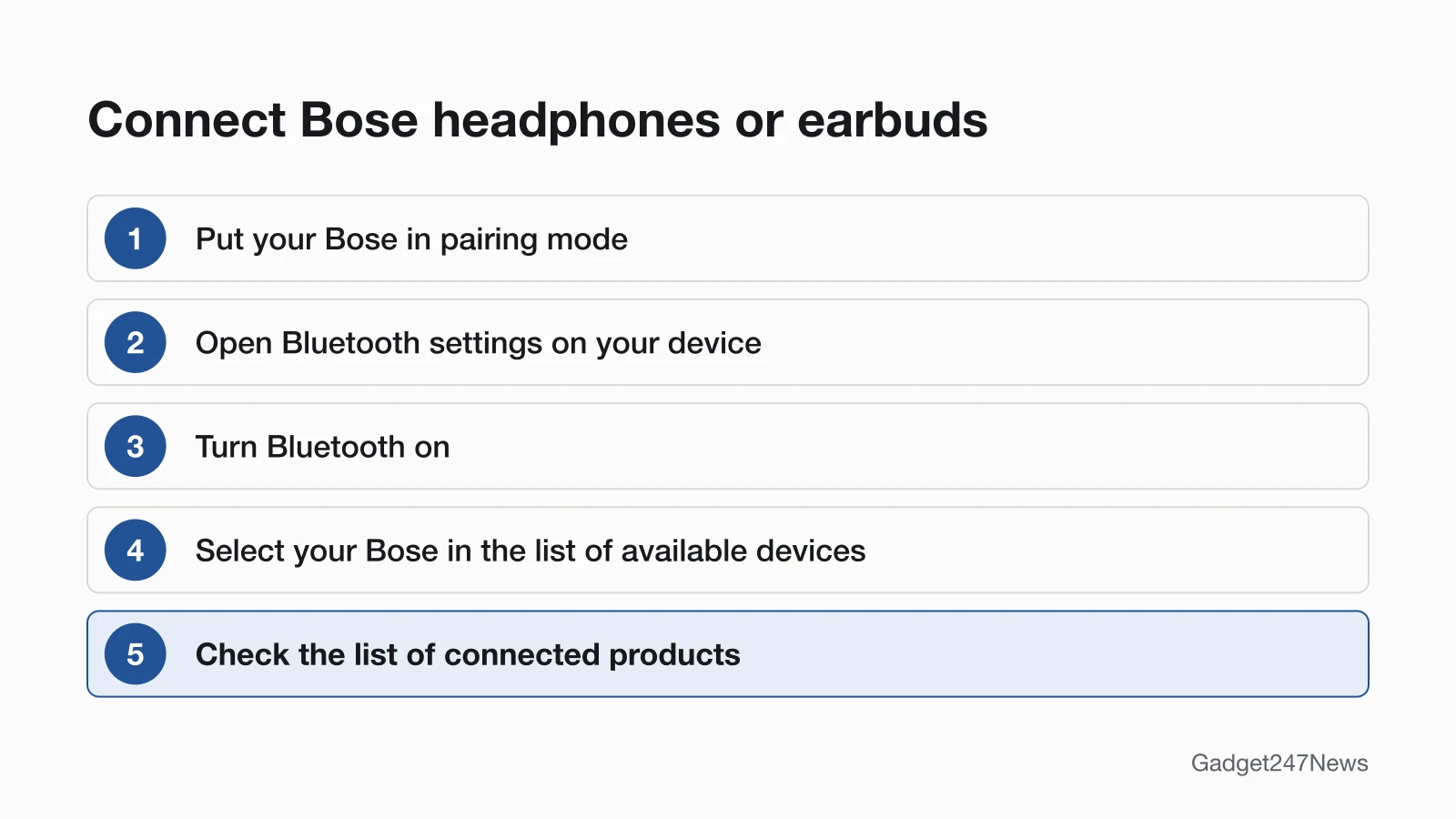
To connect Bose headphones or earbuds, put them in pairing mode and select them in your device's Bluetooth settings. Bose's owner's guides use this order for every model below:
- Put your Bose in pairing mode (your model's button is in the table below).
- On your device, open the Bluetooth settings and turn Bluetooth on.
- Select your Bose in the list: the name you gave them in the Bose app, or the default name, such as BOSE QC ULTRA 2 EARBUDS, BOSE QC ULTRA 2 HP, Bose QC Headphones, Bose QuietComfort Earbuds or Bose Ultra Open Earbuds.
- Wait for your Bose to appear in the list of connected products.
"Syncing" Bose headphones means this same pairing; there is no separate sync step.
Pairing Mode by Bose Model
Pairing mode is the only step that changes by model. Each row uses the wording of that model's Bose owner's guide:
| Model | Pairing-mode action | How you know it's ready |
|---|---|---|
| QuietComfort Ultra Earbuds (2nd Gen) | Both earbuds in the case, case open: press and hold the button on the back of the case | The earbuds status light slowly pulses blue |
| Ultra Open Earbuds | Both earbuds in the case, case open: press and hold the same case button | The earbud status lights slowly pulse blue |
| QuietComfort Earbuds (2024) | Touch and hold either earbud for 4 seconds (first time: wait for the status light before you take them out) | You hear "Ready to pair" |
| QuietComfort Ultra Headphones (2nd Gen) | Powered on: hold the Bluetooth/Power button past the power-off tone and two white blinks | The status light pulses blue |
| QuietComfort Headphones | Slide the Power/Bluetooth switch to the right and hold for 3 seconds | You hear "Ready to connect" and the light blinks blue |
We didn't read the guides for older models such as QuietComfort Earbuds II or QuietComfort 45, so they aren't listed; check your model's guide on support.bose.com. Bose also says most voice prompts "were replaced with simple tones" on certain products, so watch the light too.
Connect Bose to Your Device
Pairing mode stays the same on every host; only the menu changes. These paths come from Bose's "Connecting a Bluetooth Device" article:
| Device | Where to pair | Full guide |
|---|---|---|
| iPhone | Settings > Bluetooth (turned on), then tap your Bose under "Other Devices" | This page |
| Android phone | The Fast Pair notification (QuietComfort Ultra (2nd Gen) models, Ultra Open Earbuds) or Bluetooth settings | How to Connect Bose Headphones to Android |
| Windows PC | Bluetooth icon in the system tray > "Add a Bluetooth Device" | How to Connect Bose Headphones to a Windows PC |
| Mac | Apple menu > System Settings > Bluetooth, then Connect (Bose's article says System Preferences) | This page |
| TV | The TV's "Bluetooth" or "Audio" settings > "Add a Bluetooth Device"; Bose calls these general steps | For a console, see how to use wireless headphones with an Xbox |
Do You Need the Bose App?
No: every model above pairs from your device's Bluetooth menu. The Bose app manages Bluetooth connections and settings and delivers future updates, and Bose recommends it for setup. QuietComfort Earbuds (2024) use the Bose QCE app, which you open after pairing in Bluetooth settings. The Bose Music app is now called the Bose app.
How to Check Your Bose Are Connected
Your Bose are connected when the light confirms it and your device lists them:
- Watch the light: it glows solid blue on QuietComfort Ultra Earbuds (2nd Gen) and Ultra Open Earbuds, and solid blue for 10 seconds on both QuietComfort headphone models. QuietComfort Headphones also say "Connected to" and your device's name.
- Check your device's Bluetooth list for your Bose as connected (the only check the QuietComfort Earbuds (2024) guide gives).
- Press play. If you hear nothing, turn up the volume on the Bose, your device and the music app.
If Your Bose Won't Connect
Bose's owner's guides fix a failed connection in order: turn Bluetooth off and on, clear the Bose device list, delete the Bose from your device's list (including any duplicate labeled "LE (Low Energy)") and connect again, with a reset last. Full steps: Bose headphones not connecting. For paired but not connected earbuds, start there; if they connect and then drop, see Bose headphones keep disconnecting.
Connecting Bose: Quick Answers
How do I put Bose headphones in pairing mode?
Hold the pairing control until the light pulses blue. QuietComfort Ultra Headphones (2nd Gen): hold the Bluetooth/Power button past the power-off tone. QuietComfort Headphones: slide the switch right for 3 seconds. QuietComfort Ultra Earbuds (2nd Gen) and Ultra Open: hold the case button, lid open.
How do I connect Bose earbuds to my iPhone?
Put the earbuds in pairing mode, then on your iPhone go to Settings > Bluetooth and tap them under "Other Devices". On QuietComfort Ultra Earbuds (2nd Gen), the light turns solid blue once connected. You can add them to the Bose app afterwards.
How do I sync Bose headphones?
"Sync" means pair: use pairing mode and select them in Bluetooth settings. Afterwards they reconnect by themselves to the two most recently connected devices, if those are on and within 30 ft (9 m), according to the owner's guides for all five models here.
Sources
We checked this page against the pages below, most recently on . How we verify fixes
- Connecting a Bluetooth Device | Bose QuietComfort Ultra Earbuds (2nd Gen) (Bose, support.bose.com)Official
- Owner's Guide, Bose QuietComfort Ultra Earbuds (2nd Gen) (Bose, assets.bosecreative.com)Official
- Owner's Guide, Bose QuietComfort Ultra Headphones (2nd Gen) (Bose, assets.bosecreative.com)Official
- Owner's Guide, Bose QuietComfort Headphones (Bose, assets.bosecreative.com)Official
- Owner's Guide, Bose QuietComfort Earbuds (Bose, assets.bosecreative.com)Official
- Owner's Guide, Bose Ultra Open Earbuds (Bose, assets.bosecreative.com)Official
- Updating Your Earbuds | Bose QuietComfort Ultra Earbuds (2nd Gen) (Bose, support.bose.com)Official
- Software and firmware versions | Bose QuietComfort Ultra Headphones (Bose, support.bose.com)Official
- Voice Prompt Changes | Bose QuietComfort Ultra Headphones (2nd Gen) (Bose, support.bose.com)Official
- Connect a Bluetooth device with your Mac (Apple, support.apple.com)Official