How to Connect Bose Headphones to a Windows PC

By Suraj Giri, Founder & Publisher. Reviewed by Suraj Giri on .
Published · 4 min read
How this page was made
- Sources. Checked against 8 official pages from Bose and Microsoft, most recently on . See the sources.
- No device testing. We don't test fixes on physical devices, so nothing on this page is a hands-on result. A fact counts as verified only when it matches an official source page.
- AI use. As with every page on Gadget247News, AI tools helped research, outline, draft and edit this page, and re-read the official pages to flag facts that didn't match. The illustration at the top was generated with Runway and is labelled under the image.
- Human sign-off. Suraj Giri, Founder & Publisher, read this page and signed it off on . The site won't publish a page without that sign-off.
- Changes. The published and updated dates move only when the content changes, and every change gets a dated note. Spot an error or a fix that didn't work? Email info@gadget247news.com.
Read our AI use policy, editorial policy and corrections policy.
Windows pairs Bose headphones and earbuds like any Bluetooth audio device; only pairing mode is Bose-specific. Put your Bose in pairing mode, then add them from Windows' Bluetooth settings. For other problems, see Bose headphones not working; to pair Bluetooth earbuds with a laptop from another brand, use the cross-brand guide.
How to Pair Bose Headphones With a Windows 11 PC
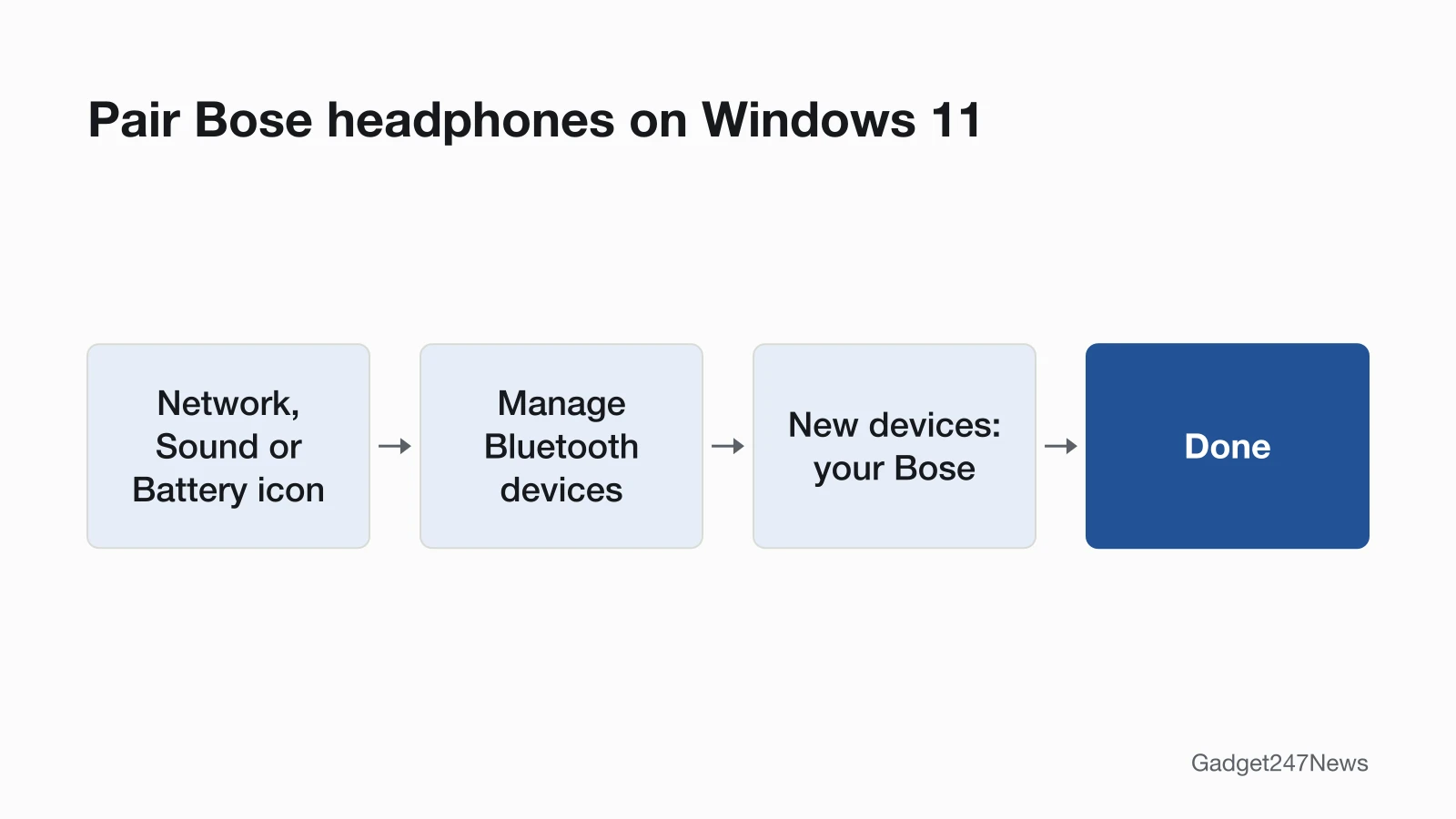
To pair Bose headphones with a Windows 11 laptop or desktop, put the Bose in pairing mode and pick them under New devices:
- Put your Bose in pairing mode (your model's control is in the table below).
- Turn on Bluetooth: select Start > Settings > Bluetooth & devices and make sure Bluetooth is switched On.
- Select the Network, Sound or Battery icon on the taskbar, then the Manage Bluetooth devices chevron on the Bluetooth quick setting.
- Select your Bose under New devices (scroll past Your devices if needed). Look for the name you gave them in the Bose app, or the default name.
- Follow any extra instructions on screen, then select Done.
Bose isn't in the list? Microsoft says the Bluetooth devices discovery setting "might need to be set to Advanced". Bose's own steps use an older route: the upward arrow in the system tray, the Bluetooth icon, then "Add a Bluetooth Device".
Pairing Mode for Each Bose Model
Each Bose model enters pairing mode with its own control, in the words of its owner's guide:
| Bose model | Hold this | Ready to pair when |
|---|---|---|
| QuietComfort Ultra Earbuds (2nd Gen) | The button on the back of the case, with both earbuds inside and the lid open | The earbuds' status light slowly pulses blue |
| QuietComfort Earbuds (2024) | Either earbud, touched and held for 4 seconds | You hear "Ready to pair" |
| QuietComfort Ultra Headphones (2nd Gen) | The Bluetooth/Power button (headphones on), past the power-off tone | The status light pulses blue |
| QuietComfort Headphones | The Power/Bluetooth switch, slid right and held for 3 seconds | You hear "Ready to connect" and the light blinks blue |
For QuietComfort Earbuds II, QuietComfort 45 or a 700, use that model's guide. Other hosts are in How to Connect and Pair Bose Headphones With Any Device.
How to Connect on Windows 10
On Windows 10, you add the Bose from Bluetooth & other devices:
- Put your Bose in pairing mode.
- Select Start > Settings > Devices > Bluetooth & other devices, then select Add Bluetooth or other device.
- In the Add a device window, select Bluetooth, then select your Bose from the list.
- Once they pair, select Done.
Microsoft ended Windows 10 support on October 14, 2025, but says "Your PC will still work".
HP, Dell, Lenovo and Other Laptops
The Windows version sets the steps, not the laptop brand: Microsoft's pairing page has nothing brand-specific. Microsoft says "Most Windows devices already have Bluetooth built in." A PC without it can use a USB Bluetooth adapter.
How to Check Your Bose Are Connected on Windows
Check the light and the Bluetooth tile:
- Watch the Bose light: on QuietComfort Ultra Earbuds (2nd Gen), the status light glows solid blue to confirm the connection.
- Open quick settings: when Bluetooth is on, the Bluetooth tile says Connected, Not connected or shows the device it's connected to.
- Play a song or video. Microsoft's pairing page doesn't cover choosing a sound output; if nothing plays through the Bose, see the next section.
After that, Microsoft says the two connect automatically whenever Bluetooth is on and they're in range.
If Your Bose Won't Connect to a Windows PC
Put the Bose back in pairing mode and set Bluetooth devices discovery to Advanced. Bose's QuietComfort Ultra Earbuds (2nd Gen) guide then has you turn Bluetooth off and on, clear the earbud device list, delete the earbuds from the Bluetooth list "including any duplicate listings labeled LE (Low Energy)", and connect again, with a reset last. The full order is on Bose headphones won't connect.
What Works Differently on a Windows PC
On a PC, four things change:
- No phone app: Bose describes the Bose app for phones and tablets. On the PC, you pair from Windows.
- Updates: QuietComfort Ultra Headphones (2nd Gen) can update through the Bose Updater at btu.bose.com, which lists Windows 11 and Windows 10 with Chrome, Edge, Firefox or Safari. The QuietComfort Ultra Earbuds (2nd Gen) charging case "can only be updated using the online Bose Updater", on a computer over USB-C. Full steps: How to Update Bose Headphones Firmware.
- Microsoft Teams: a PC running Teams can hold on to your earbuds. Bose says to "quit the Microsoft Teams app", and if that fails, turn off Bluetooth on that PC or leave its range (typically around 30 feet).
- Wired audio: QuietComfort Ultra Headphones (2nd Gen) "support USB-C audio". Bose's update notes add game/chat balance over USB-C on compatible PCs and LE Audio (beta) with compatible Windows devices.
Bose and Windows: Quick Answers
How do I pair Bose QuietComfort Earbuds with my laptop?
Touch and hold either QuietComfort Earbuds (2024) earbud for 4 seconds until you hear "Ready to pair", then select them under New devices. For QuietComfort Ultra Earbuds (2nd Gen), hold the case button with the lid open until the light slowly pulses blue.
Can I use the Bose app on Windows?
Bose describes the Bose app for setting up and controlling the earbuds from a smartphone or tablet. On a PC, pair from Windows' Bluetooth settings; QuietComfort Ultra Headphones (2nd Gen) firmware can come from btu.bose.com.
Why won't my Bose connect to my laptop?
Usually the Bose isn't in pairing mode, discovery isn't on Advanced, or another device (such as a PC running Microsoft Teams) holds the connection. Put them in pairing mode, switch discovery to Advanced, and try again.
Sources
We checked this page against the pages below, most recently on . How we verify fixes
- Connecting a Bluetooth Device | Bose QuietComfort Ultra Earbuds (2nd Gen) (Bose, support.bose.com)Official
- Pair a Bluetooth device in Windows | Microsoft Support (Microsoft, support.microsoft.com)Official
- Owner's Guide, Bose QuietComfort Ultra Earbuds (2nd Gen) (Bose, assets.bosecreative.com)Official
- Owner's Guide, Bose QuietComfort Earbuds (Bose, assets.bosecreative.com)Official
- Owner's Guide, Bose QuietComfort Ultra Headphones (2nd Gen) (Bose, assets.bosecreative.com)Official
- Owner's Guide, Bose QuietComfort Headphones (Bose, assets.bosecreative.com)Official
- Updating Your Headphones | Bose QuietComfort Ultra Headphones (2nd Gen) (Bose, support.bose.com)Official
- Updating Your Earbuds | Bose QuietComfort Ultra Earbuds (2nd Gen) (Bose, support.bose.com)Official