How to Connect and Pair Beats With Any Device

By Suraj Giri, Founder & Publisher. Reviewed by Suraj Giri on .
Published · 4 min read
How this page was made
- Sources. Checked against 10 official pages from Apple, Beats and PlayStation, most recently on . See the sources.
- No device testing. We don't test fixes on physical devices, so nothing on this page is a hands-on result. A fact counts as verified only when it matches an official source page.
- AI use. As with every page on Gadget247News, AI tools helped research, outline, draft and edit this page, and re-read the official pages to flag facts that didn't match. The illustration at the top was generated with Runway and is labelled under the image.
- Human sign-off. Suraj Giri, Founder & Publisher, read this page and signed it off on . The site won't publish a page without that sign-off.
- Changes. The published and updated dates move only when the content changes, and every change gets a dated note. Spot an error or a fix that didn't work? Email info@gadget247news.com.
Read our AI use policy, editorial policy and corrections policy.
Near an iPhone or iPad, Beats headphones and earbuds pair with one tap; elsewhere you put them in pairing mode and pick them in the Bluetooth list. Only the pairing button changes by model. For other Beats problems see Beats headphones fixes; for other brands, pair and connect Bluetooth earbuds.
How to Connect Beats to an iPhone or iPad
Near an iPhone or iPad, open the case or turn the Beats on and follow the setup animation. Apple's steps:
- On the iPhone or iPad, go to Settings > Bluetooth and make sure Bluetooth is on.
- Earbuds: open the case with the earbuds inside (Beats Flex: turn it on). Headphones or Beats Pill: turn on.
- Hold them next to the iPhone or iPad.
- When the setup animation appears, follow the onscreen instructions.
After that one setup, your Beats are paired to your other Apple devices signed in to the same Apple Account. "Syncing" Beats headphones is this same pairing. Beats Solo3 Wireless, which aren't in Apple's current Beats guide, pair differently: hold them next to the unlocked iPhone and press the power button for 1 second.
How to Pair Beats With Any Other Device
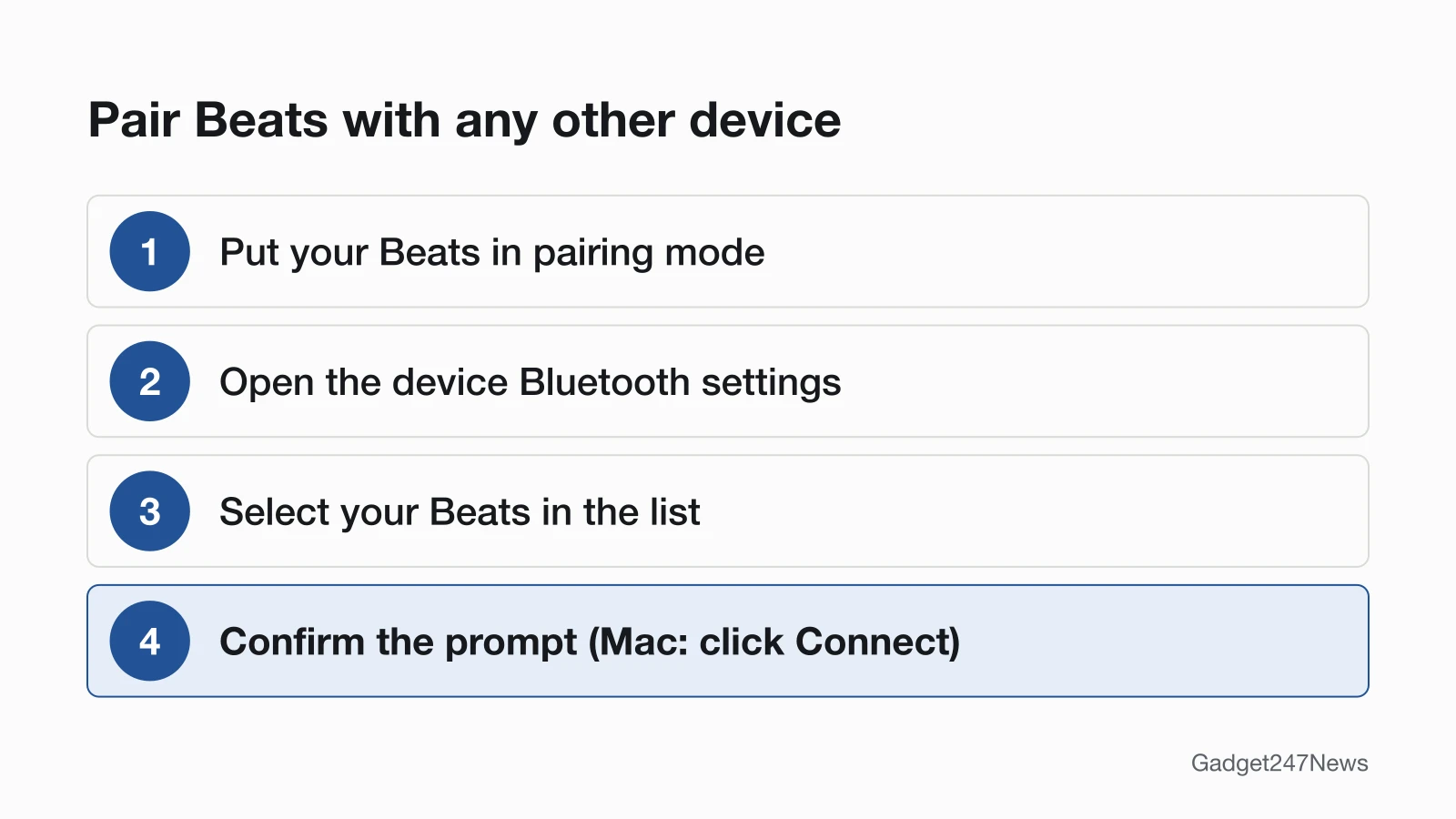
On a Mac, Android phone, Windows PC or other device, pair by hand:
- Put the Beats in pairing mode (table below).
- Open the device's Bluetooth settings.
- Select your Beats in the list of devices (Android: then tap Pair).
- Confirm any prompt; on a Mac, click Connect.
Pairing Mode by Beats Model
Apple gives each current model's button but no hold times. The lights flash when the Beats are ready to pair (Beats Solo Buds play a tone).
| Model | Pairing-mode action | How you know | Source |
|---|---|---|---|
| Beats Fit Pro, Beats Studio Buds +, Powerbeats Fit, Powerbeats Pro 2 | Earbuds in the case, case open, press and hold the system button | Light flashes (on a Mac: until it flashes white) | Apple, Pair Beats |
| Beats Solo Buds | Earbuds in the case, case open, press and hold the button above the logo on either earbud | A tone repeats | Apple, Pair Beats |
| Beats Flex | Press and hold the power button on the right control module | Light flashes | Apple, Pair Beats |
| Beats Solo 4 | Press and hold the power button on the right earcup | Light flashes | Apple, Pair Beats |
| Beats Studio Pro | Press and hold the system button on the right earcup | Light flashes | Apple, Pair Beats |
| Beats 360 | Press and hold the Power button on the back of the left earcup | Status light flashes white | Apple, Pair Beats and Use Beats 360 |
| Beats Pill | Press and hold the power button until a tone repeats; steps in How to Pair (Sync) a Beats Pill Speaker | Pairing cue plays | Apple, Pair Beats |
| Beats Solo3 Wireless | Press the power button for 5 seconds | The Fuel Gauge flashes | Apple 102326 |
| Studio3 Wireless, original Beats Studio Buds, Powerbeats Pro | Not in Apple's current guide | Apple points earlier models to beatsbydre.com/support | Beats Support |
The 5 seconds applies to Solo3 Wireless only.
Connect Beats to Your Device
Routes by device:
| Device | How to connect |
|---|---|
| iPhone or iPad | One-touch setup, above |
| Android phone | Fast Pair on supported Beats, the Beats app, or Settings > Connections > Bluetooth: pair Beats earbuds with an Android phone |
| Windows PC | Pairing mode, then the PC's Bluetooth settings: connect Beats headphones to a laptop |
| Mac | Apple menu > System Settings > Bluetooth, select your Beats, then click Connect |
| Apple Watch or Apple TV | Watch: pairing mode, then Settings > Bluetooth and tap your Beats. Apple TV: open Control Center from the remote and select your Beats |
| PS5, Xbox or TV | Bluetooth headphones for PS5, Xbox and TV |
Do You Need the Beats App?
No. On iPhone, iPad and Mac, Beats settings sit under your Beats' name in Settings or System Settings. On Android, the Beats app shows battery level, delivers firmware updates and can start pairing with Connect Your Beats, but Settings > Connections > Bluetooth pairs them too.
How to Check Your Beats Are Connected
Three checks confirm the connection:
- Open Settings > Bluetooth. If your Beats aren't connected, tap them in the list; on iPhone, their name also appears at the top of Settings.
- Play a song.
- If sound stays on the laptop, pick the Beats as the output: Mac, System Settings > Sound > Output; PC, the playback device in sound settings.
After that, they connect automatically when you put them on.
If Your Beats Won't Connect
Beats that don't appear, give no light or tone, or fail to pair need Apple's order: move within 30 feet of the device, away from microwaves and wireless routers; select them in Bluetooth settings; forget them and pair again; reset last. The full fix is Beats headphones not connecting to your phone; drops after pairing are covered in Beats keep disconnecting. Listed but silent? See paired but not connected earbuds.
Connecting Beats: Quick Answers
How do I put Beats headphones in pairing mode?
Hold the power button on Beats Solo 4 (right earcup) or Beats Flex (right control module), or the system button on Beats Studio Pro. On Beats Fit Pro, Studio Buds +, Powerbeats Fit and Powerbeats Pro 2, hold the case's system button with the case open. Beats Solo Buds: hold the button above the logo until a tone repeats.
Why won't my Beats headphones show up in Bluetooth?
Beats headphones stay hidden when they aren't in pairing mode or are too far away. Apple says to keep them within 30 feet of the device, away from other Bluetooth devices, microwaves and wireless routers, then put them in pairing mode again.
Do I need an app to connect Beats headphones?
No app is needed. An iPhone pairs them with one tap. Android phones pair supported Beats with Fast Pair, and any Beats through the Beats app or Settings > Connections > Bluetooth.
Can you connect Beats to a PS5?
Not over Bluetooth. Sony's PS5 support page says, "Your Bluetooth audio device isn't compatible with PlayStation5 consoles." The PS5, Xbox and TV guide above covers the options.
Sources
We checked this page against the pages below, most recently on . How we verify fixes
- Pair Beats (Beats User Guide) (Apple, support.apple.com)Official
- Set up and use your Solo3 Wireless headphones (Apple, support.apple.com)Official
- Use your Beats 360 (Beats User Guide) (Apple, support.apple.com)Official
- Which Beats do I have? (Beats User Guide) (Apple, support.apple.com)Official
- Get information about your Beats (Beats User Guide) (Apple, support.apple.com)Official
- Install and set up the Beats app for Android (Beats User Guide) (Apple, support.apple.com)Official
- Update Beats (Beats User Guide) (Apple, support.apple.com)Official
- If you can't connect to your wireless Beats product (Apple, support.apple.com)Official
- Official Beats Support (Beats, beatsbydre.com)Official
- How to fix CE-109531-9 (PlayStation Support) (PlayStation, playstation.com)Official