Garmin Watch Not Connecting to Your Phone? How to Fix It

By Suraj Giri, Founder & Publisher. Reviewed by Suraj Giri on .
Published · 7 min read
How this page was made
- Sources. Checked against 17 official pages from Garmin, most recently on . See the sources.
- No device testing. We don't test fixes on physical devices, so nothing on this page is a hands-on result. A fact counts as verified only when it matches an official source page.
- AI use. As with every page on Gadget247News, AI tools helped research, outline, draft and edit this page, and re-read the official pages to flag facts that didn't match. The illustration at the top was generated with Runway and is labelled under the image.
- Human sign-off. Suraj Giri, Founder & Publisher, read this page and signed it off on . The site won't publish a page without that sign-off.
- Changes. The published and updated dates move only when the content changes, and every change gets a dated note. Spot an error or a fix that didn't work? Email info@gadget247news.com.
Read our AI use policy, editorial policy and corrections policy.
This guide covers a Garmin watch that was paired before but now won't connect to your phone, or that the Garmin Connect app can no longer find. A watch that was never paired needs the pairing steps instead. If the watch connects but your steps and workouts don't update, that's a sync fault, covered in the list at the end. Battery, power and other faults are grouped under Garmin watch not working.
Every fix below comes from Garmin's own support pages and owner's manuals. For a watch from another brand, use smartwatch keeps disconnecting from your phone.
Why Your Garmin Watch Won't Connect to Your Phone
Garmin's troubleshooting pages point to seven causes:
- A Bluetooth glitch on the phone or the watch. Garmin says many Bluetooth issues clear once you restart both.
- Battery Saver, Stealth Mode or Expedition Mode is on. Garmin warns these settings "can disable Bluetooth."
- Garmin Connect is missing a permission on Android: the Nearby devices permission is off, or battery optimization puts the app to sleep.
- Old software in the Garmin Connect app or on the watch.
- The watch is paired to more than one phone, or still to your old one. Garmin says you may then see Bluetooth connection issues.
- The phone isn't supported. Garmin Connect needs iOS 18.2 or higher, or Android 9 or higher on a phone with the Google Play Store built in; Android (Go edition) phones aren't supported.
- A stale or wrong pairing, such as a watch paired through the phone's Bluetooth menu, which Garmin doesn't recommend.
How to Fix a Garmin Watch That Won't Connect
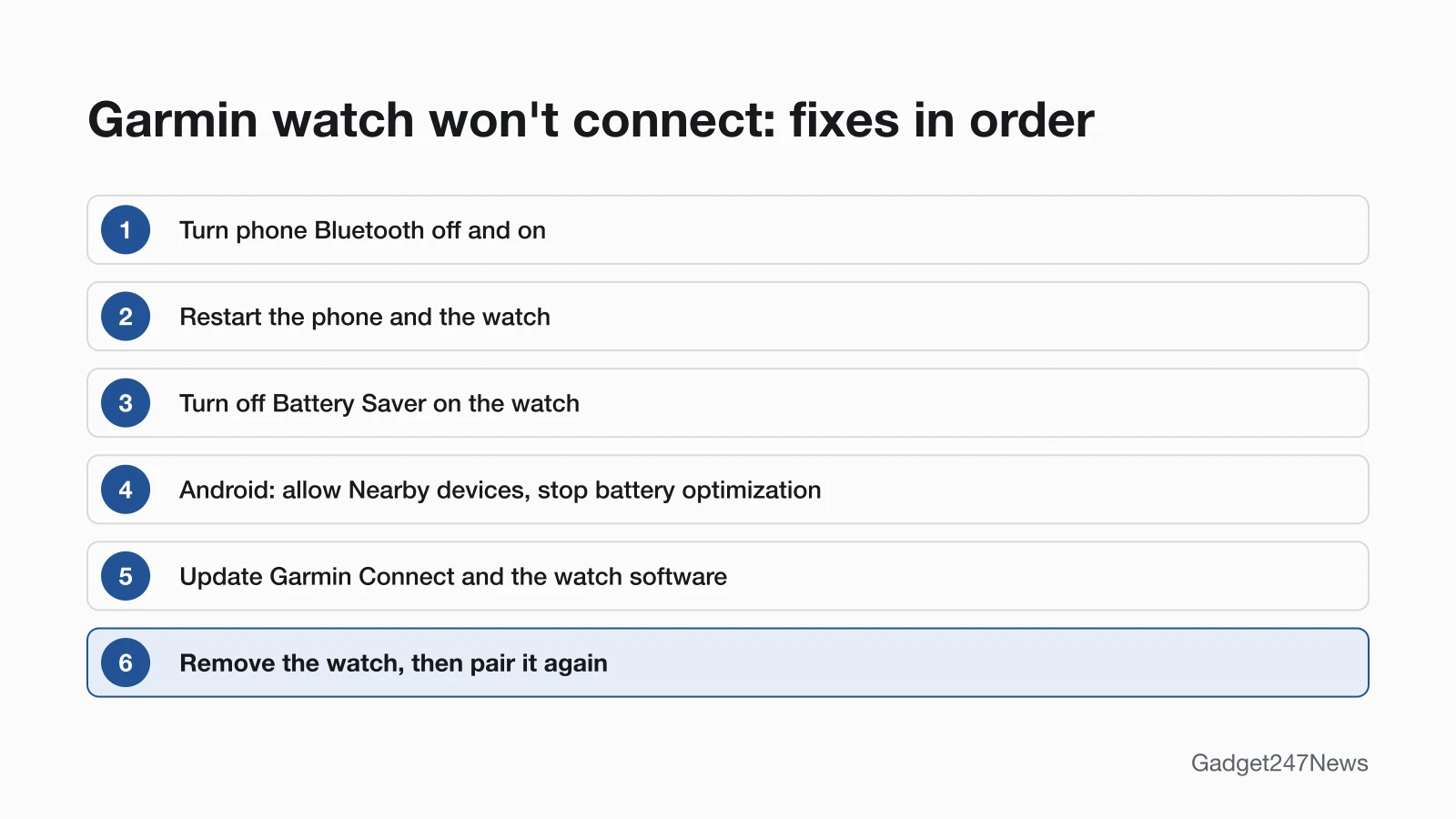
These fixes run from Garmin's quickest step to its most disruptive one, so removing the watch and pairing it again comes last. Check the connection after each one.
Fix 1: Check the Connection and Move Closer
Open Garmin Connect and look at the top of the Home screen: a green dot there means the watch is connected to your phone. If there's no dot, bring the phone within 10 m (33 ft.) of the watch; the Forerunner 265 and Instinct 3 manuals give that distance. Garmin also asks you to confirm Bluetooth is on for both the phone and the watch, and the phone needs a cellular or Wi-Fi signal for Garmin Connect to sync.
Fix 2: Turn Bluetooth Off and On, Then Restart Both
Garmin says toggling Bluetooth and restarting the phone resolves most pairing issues, and its Bluetooth guide adds a restart of the watch:
- In your phone's settings, turn Bluetooth off, then back on.
- Restart the phone.
- Restart the watch. On a 5-button watch, hold the upper left button and select Power Off; on a 2-button watch, hold the upper right button and select Power Off. Turn it back on once it's off. A 1-button watch restarts when you hold its button for up to 15 seconds.
Once both are back on, try connecting again. Frozen watches and model-specific power buttons are covered in how to restart or factory reset a Garmin watch.
Fix 3: Turn Off Battery Saver
Battery Saver can turn off the watch's Bluetooth and Wi-Fi to stretch the battery, and the watch prompts you to switch it on when the battery drops to 10%. To turn it off:
- On the watch, open Watch Settings › Power Manager › Battery Saver and switch it off.
- On models that call it Battery Manager, use Watch Settings › System › Battery Manager › Battery Saver instead.
On tactical watches, Stealth Mode turns off all wireless communication, Bluetooth included; Garmin says it can only be activated from the controls menu, so turn it off there. Garmin lists Expedition Mode among the settings that can disable Bluetooth too; switch it off on models that have it.
Fix 4: Check Garmin Connect's Permissions
On Android, two phone settings can cut Garmin Connect off from the watch.
Nearby devices (Android 12 or higher): in Garmin Connect, tap More › Settings › Phone Permissions › Manage Permissions › Permissions › Nearby devices permission, then confirm it's set to Allow. Garmin says the app "will not find your device" while this is disabled.
Battery optimization: Android can put apps to sleep so they don't run in the background, which Garmin says can stop the watch syncing or getting notifications. Let Garmin Connect run fully:
| Phone | Path in the phone's Settings app | Last step |
|---|---|---|
| Pixel | Apps › Garmin Connect › App Battery Usage | Turn on Allow Background Usage, then disable battery optimization |
| Samsung | Apps › Garmin Connect › Battery | Touch Optimize Battery Usage, then disable battery optimization |
| Motorola | Battery › three-dot icon › Battery Optimization | Set Garmin Connect to Don't Optimize |
| OnePlus | Apps & Notifications › See All › Garmin Connect › Advanced › Battery Optimization | Set it to Don't Optimize |
Garmin notes these menus may vary by model. On an iPhone, Garmin's Bluetooth-permission steps don't apply on iOS 18 or newer, and Garmin Connect already needs iOS 18.2 or higher, so a current iPhone skips this fix.
Fix 5: Update Garmin Connect and the Watch Software
- Update Garmin Connect from the App Store or Google Play Store, and install any pending phone updates.
- Update the watch with Garmin Express on a computer, which checks for and installs available software updates on its own.
Fix 6 (Last): Remove the Watch and Pair It Again
Removing the watch unpairs it; it isn't a factory reset. Work through these steps in order:
- In Garmin Connect, tap More › Garmin Devices › your watch › the three-dot menu (top right) › Remove Device, then confirm.
- Forget it in the phone's Bluetooth settings. iPhone: Settings › Bluetooth › the i next to the watch › Forget This Device. Android: Settings › Connections › Bluetooth › the gear icon › Unpair or Forget.
- Remove the watch from any other phone or tablet it was paired with.
- Restart the phone.
- In Garmin Connect, tap More › Garmin Devices › Add Device, put the watch in pairing mode (typically Settings › Bluetooth or Phone › Pair Mobile Device or Pair Phone) and confirm the six-digit code.
On iOS 18.2 with Garmin Connect 5.21 or later, step 1 also removes the watch from the iPhone's Bluetooth menu.
Connection Problems With New Phones, iPhone and Android
A new phone and an iPhone each raise their own connection question.
Garmin Watch Won't Connect to a New Phone
An old phone that's still on can try to pair with the watch again. If it's nearby, remove the watch from its Garmin Connect app and its Bluetooth menu, then turn the old phone off. On the new phone, make sure the watch isn't already in the Bluetooth menu, install Garmin Connect and add the watch there. Every screen is in how to pair a Garmin watch with your iPhone or Android phone.
Can a Garmin Watch Connect to an iPhone?
Yes. Garmin watches connect to an iPhone running iOS 18.2 or higher through the Garmin Connect app. A Forerunner or other model that won't connect to an iPhone takes the same fixes above. On an iPhone, adding the watch runs Add Device › Find Nearby Accessories › Set Up, a code check, then Done.
Still not working?
- Try the next fix: Garmin watch not syncing (if it connects but your data doesn't update).
- Reset your Garmin watch: How to restart or factory reset a Garmin watch (you'll need to pair it again afterwards).
- Contact Garmin Support: Garmin Support.
- Check repair or warranty options: Understanding Garmin Service Options.
Started after an update? Check the Update Tracker for known issues.
Started After an Update?
If the watch stopped connecting after a phone, app or watch update, bring both sides up to date: the latest Garmin Connect from your app store, and the watch software through Garmin Express. The Garmin troubleshooting pages we read on September 27, 2026 don't name a specific update that breaks the connection. We track each model's versions and fixes in Garmin watch release notes.
Garmin Connect Won't Link to MyFitnessPal or Strava
That's a link between two accounts, not a Bluetooth fault. First check the Garmin Connect Status page: a green ONLINE indicator for third-party means no issue on Garmin's side. Then check the partner's status page. If both look fine, in Garmin Connect tap More › Settings › Connected Apps, pick the app and select Disconnect, then reconnect from the partner app (MyFitnessPal: More › Apps & Devices › Garmin Connect › Connect).
Garmin Connection: Quick Answers
Is there currently a problem with Garmin Connect?
Garmin posts service status at connect.garmin.com/status, and its sync guide says to check that page to rule out a system outage. If it lists a problem, Garmin's advice is to check back until the issue is resolved. Our Garmin Connect status page holds our most recent dated check.
Why is my Garmin not connecting to the app?
Garmin Connect loses the watch when Bluetooth needs a reset, when Battery Saver has turned Bluetooth off, or, on Android, when the Nearby devices permission or battery optimization blocks the app. Work through Fixes 2 to 4 in that order, and remove and pair the watch again only if they fail.
Why won't my Garmin Instinct connect to my phone?
An Instinct takes the same fixes with its own buttons. To restart an Instinct 3 Solar or Instinct 3 AMOLED, hold CTRL until the watch turns off, then hold CTRL again to turn it on. To pair it again, start Add Device in Garmin Connect, then from the watch face hold MENU and select Connectivity › Phone › Pair Phone.
Sources
We checked this page against the pages below, most recently on . How we verify fixes
- Garmin Connect App Bluetooth Troubleshooting (Garmin, support.garmin.com)Official
- Garmin Connect App: Device or Accessory Not Found During the Pairing Process (Garmin, support.garmin.com)Official
- Remove and Add a Device From the Garmin Connect App (Garmin, support.garmin.com)Official
- Can a Garmin Device Be Paired to More Than One Phone? (Garmin, support.garmin.com)Official
- Garmin Connect App Compatibility Requirements (Garmin, support.garmin.com)Official
- Garmin Device No Longer Syncs or Receives Notifications From an Android Phone (Garmin, support.garmin.com)Official
- Bluetooth Permission Required Message in Garmin Connect App (Garmin, support.garmin.com)Official
- My Device Is Not Syncing Data to the Garmin Connect App (Garmin, support.garmin.com)Official
- How to Use Power Manager on Garmin Watches (Garmin, support.garmin.com)Official
- Stealth Mode on Garmin Tactical Watches (Garmin, support.garmin.com)Official
- How Do I Pair My Watch to a New Phone? (Garmin, support.garmin.com)Official
- Garmin Connect Data Is Not Syncing Over to My Third-Party App (Garmin, support.garmin.com)Official
- Forerunner 265 Series Watch Owner's Manual: My phone will not connect to the watch (Garmin, www8.garmin.com)Official
- Instinct 3 Solar Series Owner's Manual: My phone will not connect to the watch (Garmin, www8.garmin.com)Official
- Instinct 3 Solar Series Owner's Manual: Restarting Your Watch (Garmin, www8.garmin.com)Official
- Instinct 3 AMOLED Series Owner's Manual: Restarting Your Watch (Garmin, www8.garmin.com)Official
- Understanding Garmin Service Options (Garmin, support.garmin.com)Official