Garmin GPS Not Accurate

By Suraj Giri, Founder & Publisher. Reviewed by Suraj Giri on .
Published · 6 min read
How this page was made
- Sources. Checked against 6 official pages from Garmin, most recently on . See the sources.
- No device testing. We don't test fixes on physical devices, so nothing on this page is a hands-on result. A fact counts as verified only when it matches an official source page.
- AI use. As with every page on Gadget247News, AI tools helped research, outline, draft and edit this page, and re-read the official pages to flag facts that didn't match. The illustration at the top was generated with Runway and is labelled under the image.
- Human sign-off. Suraj Giri, Founder & Publisher, read this page and signed it off on . The site won't publish a page without that sign-off.
- Changes. The published and updated dates move only when the content changes, and every change gets a dated note. Spot an error or a fix that didn't work? Email info@gadget247news.com.
Read our AI use policy, editorial policy and corrections policy.
This guide is for a Garmin watch whose GPS track wanders, whose distance comes out too long or too short, or whose pace and speed jump around. This covers device settings only and isn't medical advice. For problems with the watch itself, such as pairing, syncing or battery, start at Garmin watch troubleshooting. If the watch won't sync, fix Garmin watch data not updating in the app first, because a sync is also how it gets fresh satellite data. Sleep data is a separate topic: see how to track sleep on Apple Watch.
A Garmin watch records your route as a series of GPS points. Under clear sky conditions, Garmin says its devices "typically record your position within about 3 meters (10 feet) of your actual location," and that figure applies to each point, so small wobbles in a track are expected. Indoors or in a tunnel, the signal may be lost completely until the watch has a clear view of the sky again. Garmin's activity tracking notice adds that Garmin wearables "are not medical devices."
Why Your Garmin GPS Track Looks Wrong
Garmin's GPS guidance points to five causes:
- GPS drift. Drift is the difference between your actual location and the location the watch records. In Garmin's example, a hiker who stopped without pausing the activity got extra distance while standing still.
- Your surroundings. Canyons or mountainous terrain, tall buildings (an "urban canyon"), dense tree cover, and indoors or tunnels can weaken or block the signal.
- Starting too soon. When the watch first shows GPS is ready, it has only the minimum number of satellites it needs to find your location.
- Stale satellite data. Outdated GPS Location Data slows the first fix, especially after 100 miles of travel since the last GPS use, two weeks without a sync or a GPS signal, or a reset.
- Settings. GPS switched off in the activity's settings, an indoor activity profile, Smart Recording, or GPS Only in a place where Garmin says multiple satellite systems perform better.
How to Fix Your Garmin GPS Track
These follow Garmin's own order; the restart comes last.
Fix 1: Let the Watch Find More Satellites First
Garmin's first recommendation is to give the watch time to strengthen its signal:
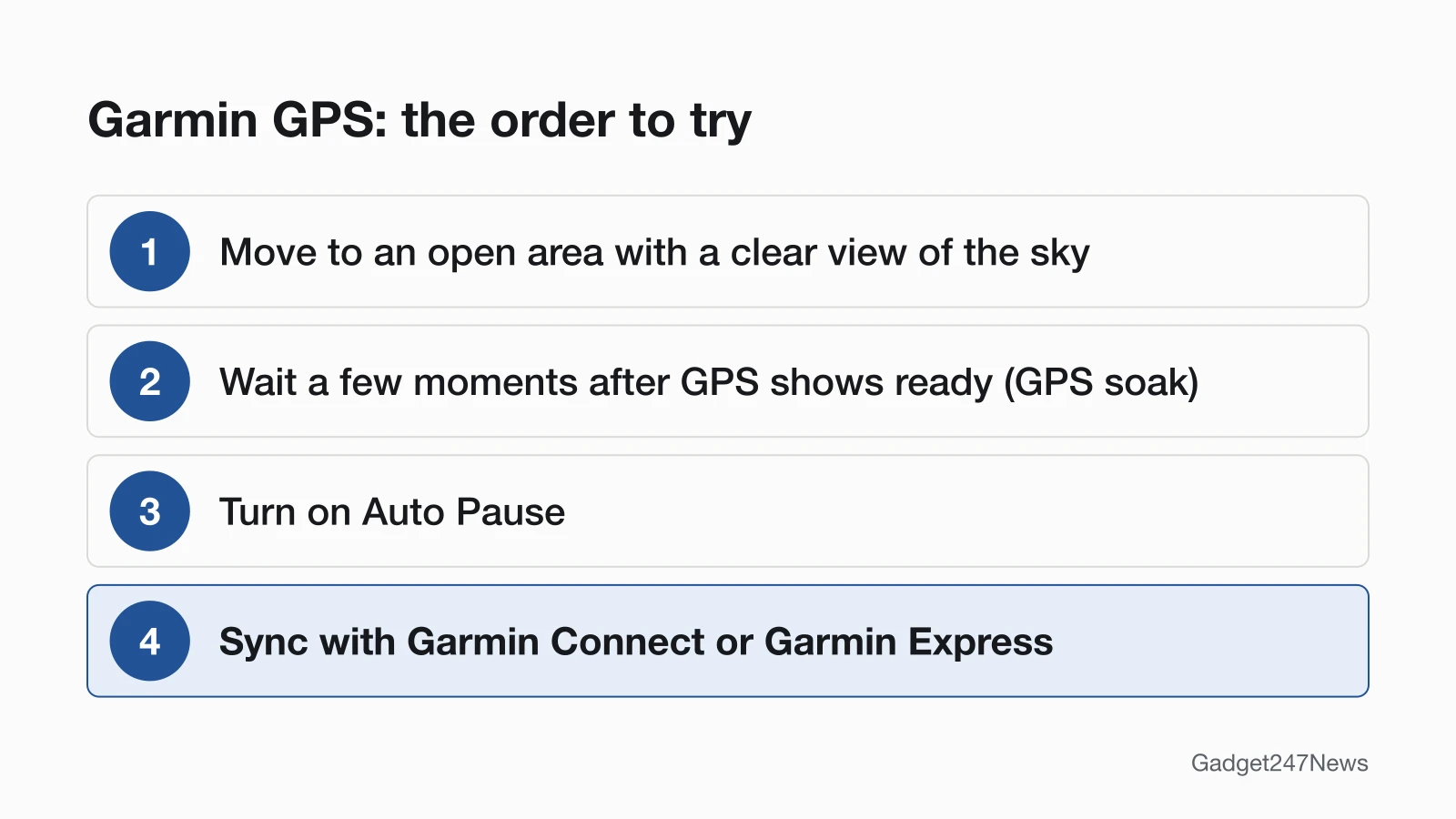
- Go outside to an open area, away from tall buildings, dense tree cover and patio covers. Normal cloud cover doesn't affect the signal.
- Start an outdoor activity on the watch.
- When the watch shows GPS is ready, wait a few moments before you start the activity. Garmin calls this a "GPS soak": the extra time lets the watch connect to more satellites.
Fix 2: Turn On Auto Pause and Every Second Recording
Garmin says recording GPS while you're stopped is one of the biggest contributors to distance errors in an activity, so turn this on first:
- Turn on Auto Pause. The watch then pauses when you stop moving and resumes when you start again.
- Use Every Second recording, which records GPS data every second, instead of Smart recording, which records at variable intervals to save memory. Garmin says some devices offer both.
- On routes with significant elevation changes, turn on 3D Speed and 3D Distance, which account for changes in elevation.
On a fēnix 8, Auto Pause, 3D Distance, 3D Speed and Satellites all sit in the activity settings: from the watch face, select Activities, select an activity, then open its activity settings. For other models, Garmin points to the owner's manual for the steps.
Fix 3: Sync Your Garmin Watch
Syncing refreshes the satellite data the watch uses to find its position:
- Sync the watch with the Garmin Connect app or the Garmin Express program. Garmin says this "updates it with the latest available GPS Location Data."
- Sync regularly. After two weeks without a sync, or more than 100 miles of travel since the last GPS use, a sync updates the satellite data so the watch acquires a signal much faster, Garmin says.
If the watch won't sync at all, the Garmin watch not syncing guide linked above covers the connection.
Fix 4: Update the Watch Software
Garmin's slow-signal steps pair syncing with current software:
- Check for and install updates with Garmin Express on a computer.
- On a fēnix 8, the watch also checks for updates on its own when it's paired with a phone over Bluetooth or connected to Wi-Fi.
How to update your Garmin watch has the full steps for each route.
Fix 5 (Last): Restart the Watch
Turn the watch off and back on. Garmin says a power cycle can often clear a temporary glitch. The buttons differ by model, so Garmin tells you to consult the owner's manual for how to restart yours.
By Satellite Mode and Model
Your watch's satellite options decide how hard it can work in difficult places, and Garmin lists them per model.
Which Satellite Mode to Use
Garmin describes four satellite modes on its watches. On a fēnix 8, you pick the mode per activity: the Satellites setting in the activity settings "Sets the GNSS satellite system to use for the activity."
| Mode | What Garmin says it does | Trade-off |
|---|---|---|
| GPS Only | Uses the GPS satellite system only | Uses battery more slowly than multiple systems |
| All Systems | Uses multiple satellite systems for "increased performance in challenging environments and faster position acquisition" | Can reduce battery life more quickly than GPS Only |
| All + Multi-Band | Uses multiple systems on multiple frequency bands for "more consistent track logs" in challenging environments | Garmin's page gives no separate battery figure |
| UltraTrac | Records track points and sensor data less frequently | Longer battery life, lower-quality recorded activities |
Garmin's per-model list shows which of these your watch has:
| Watch | Satellite options (Garmin's list) |
|---|---|
| Forerunner 265 series, Forerunner 570, Forerunner 970 | GPS Only, All Systems, All + Multi-Band, UltraTrac |
| fēnix 8 series, Instinct 3 series, Venu 4 series | GPS Only, All Systems, All + Multi-Band, UltraTrac |
| Forerunner 165 series, Forerunner 170 series | GPS Only, All Systems, UltraTrac |
| vívoactive 5, vívoactive 6, Venu 3 series | GPS Only, All Systems |
| fēnix 9 series | Four modes under new names |
The fēnix 9 series adopted new names for these modes; Garmin's satellite options page maps each new name to the old one.
No Distance or Speed at All
Start with the activity profile. Garmin says most indoor activity profiles disable GPS by default, so switch to an outdoor activity profile. Then check that GPS is enabled in the activity's settings, and check the sensors menu to make sure any speed sensor is connected. For running, certain Garmin HRM chest strap sensors can calculate distance, speed and pace without GPS.
Still not working?
If the track still looks off after the five fixes, these are the next steps, in order.
Still not working?
- Try the next fix: Garmin watch data not updating in the app (so it can load fresh satellite data).
- Reset your Garmin watch: factory reset a Garmin watch (you'll need to pair it again afterwards).
- Contact Garmin Support: Garmin Support (external).
- Read Garmin's own GPS guidance: GPS distance, speed and pace with Garmin devices (external).
Started after an update? Check the Update Tracker for known issues.
Related Tracking Problems
A heart rate that spikes or drops out during a run comes from the wrist sensor, not from GPS, so the fixes are about fit and sensor contact: see Why Smartwatch Heart Rate Jumps.
Garmin GPS: Quick Answers
How do I update the GPS on my Garmin watch?
Sync it. Garmin says syncing with the Garmin Connect app or Garmin Express updates the watch with the latest available GPS Location Data, and Garmin Express also installs software updates. On the fēnix 8, map updates are available through Garmin Express. This page covers watches only, not car or handheld GPS units.
Why is my Garmin GPS not working?
Indoors or in a tunnel, the GPS signal is often weakened or blocked, and most indoor activity profiles turn GPS off by default. Outdated GPS Location Data also slows the first fix. Go outside, choose an outdoor activity profile, and sync the watch so it has current satellite data.
How do I use GPS on a Garmin watch?
Start an outdoor activity. The watch looks for satellites and shows when GPS is ready; wait a few moments so it connects to more of them, then start recording. Button names and menus vary by model, so use the owner's manual for your watch for the exact steps.
Sources
We checked this page against the pages below, most recently on . How we verify fixes
- GPS Distance, Speed, and Pace Accuracy With Garmin Devices (Garmin, support.garmin.com)Official
- Garmin Device Takes a Long Time to Acquire GPS or Not Finding a Signal (Garmin, support.garmin.com)Official
- Garmin Watch Satellite System Options (Garmin, support.garmin.com)Official
- fēnix 8 Series Owner's Manual: Activity Settings (Garmin, www8.garmin.com)Official
- fēnix 8 Series Owner's Manual: Product Updates (Garmin, www8.garmin.com)Official
- Garmin activity tracking notice (Garmin, garmin.com)Official