How to Install Connect IQ Apps on a Garmin Watch

By Suraj Giri, Founder & Publisher. Reviewed by Suraj Giri on .
Published · 4 min read
How this page was made
- Sources. Checked against 8 official pages from Garmin, most recently on . See the sources.
- No device testing. We don't test fixes on physical devices, so nothing on this page is a hands-on result. A fact counts as verified only when it matches an official source page.
- AI use. As with every page on Gadget247News, AI tools helped research, outline, draft and edit this page, and re-read the official pages to flag facts that didn't match. The illustration at the top was generated with Runway and is labelled under the image.
- Human sign-off. Suraj Giri, Founder & Publisher, read this page and signed it off on . The site won't publish a page without that sign-off.
- Changes. The published and updated dates move only when the content changes, and every change gets a dated note. Spot an error or a fix that didn't work? Email info@gadget247news.com.
Read our AI use policy, editorial policy and corrections policy.
To install a Connect IQ app or watch face, open the Garmin Connect app, tap More › Connect IQ Store, find the item and tap Install; it lands on your watch at the next sync. Nothing arrives before that sync, so if the item never shows up, force a Garmin watch sync.
Apple Watch owners can customize Apple Watch faces instead. For other problems with the watch itself, see how to fix your Garmin watch by symptom.
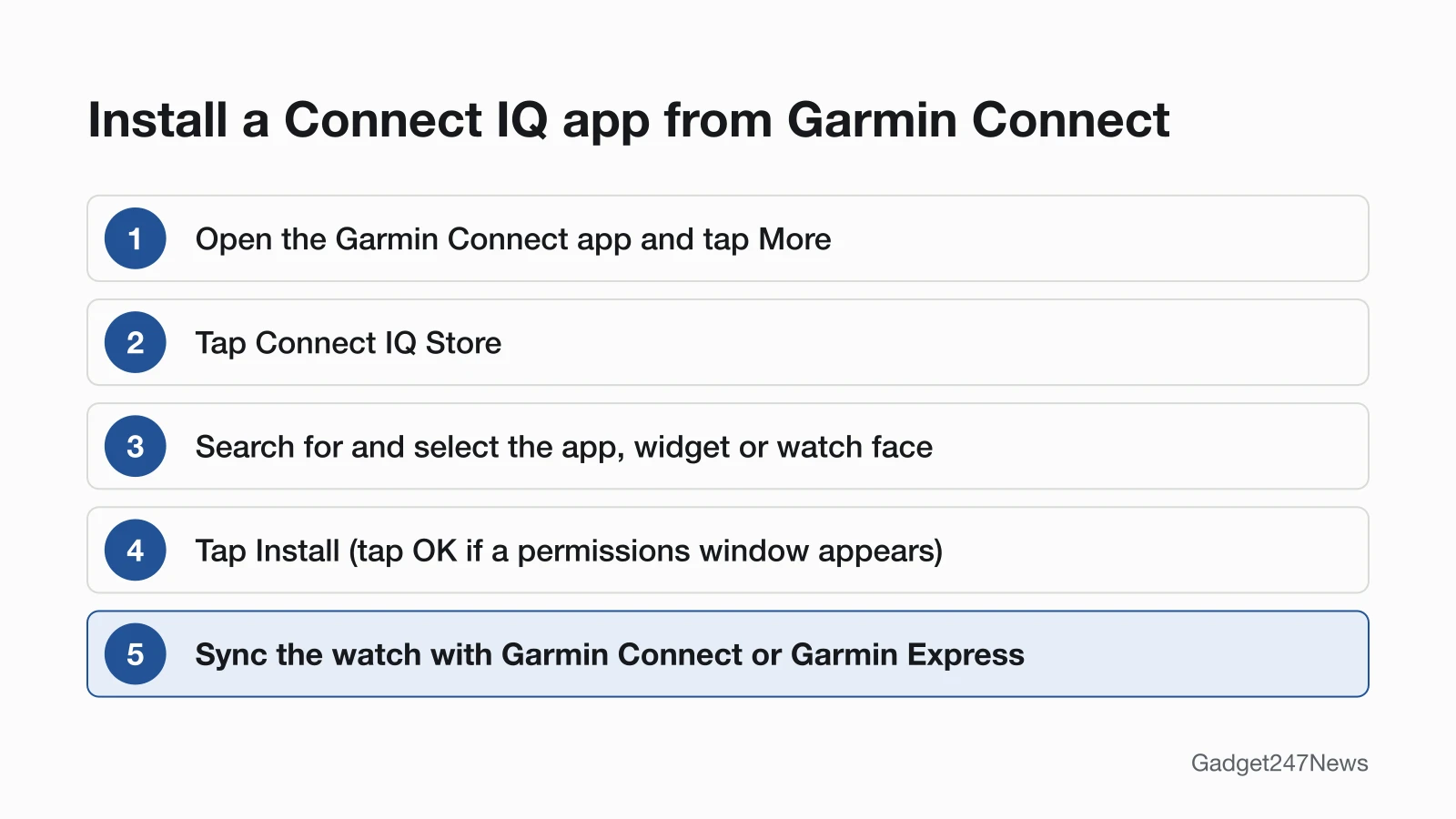
How to Install Connect IQ Apps From the Garmin Connect App
To install Connect IQ apps from the Garmin Connect app, open the store from the More menu:
- Open the Garmin Connect app on your phone.
- Tap More (bottom right).
- Tap Connect IQ Store, and sign in to your Garmin Connect account if asked.
- If more than one Garmin device is paired to the app, choose the watch under My Device.
- Search for the app, widget or watch face, then select it.
- Tap Install, then tap OK if a permissions window appears.
Garmin adds the content to your sync queue, and it "will be installed the next time your device syncs" with the Garmin Connect app or the Garmin Express program.
Install From the Connect IQ Store App
The standalone Connect IQ Store app installs watch faces, device apps, data fields, widgets and music apps:
- Open the Connect IQ Store app.
- Tap Search to search by title or filter categories, or open the main menu for popular content for your watch.
- Choose the item, tap Install, then tap OK if a permissions window appears.
- Sync the watch with Garmin Connect or Garmin Express.
To shop for a different watch, tap Device (bottom right), tap the three dots in the top right, choose Select a Device, then pick the watch.
Install From the Watch (Select Models)
Some Garmin watches have an on-device Connect IQ Store for adding select apps straight from the watch while it's connected to Wi-Fi or Bluetooth:
- Press START to open the activity and app list.
- Select Connect IQ Store.
- Select Recommended or Must Haves.
- Select the app you want to install.
To uninstall, open the same store, select the app and press START when asked. Searching for other content still needs the Connect IQ Store app on your phone. Garmin lists these watches for the on-device store:
| Watch family | Models Garmin lists |
|---|---|
| Forerunner | 70, 165 series, 170 series, 255 series, 265 series, 570, 955 series, 965, 970 |
| fēnix | 7 series, 8 series, 9 series |
| Venu | 3 series, 4, X1 |
| vívoactive | 5, 6 |
| Enduro | 2, 3 |
| D2 | Air X15, Mach 1 series, Mach 2 series |
| Other families | Descent Mk3 series, epix (Gen 2) series, MARQ (Gen 2) series, quatix 7 and 8 series, tactix 7 and 8 series |
Connect IQ by Model and Storage
Connect IQ support depends on the watch model: Garmin says to check your owner's manual or the Specs page for your device on Garmin.com. Garmin also notes that "not all of the Connect IQ features are supported on each Garmin device", and the store's main screen shows content for the watch you have selected. Space differs by model too; in the Connect IQ Store app, Device › Installed Apps shows how much space is left.
How to Check It Worked
To check a Connect IQ item installed, sync the watch, then look in the Connect IQ Store app:
- Sync the watch with the Garmin Connect app or Garmin Express.
- Open the Connect IQ Store app and tap Device (bottom right). Under Installed Apps, check the number of apps now on the watch.
If the item shows Queued instead of Installed, it hasn't installed yet; the next section covers that. Garmin's Connect IQ pages we read don't say where each item type appears on the watch, so check your owner's manual for watch faces, widgets and data fields.
If You Can't Install a Connect IQ App
When a Connect IQ item shows Queued instead of Installed, Garmin says the content may need an update:
- Open the Connect IQ Store app and tap My Device.
- Tap Updates.
- If an update is in progress, wait for it to finish, then sync the watch with the Garmin Connect app or Garmin Express.
If that fails, Garmin's next step is to make sure all applicable software is up to date. Content installs only when the watch syncs, so if the watch isn't syncing at all, the sync fix near the top of this page comes first.
Related Setup Tasks
- What Body Battery means on a Garmin watch, with Garmin's score bands and where to see the score.
- For Apple Watch owners: how to add and remove apps on Apple Watch.
Quick Answers
Why does my Connect IQ app say Queued?
A Connect IQ app says Queued when it hasn't installed on the watch yet, and Garmin says that content may need an update. Open My Device › Updates in the Connect IQ Store app, wait for any update in progress to finish, then sync with Garmin Connect or Garmin Express.
Do Connect IQ watch faces use more battery?
They can. Garmin says watch faces, apps, widgets and data fields from Connect IQ "may draw more power depending on functions or the use of GPS positioning", and it lists Connect IQ use among the reasons a wearable's battery drains faster than expected.
Can I install Connect IQ apps without my phone?
On select watches, yes. The on-device Connect IQ Store adds apps from its Recommended and Must Haves lists while the watch is connected to Wi-Fi or Bluetooth. To search or install other content, Garmin points you to the Connect IQ Store app on your phone, and those items install at the next sync with Garmin Connect or the Garmin Express program.
Sources
We checked this page against the pages below, most recently on . How we verify fixes
- Accessing the Connect IQ Store (Garmin, support.garmin.com)Official
- Installing Content Using the Connect IQ Store App (Garmin, support.garmin.com)Official
- Using the On-Device Connect IQ Store on Garmin Devices (Garmin, support.garmin.com)Official
- Downloaded Connect IQ Content Will Not Install to a Garmin Device (Garmin, support.garmin.com)Official
- Compatibility of My Garmin Product With Connect IQ (Garmin, support.garmin.com)Official
- Garmin Connect IQ Store App Compatibility Requirements (Garmin, support.garmin.com)Official
- Garmin Connect App Compatibility Requirements (Garmin, support.garmin.com)Official
- Why Is the Battery of My Garmin Wearable Draining Faster Than Expected? (Garmin, support.garmin.com)Official