How to Update Pixel Watch

By Suraj Giri, Founder & Publisher. Reviewed by Suraj Giri on .
Published · 4 min read
How this page was made
- Sources. Checked against 7 official pages from Google, most recently on . See the sources.
- No device testing. We don't test fixes on physical devices, so nothing on this page is a hands-on result. A fact counts as verified only when it matches an official source page.
- AI use. As with every page on Gadget247News, AI tools helped research, outline, draft and edit this page, and re-read the official pages to flag facts that didn't match. The illustration at the top was generated with Runway and is labelled under the image.
- Human sign-off. Suraj Giri, Founder & Publisher, read this page and signed it off on . The site won't publish a page without that sign-off.
- Changes. The published and updated dates move only when the content changes, and every change gets a dated note. Spot an error or a fix that didn't work? Email info@gadget247news.com.
Read our AI use policy, editorial policy and corrections policy.
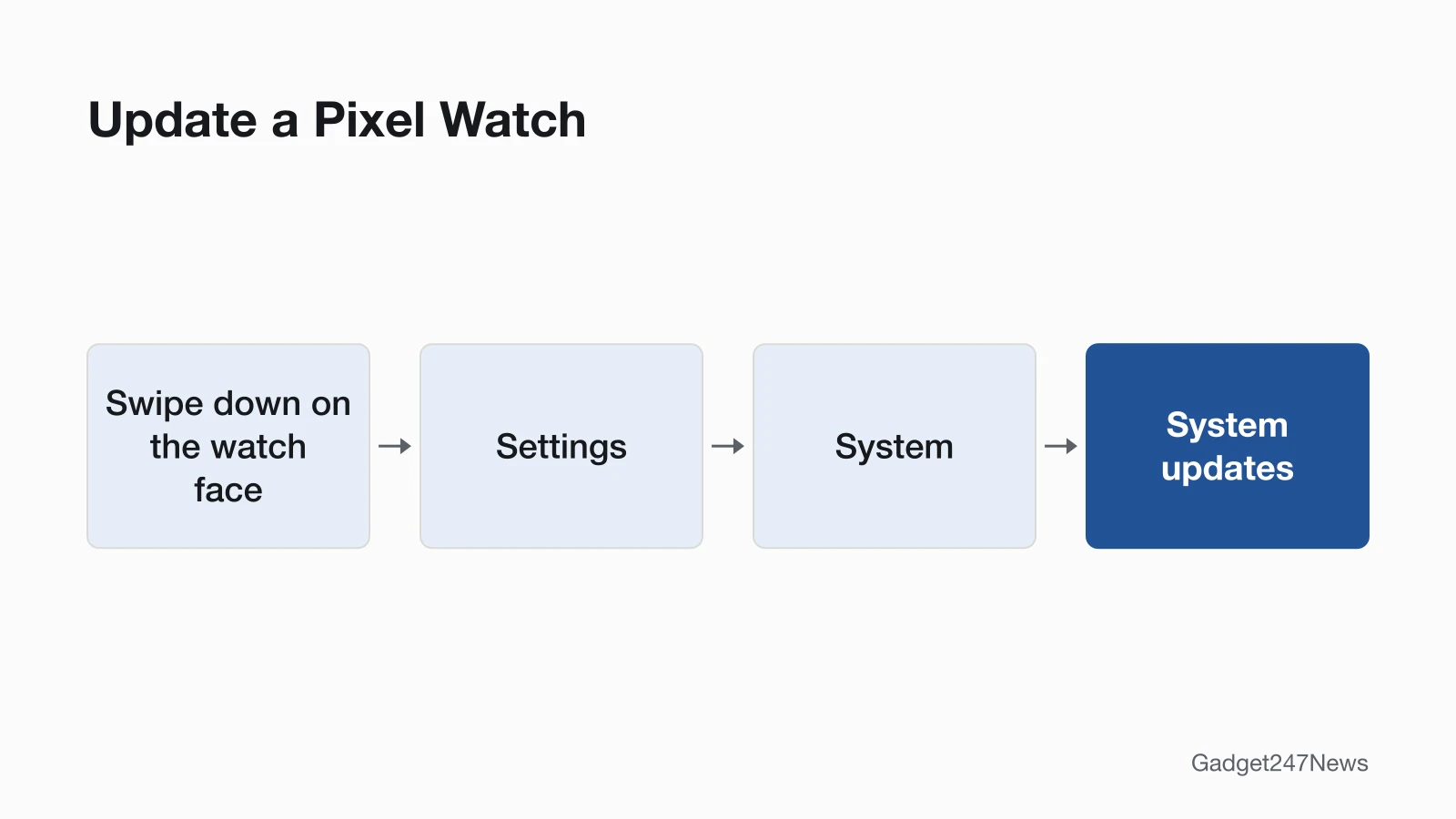
Put your Pixel Watch on its charger with at least 50% battery and Wi-Fi on, then tap Settings › System › System updates. Google installs the update on the watch itself and restarts it when it's done; to see what each update changed, use the Pixel Watch updates on the Update Tracker. For other Pixel Watch problems, start at Pixel Watch Problems and Fixes.
How to Update Your Pixel Watch
To update a Pixel Watch, charge it, connect it to Wi-Fi and start the check from the watch's own Settings:
- Put the watch on its charger and let it reach at least 50%.
- Connect the watch to Wi-Fi.
- Swipe down on the watch face and tap Settings › System › System updates. The watch checks for available updates; if there isn't one, it shows a message that it's up to date.
- Let the update install. The screen shows that the watch is preparing for an update, and you can't use it until the install finishes.
- Wait for the restart. When the installation is complete, the watch reboots. Then check the version (steps below).
Google says keeping the watch and phone up to date "can help resolve pairing issues and app errors", so update the apps next.
Update Your Watch Apps and the Google Pixel Watch App
Google gives the watch apps and the phone's Google Pixel Watch app their own update steps, apart from the system update. It tells you to update "the system software and apps on both your watch and phone".
On the watch:
- Press the crown.
- Tap Play Store › Manage apps › Update All.
On your phone:
- Open the Google Play Store and tap the profile icon at the top right.
- Tap Manage apps & device › Updates available.
- Next to "Google Pixel Watch", tap Update.
Google's update page doesn't say whether the phone has to stay nearby during a system update.
Can Your Pixel Watch Get the Latest Software?
Google guarantees Pixel Watch software updates for at least 3 years from when each model first became available on the Google Store in the US. Its table gives these dates:
| Model | Release date | Guaranteed software updates until at least |
|---|---|---|
| Pixel Watch 5 | October 2026 | October 2029 |
| Pixel Watch 4 | October 2025 | October 2028 |
| Pixel Watch 3 | October 2024 | October 2027 |
| Pixel Watch 2 | October 2023 | October 2026 |
| Pixel Watch (first model) | October 2022 | October 2025 |
Google says these updates include security updates and "may include feature drops and other software updates".
How to Check Your Pixel Watch Software Version
To check your Pixel Watch software version, open About in the watch's System settings:
- Swipe down on the watch face and tap Settings.
- Tap System › About, then tap Versions.
Under Versions, Build number shows the software build; Google uses the same path to check the Android security update level. Compare the build number with the one listed for your model on the tracker.
Does Pixel Watch Update Automatically?
A Pixel Watch installs a waiting update by itself once its battery passes 50%. Google says: "If the battery is at less than 50%, Pixel Watch will periodically check its battery status and begin installing automatically when the battery reaches over 50% charge." Google's September 2026 update post adds that "Users will receive a notification on their watch once the software update becomes available."
If Your Pixel Watch Won't Update
If your Pixel Watch won't update, check Google's three conditions first: at least 50% charge, on its charger and connected to Wi-Fi. Below 50%, the install waits until the battery passes 50%. If it still won't update, run Google's fix:
- Press and hold both the crown and the side button for 20 seconds.
- Wait for the watch to fully reboot.
- Go to Settings › Connectivity › Bluetooth and turn off Bluetooth.
- Go to Settings › Connectivity › Wi-Fi and turn on Wi-Fi.
- Go to Settings › System › System updates.
Google's fix leaves Bluetooth off, so turn it back on afterwards at Settings › Connectivity › Bluetooth. If the screen freezes, restart or reset a frozen Pixel Watch: hold the crown for 3 seconds, scroll down and tap Restart. If the watch screen shows "Disconnected", fix the link to your phone with Pixel Watch Not Connecting to Your Phone.
What Changed in the Latest Update?
Build numbers, release dates and known issues for each release are on Fitbit and Pixel Watch Updates. Google's September 2026 release reaches watches in stages; its post says "The rollout will continue over the coming weeks in phases depending on carrier and device."
Get an email when a Pixel Watch update breaks something, and when it's fixed.
Pixel Watch Update Questions
Every Pixel Watch model uses the same update path, so these answers point back to it.
How do I update my Pixel Watch 3?
You update a Pixel Watch 3 the same way as every other model: on the charger, at least 50% battery and Wi-Fi on, then Settings › System › System updates. Google's update page has no separate path per model, and Google guarantees Pixel Watch 3 updates until at least October 2027.
Why won't my Pixel Watch 2 update?
A Pixel Watch 2 that won't update needs the same three things as other models: at least 50% charge, its charger and Wi-Fi. Below 50%, a waiting update installs by itself once the battery is over 50%. If it still won't start, run Google's fix above, which starts with a 20-second hold of the crown and side button.
Does Pixel Watch have Wear OS 6?
Yes, on eligible models: Google's October 2025 update post says "All eligible Pixel Watch devices will receive WearOS 6" and lists Pixel Watch 2 and Pixel Watch 3. Its September 2026 post says "All eligible Pixel Watch devices will receive a Wear OS 7 update." To see what yours runs, tap Settings › System › About › Versions.
Sources
We checked this page against the pages below, most recently on . How we verify fixes
- Install & update apps on Google Pixel Watch (Google, support.google.com)Official
- Learn when you'll get software updates for Google Pixel Watch (Google, support.google.com)Official
- Google Pixel Watch Community: Google Pixel Watch Update - September 2026 (Google, support.google.com)Official
- Google Pixel Watch Community: Google Pixel Watch Update - October 2025 (Google, support.google.com)Official
- Fix a blank, frozen, or error message on the Google Pixel Watch screen (Google, support.google.com)Official
- Set up Google Pixel Watch (Google, support.google.com)Official
- Fix notification issues on your Google Pixel Watch (Google, support.google.com)Official