Pixel Watch Not Connecting to Your Phone? How to Fix It

By Suraj Giri, Founder & Publisher. Reviewed by Suraj Giri on .
Published · 6 min read
How this page was made
- Sources. Checked against 9 official pages from Google, most recently on . See the sources.
- No device testing. We don't test fixes on physical devices, so nothing on this page is a hands-on result. A fact counts as verified only when it matches an official source page.
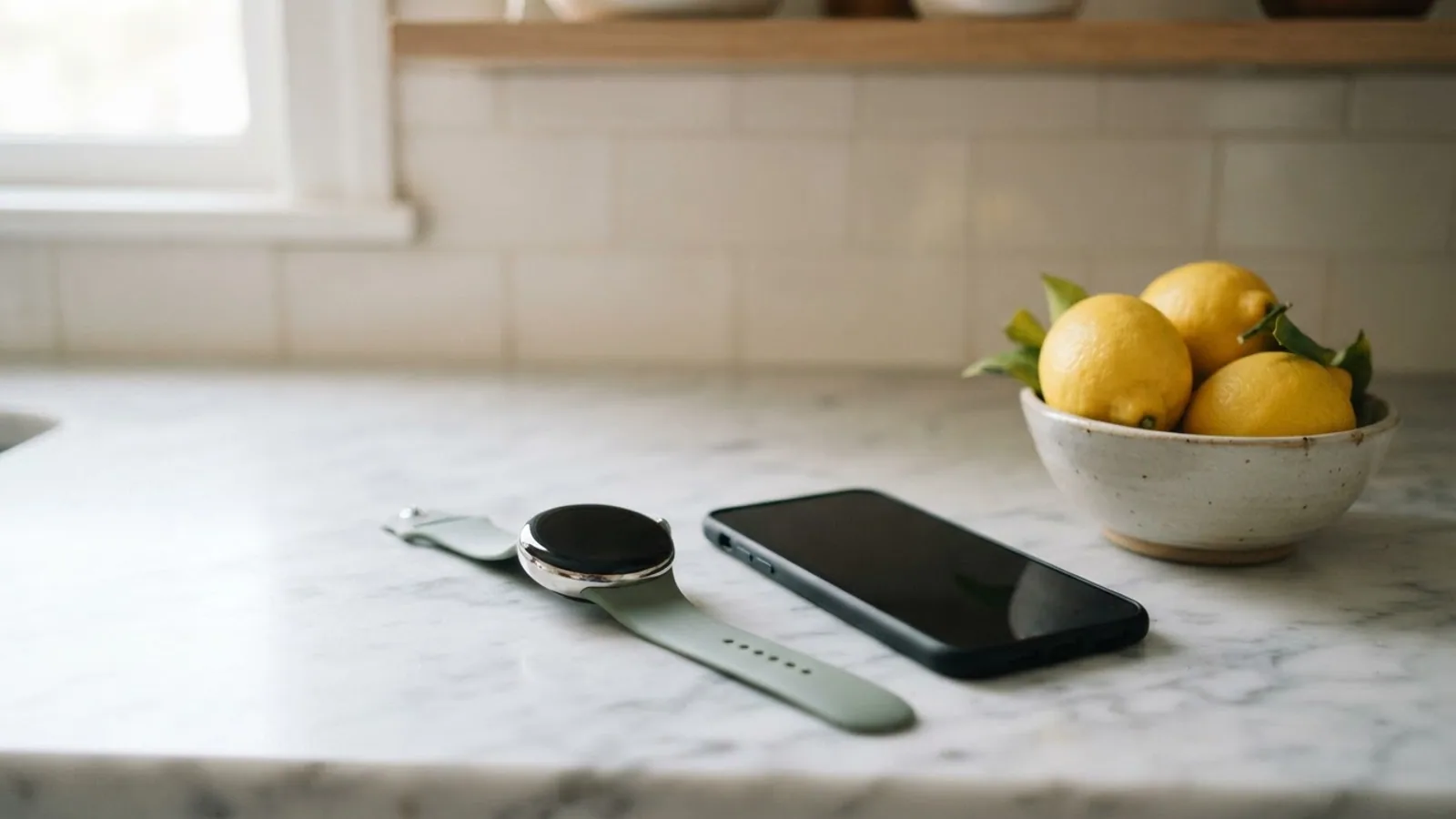
- AI use. As with every page on Gadget247News, AI tools helped research, outline, draft and edit this page, and re-read the official pages to flag facts that didn't match. The illustration at the top was generated with Runway and is labelled under the image.
- Human sign-off. Suraj Giri, Founder & Publisher, read this page and signed it off on . The site won't publish a page without that sign-off.
- Changes. The published and updated dates move only when the content changes, and every change gets a dated note. Spot an error or a fix that didn't work? Email info@gadget247news.com.
Read our AI use policy, editorial policy and corrections policy.
A Pixel Watch that's not connecting was paired with your Android phone before, but the link has dropped and the Google Pixel Watch app no longer shows it as Connected. A watch that never paired needs setup instead, covered in the new-phone section below. If the app says Connected but your steps or sleep never arrive, that's a sync fault, not a connection fault. The full list of Pixel Watch fixes covers battery, charging and reset problems too.
An Apple Watch, Galaxy Watch, Fitbit, Garmin or Oura Ring uses different steps. For those, see what to do when a smartwatch keeps disconnecting from your phone.
Why Your Pixel Watch Won't Connect to Your Phone
A Pixel Watch won't connect to your phone for 5 reasons, all taken from Google's own checks and fixes:
- Bluetooth is off on your phone.
- Airplane Mode is on, on the phone or on the watch.
- The Pixel Watch app's nearby permission isn't set to Allow, so the app can't use Android's permission to find and connect to nearby devices.
- Your phone is offline. Google's checklist asks that the phone is connected to the Internet.
- The watch software is frozen. Google says a restart should resolve a frozen screen or an unresponsive touchscreen.
One cause has no fix: an unsupported phone. iPhones aren't supported, and each model needs a minimum Android version (table below).
How to Fix a Pixel Watch That Won't Connect
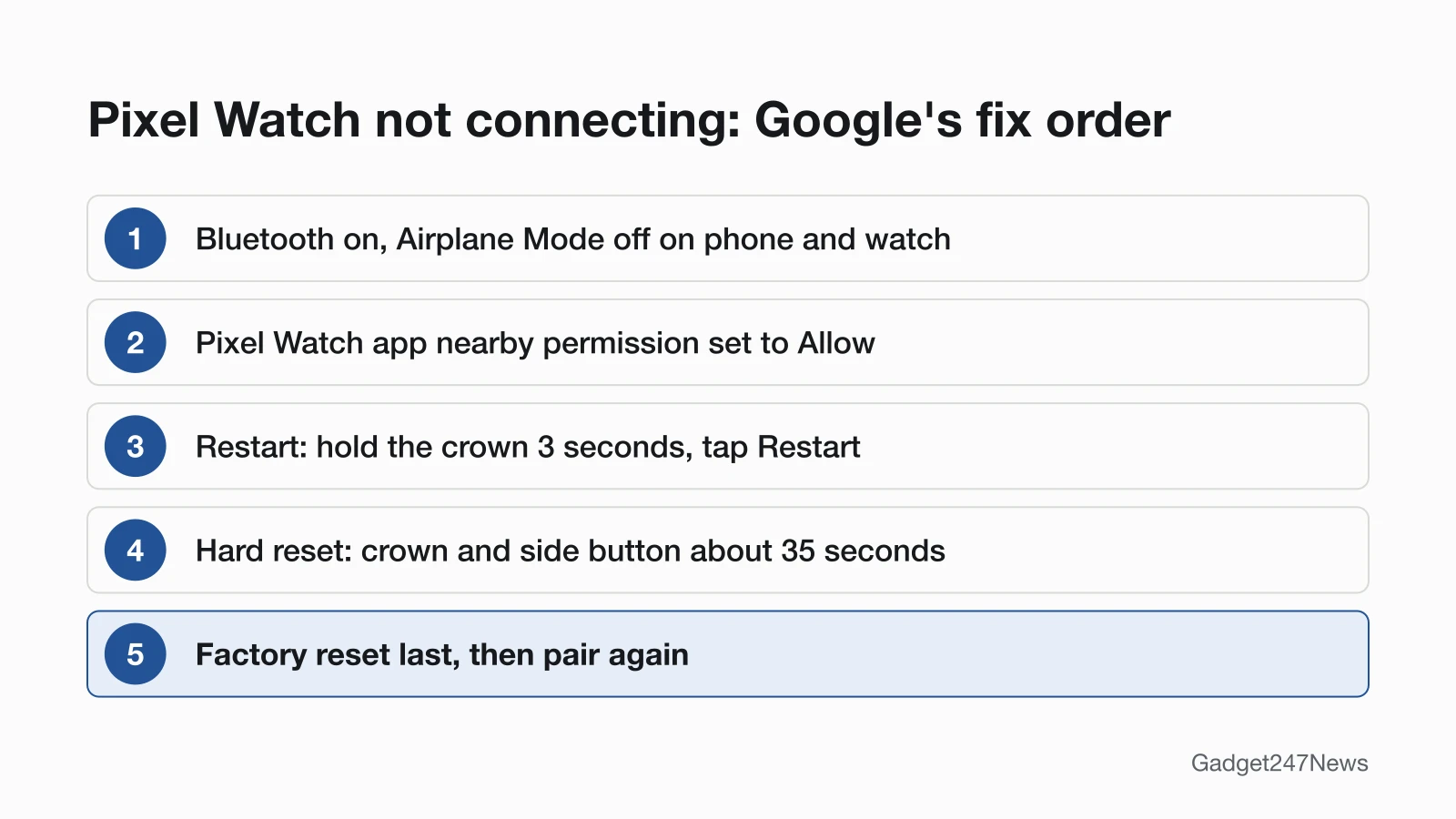
These follow Google's own order; the factory reset comes last. After each fix, check the status in the Google Pixel Watch app before you move on.
Fix 1: Check the Connection Status
Open the Google Pixel Watch app on your phone: a working link shows your watch as Connected on the app's home screen. Google uses that same status as the first check when a Pixel Watch won't sync. On the watch itself, Google's setup guide says "Disconnected" appears on the screen when the phone and watch aren't connected. Not Connected means you work through Fixes 2 to 6 in order.
Fix 2: Turn On Bluetooth and Turn Off Airplane Mode
Turn Bluetooth on, then clear Airplane Mode on both devices:
- On your phone, open the Settings app and tap Connected devices › Connection preferences › Bluetooth, and make sure Bluetooth is turned on.
- Turn off Airplane Mode on your phone and on your Pixel Watch. Google's checklist names both devices.
- Connect the phone to Wi-Fi or cellular data (LTE), because Google's list also asks that your phone is connected to the Internet.
If the app still doesn't show Connected, the permission check is next.
Fix 3: Allow the Pixel Watch App's Nearby Permission
Google's checklist says the Pixel Watch app nearby permission must be set to Allow. Change it in your phone's settings:
- Open the Settings app and tap Apps.
- Tap Google Pixel Watch. If you can't find it, tap See all apps, then choose it.
- Tap Permissions, tap Nearby devices and choose Allow.
Android describes Nearby devices as the permission to "find, connect to, and determine the relative position of nearby devices". Set to Don't allow, the app can't use that permission.
Fix 4: Restart Your Pixel Watch
Restart the watch next; it's step 1 in Google's section for a watch that isn't connected to Bluetooth:
- Press and hold the crown for 3 seconds.
- Scroll down and tap Restart.
When the watch face is back, open the Google Pixel Watch app and check for Connected again.
Fix 5: Hard Reset a Frozen Watch
If the screen is still unresponsive after a restart, hard reset the watch:
- Press and hold the crown and side button for about 35 seconds, or longer.
- Let go when the "G" logo appears. Google says the watch "should restart and be ready to use shortly".
A hard reset forces a restart; it isn't a factory reset. Google's page puts its erase warning on the factory reset only and doesn't say what a hard reset does to your data.
Fix 6 (Last): Factory Reset and Pair Again
Factory reset the watch only when Fixes 1 to 5 fail, because Google warns that all your apps, settings, and data are erased. On the watch, swipe down and tap Settings, then Disconnect & reset and Ok. From your phone, open the Google Pixel Watch app and tap System › Reset and unpair watch. Then set the watch up again and sign in with your most recent PIN or Google Account login. The step-by-step guide shows how to factory reset a Pixel Watch and what to expect after.
Connection Problems With New Phones and iPhone
Two connection failures follow their own rules: moving the watch to a new phone, and trying to use it with an iPhone.
Pixel Watch Won't Connect to a New Phone
A new phone needs Transfer watch, not a normal reconnect, and Google notes that it requires Wear OS 4. On the watch, swipe down and tap Settings › System › Transfer watch; or, on the old phone, open the Google Pixel Watch app and tap System › Transfer watch › Start Transfer. Google gives two reasons for a "Can't connect" message: you're pairing the watch to the same phone after factory resetting that phone, or to a phone it used before without pairing it to a different phone first. Google's fix for both is to back up the watch, factory reset it and pair it again. For setup from scratch, see how to pair a Pixel Watch with your phone.
Can a Pixel Watch Connect to an iPhone?
No. Google's compatibility page says "iPhones aren't supported", and each Pixel Watch needs an Android phone at or above the version below.
| Model | Android version Google lists |
|---|---|
| Pixel Watch | 8.0 or newer |
| Pixel Watch 2 | 9.0 or newer |
| Pixel Watch 3 | 10.0 or newer |
| Pixel Watch 4 | 11.0 or newer |
| Pixel Watch 5 | 12.0 or newer |
A phone below your model's version isn't on Google's compatible list, so check it before you try the fixes above.
Still not working?
- Try the next fix: Pixel Watch sync fixes (if it connects but your data doesn't update).
- Reset your Google Pixel Watch: factory reset a Pixel Watch (you'll need to pair it again afterwards).
- Contact Google Support: Google Pixel Watch Help.
- Check repair or warranty options: Replace or file a warranty claim for Google Pixel Watch.
Started after an update? Check the Update Tracker for known issues.
Started After an Update?
If the watch suddenly stopped connecting right after an update, bring everything else up to date too. Google's pairing checklist has you update the Pixel Watch firmware, the Pixel Watch app and your phone's firmware. Once all three are current, look up Pixel Watch update known issues for reports about your watch's software.
Pixel Watch Connection: Quick Answers
Why is my Pixel Watch not connecting to my Pixel 8 Pro?
A Pixel 8 Pro needs the same checks as any Android phone: Bluetooth on, Airplane Mode off on both devices, the phone online and the nearby permission set to Allow. Google's connection page has no separate steps for Pixel phones, and its compatibility list goes by Android version, not phone model. If every check passes, restart the watch.
Does Pixel Watch need Wi-Fi to connect to my phone?
Your Pixel Watch links to your phone over Bluetooth, and Google's before-you-begin checklist doesn't ask for Wi-Fi, only that the phone is connected to the Internet. Google's connection page ties Wi-Fi to one error: a "Network error" message in the Google Pixel Watch app may mean the phone isn't on Wi-Fi. With its Wi-Fi on, the watch joins networks saved on your phone, except 5GHz networks and ones that open a page before you can connect.
Will a factory reset fix a Pixel Watch that won't connect?
A factory reset helps resolve "Can't pair" and "Can't find your watch" errors in the Google Pixel Watch app, Google says, but it comes last. It erases all your apps, settings and data, and you pair the watch again afterwards. Try the Bluetooth, Airplane Mode, permission, restart and hard reset fixes first.
Sources
We checked this page against the pages below, most recently on . How we verify fixes
- Fix Bluetooth, connection, and LTE issues on Google Pixel Watch (Google, support.google.com)Official
- Fix a blank, frozen, or error message on the Google Pixel Watch screen (Google, support.google.com)Official
- Why won't my Fitbit device sync? (Google Health Help, Google Pixel Watch series) (Google, support.google.com)Official
- Change app permissions on your Android phone (Google, support.google.com)Official
- Fix notification issues on your Google Pixel Watch (Google, support.google.com)Official
- How to upgrade your Pixel Watch or connected phone without losing data (Google, support.google.com)Official
- Compatibility requirements & region availability for Pixel Watch (Google, support.google.com)Official
- Fix Pixel Watch setup and phone pairing issues (Google, support.google.com)Official
- Set up Google Pixel Watch (Google, support.google.com)Official