How to Pair a Pixel Watch With Your Android Phone

By Suraj Giri, Founder & Publisher. Reviewed by Suraj Giri on .
Published · 4 min read
How this page was made
- Sources. Checked against 7 official pages from Google, most recently on . See the sources.
- No device testing. We don't test fixes on physical devices, so nothing on this page is a hands-on result. A fact counts as verified only when it matches an official source page.
- AI use. As with every page on Gadget247News, AI tools helped research, outline, draft and edit this page, and re-read the official pages to flag facts that didn't match. The illustration at the top was generated with Runway and is labelled under the image.
- Human sign-off. Suraj Giri, Founder & Publisher, read this page and signed it off on . The site won't publish a page without that sign-off.
- Changes. The published and updated dates move only when the content changes, and every change gets a dated note. Spot an error or a fix that didn't work? Email info@gadget247news.com.
Read our AI use policy, editorial policy and corrections policy.
Place your Pixel Watch near your Android phone with Bluetooth on, open the Google Pixel Watch app, select your watch and tap Pair when the codes match. Pixel Watch pairs only with Android phones; Google says iPhones aren't supported. For any other Pixel Watch problem, start from Pixel Watch fixes; for other brands, see smartwatch not connecting.
How to Pair Your Pixel Watch With Your Phone
To pair a Pixel Watch with your phone, turn the watch on, then let the Google Pixel Watch app find it and match a code:
- Turn on the watch: press and hold the crown for about 3 seconds and wait for the screen to light up.
- On your phone, turn on Bluetooth, allow location permissions and install or update the Google Pixel Watch app from the Google Play Store.
- Place the watch near the phone. If your phone supports fast pairing, a message appears on its screen; if it doesn't, open the Google Pixel Watch app to start.
- Follow the on-screen instructions in the app and select your Pixel Watch. A matching pairing code shows on both the app and the watch; if the codes match, tap Pair. Google says pairing "can take a few minutes to complete."
- Sign in to your Google Account, pick a backup or Don't restore, choose your wrist and crown orientation, then tap Start using your watch or Set up more.
Fitness tracking in the Google Health app (formerly the Fitbit app) is optional at this point: Google Health is one of the features listed under Set up more.
How to Check Your Pixel Watch Is Paired
Google gives one sign on each device:
- The Google Pixel Watch app shows your watch as Connected on its home screen once the two link up.
- The watch screen shows "Disconnected" if the watch and phone aren't connected.
How to Connect Your Pixel Watch to a New Phone
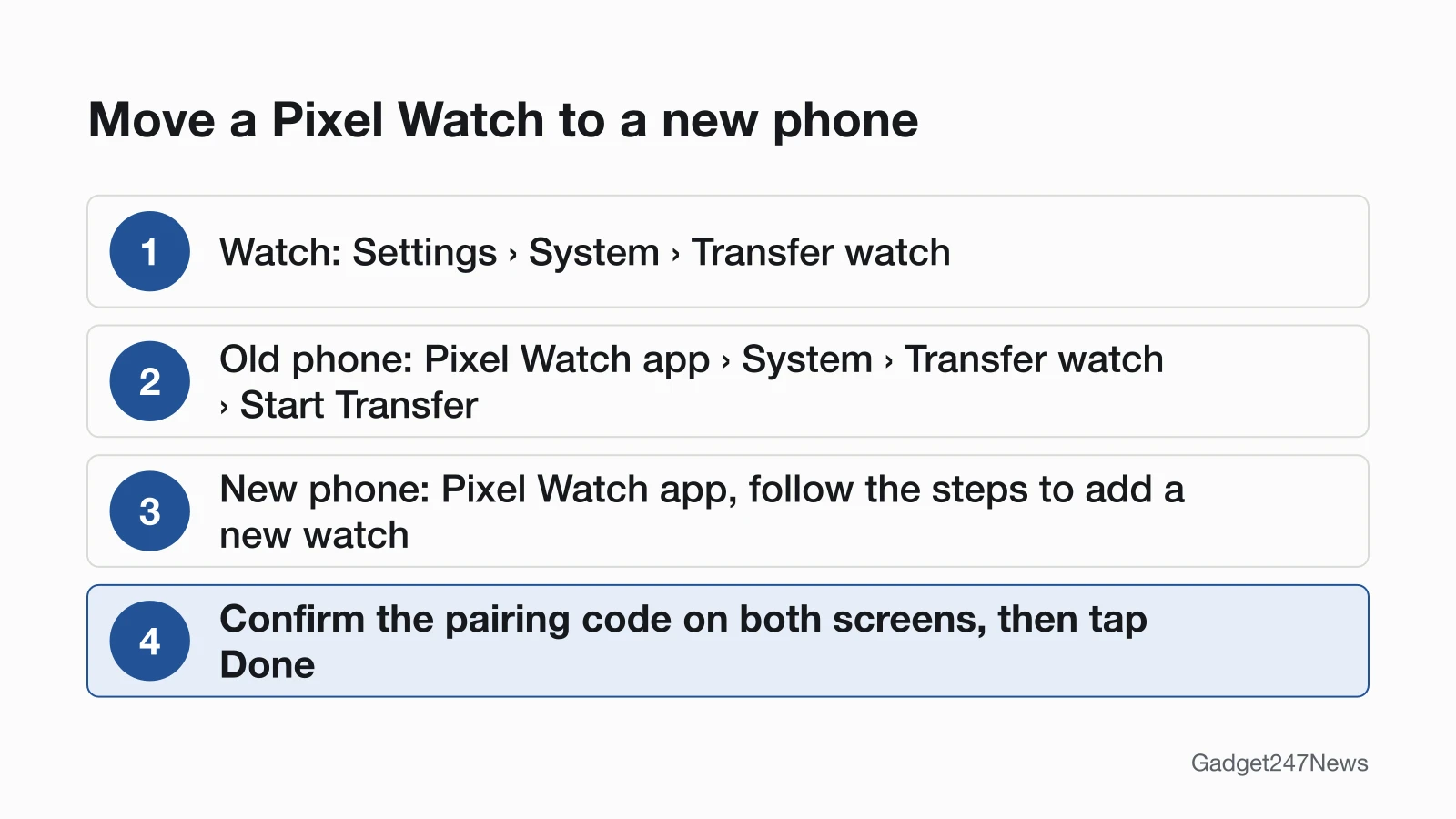
You can move a Pixel Watch to a new phone without a factory reset: Google's Transfer watch feature does it, and Google notes it requires Wear OS 4. The transfer runs on three screens:
- On the watch: swipe down, then tap Settings › System › Transfer watch.
- On the old phone: open the Google Pixel Watch app and tap System › Transfer watch › Start Transfer › Done.
- On the new phone: open the Google Pixel Watch app and follow the steps to add a new watch. Confirm the pairing code on both the watch and the new phone, sign in to your Google Account if asked, then tap Done.
The watch unpairs from the old phone only after the transfer to the new phone succeeds. Back up the watch before you connect it to the new phone: Google says a backup "can take up to a few days to complete," so start it early. To start it, open the Google Pixel Watch app and tap Google › Backup › Turn on while the watch is on Wi-Fi and sitting on its charger.
Pair Again After a Factory Reset
A factory reset erases the watch, so you pair it again with the five steps above. Google says to "sign in with your most recent PIN or Google Account login" when you pair again. Google's help lists two causes for a "Can't connect" message: pairing to the same phone after that phone was factory reset, or to a previously paired phone without pairing a different phone in between. The fix is to back up the watch, factory reset it and pair it again; see how to reset a Pixel Watch.
Does a Pixel Watch Work With iPhone?
No Pixel Watch works with an iPhone. Google's compatibility page says "iPhones aren't supported", and each generation needs an Android phone at or above a set version:
| Model | Android version | iPhone |
|---|---|---|
| Pixel Watch | 8.0 or newer | Not supported |
| Pixel Watch 2 | 9.0 or newer | Not supported |
| Pixel Watch 3 | 10.0 or newer | Not supported |
| Pixel Watch 4 | 11.0 or newer | Not supported |
| Pixel Watch 5 | 12.0 or newer | Not supported |
The reverse question, using an Apple Watch with Android, has its own page.
If Your Pixel Watch Won't Pair
A Pixel Watch that won't pair usually fails on one of four points:
- The phone runs an Android version below the one your model needs (table above).
- Bluetooth is off, or the phone sits more than 0.5 m (1.6 ft) from the watch, which Fast Pair needs.
- Location or Wi-Fi is off, or the phone has no Wi-Fi or mobile network connection.
- The watch freezes while pairing: press and hold the crown for 3 seconds, then tap Restart. Codes that don't match get the same restart before a retry.
A watch that paired but drops the link later is a connection fault; see Pixel Watch won't connect to your phone.
Pairing Questions
Three questions come up once the watch is paired: moving phones, iPhone support and alarms.
Can I connect my Pixel Watch to a new phone without resetting it?
Yes. Transfer watch moves a Pixel Watch to a new phone with no factory reset and no lost data, on a watch running Wear OS 4. Reset only if the transfer shows "Can't connect" (see above).
Can Google Pixel Watch connect to an iPhone?
No. Google's answer is the same for every model from the first Pixel Watch to Pixel Watch 5: "iPhones aren't supported." Each model needs an Android phone at the version in the table above.
Does pairing sync my alarms?
Alarms sync through a separate setting, Alarm sync, in the phone's Clock app. Open Clock, tap More › Settings, turn on Alarm sync, then choose your watch and tap Sync. Once synced, Google says both devices alert you for each alarm. The feature is available for Pixel Watch 2 and later paired with Pixel phones. Health-data sync is a separate topic, covered on Pixel Watch Not Syncing.
Sources
We checked this page against the pages below, most recently on . How we verify fixes
- Set up Google Pixel Watch (Google, support.google.com)Official
- Compatibility requirements & region availability for Pixel Watch (Google, support.google.com)Official
- How to upgrade your Pixel Watch or connected phone without losing data (Google, support.google.com)Official
- Fix Pixel Watch setup and phone pairing issues (Google, support.google.com)Official
- Fix a blank, frozen, or error message on the Google Pixel Watch screen (Google, support.google.com)Official
- Why won't my Fitbit device sync? (Google Health Help) (Google, support.google.com)Official
- Set and manage alarms on Google Pixel Watch (Google, support.google.com)Official