How to Restart or Factory Reset a Pixel Watch

By Suraj Giri, Founder & Publisher. Reviewed by Suraj Giri on .
Published · 4 min read
How this page was made
- Sources. Checked against 4 official pages from Google, most recently on . See the sources.
- No device testing. We don't test fixes on physical devices, so nothing on this page is a hands-on result. A fact counts as verified only when it matches an official source page.
- AI use. As with every page on Gadget247News, AI tools helped research, outline, draft and edit this page, and re-read the official pages to flag facts that didn't match. The illustration at the top was generated with Runway and is labelled under the image.
- Human sign-off. Suraj Giri, Founder & Publisher, read this page and signed it off on . The site won't publish a page without that sign-off.
- Changes. The published and updated dates move only when the content changes, and every change gets a dated note. Spot an error or a fix that didn't work? Email info@gadget247news.com.
Read our AI use policy, editorial policy and corrections policy.
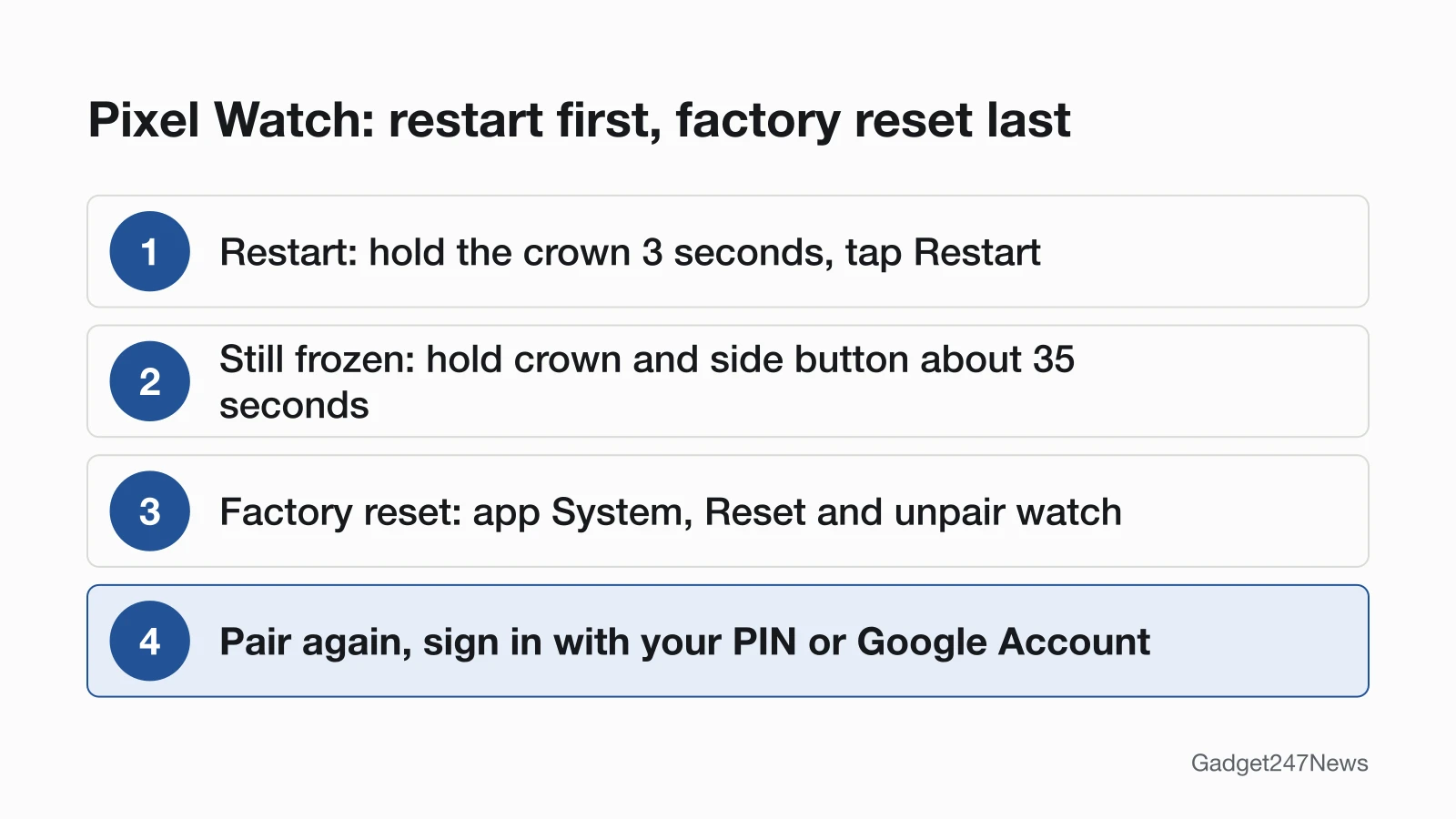
To restart a Pixel Watch, press and hold the crown for 3 seconds, then tap Restart. To factory reset it, tap System › Reset and unpair watch in the Google Pixel Watch app, or Settings › Disconnect & reset on the watch; this erases the watch, so try a restart first. This guide is part of Pixel Watch Problems and Fixes; to factory reset a smartwatch from another brand, use the cross-brand guide.
Restart vs Hard Reset vs Factory Reset
A restart reboots the watch, a hard reset forces that reboot when the screen won't respond, and a factory reset erases the watch:
| Option | How | What it does | Use it when |
|---|---|---|---|
| Restart | Hold the crown 3 seconds, tap Restart | Restarts the watch | The watch face is frozen or blank, or the touchscreen won't respond |
| Hard reset (force restart) | Hold the crown and side button about 35 seconds, until the "G" logo appears | Forces the watch to restart | The screen is still unresponsive after a restart |
| Factory reset | Google Pixel Watch app, or Settings on the watch | Erases "all your apps, settings, and data" | Last step, or the app shows "Can't pair" or "Can't find your watch" |
Google's page doesn't say whether a hard reset keeps your data; its erase warning covers the factory reset only.
How to Restart a Pixel Watch
To restart a Pixel Watch, use the crown:
- Press and hold the crown for 3 seconds.
- Scroll down and tap Restart.
After the restart, wait until the watch is fully on.
How to Hard Reset a Frozen Pixel Watch
To hard reset a frozen Pixel Watch, hold both controls at once:
- Press and hold the crown and the side button for about 35 seconds, or longer.
- Let go when the "G" logo appears. Google says the watch should then "restart and be ready to use shortly".
Use only the crown and side button: Google warns against inserting items such as paper clips into the mic hole on the side of the watch.
How to Factory Reset a Pixel Watch
You can factory reset a Pixel Watch from the Google Pixel Watch app on your phone or from the watch's own menu. Both routes erase all your apps, settings and data.
Factory Reset From the Google Pixel Watch App
- On your phone, open the Google Pixel Watch app.
- Tap System.
- Tap Reset and unpair watch.
Factory Reset on the Watch
- Swipe down and tap Settings.
- Tap Disconnect & reset.
- Tap Ok.
Google's page gives this one watch route, with no separate steps for Pixel Watch 2 or any other model.
How to Check the Reset Worked and Pair Again
The reset and pairing have worked when "Connected" appears in the Google Pixel Watch app; if the phone and watch aren't connected, Google says "Disconnected" appears on the watch screen instead. After a factory reset, Google's next step is to reconnect your phone and watch with the normal setup:
- Place the watch near your Android phone with Bluetooth on.
- If your phone supports fast pairing, a message appears on its screen when pairing can begin. If it doesn't, open the Google Pixel Watch app, follow the on-screen instructions and select your Pixel Watch.
- When asked, sign in with your most recent PIN or Google Account login.
If you made a backup, you can restore it as you pair. Every setup screen is covered in How to pair a Pixel Watch with your Android phone.
If Resetting Your Pixel Watch Doesn't Work
A watch that restarts fine but still won't talk to your phone needs the steps for Pixel Watch not connecting to the Pixel Watch app, not another reset.
Pixel Watch Won't Restart or Stays Black
If a restart and a hard reset don't bring the screen back, hard reset the watch again while it's connected to the charger. Google lists this as step 4, for a screen that "remains unresponsive" after its factory reset steps. A watch that stays dark even on the charger may have a power problem instead, covered in Pixel Watch won't turn on.
Pixel Watch Won't Factory Reset
When the watch won't factory reset, Google moves to your phone: uninstall the Pixel Watch app, go to Settings › Connected devices and forget any watch listed, restart the phone, then keep the watch and phone near each other until the pairing screen appears. If that fails, Google's next route is a factory reset from Fastboot mode; follow its button and screen sequence on Fix a blank, frozen, or error message on the Google Pixel Watch screen. If it still hasn't reset after all of Google's steps, contact Google support.
PIN and Google Account After a Reset
When you pair the watch again after a factory reset, Google asks you to sign in with your most recent PIN or Google Account login, to help "prevent others from using your device without permission". A forgotten PIN is on Google's list of problems a factory reset helps resolve. We don't publish ways around this check; if you can't sign in, contact Google support.
Reset Questions
How do I restart my Pixel Watch 4?
Press and hold the crown for 3 seconds, then scroll down and tap Restart. Google's restart steps don't single out a model, and the Google help pages we checked give no separate Pixel Watch 4 method.
Does a factory reset delete everything on a Pixel Watch?
Yes. Google says that when you factory reset your watch, all your apps, settings, and data are erased. You then pair the watch again, sign in with your most recent PIN or Google Account login, and can restore a backup if you made one.
Where is the reset button on a Pixel Watch?
There isn't one: Google says the Pixel Watch "doesn't have a physical reset button". Restart it with the crown, and hard reset it by holding the crown and side button together until the "G" logo appears.
Sources
We checked this page against the pages below, most recently on . How we verify fixes
- Fix a blank, frozen, or error message on the Google Pixel Watch screen (Google, support.google.com)Official
- Fix Pixel Watch setup and phone pairing issues (Google, support.google.com)Official
- How to upgrade your Pixel Watch or connected phone without losing data (Google, support.google.com)Official
- Set up Google Pixel Watch (Google, support.google.com)Official