Pixel Watch Won't Turn On? Causes and Fixes

By Suraj Giri, Founder & Publisher. Reviewed by Suraj Giri on .
Published · 6 min read
How this page was made
- Sources. Checked against 6 official pages from Google, most recently on . See the sources.
- No device testing. We don't test fixes on physical devices, so nothing on this page is a hands-on result. A fact counts as verified only when it matches an official source page.
- AI use. As with every page on Gadget247News, AI tools helped research, outline, draft and edit this page, and re-read the official pages to flag facts that didn't match. The illustration at the top was generated with Runway and is labelled under the image.
- Human sign-off. Suraj Giri, Founder & Publisher, read this page and signed it off on . The site won't publish a page without that sign-off.
- Changes. The published and updated dates move only when the content changes, and every change gets a dated note. Spot an error or a fix that didn't work? Email info@gadget247news.com.
Read our AI use policy, editorial policy and corrections policy.
This guide is for a Google Pixel Watch whose screen stays black, or that freezes on a blank screen or the "G" logo. Google groups the two together: if your Pixel Watch won't turn on or becomes unresponsive, you may need to restart or hard reset it. A watch that turns on but won't charge, or charges slowly, belongs on the charging guide linked in Fix 2. For other faults, start at Pixel Watch not working.
Other watches, such as an Apple Watch or a Galaxy Watch, are covered in restart vs reset on a smartwatch. We checked each step below against Google's Pixel Watch Help pages on September 27, 2026.
Why Your Pixel Watch Won't Turn On
A Pixel Watch stays dark for one of four reasons:
- A fully drained battery. After more than a day off the charger, Google says the charging screen may take longer than usual to appear.
- The wrong charger, or a bad fit on it. Each model group has one Google charger, and the charging points have to meet the pins.
- Frozen software. Google says a restart should resolve a frozen or blank watch face that won't turn on.
- A hardware fault. If a hard reset on the charger doesn't bring the watch back, Google's next step is to contact support.
How to Fix a Pixel Watch That Won't Turn On
These follow Google's Pixel Watch help pages: charge first, force restart last.
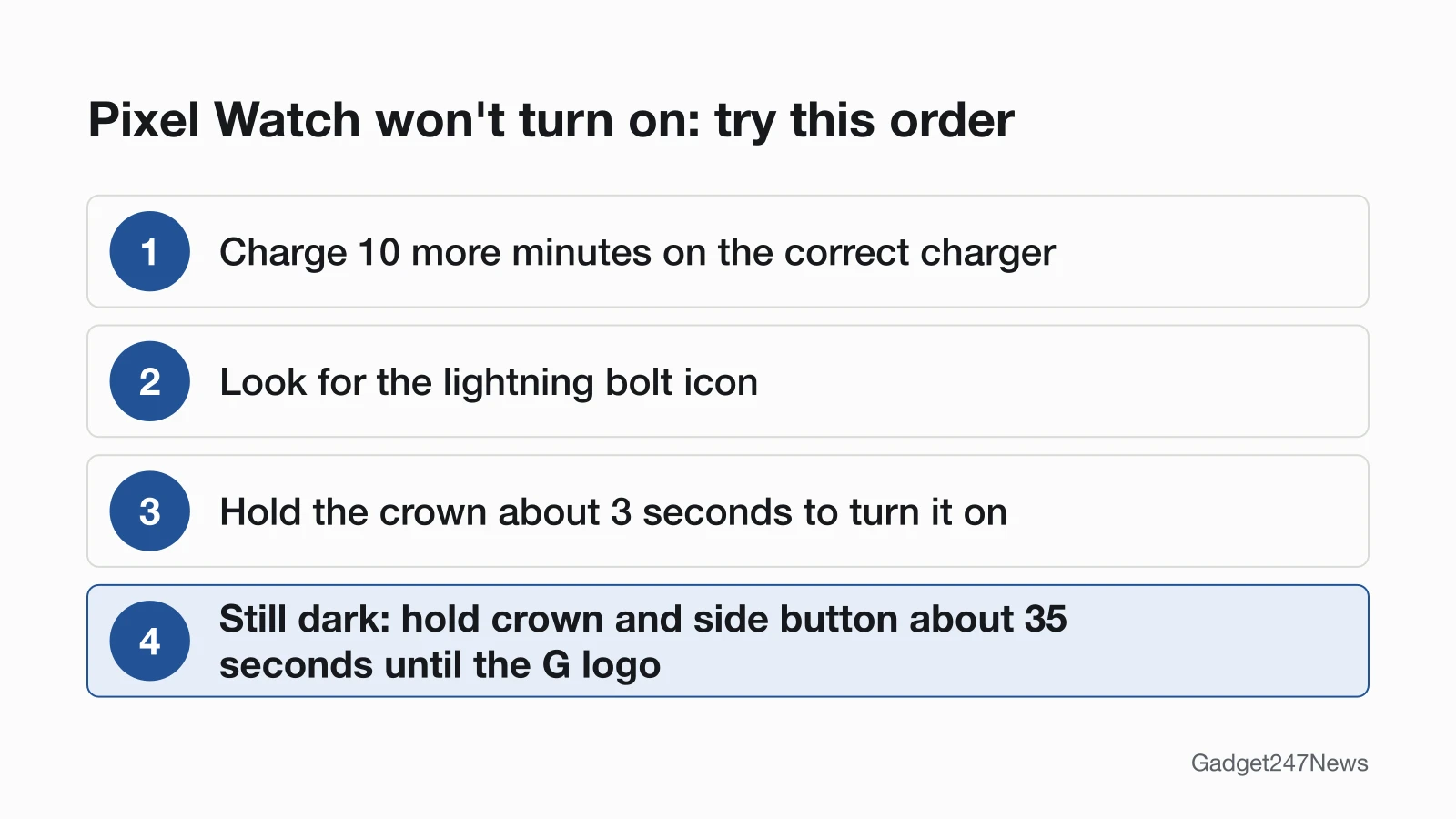
Fix 1: Charge It for 10 More Minutes and Watch for the Signs
Once the watch is properly seated on the correct charger and the screen is still blank, Google says to let it charge for 10 more minutes. The signs then come in this order:
| Model group | First sign | Second sign | Startup sign |
|---|---|---|---|
| Pixel Watch 2, 3, 4 and 5 | Lightning bolt icon in about 8 seconds | Press the crown at about 35 seconds to see a low percentage | Colored "G" after 7 minutes |
| Pixel Watch | Lightning bolt icon in about 1 minute | Low percentage at about 2.5 minutes, then long-press the crown after 5 to 15 minutes to turn it on (white "G") | Colored "G" after 7 to 16 minutes |
The colored "G" means the watch is booting up and will keep charging. For a switched-off watch that has already charged for at least 10 to 30 minutes, Google says a press of the crown shows its charging status. If no lightning bolt shows at all, move to the charger check in Fix 2.
Fix 2: Check the Charger and How It Sits
- Match the charger to the model: Pixel Watch 4 and 5 take the Quick Charge Dock, Pixel Watch 2 and 3 the USB-C fast charging cable, and the first Pixel Watch the USB-C magnetic wireless charger.
- Take the watch off the charger. Put it back so its charging points rest on the pins, with the crown pointing in the same direction as the cable.
- Make sure the back of the watch is clean and the charging pins aren't stuck or damaged.
A Pixel Watch 4 or 5 helps with this check: it alerts you when it sits misaligned on the dock and shows a notification when the charger is unsupported. Charge times for each model, and why a watch can stay at 80%, are in the Pixel Watch charging fixes.
Fix 3: Turn It On With the Crown
- Press and hold the crown for about 3 seconds.
- Wait for the screen to light up.
The first Pixel Watch, charging from flat, has one extra step in Google's charging page: after 5 to 15 minutes on the charger, long-press the crown to turn it on, and a white "G" appears.
Fix 4 (Last): Force Restart (Hard Reset)
- Hold down the crown and side button together for about 35 seconds. Keep holding if nothing shows yet.
- Release both once the "G" logo comes up.
Google says the watch should then restart and be ready to use shortly.
Still unresponsive? Put the watch on its charger and repeat the hard reset there; that's Google's step for a screen that stays unresponsive. Your Pixel Watch has no physical reset button, and Google warns against inserting items such as paper clips into the mic hole on its side. Google's page doesn't say whether a hard reset keeps your data, but it does say a factory reset erases all your apps, settings and data. That's why the factory reset lives in the guide to reset a Pixel Watch, not in this list.
Specific Cases
Three situations change what you check first.
Pixel Watch 2 Won't Turn On
A Pixel Watch 2 charges only on the USB-C fast charging cable that came with it, and it fits the dock only one way; placed the wrong way round, it won't charge. Seated correctly, it should show the lightning bolt about 8 seconds after the extra 10 minutes, and the colored "G" after 7 minutes. Google puts a full Pixel Watch 2 charge at about 75 minutes. If the screen stays dark, run the hard reset in Fix 4.
Stuck on the "G" Logo or an Error Message
A colored "G" during charging is normal: it means the watch is booting up. A watch that freezes on the "G" logo is different. Google lists a frozen screen with the "G" logo and the "Something went wrong" error among the problems a factory reset fixes, after you first try the restart steps. Because that reset erases the watch, it's covered on the reset guide linked in Fix 4.
Won't Turn On After Water Exposure
Don't charge a wet Pixel Watch. Google says to wipe the watch and the charger before you charge, and a Pixel Watch 4 or 5 alerts you when it detects moisture. Google's care page says to dry the watch well, but never with a heat source such as a hair dryer, or with compressed air. If a dry watch still stays dark, contact Google support.
Still not working?
Still not working?
- Try the next fix: Pixel Watch charging fixes (if the charging signs never appear).
- Reset your Google Pixel Watch: reset a Pixel Watch (you'll need to pair it again afterwards).
- Contact Google Support: Google Pixel Watch Help.
- Check repair or warranty options: Replace or file a warranty claim for Google Pixel Watch.
Started after an update? Check the Update Tracker for known issues.
Related Problems
Turns on but won't charge. If the watch starts but its percentage never rises, the fault is charging, not power. The charging guide in the list above covers it, including the Battery Defender pause at 80%.
Frozen and won't turn off. A screen that stays frozen after a restart needs the hard reset from Fix 4: hold the crown and side button for about 35 seconds until the "G" logo appears.
Pixel Watch Power: Quick Answers
Why won't my Pixel Watch 2 turn on?
Check the charge and the fit first: a Pixel Watch 2 charges only on its USB-C fast charging cable, and only one way round. Give it 10 more minutes and look for the lightning bolt. If the screen still won't wake, hold the crown and side button for about 35 seconds.
How do I turn on a Pixel Watch?
Press and hold the crown for about 3 seconds and wait for the screen to light up. A first-generation Pixel Watch charging from flat turns on with a long press of the crown after 5 to 15 minutes on the charger.
How long does a dead Pixel Watch take to turn on?
After 10 more minutes on the correct charger, Google's steps put the colored "G" at 7 minutes on a Pixel Watch 2, 3, 4 or 5, and at 7 to 16 minutes on the first Pixel Watch. The "G" means the watch is booting up and will keep charging.
Sources
We checked this page against the pages below, most recently on . How we verify fixes
- Fix a Google Pixel Watch that won't charge (Google, support.google.com)Official
- Fix a blank, frozen, or error message on the Google Pixel Watch screen (Google, support.google.com)Official
- Set up Google Pixel Watch (Google, support.google.com)Official
- Charge Google Pixel Watch and tips to improve battery life (Google, support.google.com)Official
- Clean & care for Google Pixel Watch (Google, support.google.com)Official
- Replace or file a warranty claim for Google Pixel Watch (Google, support.google.com)Official