Pixel Watch Not Charging? Causes and Fixes

By Suraj Giri, Founder & Publisher. Reviewed by Suraj Giri on .
Published · 7 min read
How this page was made
- Sources. Checked against 7 official pages from Google, most recently on . See the sources.
- No device testing. We don't test fixes on physical devices, so nothing on this page is a hands-on result. A fact counts as verified only when it matches an official source page.
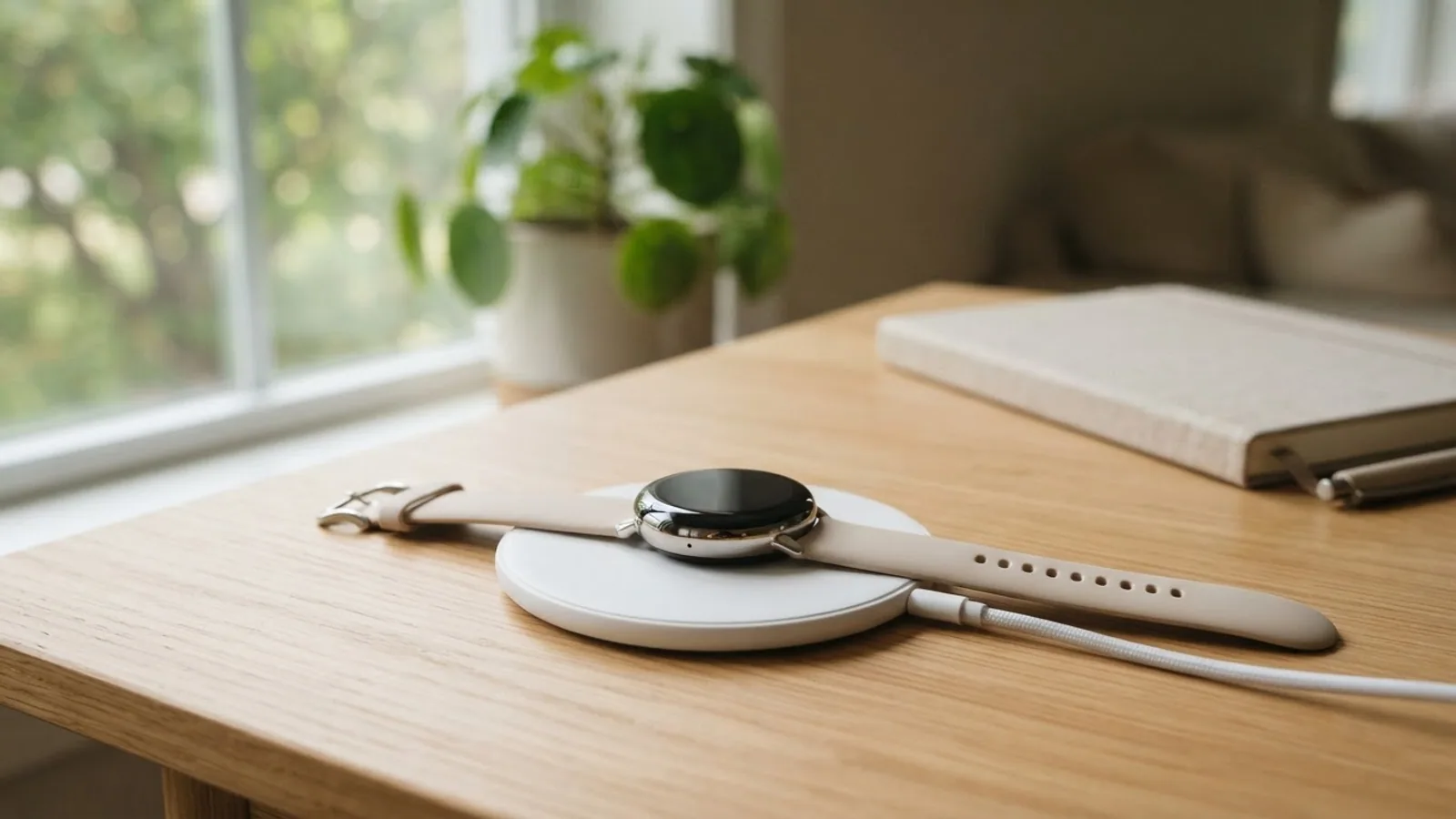
- AI use. As with every page on Gadget247News, AI tools helped research, outline, draft and edit this page, and re-read the official pages to flag facts that didn't match. The illustration at the top was generated with Runway and is labelled under the image.
- Human sign-off. Suraj Giri, Founder & Publisher, read this page and signed it off on . The site won't publish a page without that sign-off.
- Changes. The published and updated dates move only when the content changes, and every change gets a dated note. Spot an error or a fix that didn't work? Email info@gadget247news.com.
Read our AI use policy, editorial policy and corrections policy.
This guide is for a Google Pixel Watch that sits on its charger but shows no sign of charging, or whose percentage won't rise. A dark screen is covered too, through Google's timed signs in Fix 6; if it still won't power on, use the won't-turn-on guide linked at the end. A watch that charges and then empties fast has a drain fault instead. For every other fault, start at Pixel Watch not working.
Apple Watch, Galaxy Watch, Fitbit, Garmin and Oura Ring owners need the smartwatch charging fixes guide instead. We checked every step below against Google's Pixel Watch Help pages on September 27, 2026.
Why Your Pixel Watch Isn't Charging
A Pixel Watch stops charging for six reasons, listed in the order of Google's own charging steps:
- A very low battery. A watch that hasn't charged in more than a day can take longer than usual to show the charging screen.
- The wrong charger for your model. Google names one charger for each Pixel Watch model group.
- Poor seating. The charging points on the watch miss the pins, or the crown doesn't face the same way as the cable.
- A dirty back or stuck pins. Google's connection check asks for a clean back and charging pins that aren't stuck or damaged.
- Old firmware. Google lists a firmware update as one of its charging steps.
- A hardware fault. When every step fails, Google's page ends with its help community and a Contact us link.
How to Fix a Pixel Watch That Won't Charge
These follow Google's own order on its Pixel Watch charging page; a restart comes last.
Fix 1: Check the Battery Level
Swipe down on the watch face and find the battery level next to the Settings icon. If the number is rising, the watch is charging, only slowly. Google's charge times per model:
| Model | To 50% | To 80% | To 100% |
|---|---|---|---|
| Pixel Watch 4 and 5 (41 mm) | About 15 minutes | About 25 minutes | About 45 minutes |
| Pixel Watch 4 and 5 (45 mm) | About 15 minutes | About 35 minutes | About 60 minutes |
| Pixel Watch 3 (41 mm) | About 24 minutes | About 35 minutes | About 60 minutes |
| Pixel Watch 3 (45 mm) | About 28 minutes | About 50 minutes | About 80 minutes |
| Pixel Watch 2 | About 30 minutes | About 43 minutes | About 75 minutes |
| Pixel Watch | About 45 minutes | About 75 minutes | About 110 minutes |
Google bases the Pixel Watch 2 and 3 times on a 30W adapter (sold separately) and the first Pixel Watch on an 18W adapter, both in a wall outlet.
If the level stays at 80% or less, Battery Defender may be on: after 4 days or longer on the charger, the watch pauses charging to protect the battery. Take it off the charger and place it back to charge past 80%.
Fix 2: Use the Charger Made for Your Model
Charge with only the charger Google names for your model group:
| Model | Charger Google says to use |
|---|---|
| Pixel Watch 4 and 5 | Quick Charge Dock, included with your purchase |
| Pixel Watch 2 and 3 | USB-C fast charging cable, included with your purchase |
| Pixel Watch | USB-C magnetic wireless charger that comes with the watch |
For the Pixel Watch 1, 2 and 3, Google warns that different chargers might not work and could damage the watch. Reverse wireless charging from a Pixel phone isn't supported.
Fix 3: Seat the Watch Correctly
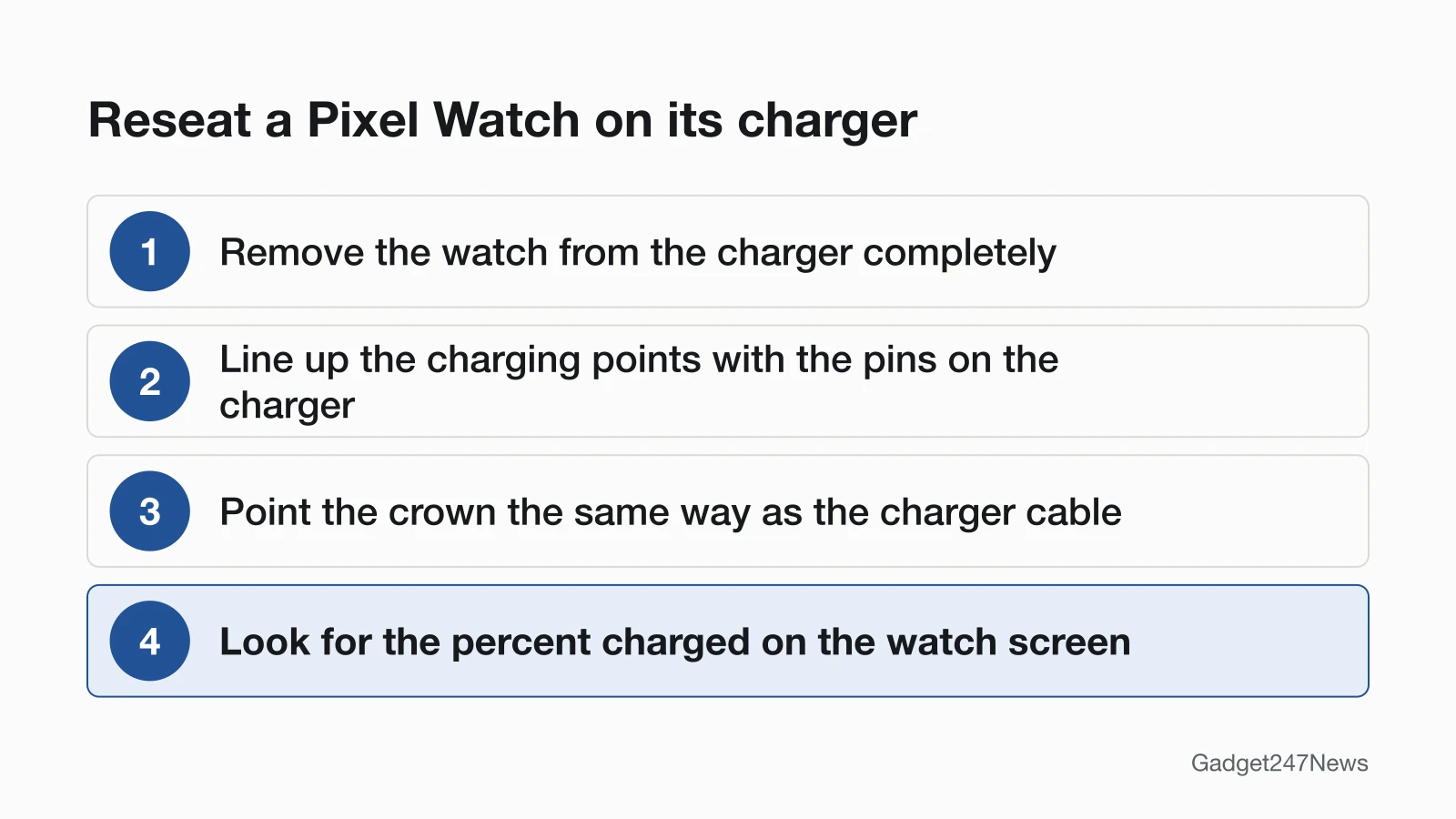
Reseat the watch in three steps from Google's connection check:
- Remove the watch from the charger completely.
- Place it so the charging points on the back line up with the pins on the charger.
- Turn it so the crown points the same way as the cable that comes out of the charger.
A Pixel Watch 2 or 3 fits its dock only one way and won't charge the wrong way round. The watch shows a notification when it isn't placed correctly; once the percent charged appears on screen, Google says the issue is resolved. On a Pixel Watch 4 or 5, clear the area around the dock so the watch rests in it properly.
Fix 4: Clean the Back and Check the Pins
Google's connection check says to make sure "the back of the Watch is clean and the charging pins aren't stuck or damaged". Google's care page adds that regular cleaning helps the watch charge better, and gives the method:
- Turn off the watch and remove it from the charger.
- Clean it gently with a soft, dry, lint-free cloth.
- For built-up dirt, lightly dampen the cloth with fresh water and keep moisture out of every opening.
- Dry the watch with a non-abrasive, lint-free cloth.
Don't insert objects into the charging pins on a Pixel Watch 2 or 3, or into the Quick Charge Dock of a Pixel Watch 4 or 5. Don't charge a wet watch: Google says to wipe the watch and the charger first, and a Pixel Watch 4 or 5 alerts you when it detects moisture. If a pin looks damaged, contact Google (option 3 under Still not working? below).
Fix 5: Update the Watch Software
Google lists a firmware update as step 4 of its charging fixes. For the best update experience, the watch should be on its charger, charged to at least 50% and connected to Wi-Fi. Below 50%, it starts installing by itself once the battery passes 50%. The menu path is in the guide to update your Pixel Watch.
Fix 6: Watch the Screen for Charging Signs
If the screen stays dark on the right charger, let it charge 10 more minutes, then look for these signs. Google lists them in this order:
| Sign | Pixel Watch 2, 3, 4 and 5 | Pixel Watch |
|---|---|---|
| Lightning bolt icon | After about 8 seconds | After about 1 minute |
| Low percentage | Press the crown after about 35 seconds | On screen after about 2.5 minutes |
| Turn it on | Not listed | Long-press the crown after 5 to 15 minutes; a white "G" appears |
| Colored "G" | After 7 minutes | After 7 to 16 minutes |
The colored "G" means the watch is booting up and will keep charging. Google adds one more check: when the watch is turned off and has been charging for at least 10 to 30 minutes, press the crown to see its charging status.
Fix 7 (Last): Keep It on the Charger, Then Restart
Restart the watch while it stays on the charger: press and hold the crown for 3 seconds, scroll down and tap Restart. If the screen is frozen, hard reset it: press and hold the crown and side button for about 35 seconds, or longer, until the "G" logo appears. Google's last step for a screen that stays unresponsive is that hard reset with the watch connected to the charger. A factory reset erases all your apps, settings and data, so it isn't a charging fix; the guide to reset a Pixel Watch covers it.
Charging Problems by Model and Symptom
Two cases need a check of their own.
Pixel Watch 4 and 5: Quick Charge Dock Only
Pixel Watch 4 and 5 charge only on the Quick Charge Dock included with the watch; an older USB-C fast charging cable from a Pixel Watch 2 or 3 isn't on Google's list for them. When charging starts, the screen shows a brief animation. Both models alert you if the charger is misaligned and show a notification when the charger is unsupported.
Shows the Charging Symbol but Won't Charge
The lightning bolt is the first of Google's charging signs, not the last. Leave the watch seated and follow the timed signs in Fix 6: a low percentage comes next, then the colored "G" as the watch boots up. If it never gets past the bolt to a percentage or the "G", post to the Pixel Watch help community or use Contact us, the two routes Google's charging page ends with.
Still not working?
Still not working?
- Try the next fix: Pixel Watch not turning on (if the screen stays dark on the charger).
- Reset your Google Pixel Watch: reset a Pixel Watch (you'll need to pair it again afterwards).
- Contact Google Support: Google Pixel Watch Help.
- Check repair or warranty options: Replace or file a warranty claim for Google Pixel Watch.
Started after an update? Check the Update Tracker for known issues.
Related Problems
Charges but drains fast. A Pixel Watch that reaches 100% and then empties well before its rated time has a drain fault, not a charging one. The guide to a Pixel Watch battery draining fast covers Battery Saver, Always-on Display and each model's rated battery life.
Still won't turn on. If the screen stays black through the timed signs and a hard reset on the charger, use the won't-turn-on guide in the list above. It adds Google's turn-on step with the crown.
Pixel Watch Charging: Quick Answers
Why is my Pixel Watch 4 not charging?
A Pixel Watch 4 charges only on its Quick Charge Dock, so check the charger first. Then take the watch off the dock and set it back with the charging points on the pins and the crown facing the cable. If the screen stays dark, give it 10 more minutes and look for the lightning bolt.
Why is my Pixel Watch not charging or turning on?
A fully drained Pixel Watch can show nothing at first: after more than a day without charge, the charging screen takes longer than usual to appear. On the right charger, Google's timed signs follow (Fix 6). If none appear, use the won't-turn-on guide linked above.
How long should a dead Pixel Watch charge before it turns on?
Google's steps start with 10 more minutes on the correct charger. After that, a Pixel Watch 2, 3, 4 or 5 shows the colored "G" after 7 minutes as it boots up. The first Pixel Watch shows it after 7 to 16 minutes, and you long-press its crown after 5 to 15 minutes of charging to turn it on.
Sources
We checked this page against the pages below, most recently on . How we verify fixes
- Fix a Google Pixel Watch that won't charge (Google, support.google.com)Official
- Charge Google Pixel Watch and tips to improve battery life (Google, support.google.com)Official
- Fix a blank, frozen, or error message on the Google Pixel Watch screen (Google, support.google.com)Official
- Install & update apps on Google Pixel Watch (Google, support.google.com)Official
- Set up Google Pixel Watch (Google, support.google.com)Official
- Clean & care for Google Pixel Watch (Google, support.google.com)Official
- Replace or file a warranty claim for Google Pixel Watch (Google, support.google.com)Official